
Uninstall Filesets
What
When software is no longer needed, the removal method depends on how it was originally deployed. This article outlines the common FileWave uninstall paths and where a custom uninstaller is still required.
Options
Self-Healing
If a Fileset uses Self Healing and Download if Missing for tracked files, disassociating the Fileset removes the files that are part of that Fileset.
MSI
Windows MSI Filesets can invoke the package's uninstaller. On a FileWave 17.0 Client, intended removal requires Self Healing on the installer file and Use MSI uninstaller enabled. Ignore At Verify (Left Behind) suppresses the uninstaller even when it is enabled. Review the saved settings before changing assignments, then check the uninstall result; enabling an option does not guarantee that every vendor uninstaller succeeds.

PKG/EXE
PKG and EXE installers do not provide the same built-in uninstall behavior as MSI packages. In many cases the Fileset only tracks the installer itself, not every file created by the installation. If the software vendor does not provide a separate uninstall PKG, EXE, or script, you will usually need to build your own removal script.
Apple VPP & Android Play Store
Disassociating these Filesets sends a command to remove the application.
Linux packages (FileWave 17.0+)
First identify whether the application uses a native uploaded DEB Fileset or a catalog Linux Package Fileset. Their removal controls are different. Keep the Deployment in place after a successful installation while the application should remain managed; removal is not a required final step.
- Native DEB: review the installer file's verification setting and Use uninstaller. On a 17.0 Client, Ignore At Verify (Left Behind) prevents its uninstaller from running when the Fileset is removed, even if Use uninstaller is checked. Use the native DEB procedure in Deploy Linux Software with FileWave for the supported installation and removal sequence.
- Linux Package catalog: Uninstall when made passive controls package removal when the Fileset becomes passive. With that option disabled, making it passive leaves the package installed. This is separate from Upgrade automatically at verify and from native DEB installer verification.
Before removal, protect required data, review application dependencies and check whether another Deployment still requires the Fileset. Removing a package is not a promise to erase user data or remove every dependency. Publish the intended assignment change only after reviewing shared pending work, then check FileWave's removal result and the device's actual package state.
APT repositories and signing keys: package removal and repository cleanup are separate. FileWave-managed source and keyring files can be cleaned up when no active Linux Package Fileset requires them; leaving a package installed does not guarantee that FileWave-managed repository metadata remains. A source used by another active Fileset must be retained, and vendor-managed sources can remain after package removal. Do not delete vendor or shared repositories and keys merely because one Fileset was removed. Review the ownership and remaining users of the repository before any separate cleanup.
Other Files
Applications often create supporting files after first launch, such as preferences, caches, or user data. If you need to remove those items too, you will normally need a separate cleanup method.
Why
Removing unused software helps keep devices clean, reduces confusion for users, and can support security and license-management goals.
When
Knowing how to uninstall software is only half of the job. You also need to decide when the uninstall should run.
At first glance it may seem natural to place a pre- or post-uninstaller script inside the same Fileset as the installer. That can work against you when the application is updated.
As vendors release updates, you may replace the installer with a new Fileset or a new Fileset revision. Self-Healing handles matching files cleanly during that swap, but any uninstall script inside the installer Fileset can also run during the change, which is usually not what you want.
How
A common way to control this is to separate installation and removal logic by using a Fileset Group.
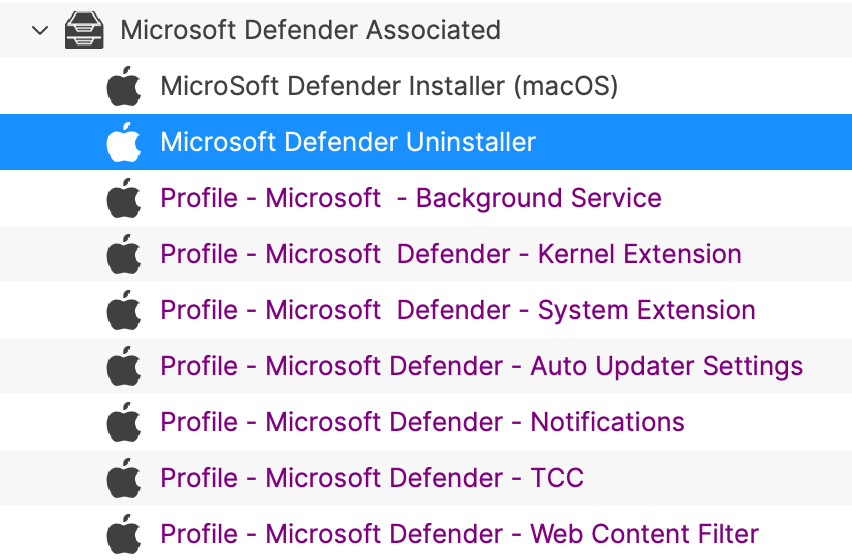
In the example below, the Fileset Group for Microsoft Defender includes the installer Fileset, related profiles, and a separate uninstaller Fileset. Devices are associated with the Fileset Group, not directly with the uninstaller.
The uninstaller Fileset uses a pre-uninstallation script:
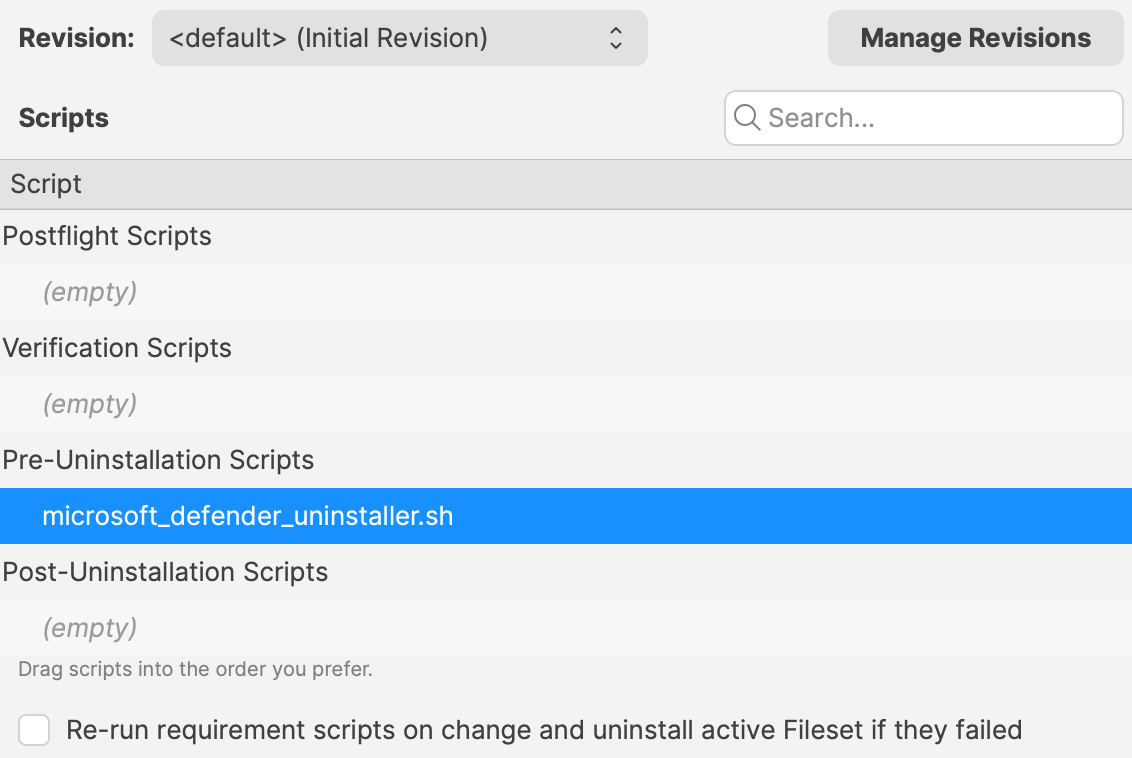
This makes installer updates straightforward. You can replace the installer Fileset or swap revisions inside the group without firing the uninstall. The uninstall runs only when the Fileset Group itself is disassociated from the device.
PKG/EXE Uninstallers
If a vendor supplies an uninstall PKG, it is usually cleaner to place that PKG in an otherwise empty Fileset and trigger it from an uninstall script, similar to the Microsoft Defender example above.
Trying to auto-associate a separate uninstall PKG exactly when the original installer is disassociated can be difficult to control reliably.
EXE-based uninstallers have the same issue. A practical pattern is to upload the uninstall EXE to an empty Fileset and call it from a pre- or post-uninstallation script.
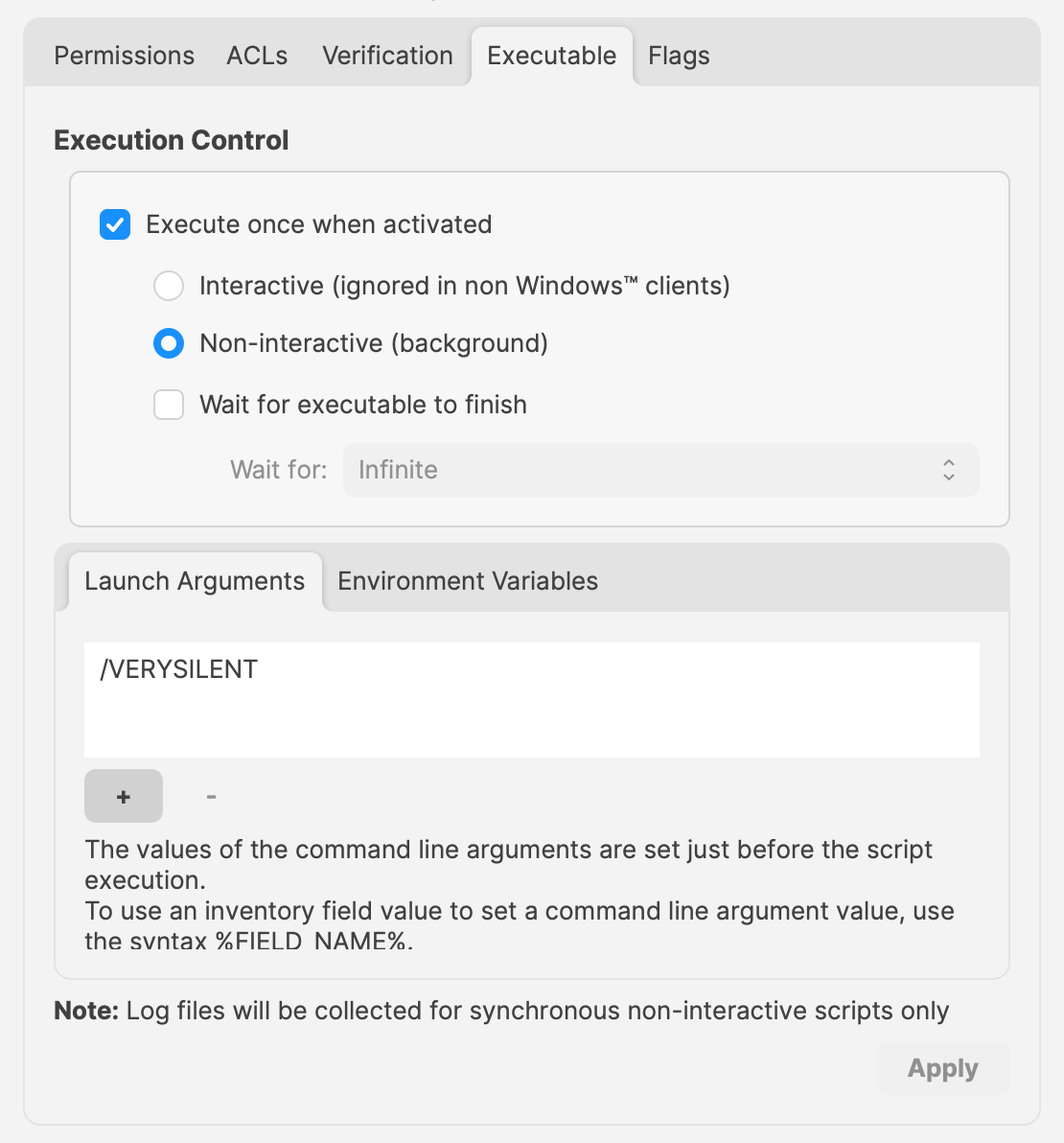
This gives you a dedicated uninstaller Fileset that can be added to a Fileset Group and triggered only when you actually want removal to occur.
No comments to display
No comments to display