
Apple Profiles & Dependencies
Description
FileWave dependencies are useful when one Fileset must install before another. Apple MDM profile Filesets need extra care because profile delivery depends on APNs and the device's MDM check-in timing, not just the FileWave Client sequence.
Fileset Activation Quick Re-cap
Standard Fileset
- The client checks in.
- The client receives its manifest.
- New items are downloaded and activated.
Apple MDM Fileset (Profiles)
- FileWave sends an APNs request to Apple.
- The device receives the queued APNs notification.
- The device contacts the FileWave Server for the MDM command.
- The device checks in.
- FileWave sends the queued MDM command, such as
InstallProfile. - Profile installs.
For standard Filesets, FileWave controls the client communication sequence. For Apple MDM profiles, the install time depends on APNs delivery, device connectivity, and the device's next MDM check-in.
The Issue
Filesets install sequentially. If a standard Fileset could depend directly on an Apple MDM profile Fileset, the client could wait indefinitely for the profile to finish, which would delay other Filesets and configuration. For this reason, Apple MDM Filesets can depend on other Fileset types, but standard Filesets should not depend directly on Apple MDM Filesets.
Requirement Scripts
Requirement Scripts let a Fileset fail its requirement check, allow the client to continue, and try the requirement again 2 minutes later. The requirement keeps retrying while the script returns a non-zero exit code. Use this pattern to delay a Fileset until the required Apple profiles are installed.
Ingredients
- A Mac enrolled in FileWave MDM and running the FileWave Client. The downloadable Requirement Script uses the macOS profiles utility; it does not run on iPhone or iPad.
- Fileset designed to use a Requirement Script to ensure Profile is installed prior to activation
- Associated Profile ID(s)
Configure the template before assigning it. The supplied script returns success when its Launch Arguments list is empty, so an unconfigured template does not wait for any profile. Add at least one Profile ID and set all_or_one explicitly before testing.
Profile Dependency Fileset Template.fileset.zip
Directions
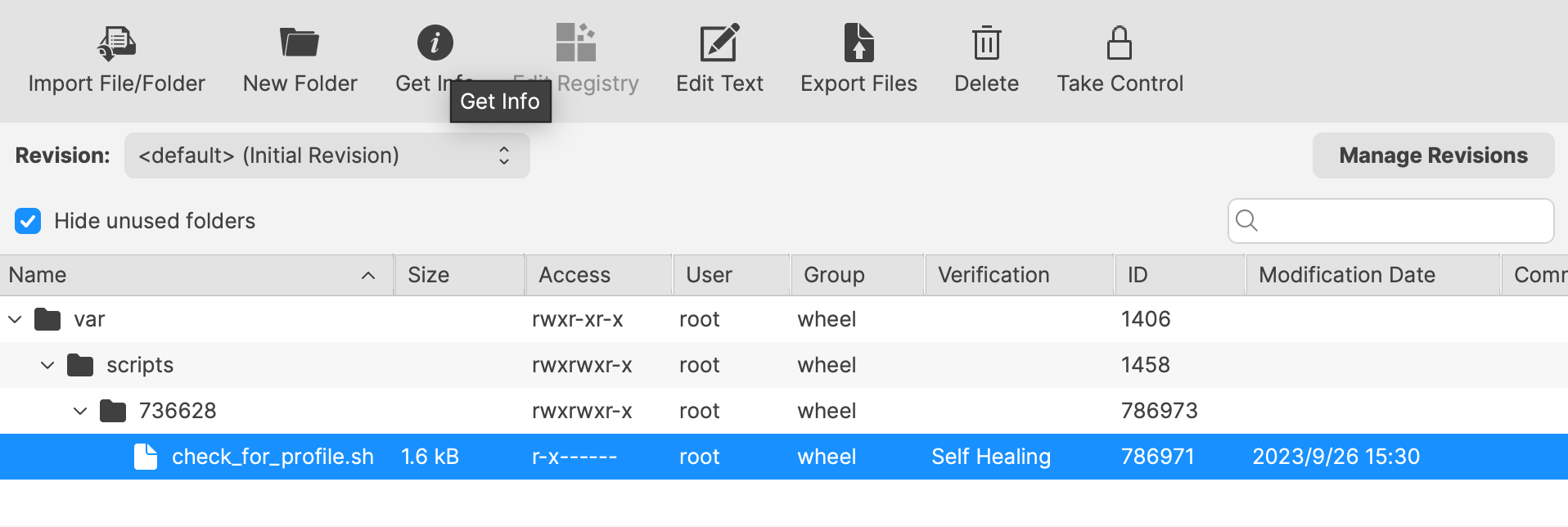
Download the Fileset, import it into FileWave, and edit it to match your requirements. Select the check_for_profile.sh script and click Get Info:
The Launch Arguments will initially appear empty.
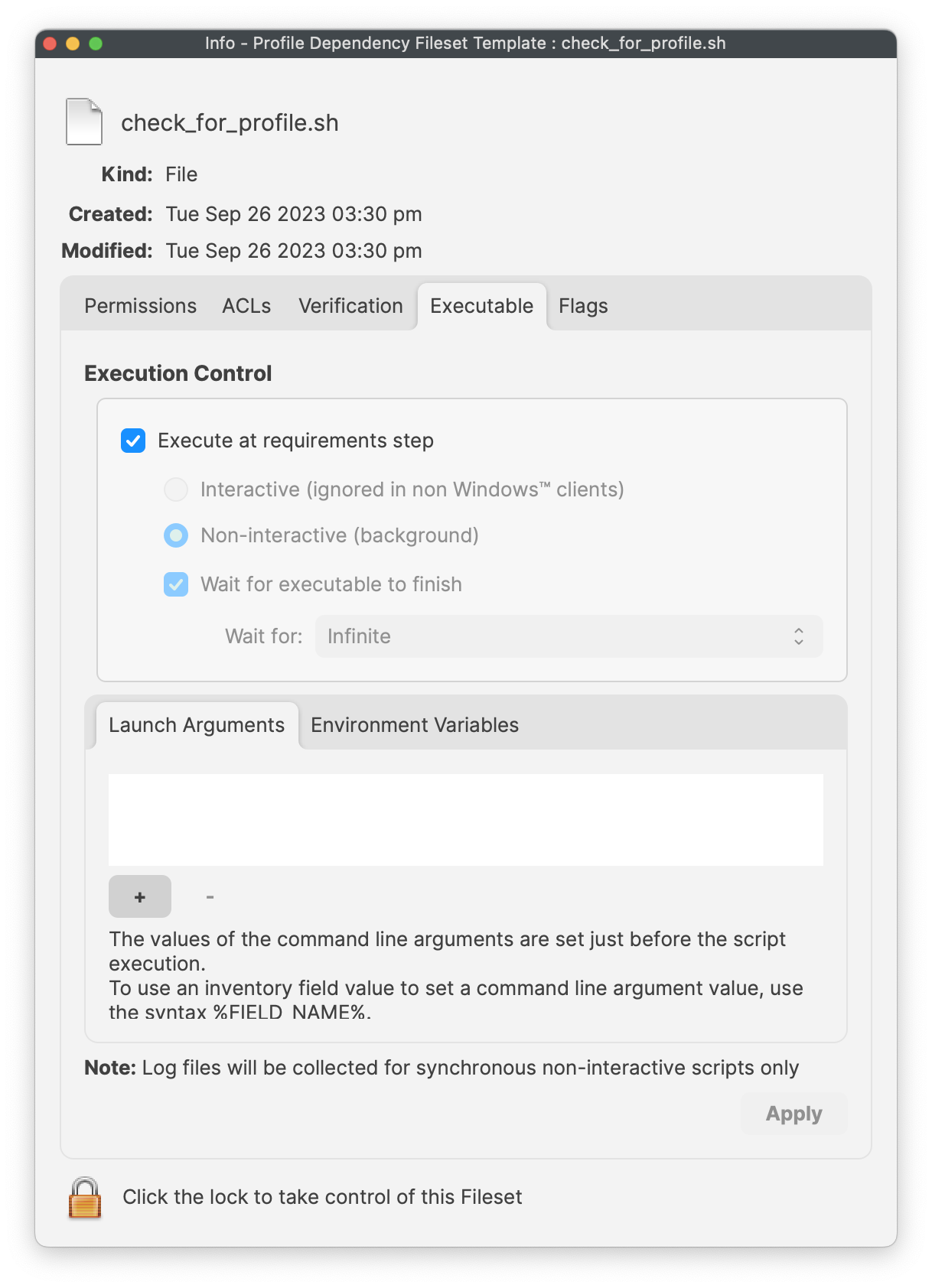
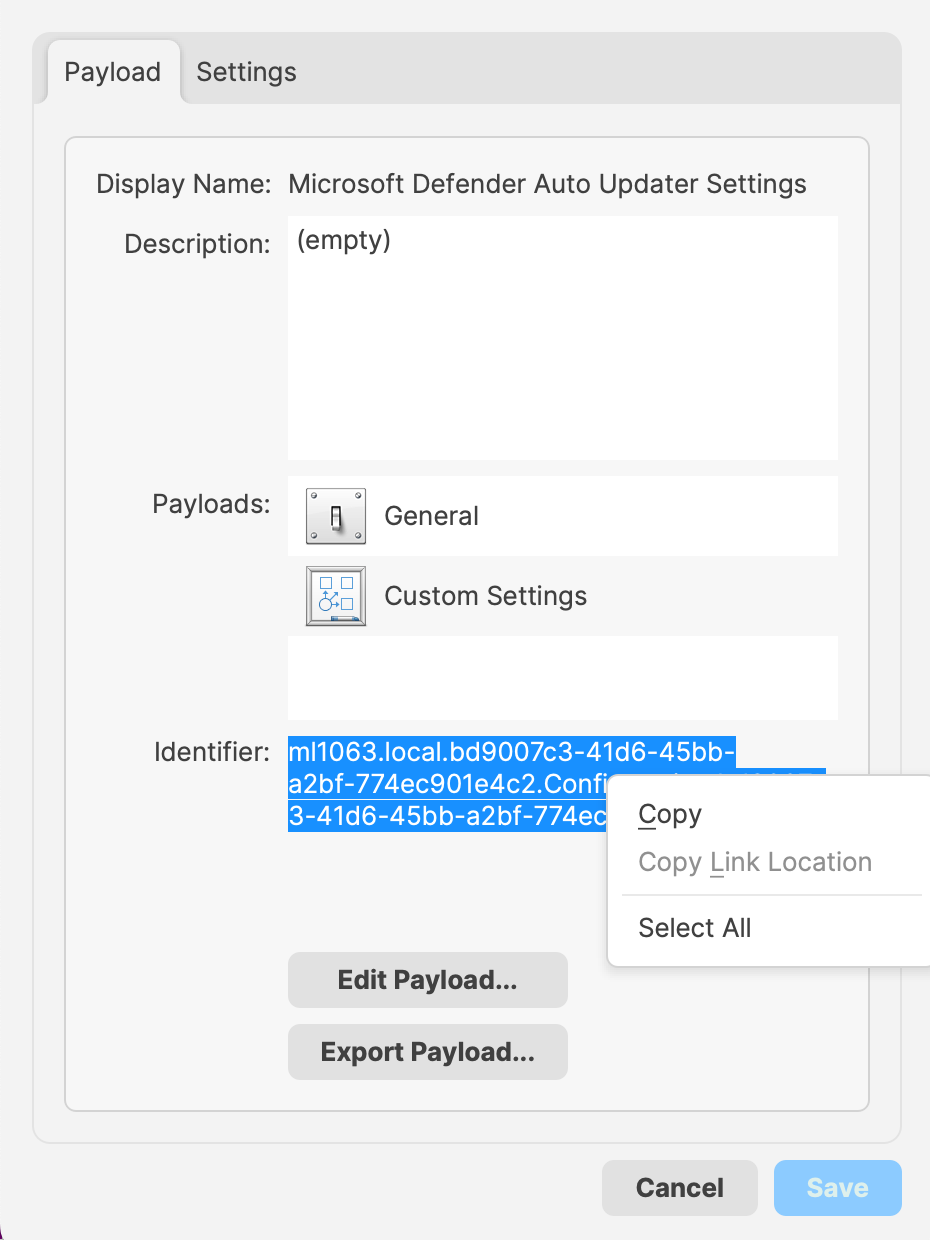
For each Profile that must be installed before this Fileset, add the Profile ID to the Launch Arguments list. Use one launch argument per Profile ID. You can find the Profile ID in the payload details of the Profile Fileset.
For each Profile that must be installed, open the Profile for editing, highlight the Identifier, and copy it.
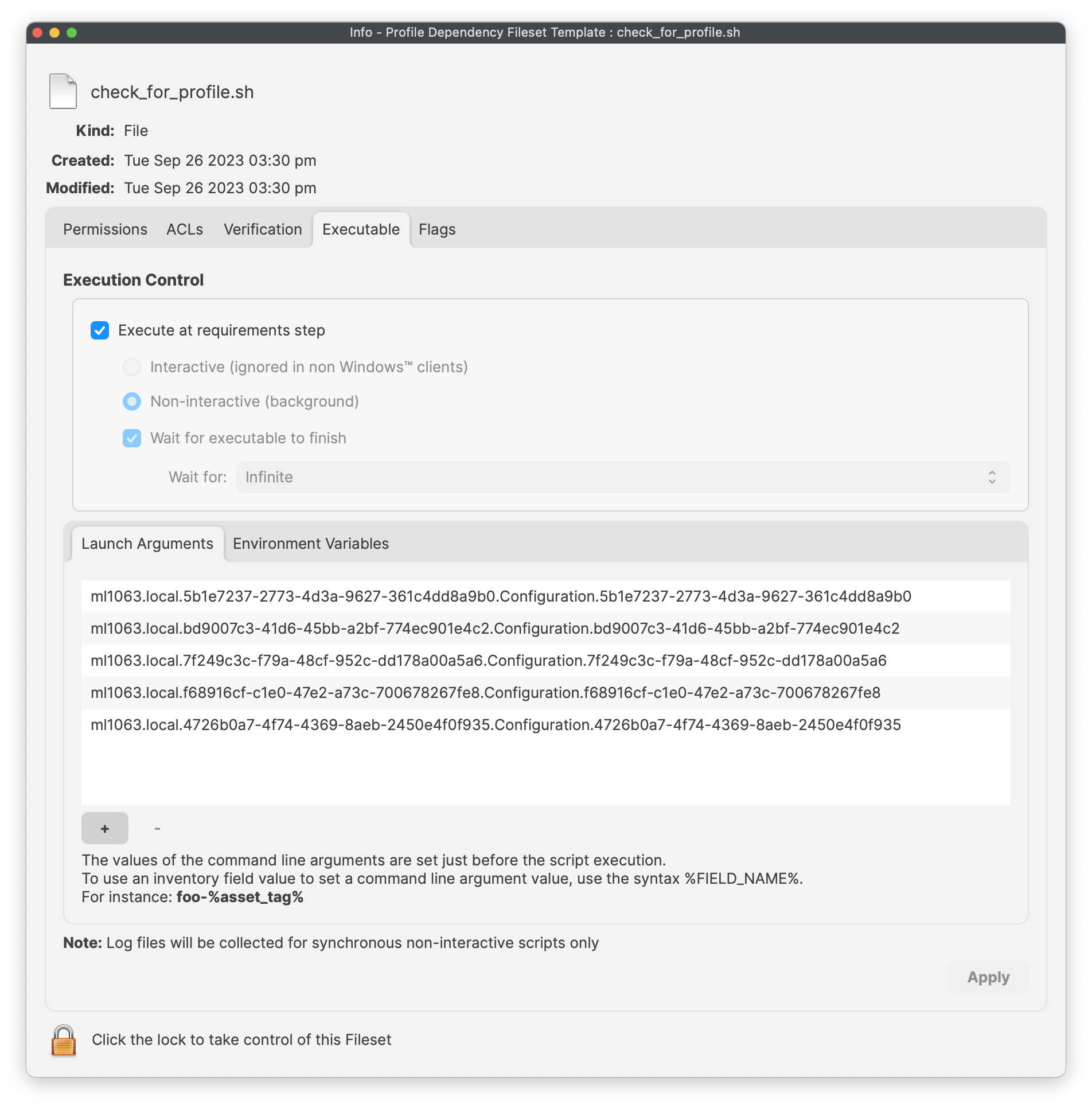
Copy these IDs into the Launch Arguments of the Fileset. The example below shows 5 Profile IDs added for a Microsoft Defender installer.
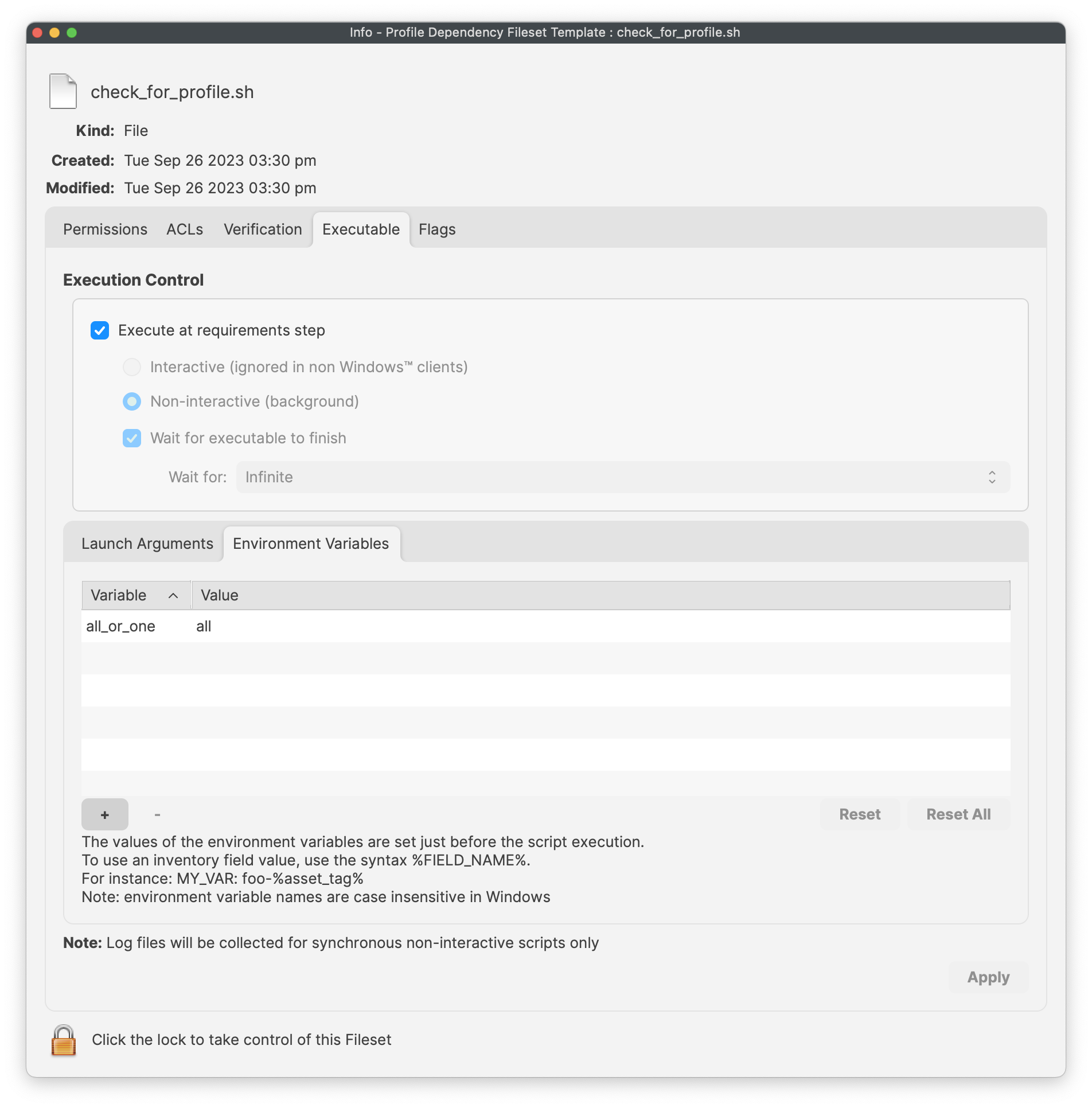
The script supports either matching behavior through the all_or_one environment variable. Set the value that matches your deployment:
| all | All of the listed Profiles must be installed prior to the Fileset becoming active. |
| one | At least one of the included Profiles must be installed prior to the Fileset becoming active. |
The example below shows a Fileset that requires all Profiles to be installed before Fileset activation for the same Microsoft Defender deployment:
With this set, add the installers that should run after the required Profiles are installed.
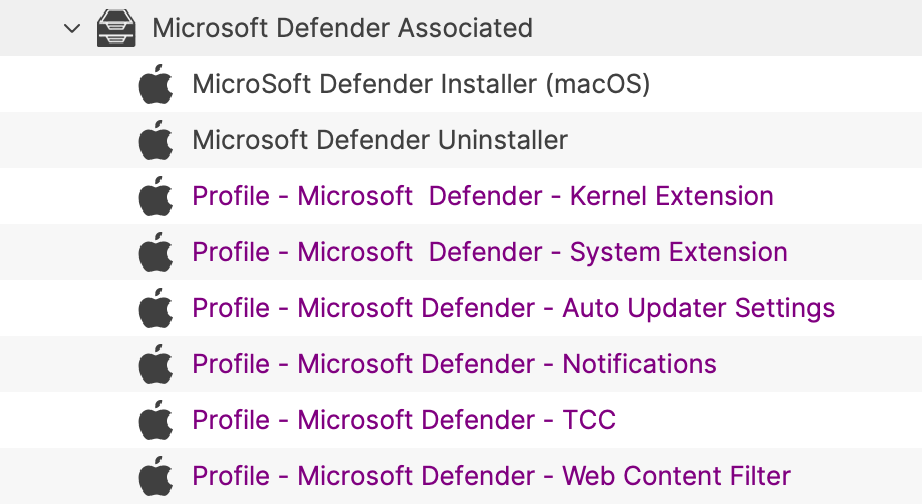
Create a Fileset Group and add this Fileset plus the required Profiles to the same group. This is optional, but it keeps the deployment easier to manage.
For example:
Matching limitation: The supplied script searches the output of the macOS profiles utility using a regular expression, not an exact identifier comparison. A partial identifier or a similarly named profile can produce a match. Use the complete Profile IDs, inspect the installed identifiers on the test Mac, and confirm the missing-profile test really blocks the installer before expanding the deployment. A passing result does not verify the profile's settings or the application's behavior.
Assign the Fileset Group to a test Mac and update the model. Test both outcomes: the installer must remain blocked while the configured profile requirement is unmet, then become eligible after the required profiles arrive. Use a test Mac where the relevant profiles are not yet installed; do not remove working security profiles from users' Macs just to run this test.
This Fileset is particularly useful with Apple TCC Privacy Settings Profiles. Privacy settings give software the access permissions it needs to function. These Profiles usually need to be installed before the protected app or service starts. If the software installs first, the software process may need to be restarted after the Profile installs. The Requirement Script is intended to gate the Fileset on the presence of the configured Profile IDs. Validate that gate with the tests above, then check the application's permissions and behavior after installation.
No comments to display
No comments to display