
Apple MDM Command History
What
Use Command History in Client Info to see the MDM commands and queries queued for an enrolled Apple device, the channel used, and the response returned by the device.
Why
Command History helps administrators distinguish a request that is waiting to be sent, temporarily deferred, completed, or rejected. It also shows whether the request used the device's system channel or a managed-user channel.
When referring to Users and MDM, Apple allow for any amount of directory users to be managed, but only one local user is considered to be managed. This is the first local user to log into the device after enrolment. System requests impact all users.
The Request Types include:
- Inventory
- Profile installs and removals
- VPP App installs and removals
- Commands, e.g. erasing a device, renaming the device, etc.
Information
Opening the Client Info for an Apple MDM enrolled device and selecting the Command History tab should show something similar to the below image:
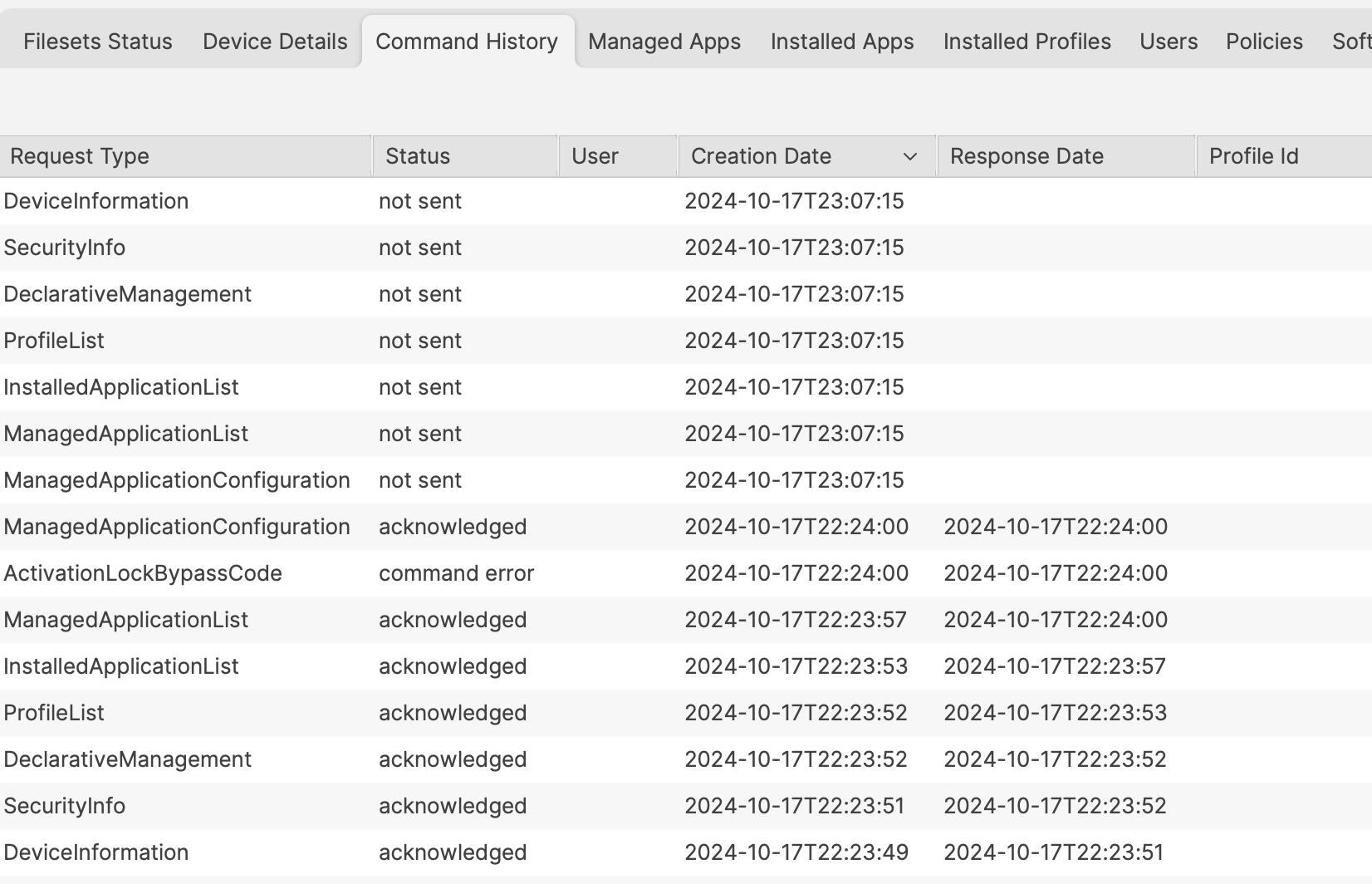
Request Types are defined by Apple and details may be viewed on the Apple Development Pages
Status and Error messages are those reported by Apple, with the exception of 'not sent'. The possible values are:
| Status | Details | Apple Request Response |
| not sent | The command is queued and awaiting for the device to reply to the APNs request | - |
| acknowledged | Device has processed the request | Acknowledged |
| not now | Device has received the request, but is unable to process the request at this time | NotNow |
| command error | An error has occurred | Error or CommandFormatError |
Reporting: Command Queue request status is available in Inventory Reports (formerly Queries), so administrators can review queued-command state across multiple devices.
'not sent'
When commands are waiting, the FileWave Server uses Apple Push Notification service (APNs) to notify the device. After receiving the notification, the device checks in with FileWave, retrieves the next command, processes it, and reports the result.
APNs carries the wake-up notification, not the MDM command. The device retrieves the command from the FileWave Server after it checks in.
While FileWave is waiting for the device to check in and retrieve the queued request, Command History displays not sent.
Where requests are 'not sent' or 'not now', new requests will not be added to the queue for the same Request Types, since there is already a queued request waiting. The 'Creation Date' displays the time and day the request was added to the queue.
Response Commands
Once the APNs request has been received by the device, on check-in, queued requests may then be sent to the device.
'acknowledged'
The request has been received by the device, processed and reported back to the FileWave Server as completed.
'not now'
Some requests will not be accepted, until the device is in a certain state. For example, a user may need to be logged into the device to process the provided request.
Hence, the request has been received and the device has responded, but the request is awaiting the desired state before it will finish processing the request and report back as much.
'command error'
In some instances, the request may not be able to complete, due to an error. Apple have two defined error status values:
- 'Error' - An error occurred (the device will report error details in the response to the request)
- 'CommandFormatError' - The request protocol was incorrect, e.g. a malformed request
The 'Error Msg' column shown in the Command History view reports information provided by the device back to FileWave Server and contains information as set out by Apple.
Apple's developer page demonstrates greater depth on MDM requests:
Sending MDM Commands to a Device
User vs System
The User column identifies the request channel. A blank value means the request used the system channel; a managed-user name means it used that user's channel.
Some Request Types are required for both User and System, e.g.
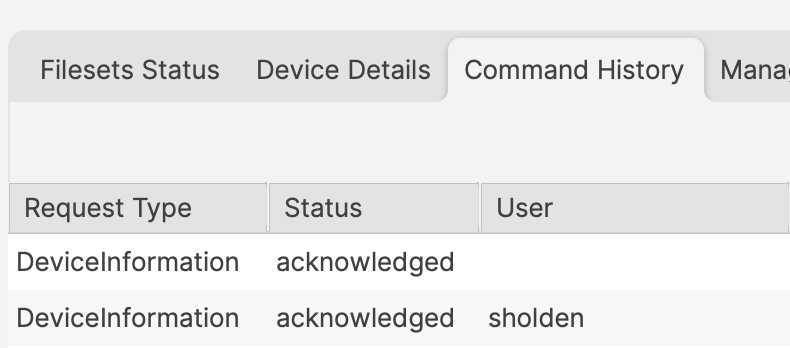
DeviceInformation may report inventory regarding the System and the User. As such there are multiple requests, one per Managed User and one for System.
Profile Installation
Profile Settings defines whether a Profile should be Installed for the System or User:
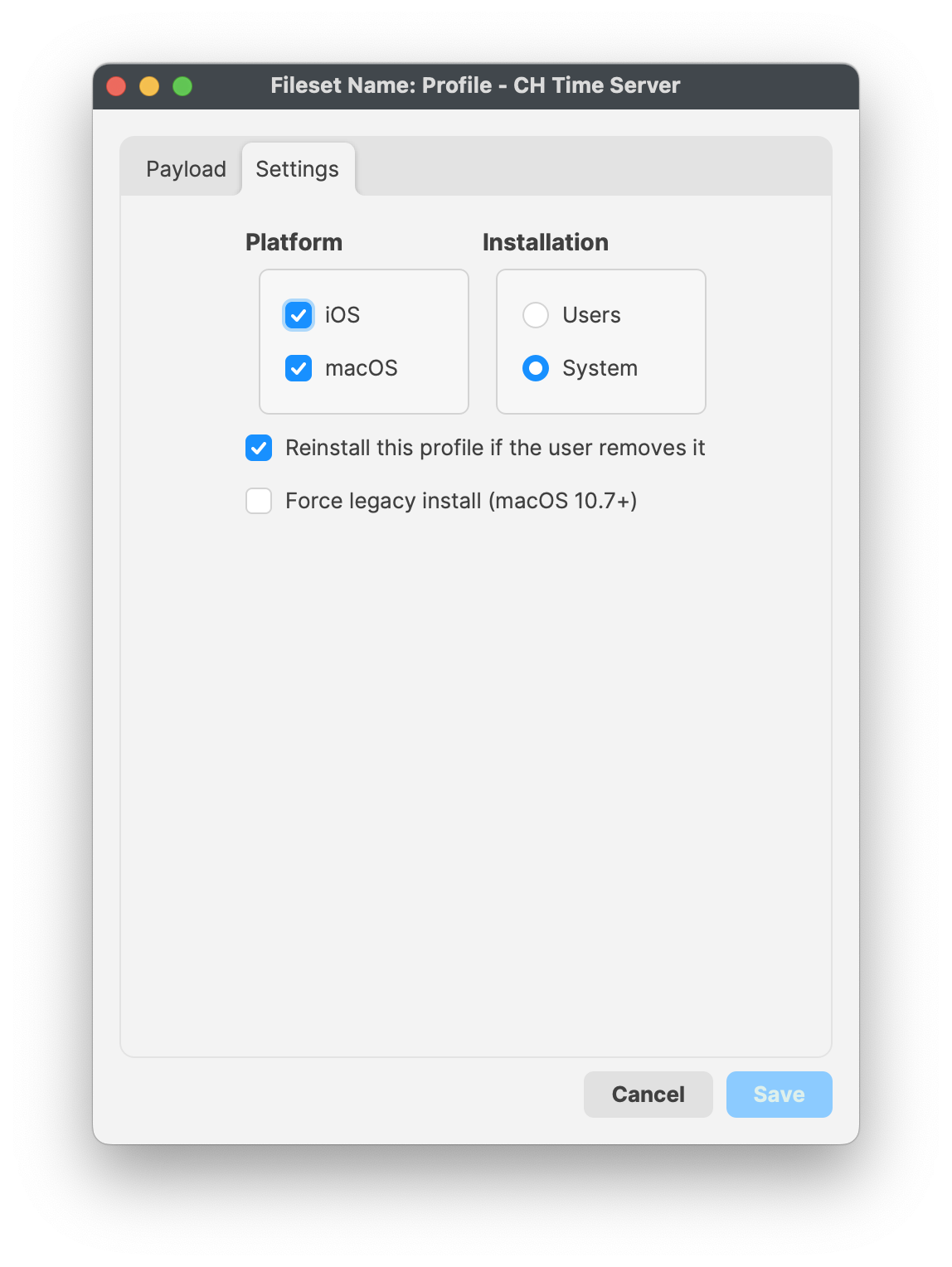
As with other Request Types, if the Profile is configured for System Installation, the User channel column should be blank, whilst those set as User should show a Request Type of 'InstallProfile' per managed user.
The below image shows installation of two differing Profiles, one set as System and the other set as User:

There was a period of time where all Profiles could be set as either User or System regardless. Apple enforced 'correct' Installation channels several major versions back. As such, if Profiles were delivered before such change, it may be possible that the User column may show a User despite the Profile being set as System. This should no longer be the case for newly delivered requests
Although altered values in a Profile Payload will just cause the Profile to be updated on a device, changing the Installation channel from User to System or vice versa, will cause the Profile to be uninstalled and then re-installed using the newly defined Installation channel.
Only some Profile Payloads may be defined as either User or System. If one option is greyed out, the Profile Setting cannot be changed.
Commands
Some requests are commands designed to action an event, e.g. rename a device, erase a device, etc. If the request is altering a setting, the Request Type reported is 'Settings' and the 'Settings Items' column will display details regarding the setting to be altered.
The below image shows a request to alter the name of the device:

An Update Model will be required before the Setting request is added to the device's request queue.
Further details regarding 'Command Policy' Fileset Payloads can be viewed in the following KB:
Troubleshooting
Some typical items to consider when reviewing Command History:
- The Command History tab will not be present if the device is not MDM enrolled (i.e. a macOS device with only the FileWave Client installed)
- A profile does not show on the device, yet command is acknowledged. This is typically seen where a Profile is set as User, but the currently logged in user is a local user, but not the local managed user. Compare the Command History User column with the currently logged in user.
- When all local users require the setting and Apple permits system-channel installation, consider a System profile. Test the effect on administrator and troubleshooting accounts before broad deployment.
- Where an error has occurred, review the 'Error Msg' column. If the error message does not appear clear, consider raising a ticket with the FileWave Support team.
- As noted above, when a Profile Setting is changed, the existing Profile is removed before being re-delivered through the newly specified Installation channel (User or System). If the Profile is essential for network connectivity, the device will lose its network connection, making it impossible to receive the updated Profile.
No comments to display
No comments to display