
FileWave Version 16.3.0
The FileWave endpoint management suite enables you to manage your devices wherever they are, wherever you are, whatever they are—all in one platform. FileWave 16.3 is a stability- and modernization-focused release designed to reduce operational risk and prepare the platform for safer, more automated lifecycle management in upcoming versions. This release lays critical groundwork for future self-updating workflows across Central and Clients, while immediately delivering automated, sequenced Booster upgrades with proactive reminders and reporting. FileWave 16.3 also improves upgrade reliability and administrative visibility across Central and Anywhere, and strengthens security with built-in brute-force login protection that is enabled by default, helping protect administrative access without requiring additional configuration. Together, these improvements establish a strong foundation for the more automated upgrade experience planned for FileWave 16.4 and beyond.
On Apple platforms, FileWave 16.3 continues to advance alignment with Apple’s evolving management model and 2026 OS changes. Declarative Device Management (DDM) support is expanded with improved handling of mixed DDM/MDM environments, a technical preview of DDM-based FileWave Agent installation on supported macOS versions, and new lifecycle controls for DDM-installed apps, including update behavior and version pinning. Profile management is updated to reflect the latest Apple payload schemas, ADE gains new skip keys and backup-handling options, VPP application delivery becomes faster and more reliable through improved notifications, and Apple’s transition to “Background Security Improvements” is fully supported. Beneath the surface, FileWave 16.3 reinforces long-term stability through database and component upgrades, stronger integrity checks during upgrades, improved client local data handling, and continued internal modernization. FileWave 16.3 also establishes Debian 13 as the base for FileWave-provided Server, Booster, and IVS appliances, aligning the platform with current OS and security standards.
FileWave Official Version Support
FileWave supports the two latest major versions at any time. For example, if the current version is 16.3.0, we support versions 16.3.0 and 16.2.x. Major releases occur roughly every quarter.
What does “officially support” mean?
We will investigate and patch significant issues in these versions. We do not produce patches for versions older than N-1, focusing instead on current versions and future improvements. If an issue is found in an older version, remediation will be in the form of an upgrade or a patch to a more recent version.
You can still contact our support teams about earlier versions. They will assist you to the best of their ability but won’t escalate tickets to our development teams. Upgrading is recommended to access the latest features and bug fixes.
Compatibility
A Note on Compatibility
A note on the Compatibility charts: There are several states of compatibility for FileWave clients:
- "Fully Tested by QA" indicates that we have run QA regression tests against these operating system versions, and they are fully supported.
- "Expected to Work" Not being on the fully tested by QA list (such as macOS 12) does not mean that platform is not supported...it just means we did not actively test against it, but we do expect it to function. Support of any issues experienced specifically on these platforms would be considered on a case-by-case basis (but these cases are exceedingly rare.)
- "Legacy" versions mean that we don't test, but we do provide a retro-version of a client so that the device can still report in but as FW Server changes there may be challenges to these working. There is NO support for these platforms beyond the availability of the older client, and in almost all cases these are for OSes that are no longer supported by the OS vendor in question.
- Lastly, items do fall out of support, such as Windows XP and the older Android APK client as examples, but we always include these items in our release notes.
An additional note on third-party software inclusion, such as TeamViewer:
- Partnerships we have with third party providers have their own set of system requirements for those released applications. We test against their most recent versions, and support of those applications is limited to third-party vendor specifications.
FileWave Server Platform Support
 Fully Tested by QA
- macOS 15 and 26 (Intel and Apple Silicon)
- Debian 13.2 x86_64 (Note that any Debian 13.x is expected to work, and applying security updates may move you to a higher version.)
Expected to work
- macOS 12, 13, 14 (Intel and Apple Silicon)
- Debian 12.X (x86_64)
Virtual Appliances
- HyperV - The images are available as Generation 2
- VMWare ESX - The images require vmx-19 support which means VMWare vCenter 7.0 Update 2 is the minimum version. ( https://knowledge.broadcom.com/external/article?legacyId=2007240 )
- VMWare Fusion
- VMWare Player and Workstation
- VirtualBox
Due to database migration requirements, if your FileWave Server is running a version earlier than 16.0.0, you must first upgrade to FileWave 16.0.0 (16.2.x recommended) before moving to FileWave 16.3.0 (PostgreSQL 18).
Upgrade path: 13.3.1 → 14.7.2 (PGSQL 12) → 16.0/16.1./16.2.x (PGSQL 12+17) → 16.3.0 (PGSQL 17+18).
The minimum memory requirement for FileWave Server is 8GB.
FileWave Clients Platform Support

Fully Tested by QA
- macOS 15 and 26 (Intel and Apple Silicon)
- Windows 11 (Pro/Enterprise, version 21H2 and newer, x64)
- Windows Server 2022 (x64)
Expected to work
- macOS 12, 13 and 14 (Intel and Apple Silicon)
- Windows 10 (Pro/Enterprise, version 21H1 and newer, x64)
- Windows 10 (Education, version 21H1 and newer, x64)
- Windows 11 (Education, version 21H2 and newer, x64)
- Windows 10 Enterprise LTSC (version 2021 and newer, x64)
- Windows 11 Enterprise LTSC (version 24H2 [2024], x64)
- Windows Server 2025 (x64)
Note about LTSB/LTSC: Microsoft Long Term Service Channel
Legacy
- macOS 10.11 → End of Life due to OpenSSL age
- macOS 10.12 → Legacy Version 14.0.2
- macOS 10.13 → Legacy Version 14.5.4
- macOS 10.14 → Legacy Version 14.8.0
- macOS 10.15 → Legacy Version 15.0.1
FileWave Mobile Clients Platform Support
 Fully Tested by QA
- iOS 18, 26
- iPadOS 18, 26
- tvOS 18, 26
- Android 8 and above (EMM Client)
- Chromebook
Expected to work
Currently Apple is investigating an issue enrolling iOS 16 or older via ADE/DEP. Enrollment via profile works.
- iOS 14, 15, 16, 17
- iPadOS 14, 15, 16, 17
- tvOS 14, 15, 16, 17
Legacy
- iOS 13 → Legacy Version 15.0.1
- iOS 10, 11, 12 → Legacy Version 13.1.5
FileWave Central (Native) Platform Support
Fully Tested by QA
- macOS 15 and 26 (Intel and Apple Silicon)
- Windows 11 (Pro/Enterprise, version 21H2 and newer, x64)
Expected to work
- macOS 12, 13 and 14 (Intel and Apple Silicon)
- Windows 10 (Pro/Enterprise, version 21H1 and newer, x64)
- Windows 10 (Education, version 21H1 and newer, x64)
- Windows 11 (Education, version 21H2 and newer, x64)
FileWave Booster Platform Support

Fully Tested by QA
- Debian 13.2 x86_64 (Note that any Debian 13.x is expected to work, and applying security updates may move you to a higher version.)
- macOS 15 and 26 (Intel and Apple Silicon)
- Windows 11 (Pro/Enterprise, version 21H2 and newer, x64)
- Windows Server 2022 (x64)
Expected to Work
- Debian 12.X (x86_64)
- macOS 12, 13, and 14 (Intel and Apple Silicon)
- Windows 10 (Pro/Enterprise, version 21H1 and newer, x64)
- Windows 10 (Education, version 21H1 and newer, x64)
- Windows 11 (Education, version 21H2 and newer, x64)
- Windows Server 2025 (x64)
Virtual Appliances
- HyperV - The images are available as Generation 2
- VMWare ESX - The images require vmx-19 support which means VMWare vCenter 7.0 Update 2 is the minimum version. ( https://knowledge.broadcom.com/external/article?legacyId=2007240 )
- VMWare Fusion
- VMWare Player and Workstation
- VirtualBox
FileWave Imaging Virtual Server Platform Support
The FileWave Imaging Virtual Server (IVS) is a special appliance that provides imaging support for Windows 11 UEFI and non-UEFI devices. Windows 10 imaging is expected to work.
Fully Tested by QA
- Debian 13.2 x86_64 (Note that any Debian 13.x is expected to work, and applying security updates may move you to a higher version.)
Virtual Appliances
- HyperV - The images are available as Generation 2
- VMWare ESX - The images require vmx-19 support which means VMWare vCenter 7.0 Update 2 is the minimum version. ( https://knowledge.broadcom.com/external/article?legacyId=2007240 )
- VMWare Fusion
- VMWare Player and Workstation
- VirtualBox
Features and Updates in this Release
FileWave Management Suite Changes
Debian 13 Support
FileWave 16.3 transitions its Linux base platform to Debian 13, replacing Debian 12 across all FileWave-provided appliances and establishing the new baseline for upcoming releases. The upgrade command lines in the download section will seamlessly handle the upgrade from Debian 12 to 13 when going to FileWave 16.3.0 so just upgrade as normal, but give it extra time. Much better logging is also in the upgrade scripts which log to /var/log/ and can help support to troubleshoot issues.

Platform Support Overview
- Stand-alone Server and Booster installs - FileWave 16.3 Server and Booster are supported on both Debian 12 and Debian 13 when installed on customer-managed systems.
- FileWave Appliances (OVA/VHD images) - All FileWave 16.3 Server, Booster, and IVS (Imaging Virtual Server) appliances provided as OVA or VHD images are now built exclusively on Debian 13, replacing the previous Debian 12 base.
Upgrade Requirements and Recommendations
- Appliance-based Server or Booster - Existing Server or Booster appliances running Debian 12 can continue operating without migrating to Debian 13; however, upgrading to Debian 13 is recommended to align with the new platform baseline and ensure long-term compatibility.
- IVS (Imaging Virtual Server) - FileWave IVS 16.3 requires Debian 13. Upgrading from Debian 12 to Debian 13 is mandatory when updating an IVS to version 16.3.
Upgrade made simpler
Automatic Central Upgrade on Server Connection
Starting with FileWave 16.3.0, FileWave Central can now automatically upgrade itself when connecting to a newer FileWave Server. Instead of rejecting the connection, Central will download the appropriate installer package from the server, stop the current instance, perform the upgrade silently, and restart automatically.
- If the connected server runs a compatible minor version (for example, Central 16.3.0 and Server 16.3.1), Central will only suggest the upgrade—allowing the administrator to postpone it and continue working.
- If the server runs an incompatible version (for example, Central 16.3.2 and Server 16.4.0), Central will require an upgrade before connecting.
- In all cases, the user may choose to cancel the upgrade and close Central, ensuring administrators with multiple environments can avoid unintended upgrades.
This feature simplifies maintenance and ensures version alignment between Central and Server while respecting compatibility boundaries. Note that this feature was added to 16.3.0 so you will not benefit from it until 16.3.1 or higher.
Outdated Booster Upgrade Reminder and Automatic Upgrade
Since FileWave 14.3, Boosters have supported a controlled and reliable upgrade process—FileWave upgrades them sequentially, ensures that at least one remains online, and halts the process if any upgrade fails.
With FileWave 16.3, this process is further enhanced with automated monitoring and reminder capabilities:
-
Outdated Booster detection: FileWave now identifies any Booster running an older but compatible version. In most cases, this means the Booster should match the Server version, though exceptions exist when OS support limits apply.
-
Central and Anywhere notifications: Both FileWave Central and FileWave Anywhere display reminders when outdated Boosters are detected.
-
Automatic upgrades: By default, Boosters are automatically upgraded one week after the Server upgrade. The delay is configurable in FileWave Central -> Preferences, and administrators can unschedule the upgrade if desired. ? Is true?
-
Sequenced rollout and reporting: Upgrades occur one Booster at a time, with notifications shown in Central at the start of the process and after each successful upgrade.
This enhancement helps ensure Booster infrastructure stays aligned with the Server version with minimal administrative effort, maintaining stability and version consistency across the environment.
Outdated server upgrade reminder
Keeping your FileWave server up to date is recommended. We are working hard to bring a lot of new features and improvements to make your IT admin life simpler, and if you stay behind you don’t benefit from them. Equally important, each FileWave release comes with bug fixes, and we take the time to update third party libraries such as Qt, OpenSSL, Apache or PostgresQL ; these third party libraries upgrade often bring bug fixes but can also contain critical security fixes.
In addition, we only support the two last major versions of FileWave - once FileWave 16.3 will be released, we will stop supporting 16.1, and if you don’t upgrade you’ll let your server at risk.
Starting with FileWave 16.3, FileWave Central will remind you if your server is outdated (so when 16.5 will be out) and not supported anymore. Don’t hesitate to reach out if you need any help to upgrade your system.
Simplified and More Robust Client Upgrade Process
Upgrading the FileWave Client is critical for accessing new features, security enhancements, and performance improvements. However, client upgrades have traditionally been risky operations: the FileWave Client is the core management component on macOS and Windows devices, and a failed upgrade may leave devices unmanaged, sometimes requiring manual recovery at scale.
Historically, the upgrade mechanism relied on the FileWave Client updating itself through the Client Upgrade Fileset. This approach works in many scenarios but has inherent limitations, since the Client must stop itself mid-process and restart successfully. Any disruption at that stage can break communication with the server.
New Upgrade Architecture in FileWave 16.3.0
FileWave 16.3.0 introduces the foundation for a safer, more controlled, and more automated client upgrade workflow through a new dedicated component: the FileWave Client Upgrader. This new process runs independently alongside the FileWave Client and assumes full responsibility for orchestrating the upgrade.
Key Capabilities
-
Independent and resilient upgrade controller - The FileWave Client Upgrader is a standalone process capable of stopping, replacing, and restarting the FileWave Client safely. Because it operates independently, it continues supervising the upgrade even if the client itself is temporarily offline, greatly reducing the risk of incomplete upgrades.
-
Built-in compatibility validation - Before initiating an upgrade, the Upgrader performs its own compatibility checks to ensure only safe upgrade paths are executed. These checks run regardless of the FileWave Client’s state.
-
Automatic retry and rollback logic - If an upgrade fails, the Upgrader can retry automatically. When necessary, it can roll back to the last known working version, preventing devices from falling into an unmanaged state. If the rollback succeeds, the upgrade target is marked as requiring manual intervention, and this version will not be attempted again automatically. Administrators may trigger a retry manually after resolving the underlying issue, or the Upgrader will attempt again automatically if a newer version (release or custom build) becomes available.
-
Configurable batch-based rollout - Administrators will still be able to initiate a full-fleet upgrade, but FileWave will execute upgrades in batches. The batch size will be admin-configurable. If issues appear within a batch, subsequent batches are automatically paused.
This concept is inspired by the Booster upgrade workflow, but adapted for client-scale operations where per-device serial upgrading is impractical.
-
Support for custom builds - The new Upgrader fully supports delivery of custom or support-provided builds (e.g., test or fix versions). These can be distributed and upgraded with the same safety and automation guarantees as official releases.
Looking Ahead: Operational Use in 16.4
Because the new architecture is introduced in FileWave 16.3.0, the next upgrade, to FileWave 16.4.0, will be the first to fully leverage it. FileWave Central will include a dedicated module for managing, scheduling, and monitoring client upgrades, giving administrators full visibility and control over the process.
Recommendation
Since the new upgrade infrastructure becomes active only once a device is running FileWave Client 16.3, upgrading to 16.3 is strongly recommended. This ensures all subsequent client upgrades, including important future releases, benefit from the enhanced safety, automation, and fault-tolerance mechanisms provided by the FileWave Client Upgrader.
Inventory Queries Renamed to Reports
To align FileWave Central with FileWave Anywhere, the Inventory Queries module has been renamed to Reports. This change standardizes terminology across interfaces without altering the underlying data model or API—existing queries remain fully compatible, and all API endpoints continue to use “query” for backward compatibility.
User-created queries are unaffected; only the module name and user interface labels have changed.
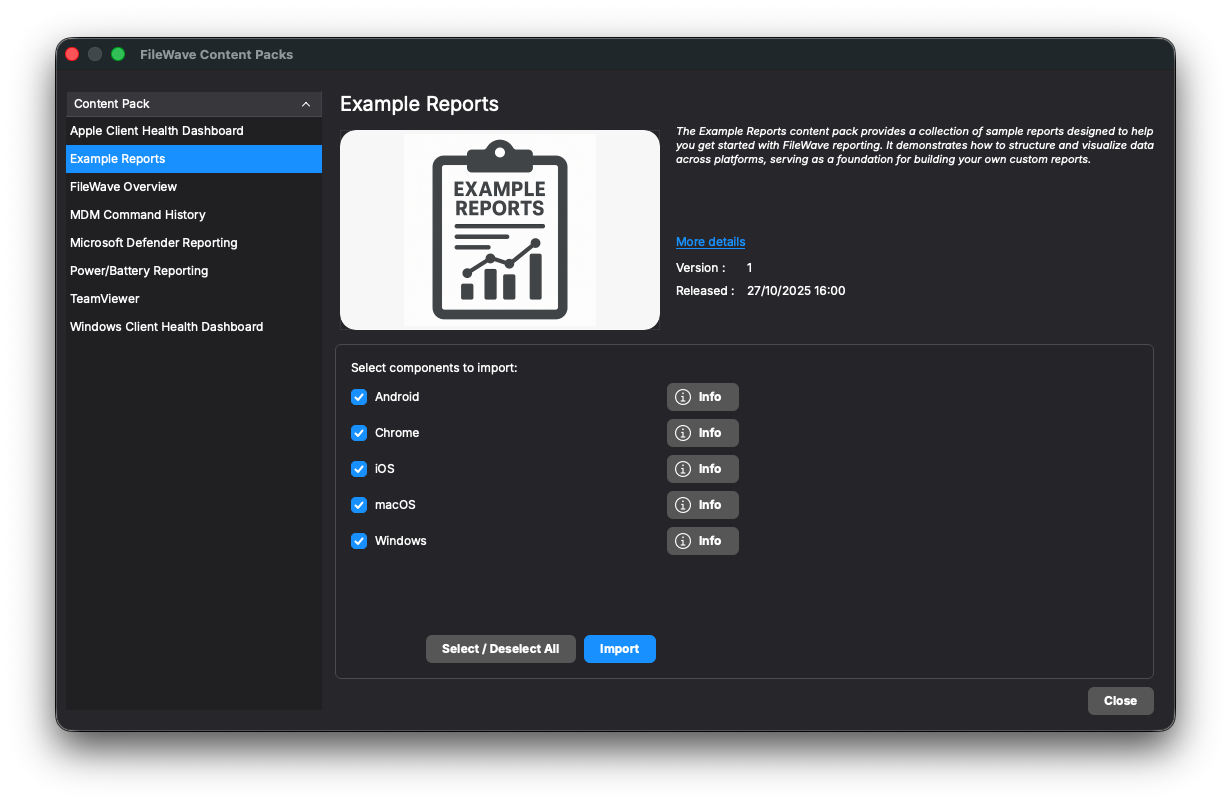
As part of this update, the legacy Default Queries have been replaced with a new Default Reports content pack. These updated examples provide modern, platform-specific templates to help administrators build complex reports more efficiently.
Additionally, content packs can now include per-platform reports, allowing more tailored and relevant default reporting across different operating systems.
Consistent “Reinstall Fileset” Functionality Across All Fileset Types
The Reinstall Fileset feature allows administrators to manually trigger the reinstallation of one or more filesets directly from Client Info (per-device view) or from Fileset Reports (per-fileset view). This function is commonly used to repair or refresh deployments.
In FileWave 16.1, Fileset Reports were unified to merge Desktop and Mobile reports into a single consistent view. This major refactor also refined how the Reinstall Fileset action is handled, leading to limited support for certain fileset types in some cases. Partial improvements were delivered in 16.2, and with FileWave 16.3, the feature now operates consistently across all supported fileset types, for both Desktop and Mobile environments.
This enhancement completes the unification work started in 16.1 and ensures consistent, predictable reinstall behavior across all platforms.
Improved Empty States in Central Tables
To enhance usability and provide a smoother onboarding experience, FileWave 16.3 introduces improved empty stateviews in the Clients, Filesets, and Reports tables.
When no data is available—for example, no enrolled clients, no created filesets, or no existing reports—Central now displays a clear message with an icon and an action button (such as Enroll New Client or Create New Fileset) instead of showing an empty table. The same visual feedback also appears when search or filter results return no matches, prompting users to adjust their criteria.
This enhancement improves first-time setup clarity, streamlines user guidance, and aligns the Central UI design with FileWave Anywhere. Similar improvements will be extended to other views in future releases.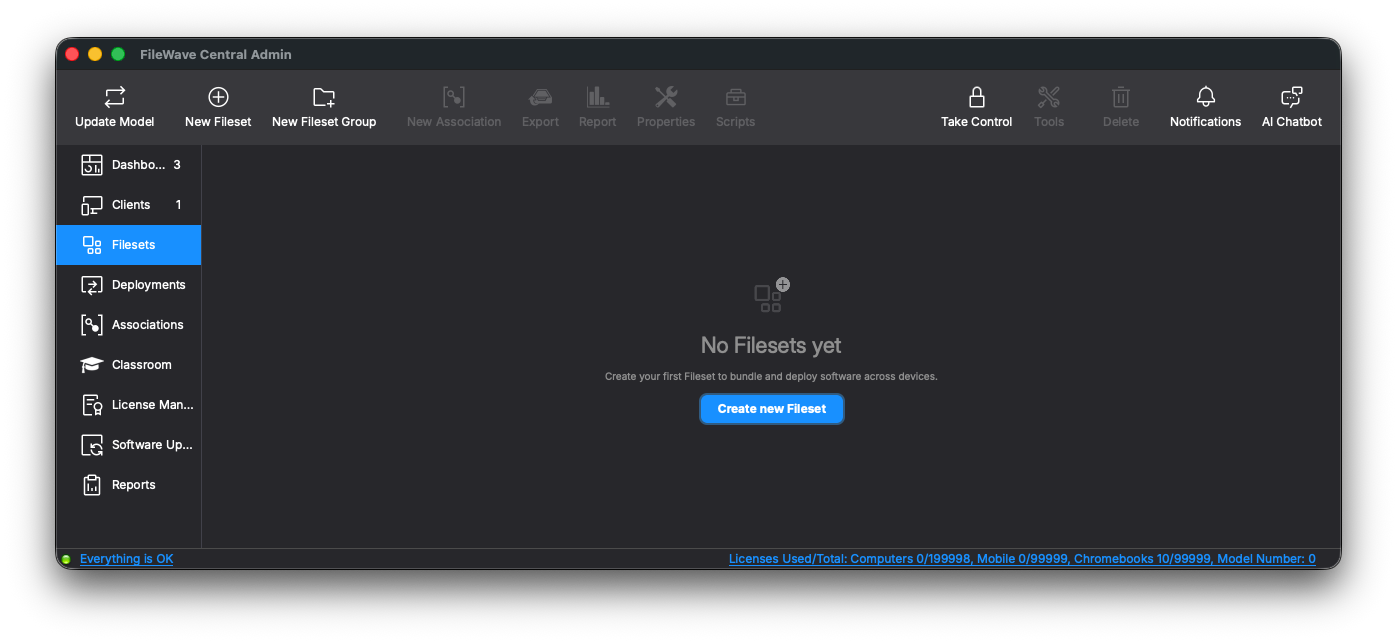
Enhanced Policy Tab in Client Info
The Policy tab in Client Info has been improved to provide better visibility and management of FileWave Policies.
Previously, the tab displayed basic policy information but did not indicate which Fileset each policy originated from. Starting with FileWave 16.3, the tab now shows the associated Fileset name and includes a context menu option to reveal the Fileset directly in Central.
This enhancement simplifies troubleshooting and administration by allowing faster access to the Fileset defining each applied policy—especially valuable as FileWave Policy expands to additional areas such as Kiosk and Software Update.
Inventory Improvements
Fileset Creation and Modification Dates Added to Inventory
FileWave Inventory has long tracked information about installed Filesets, primarily for use by the Licensing module (where installed Filesets consume licenses). Starting with FileWave 16.2, Inventory was expanded to include all Filesets, not just the installed ones, enabling broader reporting and visibility.
With FileWave 16.3, the Inventory now also records and reports each Fileset’s creation and last modification dates. This enhancement allows administrators to audit content changes more easily, identify recently updated Filesets, and better manage Fileset lifecycle and version tracking.
Security Improvements
Brute Force Lockout
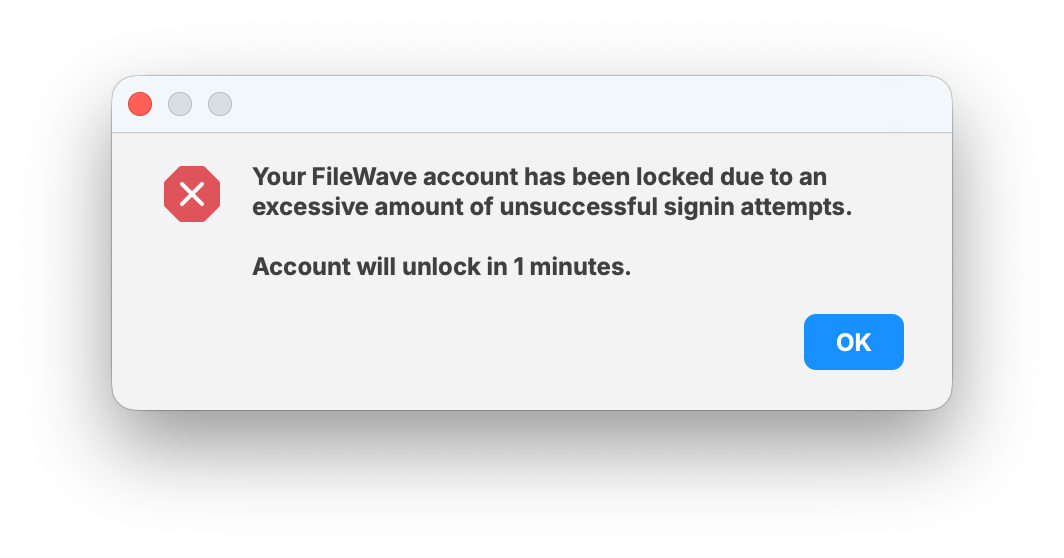
Enabled by default in Central -> Preferences the Brute Force protection will prevent dictionary attacks attempting to login to Central or Anywhere. On lockout you will see a dialog indicating how long the lockout is for. It begins at 1 minute by default and escalates with additional incorrect logins. This feature can also be disabled, but it is strongly recommended to keep it enabled.
Apple-Specific Changes
Enhanced DDM Fileset Status in Client Info
Certain DDM-based Filesets—such as Screen Sharing Configuration—combine multiple DDM configurations within a single Fileset. Since each configuration can install or fail independently, earlier versions of FileWave could only display an overall Fileset status, making troubleshooting difficult.
With FileWave 16.3, the Client Info → Fileset Status view in FileWave Central now provides detailed status information for each configuration within multi-configuration DDM Filesets. This allows administrators to identify which specific configuration succeeded or failed during deployment.
The DDM status information is displayed in the same area as Script status, as scripts and DDM configurations cannot coexist within the same Fileset.
This enhancement improves diagnostic accuracy for complex DDM-based Filesets without affecting single-configuration ones.
macOS 26 Composed Icons for Central and Tools
Arguably the most important change in FileWave 16.3: FileWave Central (and companion tools such as the standalone Superprefs Editor) now feature macOS 26 (Tahoe) composed icons. These new icons support Apple’s Liquid Glass Design and tinted accent coloring, ensuring full visual harmony with the latest macOS look and feel.
While this won’t improve deployment speed or database performance, it will make your Dock look noticeably more modern.
Profile Editor Updates
The Profile Editor in FileWave 16.3 has been updated to include the latest Apple-defined payload keys and schema changes as per the official Device Management documentation. These updates ensure full compatibility with recent iOS, iPadOS, and macOS releases and improve accuracy when creating or editing configuration profiles.
iOS Restrictions payload:
-
safariAcceptCookies and autonomousSingleAppModePermittedAppIDs are now optional keys, aligning with Apple’s updated specification.
Per-App VPN payload:
-
Added new keys:
-
AssociatedDomains — defines the list of domains to be routed through the VPN.
-
ExcludedDomains — specifies domains excluded from VPN routing.
-
SMBDomains — identifies domains accessed via SMB that should use the VPN connection.
-
VPN (IKEv2) payload:
-
Added new security-related keys:
-
AllowPostQuantumKeyExchangeFallback — allows fallback to classical key exchange if post-quantum algorithms are not supported.
-
PostQuantumKeyExchangeMethods — specifies permitted post-quantum key exchange algorithms.
-
EnforceStrictAlgorithmSelection — enforces strict adherence to the configured cryptographic methods.
-
-
Updated supported values for DiffieHellmanGroup and EncryptionAlgorithm to match current Apple specifications.
Web Content Filter payload:
-
Added SafariHistoryRetentionEnabled — controls whether Safari browsing history is retained when content filtering is enabled.
DDM changes
Support for FileWave Agent Installation via DDM Protocol
FileWave 16.3 adds support for installing the FileWave Agent using the Declarative Device Management (DDM) protocol on compatible macOS devices (macOS 26 / Tahoe and later).
Previously, the Agent was installed using the traditional MDM protocol. Starting with this release, FileWave automatically uses DDM for Agent deployment on supported systems while continuing to use MDM for older macOS versions.
This change affects only the Agent installation process. Installation of customer packages remains unchanged and continues to be handled by the FileWave Agent through the standard Fileset mechanism.
This enhancement ensures FileWave remains compliant with Apple’s evolving DDM framework and prepares the platform for future DDM-based management capabilities.
Note: This functionality is currently offered as a technical preview and is not enabled by default. It will be enabled by default in a future release.
Update Behavior and Version Pinning for Apps Installed via DDM
FileWave 16.3 enhances Declarative Device Management (DDM) support by adding precise controls over how managed applications are installed and updated on iOS, iPadOS, and macOS devices.
When deploying applications through DDM, administrators can now configure app lifecycle behavior directly in Fileset Properties, similar to other deployment options:
-
Update behavior: define whether the app should automatically update when a new version becomes available on the App Store, or remain on its current version.
-
Version pinning: specify an exact app version to install and keep, preventing automatic upgrades beyond that version.
These settings are based on Apple’s latest DDM specifications:
-
AppManagedInstallBehaviorObject — controls version targeting for app installation.
-
AppManagedUpdateBehaviorObject — defines update rules for managed apps.
This enhancement provides administrators with fine-grained control over application versioning and update policies across all DDM-managed Apple platforms.
Improved Handling of Profile Installation with DDM
While Profiles continue to be installed through MDM, FileWave is actively preparing for the upcoming transition to Declarative Device Management (DDM) when Apple expands or mandates its use.
With FileWave 16.3, the system now correctly handles Command Policy Profiles during DDM processing. These Filesets are not real configuration profiles but represent MDM command wrappers (such as restart or update actions). They are now properly excluded from DDM installation and automatically converted into their corresponding MDM commands during deployment.
This refinement ensures accurate behavior for mixed DDM/MDM environments and provides a solid foundation for future DDM-based profile installation once it becomes the Apple standard.
DDM “Service Configuration Files” Configuration updated
Apple has now additional Built-in services : com.apple.cryptoTokenKit and com.apple.authorization ; DDM Configuration editor has been updated accordingly.
Configure Application extensions when installing applications via DDM
When installing applications using DDM, it is now possible to specify configuration for extensions which could be used by the application. This is similar to “App Config” feature, which allowed configuring application itself, but this one is for extensions.
“VPP notifications” improvements
Apple introduced VPP Notifications when the VPP API was redesigned. Instead of having the MDM server regularly poll Apple for VPP-related changes, the server can subscribe to notifications and let Apple push updates as they occur. This is particularly important for User-based licenses: when a VPP license is assigned, FileWave historically waited three minutes before installing the application to ensure that the Purchase History was fully updated. This delay was intentionally conservative but often resulted in slower app deployments and a poor user experience.
With VPP Notifications, this delay is eliminated. Apple notifies FileWave as soon as the license becomes effective, allowing FileWave to install the app immediately—without waiting three minutes.
VPP Notifications were originally introduced in FileWave 14.7.0, but required manual admin enablement, because a misconfigured setup (for example, a server not reachable by Apple) could interrupt VPP communication entirely.
Starting with FileWave 16.3, the configuration process has been redesigned. FileWave now automatically determines whether the server is reachable by Apple and will enable or disable VPP Notifications accordingly. As a result, most servers will benefit from notification-based behavior automatically, with no additional configuration required.
ADE Profile Update
ADE and Backup
It is now possible to set the do_not_use_profile_from_backup key in ADE profiles. As documented by Apple (see Apple’s deployment guide), this flag ensures that a device restored from a backup behaves as if the backup were restored on a different device. This allows the device to receive the correct ADE configuration instead of reusing the profile embedded in the backup.
New “Age Based Safety Settings” Skip Key Added to ADE Profiles and Setup Assistant
A new Age Based Safety Settings skip key is now available for ADE profiles and Setup Assistant. One of Apple’s documentation sources suggests that this key may replace the existing AdditionalPrivacySettings key. However, this change is not consistently reflected across all Apple documentation. Until Apple provides definitive confirmation, FileWave will support both keys.
Rapid Security Response Replaced by “Background Security Improvements”
Rapid Security Response (RSR), introduced by Apple in iOS 16, provided a mechanism to deliver urgent security fixes without requiring a full operating system update. With the release of Apple’s 2026 operating systems, this mechanism has been replaced by a new system: Background Security Improvements. This is not a simple renaming—Apple has changed how rapid security fixes are delivered at the OS level. FileWave has been updated to support this new behavior.
Android-Specific Changes
Compliance with Google API Rate Limit Recommendations
FileWave 16.3 updates the communication between the FileWave Client and the Google Android Management API (AMAPI) used for Android Enterprise (EMM) device management.
The implementation now follows Google’s recommended rate limit settings, ensuring full compliance with current API usage guidelines. This change prevents potential throttling by Google services and improves stability when managing large Android fleets.
All adjustments are internal—no administrative action or configuration change is required.
Windows-Specific Changes
Software Update Status Enhancements for Windows
Building on the improvements introduced in FileWave 16.2, which allowed Software Updates on Windows to be managed via FileWave Policy, FileWave 16.3 adds richer tracking capabilities.
Updates deployed through Policy are now clearly labeled as “Triggered by Policy” in the Software Update status view, enabling administrators to confirm that their policies are functioning correctly. This new status is visible in both FileWave Central and FileWave Anywhere, and the information is also recorded in Inventory for reporting and auditing purposes.
This enhancement applies to Windows devices only, as Software Update Policy management is not available for macOS.
FileWave Windows Imaging (IVS) Changes
FileWave Windows Imaging solution relies on PXE Boot, which delivers a tiny Linux image containing all required components to run the imaging process. Compatibility with different hardware depends on how the tiny linux image is built - mainly which Linux kernel version and embedded packages and modules.
FileWave Networking Imaging 16.3.0 brings compatibility with FileWave 16.3.x.
- Linux kernel: 6.17.7
- Buildroot: 2025.08.1
- partclone: 0.3.37
Internal Changes
macOS Code signing identity change
The code signing identity we use to sign FileWave binaries and applications changes from “FileWave (Europe) Gmbh” (team ID 83S2TRZ3CS) to “FileWave (USA), Inc.” (UWMR88SA8G).
FileWave 16.3 will automatically update the TCC Profile which is deployed to grant FileWave client (fwcld) the right permissions when deployed via MDM.
There should be no other impact except the name of the signing identity.
Supervisord for FileWave Server on macOS
Starting with FileWave 16.3, the macOS Server now uses supervisord—the same process management system used on Linux—to start, monitor, and stop FileWave services.
Previously, FileWave relied on multiple LaunchDaemons, and the fwcontrol script manually called launchctl while echoing status information. With the move to supervisord, fwcontrol now leverages supervisord’s native service control and status reporting, providing clearer and more consistent output across macOS and Linux.
This change also simplifies service configuration, replaces multiple plist files with a single supervisord configuration, and improves log rotation reliability.
The migration is fully automatic during upgrade, and administrators can continue using fwcontrol commands as before—only the output format and detail have changed.
Database Access Code Modernization
Several internal components of FileWave’s database access layer have been modernized in FileWave 16.3 as part of our ongoing effort to update legacy code, improve maintainability, and reduce resource consumption. While these changes are primarily internal, they improve code consistency and long-term reliability.
Key improvements include:
-
Rewritten logic for generating unique client names, making the process faster and more robust.
-
Extended Database Integrity Checks During Upgrade
-
Improved Client Robustness and Local Data Handling
-
PostgreSQL 18 Upgrade
These updates are foundational and prepare the system for future scalability and performance enhancements.
Extended Database Integrity Checks During Upgrade
FileWave runs a series of database integrity checks during upgrades to confirm that the database is in a valid and consistent state. When possible, issues are automatically corrected, and if a non-recoverable problem is found, the upgrade process safely stops, allowing FileWave Support to intervene before data integrity is compromised.
With FileWave 16.3, these checks now include validation of internal database sequences, ensuring that automatically generated IDs remain consistent across all related tables. These extended checks run as part of the upgrade process but can also be executed manually to verify the full database state when needed.
This enhancement improves overall database reliability without adding noticeable time to the upgrade process.
Improved Client Robustness and Local Data Handling
The FileWave Client keeps key operational data (such as the catalog) stored locally, enabling it to start and operate even before re-establishing a connection to the FileWave Server.
With FileWave 16.3, the client now uses an atomic file handling mechanism to store this local data, greatly reducing the chance of corruption in case of abrupt shutdowns or power loss. Although the client could previously recover automatically from corrupted data, such recovery required a full local reset and re-synchronization from the server, which could delay normal operation. This new approach minimizes that risk and ensures smoother, more reliable restarts.
PostgreSQL 18 Upgrade
FileWave 16.3 upgrades the embedded database engine to PostgreSQL 18 (previously PostgreSQL 17, introduced in FileWave 16.0). The database upgrade is performed automatically as part of the FileWave Server upgrade process.
For safety, the installer includes both PostgreSQL 17 and PostgreSQL 18. If the upgrade to version 18 fails, FileWave automatically reverts to PostgreSQL 17 and continues running in a degraded mode. In this state, most features will remain functional, but stability or performance cannot be guaranteed. A clear warning will be shown in this case, and administrators are advised to contact FileWave Support immediately to complete the migration.
Because of this database transition, upgrading to FileWave 16.3 is only supported from FileWave 16.0 or newer.
VPP Improvements
The code responsible for communicating with Apple’s VPP servers has been thoroughly reviewed using insights gathered from real-world server behavior. This analysis allowed us to implement several under-the-hood optimizations. For example, we significantly reduced the number of database queries executed during Apple VPP synchronizations, lowering overall resource consumption and improving performance.
Many 3rd party updates
Most relevant:
-
OpenSSL 3.6.0
-
Postgres 18.1 and 17.7
-
Python 3.14.1
-
Redis 8.4.0
-
Qt 6.10.1
Deprecated Features
The following features have been deprecated from FileWave 16.3. They are present but will be removed in a future release:
- xxx
We encourage you to provide product feedback if you have any concerns: FileWave Product Management or in the Help menu of Central/Anywhere you can send feedback as of 16.3.
Decommissioned Features
The following features have been removed from FileWave 16.3.0:
IVS Upgrade Simplification
Previously, Integrated Virtual Server (IVS) could be upgraded using standard Debian package commands (apt update / apt upgrade), which updated the IVS components, kernel, admin, and client. Although convenient, this method was rarely used, as most administrators preferred the upgrade script provided on the FileWave download page.
Starting with FileWave 16.3, the Debian repository will no longer be maintained. It will remain accessible but will not receive updates, meaning existing systems configured to use it will simply stop retrieving new packages.
All IVS upgrades should now be performed using the official upgrade script, available on the FileWave download page together with the corresponding upgrade instructions. This unified process simplifies maintenance and ensures version consistency across all components.
Removal of Model Update v1 (Legacy Implementation)
The legacy Model Update v1 process—implemented across multiple components with a mix of C++ and Python—has been removed in FileWave 16.3.
Since FileWave 16.0, all instances have used the unified Model Update v2 (100% Python) as the default. v1 remained present only for transition purposes between 16.0 and 16.2; it is now no longer included or supported.
No administrator action is required. This decommissioning completes the migration to the unified framework, simplifying internals, improving testability, and paving the way for future enhancements.
Changes and Fixes in 16.3.0
Changes and Fixes in 16.3.0
Bug fixes:
- FWRD-2731 [BE] No records of client names in Audit History Logs, when they're deleted
- FWRD-3386 Made sure all logs in /usr/local/filewave/log follow the same rotation rules
- FWRD-3534 Fixed an issue where updating a placeholder client's name in the template did not update the corresponding FileWave Client Name, causing the Admin view to continue displaying the original name instead of the modified one
- FWRD-3980 Fixed an issue where unmodified Policy Filesets could be saved and considered as modified
- FWRD-11697 [BE] Property entries for Shared iPad missing on Anywhere Admin
- FWRD-12537 Default Kiosk Fileset Icon is not same color for Desktop Kiosk
- FWRD-13407 Fixed an issue where main menu bar on macOS would not be global anymore
- FWRD-14830 [BE] To much verbose log while CM session is open
- FWRD-14895 Fixed an issue where "iOS" would be used in remote wipe tvOS dialog
- FWRD-15108 Fixed an issue where incorrect context menu could be displayed on clients listed in "Create New Association" dialog
- FWRD-15160 Fixed a potential issue when duplicating quickly filesets
- FWRD-15228 Fixed an issue where no informative error would be displayed when creating client group without proper permission in FileWave Central Admin
- FWRD-15341 Removed "eng" from examples in ADE Profile as it does not work despite being documented by Apple
- FWRD-15449 [FE + BE] Remove Icon X is missing in deployment filesets tab
- FWRD-15511 Renamed "Web Console" to "FileWave Anywhere"
- FWRD-15588 Fixed an issue where deleting FileVault profile while editing ADE Profile could error if the profile was selected
- FWRD-15618 [BE] Fileset Dependency from a no permission group is displayed in Anywhere
- FWRD-15634 Fixed an issue where search in Profile Editors in Central Admin could show HTML tags
- FWRD-15698 Tooltip for verification scripts should NOT mention that it is executed after post flight scripts Anywhere Admin
- FWRD-15734 [FE] No warning shown when uploading an already registered VPP token - backend returns 412 error without UI feedback
- FWRD-15883 Added missing maxInactivity setting in Passcode Apple Profile
- FWRD-15906 Fixed an issue where removing serial number from ADE Placeholder could lead to further database integrity errors
- FWRD-15910 Fixed an issue where iPhone could be named iPad before enrollment is complete
- FWRD-15953 Fixed an issue where filtering ADE accounts in ADE Association dialog would not be consistent
- FWRD-15995 Incorrect error message in Anywhere "Azure AD account..." should be "Entra ID account..." when creating a duplicate account
- FWRD-16003 Fixed an issue where Booster Monitor would not be usable on low definition screens
- FWRD-16021 [BE] "Reinstall fileset" action availbility is not consistent with Central
- FWRD-16025 [BE] Tech debt: change packet and modified_flag when changing fileset dependencies
- FWRD-16053 Fixed an issue where "Offer Program" setting for DDM Software Update configuration would not be properly initialized
- FWRD-16057 Error handling does not allow saving dialog even if error has been cleared
- FWRD-16134 Fixed various issues with System Extension Policy Profile
- FWRD-16138 Fixed an issue where Model Update failure would not be properly reported to the admin
- FWRD-16167 app logo shouldn't be part of kiosk configuration
- FWRD-16175 Fixed UI glitches in Central Preferences on Windows, using 150% scale
- FWRD-16201 [FE] IDP url view remain open after Anywhere Admin auto logout session timeout
- FWRD-16220 [FE] Create ADE account cancel doesn't work as expected
- FWRD-16230 Improved some German translations
- FWRD-16264 Fixed an issue where it would be possible to add a client clone to a deployment while the original should be added
- FWRD-16271 User cannot browse to group folder location where the Filesets will be created during importing Apple VPP token on Anywhere
- FWRD-16307 Fixed an issue where Fileset Status Report could not be saved on Windows
- FWRD-16308 Fixed an issue where "Source" field of Profile would not be properly updated
- FWRD-16309 Fixed an issue where Modify Filesets permission would not be checked when creating AutoPKG or Winget fileset
- FWRD-16329 Fixed various UI inconsistencies in Central Preferences dialog
- FWRD-16349 Fixed an issue where applications installed via kiosk would be automatically reinstalled after wipe on iOS if applications are installed using DDM
- FWRD-16355 Fixed an issue where sorting date columns would not work properly in Fileset Status report dialog
- FWRD-16370 Fixed an issue where solving client conflict could not be properly interpreted by Central Admin
- FWRD-16380 Fixed an issue where DISABLE_PERMISSIONS_SET_ON_RESTART variable would not be observed during server upgrade, which can lead to long upgrade time on some instances
- FWRD-16383 Made sure daily and hourly scheduled tasks would not run at the same time, to avoid concurrency
- FWRD-16415 Fixed an issue where VPP applications may reinstall when running verify on macOS
- FWRD-16416 [Qt] Fileset options should not allow uninstallation of App Store fileset if DDM_APPS is enabled
- FWRD-16427 Fixed an issue where scripts would not be run with AutoPKG filesets
- FWRD-16431 Fixed a possible server error when resolving client conflict
- FWRD-16436 Improved error message when duplicating client without proper number of licenses
- FWRD-16475 Fixed an issue where New Release dialog could be visible before login is complete in Central
- FWRD-16477 Fixed an issue where closing Admin Central main window would not close opened client monitor
- FWRD-16546 Importing .CSV does not update the Imaging Mac Address field
- FWRD-16569 Fixed an issue where Content Pack assistant dialog content could briefly move when opening the dialog
- FWRD-16573 [FE] NatsConnectionHandler memory leak
- FWRD-16601 Fixed a potential issue where enrolling a device after adding placeholder could break model update
- FWRD-16648 Editing custom fields with restricted values in Anywhere is not possible
- FWRD-16771 Made sure Policy based assistants (DDM Assets, ADM Configurations...) are translated
- FWRD-16814 Fixed incorrect background color of flat buttons in Central
Upgraded third party components:
-
OpenSSL 3.6.0
-
Postgres 18.1 and 17.7
-
Python 3.14.1
-
Redis 8.4.0
-
Qt 6.10.1
Included Open Source Software
Click here for the extensive list of Open Source Software included in the FileWave products.
Upgrading Your Environment
macOS Downloads

macOS Upgrade Fileset (md5: bf291835cce8bce905d89a63f11fa78b)
macOS Admin (md5: 5e69defafda5e2c4fab77c29d22a2d05)
macOS Booster (md5: e6ff9b78974164a624ac6a04ee728490)
macOS Server (md5: f8e5d4f949da6235d4481bd64414d3f6)
Remember that to upgrade macOS FileWave clients you should use the Upgrade Fileset. Never deploy the macOS Client installer from https://custom.filewave.com to an existing device. It is intended for new installs.
Windows Downloads

Windows Upgrade Fileset (md5: 1914e5209e4198e2ece30304197a1467)
Windows Admin (md5: 5cbf1e951a76fc82d9995fdd90ee007e)
Windows Booster (md5: 1821cd8880db19a62257974e360a8dfa)
Remember that to upgrade Windows FileWave clients you should use the Upgrade Fileset. Never deploy the Windows Client installer from https://custom.filewave.com to an existing device. It is intended for new installs.

Chrome Extension
 The FileWave Inventory extension for Chromebook has to be installed via the Google Admin Console for your domain. Please see Quickstart Guide for Chromebooks for detailed instructions
Debian Linux Downloads

Debian Linux Server (md5: d5803a71a25347b72cc393758561b234)
Debian Linux Booster (md5: 0e80e28fb2466848c97aa2112fe1623c)
Debian Linux IVS: FileWave Admin (md5: db4ac18848ef984c4ba682ffc82e2eb0)
Debian Linux IVS: FileWave Imaging Client (md5: ce59062b49908b4b4b3ed2fbeb7ce698))
Debian Linux IVS: IVS Kernel (md5: ce539a0d3eb6e8f263896639e46e16eb)
Debian Linux IVS: FileWave IVS (md5: 99dd632c9082ed1f2f07a53e8a558362)
For any of the below upgrades you would want to console or SSH to your Server/Booster/IVS and then run the command listed to upgrade the relevant component.
If you are using a FileWave appliance that before 15.4.0 the SSH access was with the user "root" and for any appliance setup from 15.4.0 or later the user is "fwadmin" and you would have been forced to set the password on first login.
Upgrading the FileWave Server
To install or upgrade the FileWave Server, use the following :
sudo DEBIAN_FRONTEND=noninteractive bash -c 'set -e; apt-get update -y; apt-get install -y -o Dpkg::Options::="--force-confdef" -o Dpkg::Options::="--force-confold" screen wget; ts=$(date +%Y%m%d%H%M%S); scr=fwxserver_upgrade_$ts; tmp=/tmp/fwxserver_upgrade_$ts.sh; wget -qO "$tmp" https://kb.filewave.com/attachments/411; chmod +x "$tmp"; echo "Starting upgrade in screen session: $scr"; echo "Detach with Ctrl-A then D, reattach with: sudo screen -r $scr"; exec screen -S "$scr" bash -lc "\"$tmp\" -v 16.3.0 -r 1 -d -y"'Upgrading a Booster
To install or upgrade the FileWave Booster, use the following or Booster Auto-Upgrade :
sudo DEBIAN_FRONTEND=noninteractive bash -c 'set -e; apt-get update -y; apt-get install -y -o Dpkg::Options::="--force-confdef" -o Dpkg::Options::="--force-confold" screen wget; ts=$(date +%Y%m%d%H%M%S); scr=fwbooster_upgrade_$ts; tmp=/tmp/fwbooster_upgrade_$ts.sh; wget -qO "$tmp" https://kb.filewave.com/attachments/412; chmod +x "$tmp"; echo "Starting upgrade in screen session: $scr"; echo "Detach with Ctrl-A then D, reattach with: sudo screen -r $scr"; exec screen -S "$scr" bash -lc "\"$tmp\" -v 16.3.0 -r 1 -d -y"'Upgrading a IVS
To upgrade the FileWave IVS, use the following:
sudo DEBIAN_FRONTEND=noninteractive bash -c 'set -e; apt-get update -y; apt-get install -y -o Dpkg::Options::="--force-confdef" -o Dpkg::Options::="--force-confold" screen wget; ts=$(date +%Y%m%d%H%M%S); scr=ivs_upgrade_$ts; tmp=/tmp/ivs_upgrade_$ts.sh; wget -qO "$tmp" https://kb.filewave.com/attachments/408; chmod +x "$tmp"; echo "Starting upgrade in screen session: $scr"; echo "Detach with Ctrl-A then D, reattach with: sudo screen -r $scr"; exec screen -S "$scr" bash -lc "\"$tmp\" -v 16.3.0 -r 1 -d -y"'Virtual Appliance Downloads

OVA Images
These three images are OVA images suitable for VMWare or other systems that use OVAs:
VMware and VirtualBox (OVA) Server Appliance (md5: 7d1c2f8f303a63c20fdbd383200d765c)
VMware and VirtualBox (OVA) Booster Appliance (md5: 5025ba795d5c05ea53cf0b7cd0156648)
VMware and VirtualBox (OVA) Imaging Appliance (md5: 9402358b5d6d6dadf470cbc54ad3b300)
 HyperV Images
These three images are Hyper-V images suitable for Microsoft Hyper-V (Gen 2):
Hyper-V (VHD) Server Appliance (md5: 41365cbe60e1b0fe50279039d89a3a38)
Hyper-V (VHD) Booster Appliance (md5: f04613121c7a35ed67434801a5a607cd)
Hyper-V (VHD) Imaging Appliance (md5: 483b4344c92cdce4453d6c4c4561720e)
To get started with the FileWave Server appliance please see: 1. Installation and Setup | FileWave KB
For a Booster you would setup networking just like you do with Server and then: Booster Installation | FileWave KB
For more information about importing the IVS appliance please see: Importing FileWave Appliances

CentOS is EOL. You must Migrating your On-Premise FileWave Server to new Hardware to get to FileWave on Debian or consider our Cloud Hosting Product.
Unconfigured Client Installers
macOS and Windows
Please note that the below is only to be used when Support has identified that they are needed to fix an issue. Normally these Client packages are not used. Pushing the PKG or MSI below from FileWave can break a client.
macOS Client (md5: f01dd7a4875ccb157918b9f111086cc4)
Windows Client (md5: b330e652eee438144f1aeb61b28b0298)