
Configure Android Enterprise in FileWave
Before requesting a new activation JSON or configuring a binding, check whether the intended Android Enterprise connection already exists. If it is configured and working, use it and continue to the enrollment test below; do not create another binding. Android device enrolment relies upon a binding between FileWave and a 'Managed Google Play Accounts Enterprise'.
FileWave supports:
- Fully Managed Android Devices
- Personal Devices (BYOD)
- Zero-Touch Enrolment (reseller registered devices)
Details of supported versions of Android OS may be observed in the FileWave Downloads pages
Obtain the FileWave activation JSON
Android Enterprise management requires an activation JSON file which must be obtained from FileWave Technical Support. This file will be required and configuration set, before enrolment may be actioned with the intended FileWave server. In a future release, this JSON may be created within the FileWave interface.
If evaluating FileWave, please raise your request for this JSON file with your assigned FileWave Systems Engineer (SE)
The JSON file is only used to create this binding between FileWave and Google. It should be locked away in secure storage once used. Do not post or forward this file in any way.
Set up Android Enterprise
Before you bind an enterprise
On receipt of the JSON file, configuration may commence:
|
Allowance of third party configuration within the Google Admin Console, requires a Google Administrator account. (This Administrator will be required during configuration of this service) |
|
Ensure all required Android ports are open as set out in our ports KB: Default TCP and UDP Port Usage |
|
EMM Enterprise configuration within FileWave requires the fwadmin account is used for full necessary permissions |
Review default enrolment global rules and policies before enrolling devices. Google supports multiple EMM bindings. Each has its own Enterprise ID and users or groups may be selected as a provider.
Adding a third party EMM effects advance Google Endpoint Management and Android App Management.
If these services are already used in the organisation, review Coexistence Requirement for Google Managed Domains before continuing.
Do not replace or unlink existing enterprise configuration merely to follow this guide
Configure the enterprise binding
Duplicate bindings should not be created. Only follow this guide for a new configuration, if no setup yet exists in the FileWave EMM Configruation.
EMM Configuration is located within:
- Preferences > Google > Configure Enterprise. FileWave permissions will be required to view this tab.
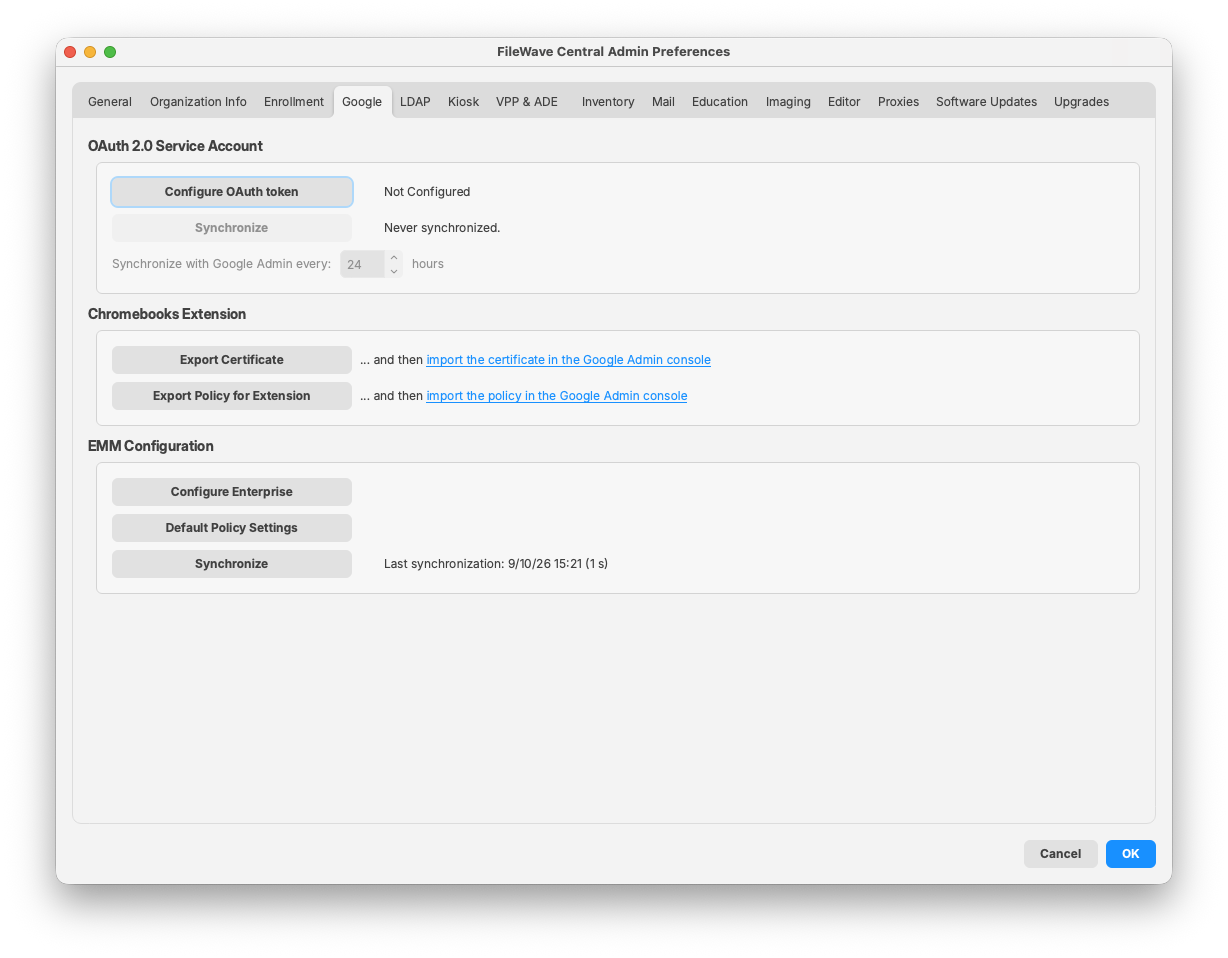
If this tab is missing, contact FileWave Support if you are an existing customer, or your assigned FileWave SE if you are evaluating FileWave. Once activated, the FileWave Central software will need to be re-opened to present this tab.
If a server service is required during any setup, ensure this is actioned by an internally authorised member of staff. For hosted customers, please raise a request with FileWave Technical Support.
Steps
If using Zero-Touch Enrolment, please follow Google's Zero-Touch Guide for linking the intended FileWave Server with Google.
- Select Configure Enterprise and in the Set Up an Android Management Enterprise use the Choose File to upload the JSON provided by FileWave.
- Enter a recognizable enterprise display name and select Sign Up. This name identifies the binding in FileWave and may appear on managed devices.
- The window should update, with a link to Google Play. Click the link and login with the Google Administrator account.
- Enter the details as requested, for example the Business name, along with name, email and phone of representatives.
- Agree to the terms and confirm.
- Select 'Complete Registration', a browser page should open a page to the defined FileWave server, with a success confirmation message, akin to: Enterprise "[display name]" successfully created.
Return to FileWave Central and re-open the Google EMM Configure Enterprise window. The intended account and Enterprise Name should now be displayed.
If these do not display as intended, current customers please contact FileWave Technical Support, whilst evaluation customers should contact the appointed FileWave SE.
Do not create enrolment tokens or attempt enrolment until all appears as expected.
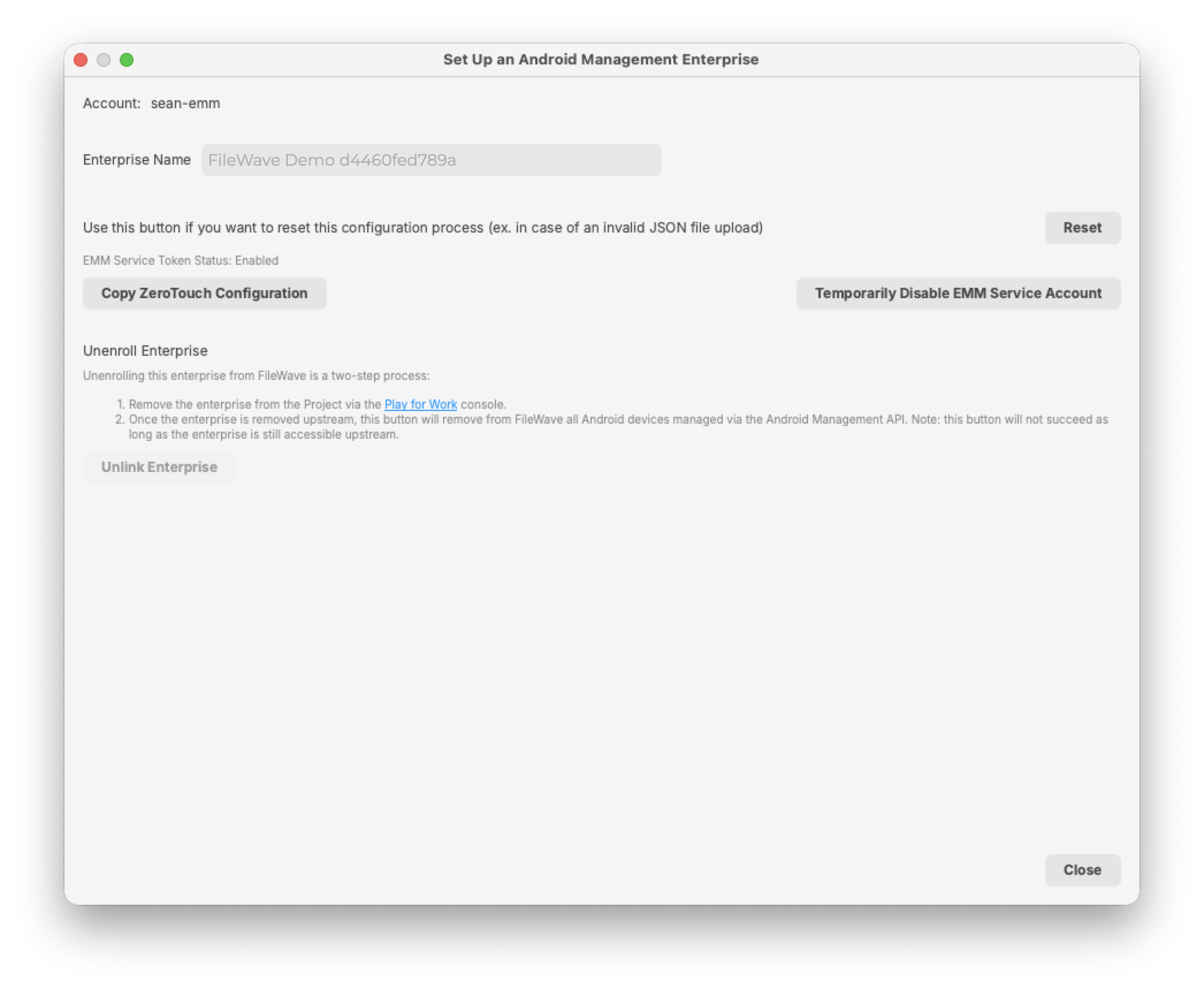 Example configured enterprise. Unlink Enterprise should be greyed out. As indicated, the enterprise project should be removed before unlinking is possible.
Testing
FileWave recommends testing Android Enrolment, before attempting enrolments on larger groups of devices.
Choose the ownership and management mode before following any factory-reset instructions.
No comments to display
No comments to display