
Run PowerShell Commands as a Specified Windows User
Description
The FileWave Client normally runs Windows scripts as System. This example uses PowerShell remoting to run a specific command block with credentials for another Windows account.
Ingredients
- Text editor
- FileWave Central
Directions
Credentials are required. Never hard-code a username or password in the PowerShell body. Use a dedicated account with only the permissions required by the task, and rotate its password according to your organization's credential policy.
PowerShell Invoke-Command accepts a PSCredential for the specified account.
In the Fileset script properties, configure the username and password as environment variables rather than placing the values in the script body.
For example, with a device named DESKTOP-N05SO1D:
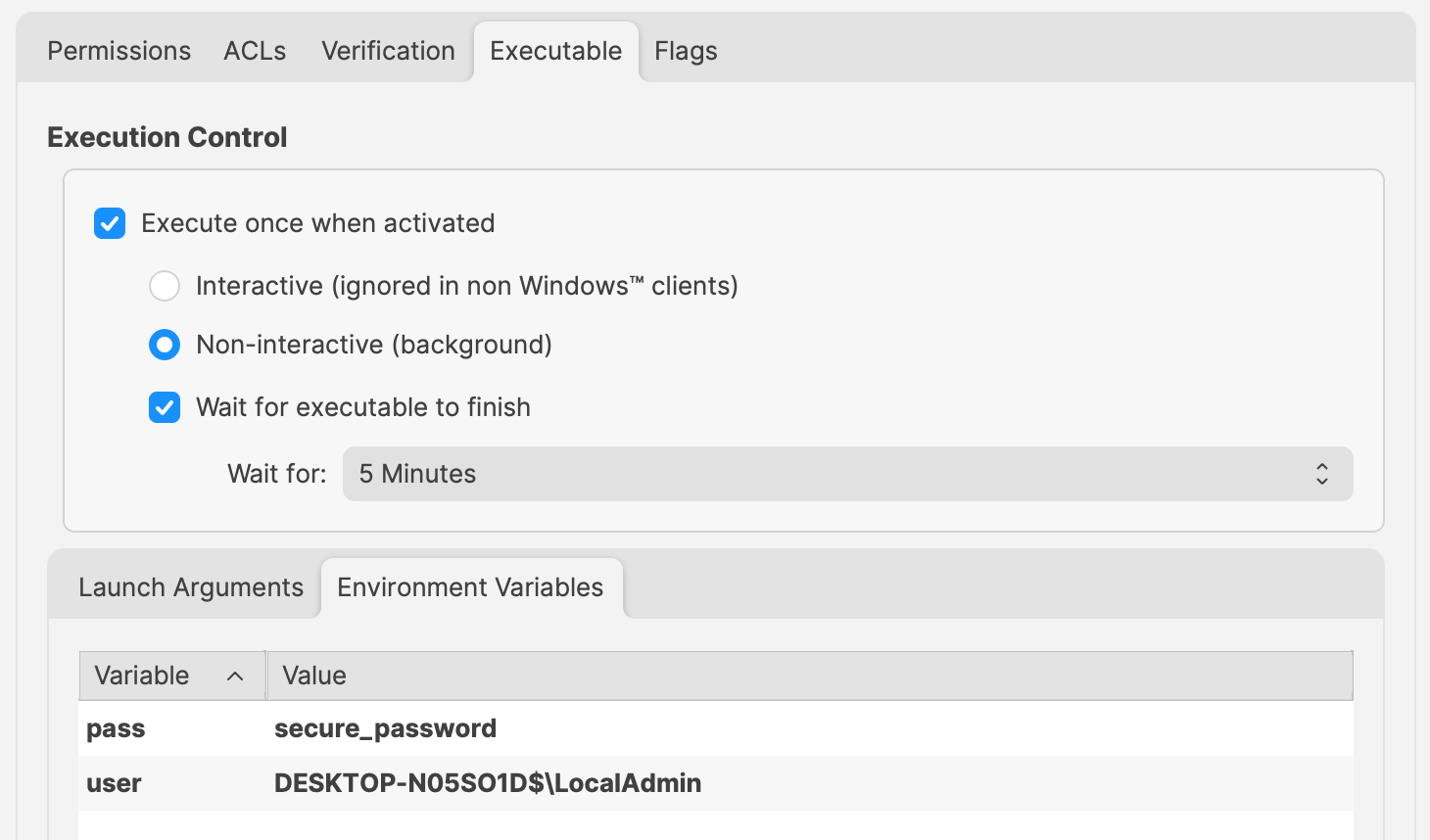
Change 'secure_password' and 'user' values to required entries.
Reference those values in the PowerShell script as:
- $Env:pass
- $Env:user
For example:
$securePassword = ConvertTo-SecureString $Env:pass -AsPlainText -Force
$credential = New-Object System.Management.Automation.PSCredential ($Env:user, $securePassword)

echo "$Env:UserName"

Invoke-Command -ComputerName localhost -Credential $credential -ScriptBlock {
  # Code to action by the defined user should be added here
  echo "$Env:UserName"
}
The example first prints the System account name, then prints the specified account name from inside the command block:
DESKTOP-N05SO1D$
LocalAdmin
WinRM dependency. This example uses Windows Remote Management. If the command fails, check the WinRM configuration from an elevated prompt:winrm quickconfig
WinRM blocks this workflow when the active Windows network profile is Public. Verify the intended network profile and organizational remoting policy before changing WinRM settings.
No comments to display
No comments to display