
FileWave Anywhere API Documentation
What
FileWave Anywhere includes a Swagger/OpenAPI documentation page for supported public API paths.
The page lists public, non-internal URL paths and includes a Try it out option that can execute an API command directly from the documentation.
Executing a command from the Swagger API documentation is a live action on the FileWave Server. It runs exactly as requested and can be destructive. Confirm the command, target object, and payload before executing it.
When/Why
Use the API documentation when you need to confirm whether an API call exists, which JSON keys are required, what a field is called, or which object ID should be targeted.
These are some of the questions the Swagger documentation can answer.
Executing commands from the Swagger documentation requires an active FileWave Anywhere login. If the session times out, log in again before using Try it out.
How
On earlier versions of FileWave, the Documentation page may be accessed without logging in first, but it may then only be viewed as 'read only'.
This is no longer the case and it should be expected to log into FileWave Anywhere to access the API documentation.
Sign in to your organization's FileWave Anywhere through a web browser. Use that Server's address for the API documentation, not the demonstration hostname below. The screenshot shows the older FileWave Central Mobile preferences layout.

The URL for the Swagger documents page is the server address appended with /api/doc/. From the example above, it would look as follows:
https://demoz.filewave.com/api/doc/
Example GET
The below shows an example of using a 'GET' to return the DEP Profiles:
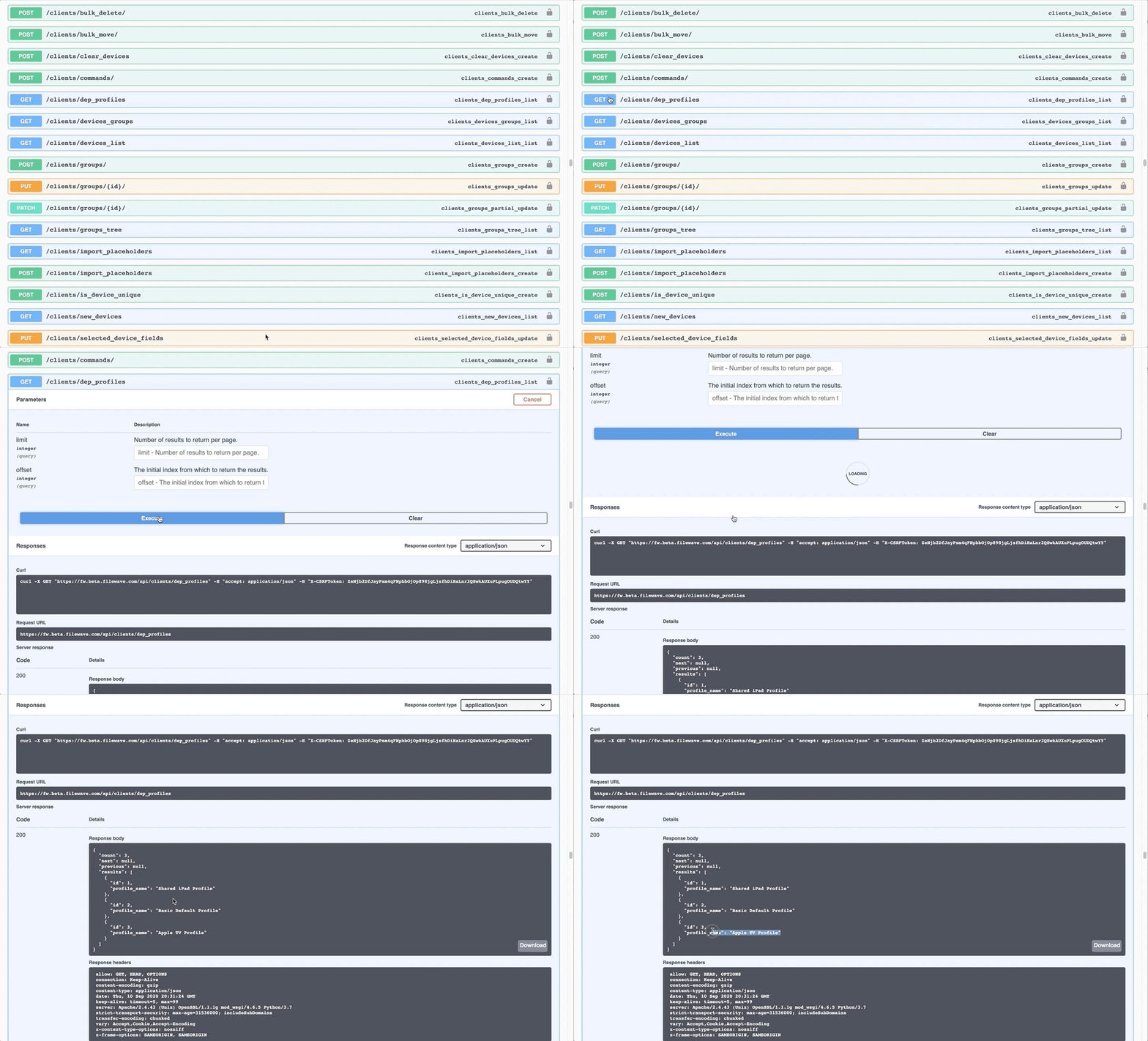
The response section from an executed action shows the curl command, the requested URL and the returned response (code and body)
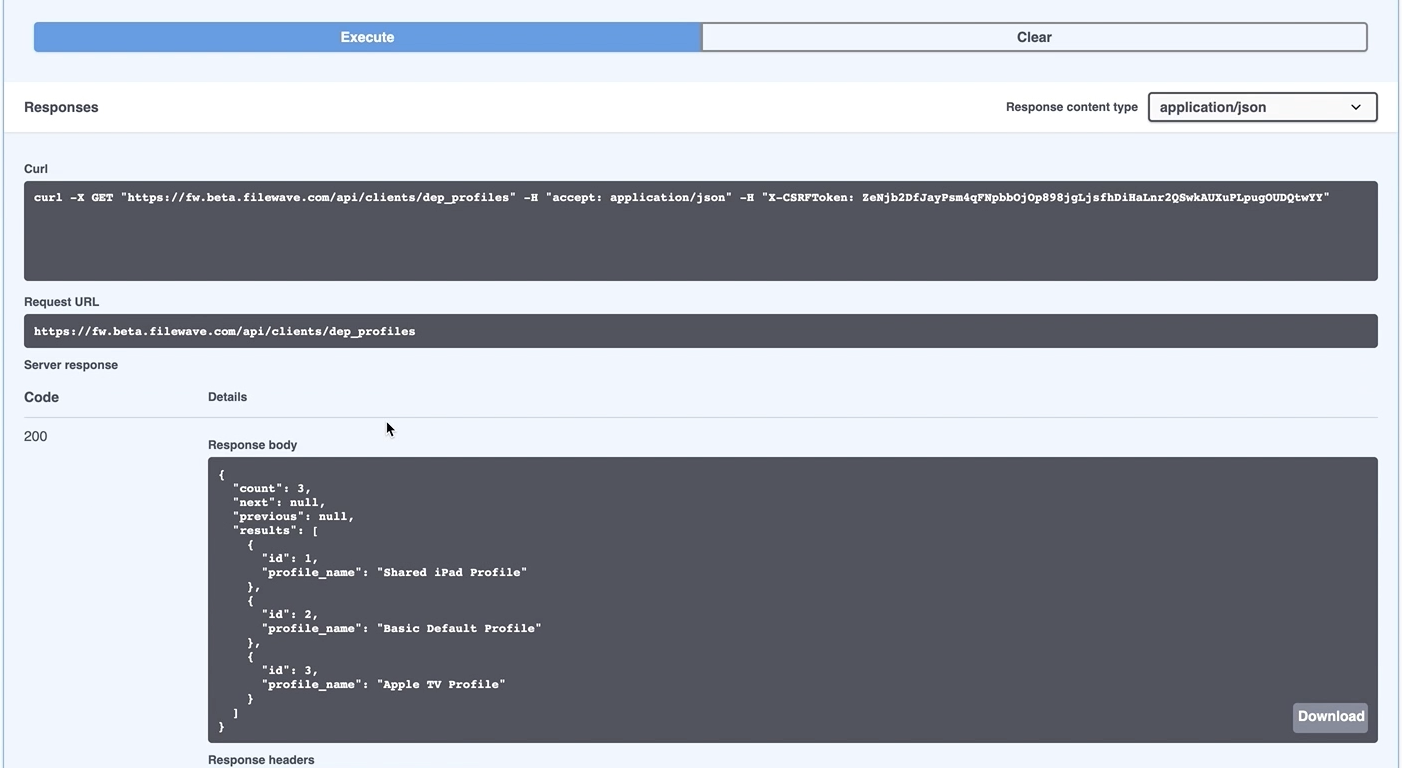
Commands run inside Swagger use the active FileWave Anywhere session and its X-CSRFToken. That browser-session token is not the application token for unattended scripts. Before adapting the generated curl command, follow the token setup in Working With APIs: select the intended administrator in Assistants > Manage Administrators, open Application Tokens, and use Token (base64) as issued. Remove the X-CSRFToken portion from the copied command and use application-token authentication. Keep the token in approved secret storage and grant only the permissions the integration needs.
Discovering Content
Swagger can not only be used for testing API calls and discovering the URL paths, but also determining the necessary content of the key/value pairs.
To simply locate all paths relating to queries, for example, the browse 'find' feature could easily assist:
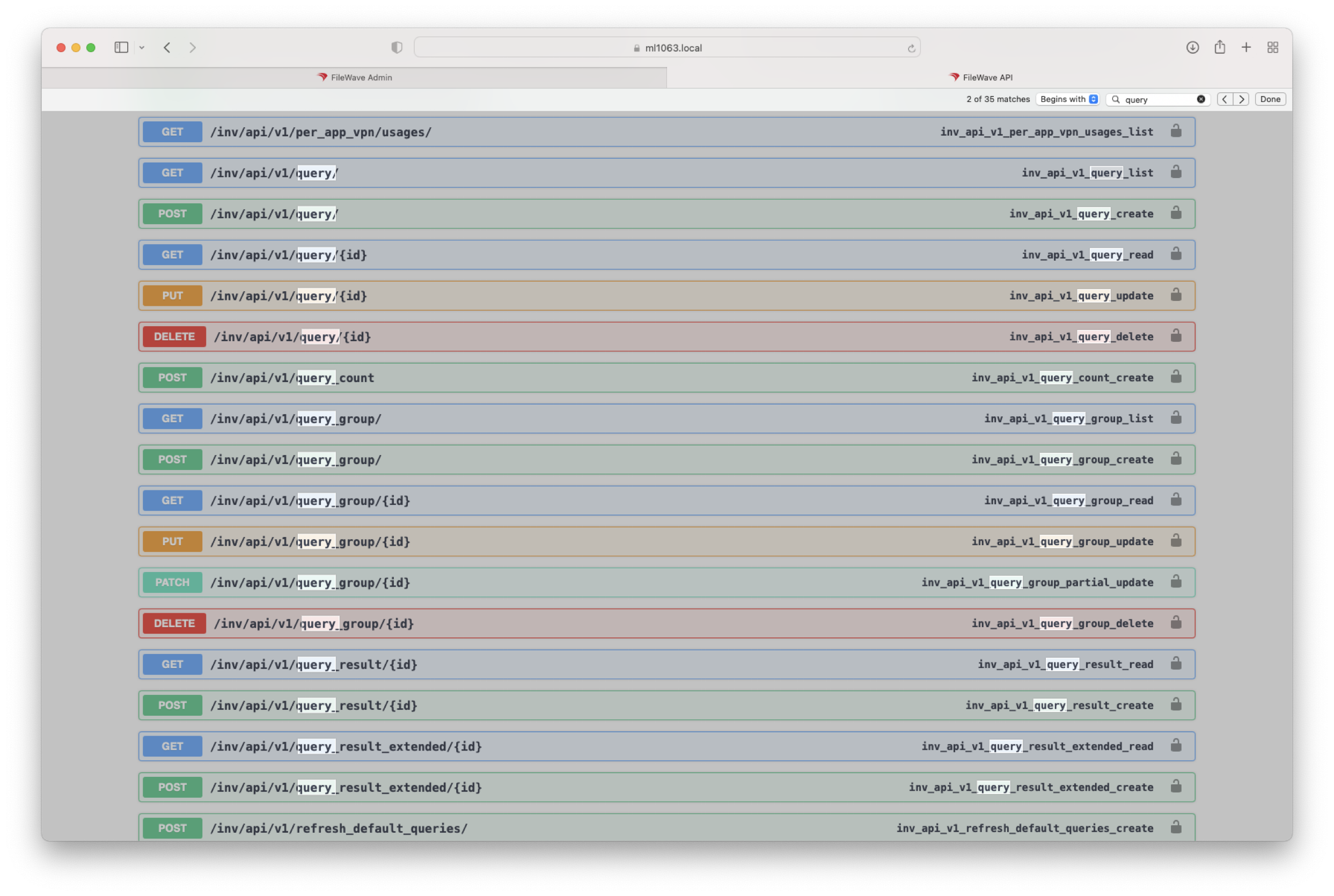
Executing a list of all queries:

The response could then be searched to find the ID of a particular query:
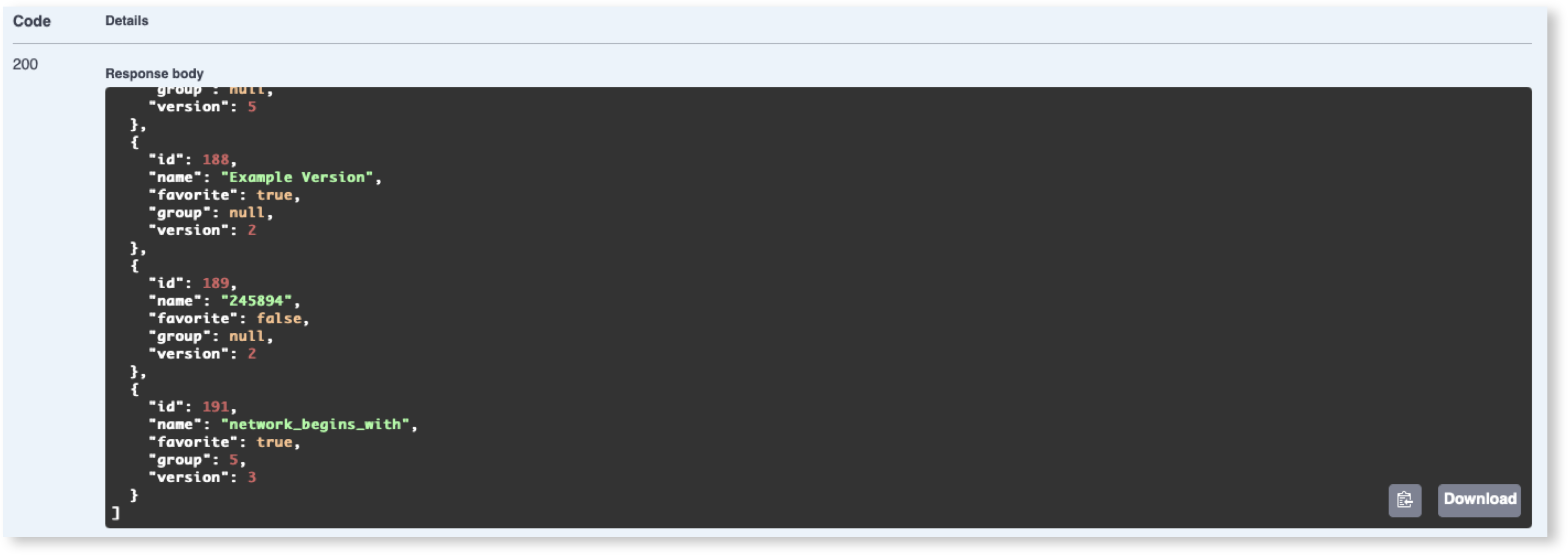
Query ID 191 is an example from the illustrated Server, not a fixed FileWave ID. Use the ID returned for the intended Inventory Report on your own Server in the following GET to retrieve its definition. The API retains query terminology even where Central calls these objects Reports.
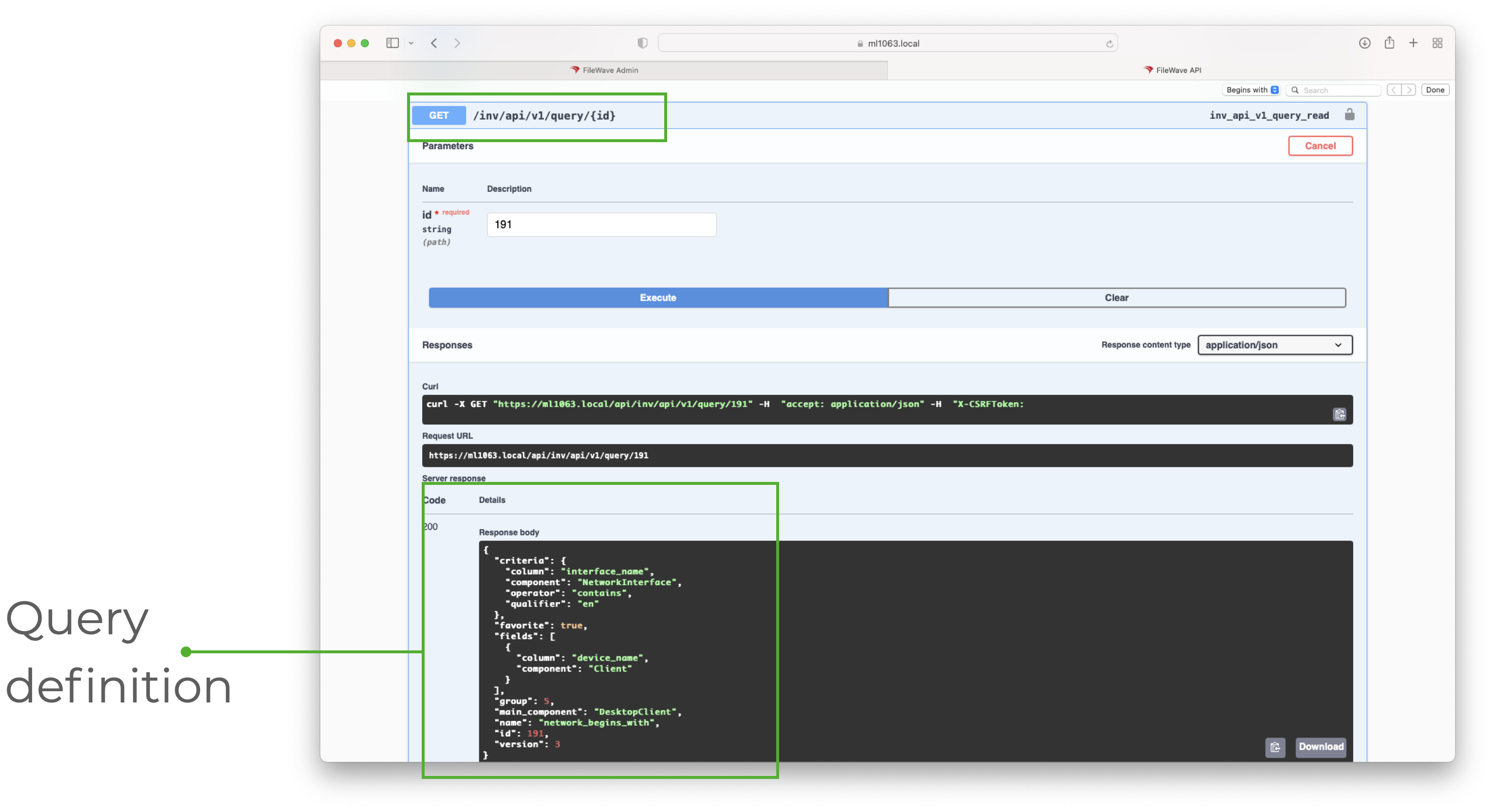
The Query Definition shows the various key/value pairs and can be used to identify values which could then be submitted in other API calls.
To discover the name used as a value for a particular item, consider building a query in FileWave Central, then using the above steps to locate the name to be used within the API call. For example: interface_name, device_name, DesktopClient.
Taking that another step forward, the same ID could be used to show the response of query results:
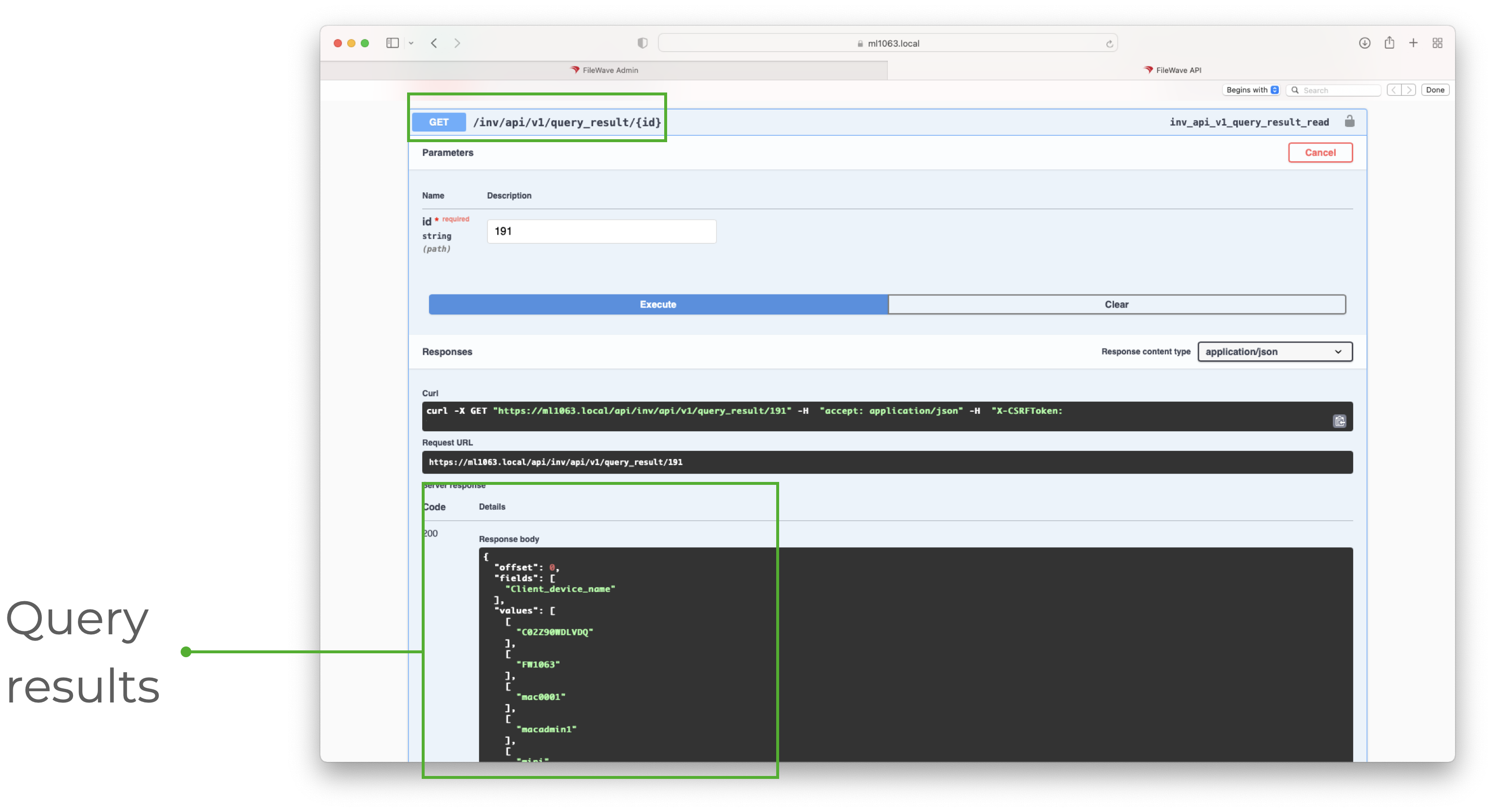
The inventory examples can help you understand the Command Line API, but do not convert every Swagger endpoint by changing its port or removing part of its path. Only use an equivalent route when it is documented for that operation. Choose a FileWave API compares the inventory URL patterns; Anywhere also exposes operations that are not part of the inventory-focused Command Line API. Confirm the method, path, identifier type, and request body for your Server version before adapting a call.
Use the Swagger documentation to discover JSON formatting, key/value names, URL paths, and available API commands before building or troubleshooting API workflows.
FileWave 16.4 Deployments API
On a FileWave 16.4 or later Server, search Swagger for deployments to inspect the public create, list, get, update, and delete operations. See Managing Deployments with the FileWave API (16.4+) for the supported paths and a guarded automation workflow.
No comments to display
No comments to display