
Powerwash / Wipe Users on ChromeOS (15.3+)
What
Powerwash and Wipe Users are ChromeOS reset actions you can send from FileWave. Powerwash resets the Chromebook to a factory-reset state. Wipe Users clears local user data while keeping the Chromebook enrolled for the next user.
When/Why
Powerwash
Powerwash is ChromeOS’s factory reset process. It removes user accounts, local files, and device settings, so use it when a Chromebook is being retired, reassigned with a full reset, or troubleshooting requires a clean device state.
Technical Perspective:
- Use Case: Ideal for individuals returning, selling, or reassigning their Chromebook. Also used for troubleshooting device issues that cannot be resolved through standard fixes.
- Process: Initiated through the settings menu under "Advanced" settings or via a keyboard shortcut at the login screen (pressing Ctrl + Alt + Shift + R).
- Considerations: Before performing a Powerwash, it's crucial to back up any important data stored on the device, as the process will delete everything.
Wipe Users
Wipe Users is the reset option for shared or reassigned managed Chromebooks. It clears local user data without removing the device’s managed enrollment, which makes it useful between students, staff, or loaner-device users.
Technical Perspective:
- Use Case: Primarily used by administrators to quickly clear all personal data from devices between different users while retaining device management settings and policies.
- Process: Can be executed remotely via Google Admin Console, under the device management section, allowing for bulk operations across multiple devices.
- Considerations: Ensures that devices remain under organizational control and policies after user data is wiped, streamlining the reassignment process.
For FileWave admins, the important difference is enrollment state. Use Wipe Users when the device should stay managed. Use Wipe Device/REMOTE_POWERWASH when you intentionally want a full reset.
If this reset is part of retiring or removing a Chromebook from management, review Removing ChromeOS / Chromebook devices first. FileWave wipe actions reset the device, but Google Admin Console still controls whether the Chromebook remains managed.
How
To send either command, right-click one or more Chromebooks and choose Wipe Device or Wipe Users.
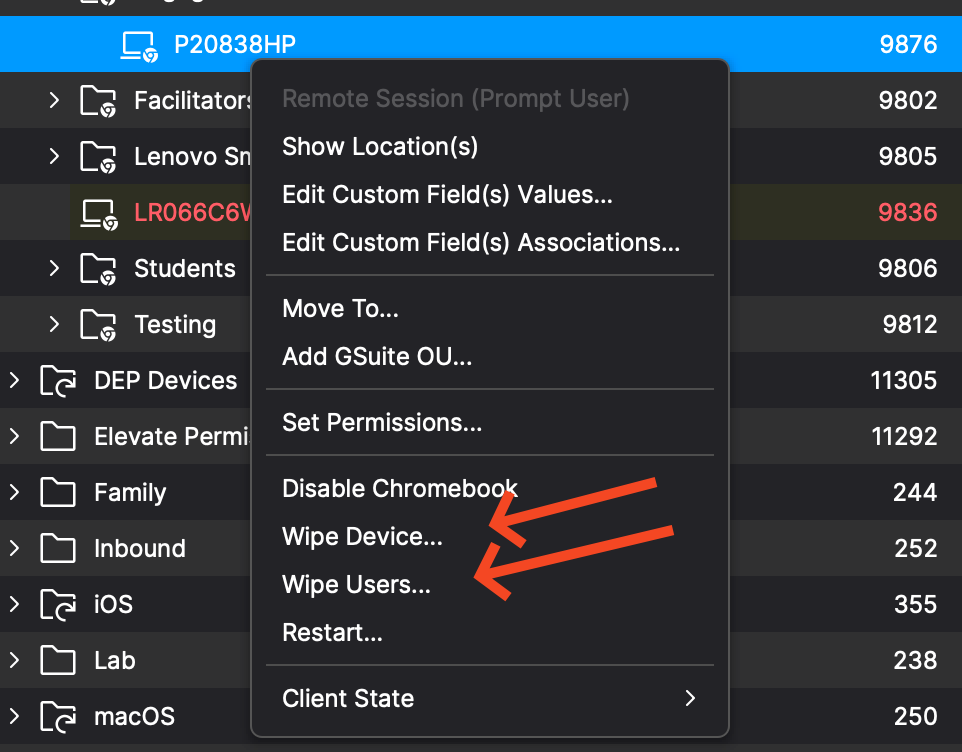
REMOTE_POWERWASH Command (Wipe Device)
-
Description: System administrators can remotely Powerwash ChromeOS devices, resetting them to factory settings for efficient troubleshooting and maintaining device security.
-
Execution: Initiates the Powerwash process, erasing all user data and configurations.
-
Access:
-
The REMOTE_POWERWASH command is available in FileWave Central and FileWave Anywhere for ChromeOS devices.
-
Find the command in the dropdown menu labeled "Wipe device(s)..."
-
Modify Clients/Groups and Wipe Devices permissions are required.
-
When wiping a device, remember that Wipe Device fully resets the Chromebook. If you need the device to re-enroll afterward, review Force wiped ChromeOS devices to re-enroll (15.3+).
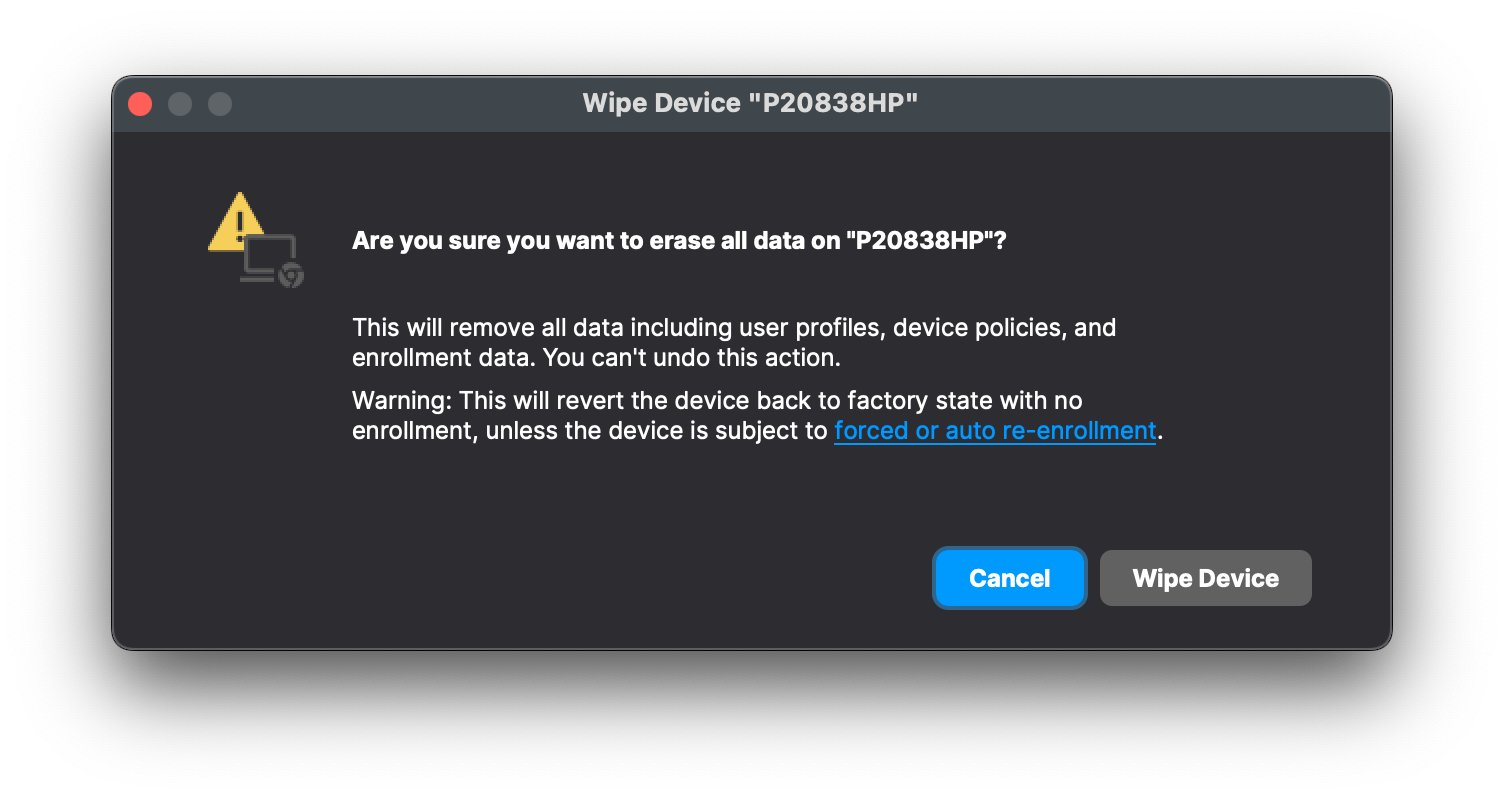
WIPE_USERS Command
-
Description: System administrators can remotely wipe local user data from managed ChromeOS devices while keeping the device enrolled.
-
Execution: Initiates the data-wiping process on all user accounts.
-
Access:
-
The WIPE_USERS command is available in FileWave Central and FileWave Anywhere for ChromeOS devices.
-
Find the command in the dropdown menu labeled "Wipe user(s)..."
- Modify Clients/Groups and Wipe Devices permissions are required.
-
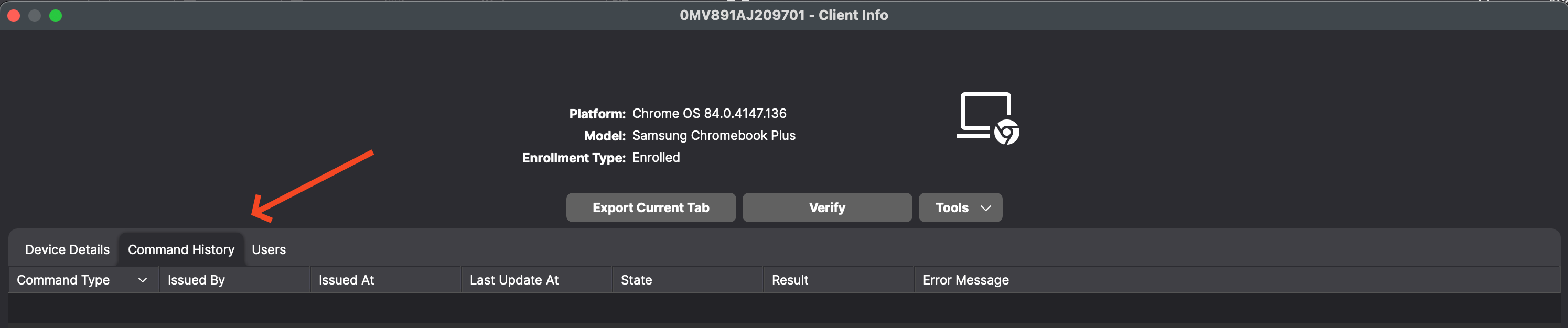
Command History tab
-
Description: Users can now view all information related to sending REMOTE_POWERWASH, WIPE_USERS, and REBOOT Commands in the Command History tab for Chromebook devices. As shown below you can see this when looking at device details for a Chromebook.
No comments to display
No comments to display