
Troubleshoot ChromeOS Communication with FileWave
You have already:
- Enrolled devices into your Google Suite (https://support.google.com/chrome/a/answer/1360534?hl=en)
- Followed the Chromebook Client Pre-Requisites to install the extension on your devices
- Verified you have a license for Chrome devices
Problem
Use this guide when ChromeOS devices do not appear in FileWave, stop sending inventory, or show missing geolocation data.
Troubleshooting checklist
- Verify that the FileWave Inventory Extension is force-installed by the intended Google policy.
- Check the extension console log for FCM registration and successful inventory reports.
- Confirm that the FileWave Server can complete its Google synchronization.
Devices do not appear in FileWave
-
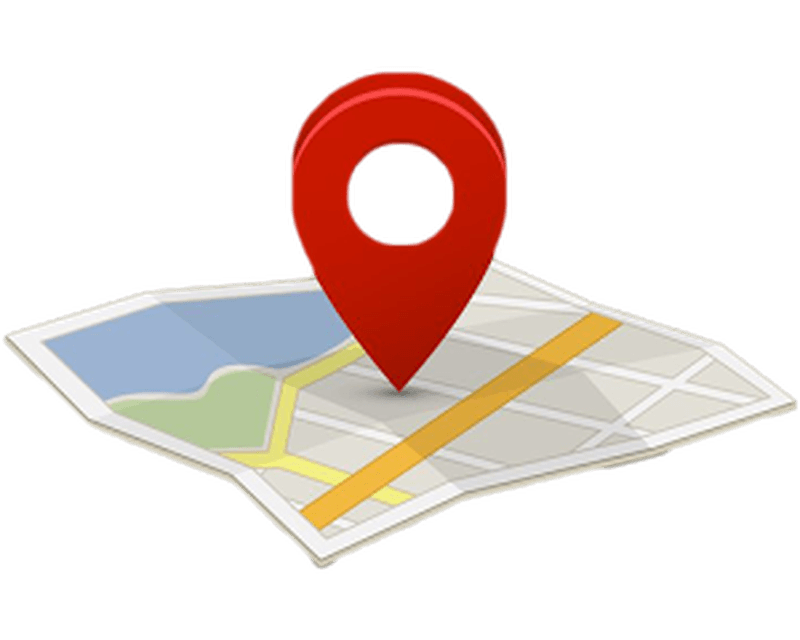
In FileWave Central, open Preferences > Google.
-
Check the synchronization status icon. A status other than green indicates that the Google synchronization needs attention.
-
If you have a large number of ChromeOS devices it is possible that the server is timing out when trying to sync with Google. This can be especially true on the first sync
-
Self-managed servers only. If a large initial synchronization times out, review
/usr/local/filewave/apache/conf/httpd.confon the FileWave Server. Hosted FileWave customers should contact FileWave Technical Support instead of attempting this server-side change. -
Look for a section in the file like this:
# chrome app WSGIDaemonProcess chrome display-name=filewave-chrome processes=1 threads=2 python-eggs=/usr/local/filewave/apache/.python-eggs shutdown-timeout=5 deadlock-timeout=300 inactivity-timeout=3600 request-timeout=3600 socket-timeout=3600 -
Set
deadlock-timeout=600. Keep the remaining values aligned with the example above, increasing any lower timeout values to at least the listed values. -
Restart the FileWave Server services:
fwcontrol server restart -
If the issue was a timeout then the sync should now complete. For about 50,000 devices the sync can take 10+ minutes to complete on first sync.
Devices are missing geolocation information
If a device appears in FileWave but has no geolocation data, verify that both the device and the signed-in user receive the geolocation and FileWave Inventory Extension policies. During a limited-OU evaluation, place the test user and device in OUs covered by those policies, or apply the policies to both OUs. Also confirm that Force Install + Pin is applied to the intended user and device scope.
View the device policy
- Open a Google Chrome window
- Browse to the URL: chrome://policy
- Scroll down to ExtensionInstallForcelist and select show more
- Look for the ID of the FileWave Inventory Extension ( ldhgnmkjehdokljjhcpkbhcmhoficdio Figure 1.1 )
- If you see it there, scroll to the very bottom
- There will be a whole section for the FileWave Inventory Extension
- Verify all the policy fields are there ( Figure 1.2 )
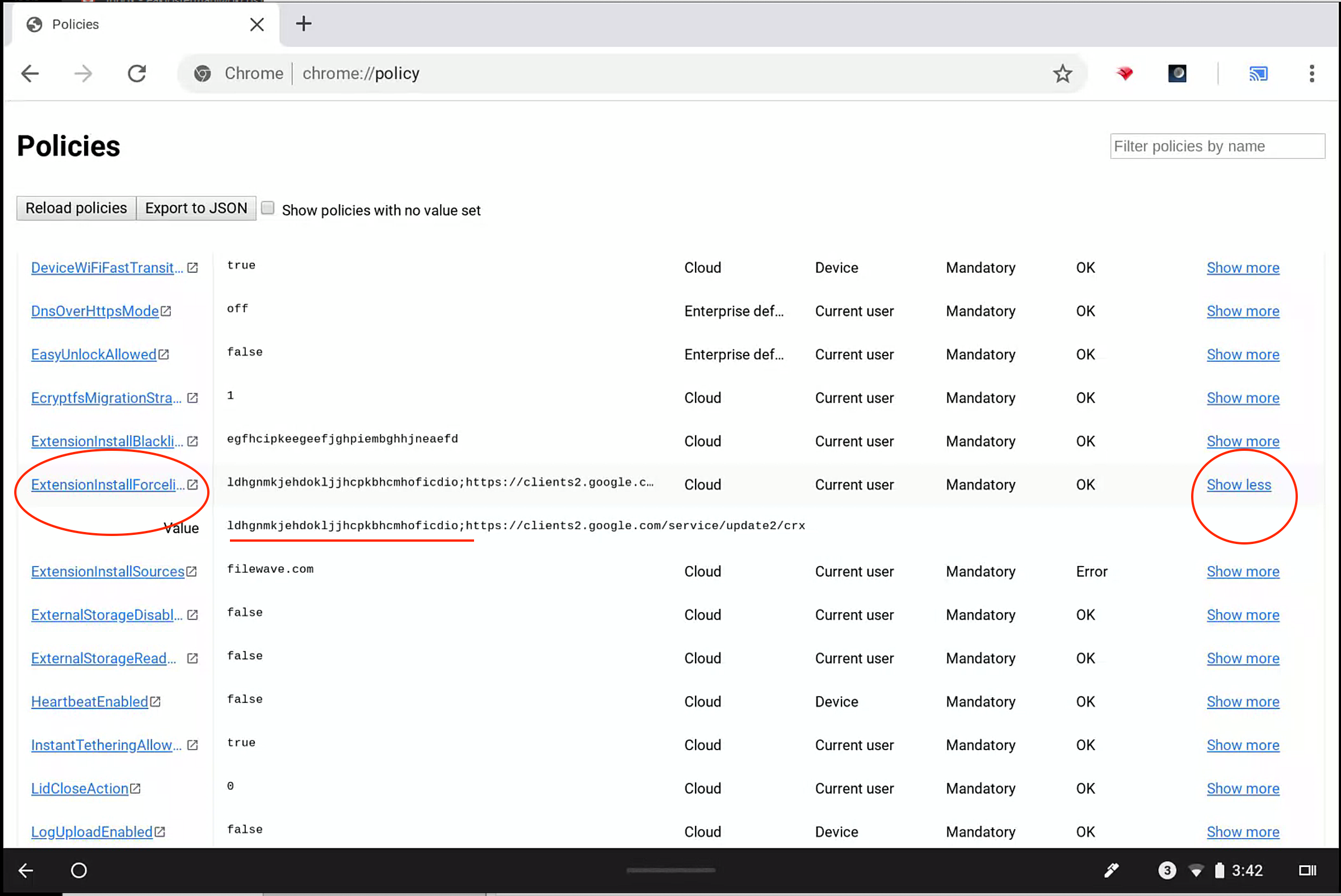 |
| Figure 1.1 - Chrome Policy Force List |
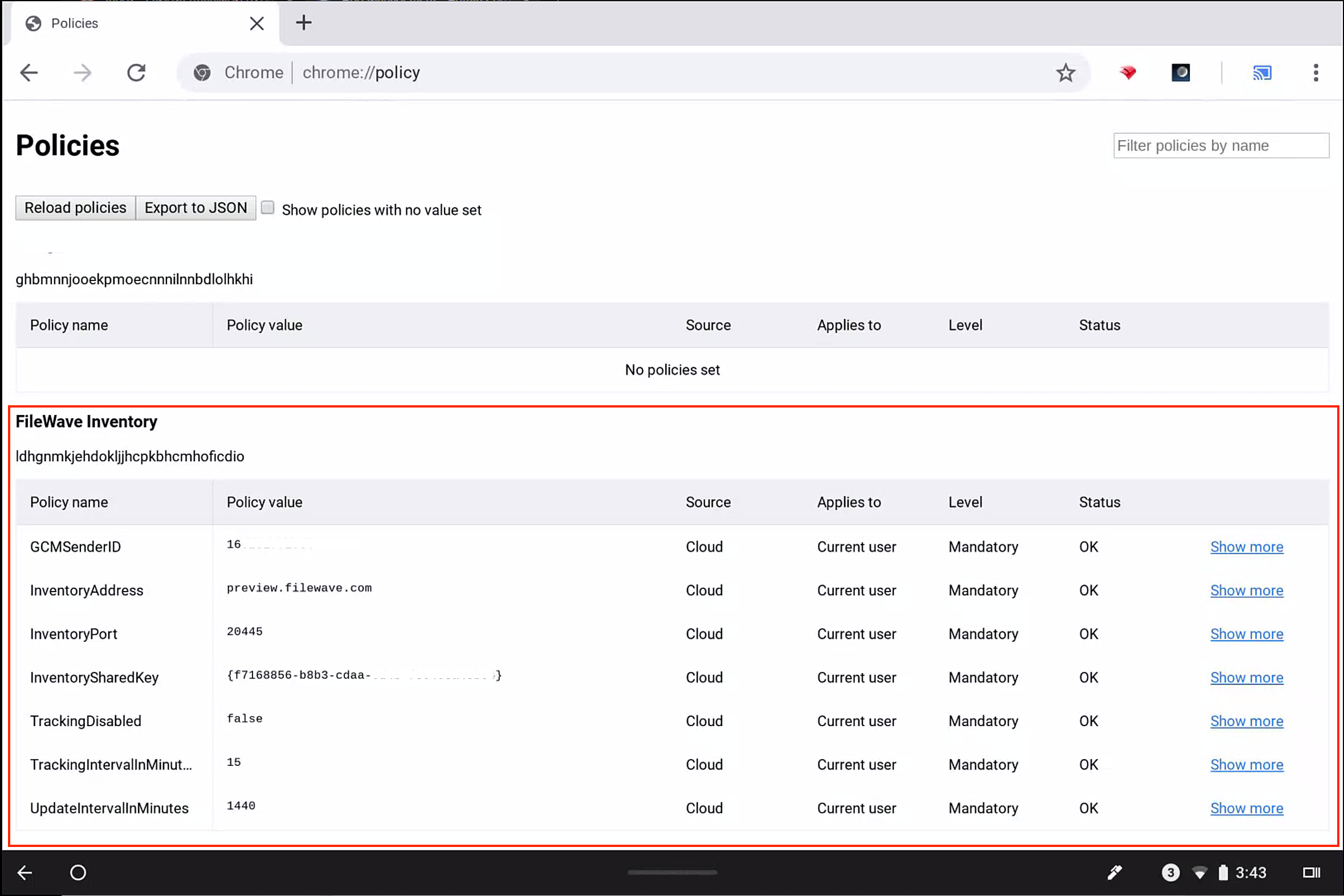 |
| Figure 1.2 - Chrome Policy for FileWave |
View the extension console log
- Open a Google Chrome window
- Browse to the URL: chrome://extensions
- Be sure Developer mode is enabled
- Click Details (Figure 2.1)
- Open the Background page (Figure 2.2)
- Select the Console tab to view the log
- Verify the log contains "FCM Registration" (Figure 2.3)
- FCM is the messaging channel FileWave uses to reach the device. If registration fails, FileWave cannot communicate with it.
- If the entry reports failure or is empty, verify that the JSON used to configure the extension contains the FCM settings.
- Verify the log contains "... Report sent successfully"
- This confirms that the device is able to talk to your FileWave server
- If reports cannot be sent, verify that the JSON contains the FileWave Server name and an inventory token.
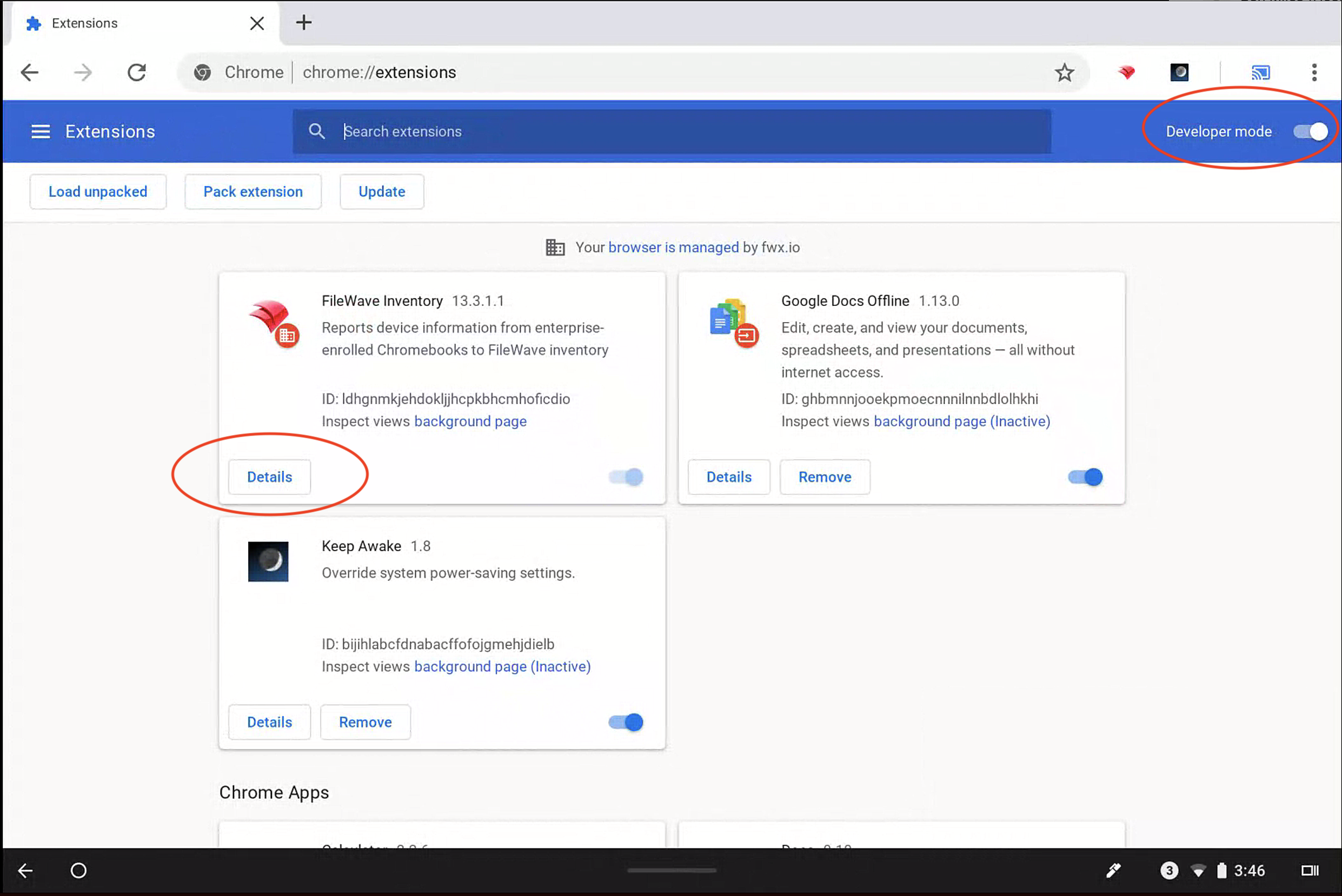 |
| Figure 2.1 - Chrome Extensions |
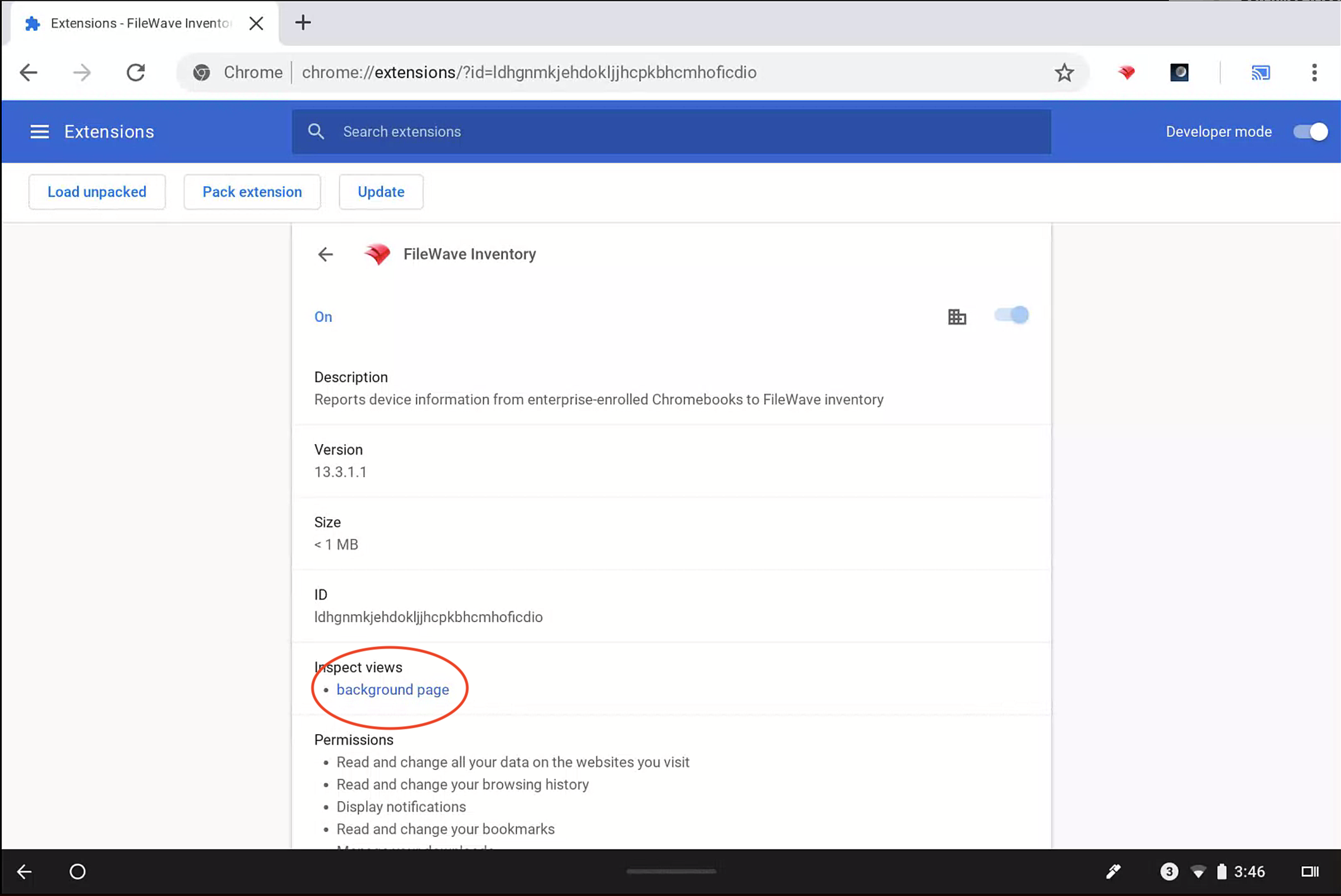 |
| Figure 2.2 - Chrome Extension Details |
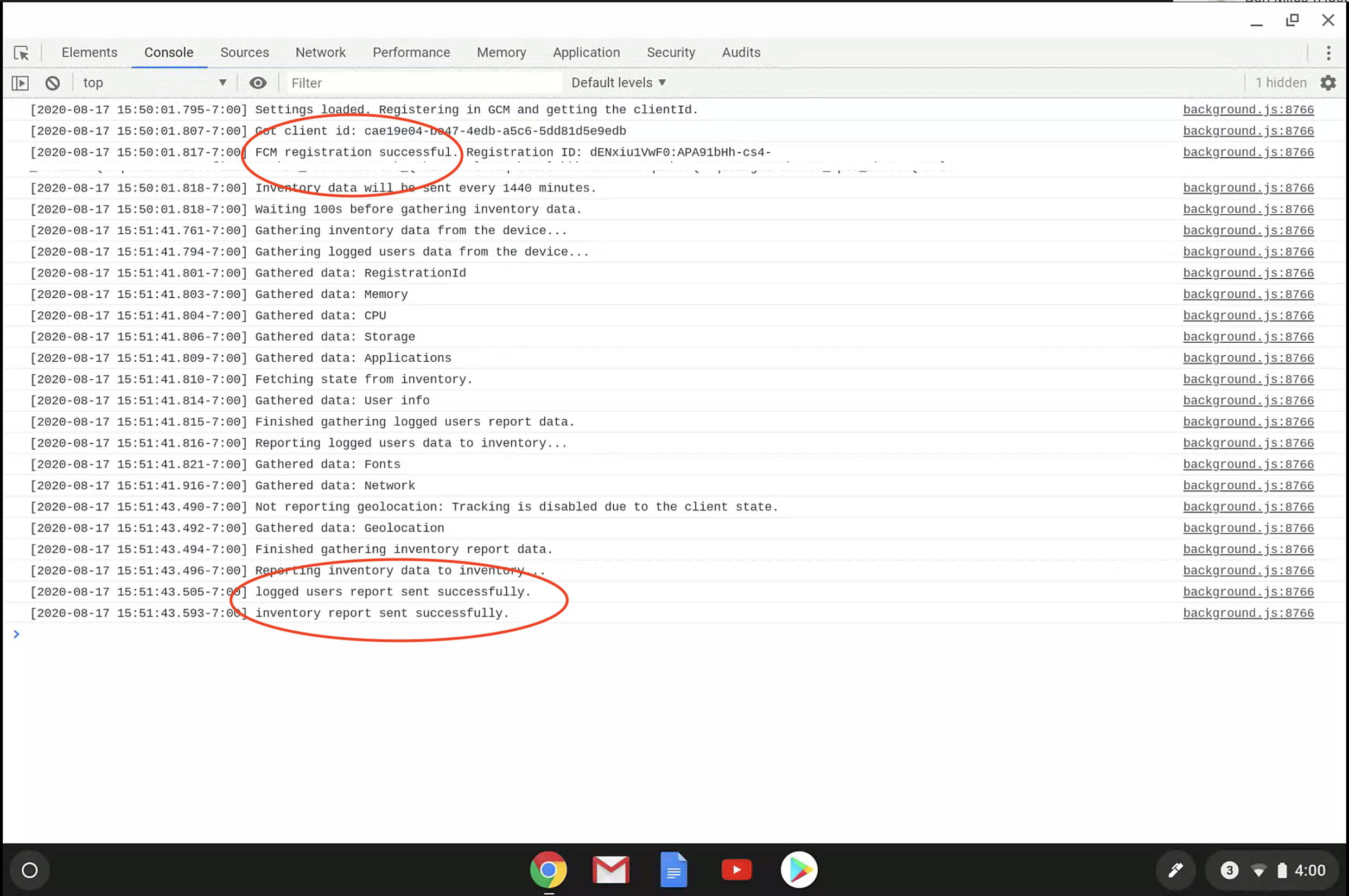 |
| Figure 2.3 - Extension log |
| Error | Details | Solution |
| GCM failed to register | The device(s) are unable to use the information they received to contact Google's GCM/Firebase services | Be sure you have GCM registered properly (Google Cloud Messaging (GCM/Firebase) Setup) in your admin preferences BEFORE you exported the settings for upload into Google Suite. You can always export it again. |
| Failed to load resource: net : : ERR_INSECURE_RESPONSE | The device cannot establish a secure connection to the FileWave Server. | * Verify the server has a valid certificate * Verify the server's certificate is either root trusted or has been uploaded to your google suite (see Chromebook Client Pre-Requisites) * Verify the ports between devices and server are open (see: Default TCP and UDP Port Usage ) |
| Error: failed to gather Geolocation data: All attempts exhausted | The FileWave client on the device was unable to receive location information from the devices' OS | * Verify in the devices security preferences the app has admin rights to location information |
| Failed to send inventory data | The device was unable to contact the inventory port on the server | * Verify the ports between devices and server are open (see: Default TCP and UDP Port Usage ) * Verify you have all your settings in preferences BEFORE you exported the settings for upload into Google Suite. You can always export it again. |
| GET https://server.name:20445/inv/api/v1/client/settings/asdasdasd net : : ERR_NAME_RESOLUTION_FAILED | The device could not resolve the FileWave Server name supplied during enrollment. | * Verify you have all your settings in preferences BEFORE you exported the settings for upload into Google Suite. You can always export it again. |
| Uncaught (in Promise) TypeError: Cannot read property 'state' of undefined at ... | Device was unable to contact the FileWave server OR the device was able to contact the FileWave server but the state of the device could not be read. | * Attempt to change the state FileWave Admin and update the mode. Wait for the device to verify or force a verify of the device. * If the problem persists contact FileWave support. |
No comments to display
No comments to display