
APNs Certificate Creation & Renewal on macOS with Keychain
Description
FileWave uses an Apple Push Notification service (APNs) certificate to communicate with managed Apple devices. Apple requires this certificate to be renewed every year.
Renew before expiry
An expired APNs certificate stops FileWave from sending MDM commands to Apple devices, and Update Model cannot restore that communication until the certificate is renewed. Record the owning Apple Account and schedule renewal well before the expiration date.
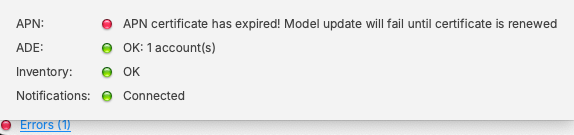
This guide creates or renews the APNs certificate on a Mac using Keychain Access, the FileWave CSR portal, and the Apple Push Certificates Portal.
Preserve the APNs topic
Renew the existing certificate with the same Apple Account and confirm that its topic matches the current certificate in FileWave Central. Creating a different certificate instead of renewing the existing one changes the management identity and can break communication with already enrolled devices.
Step-By-Step Guide
Creating the Certificate Signing Request (CSR)
-
Open Keychain Access, located in: Applications > Utilities > Keychain Access.app.
-
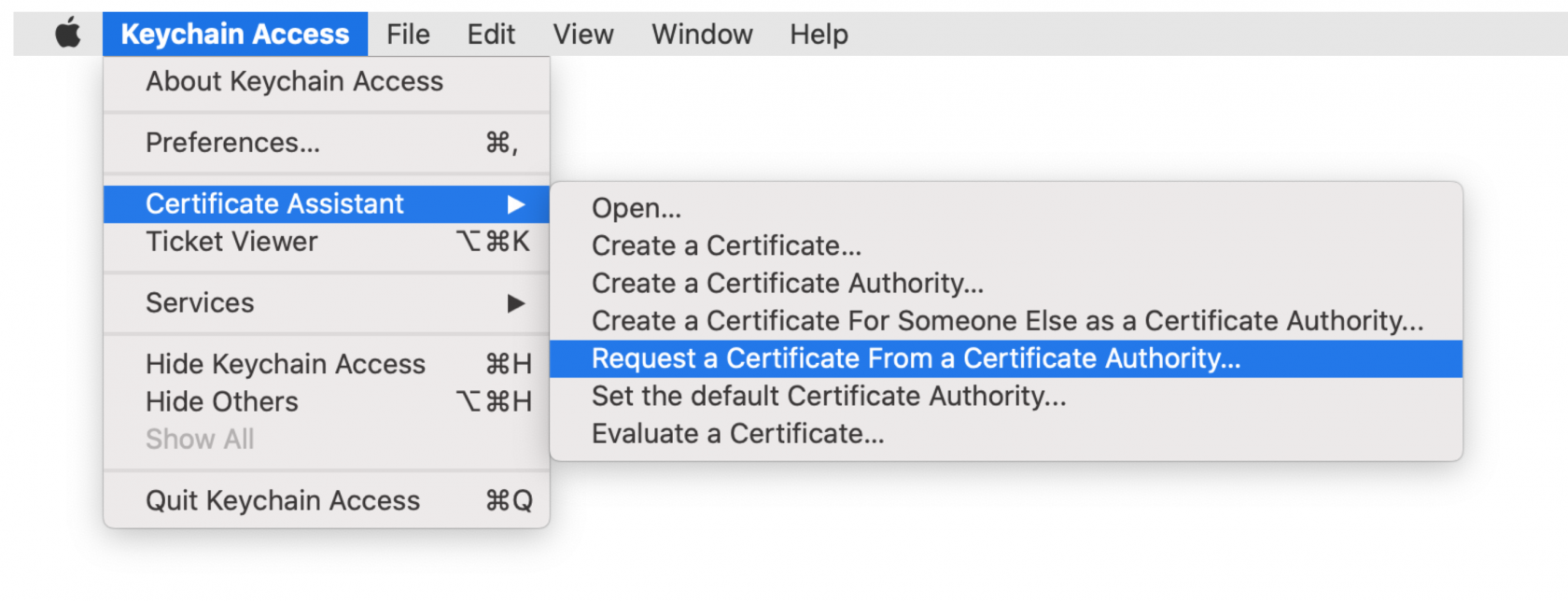
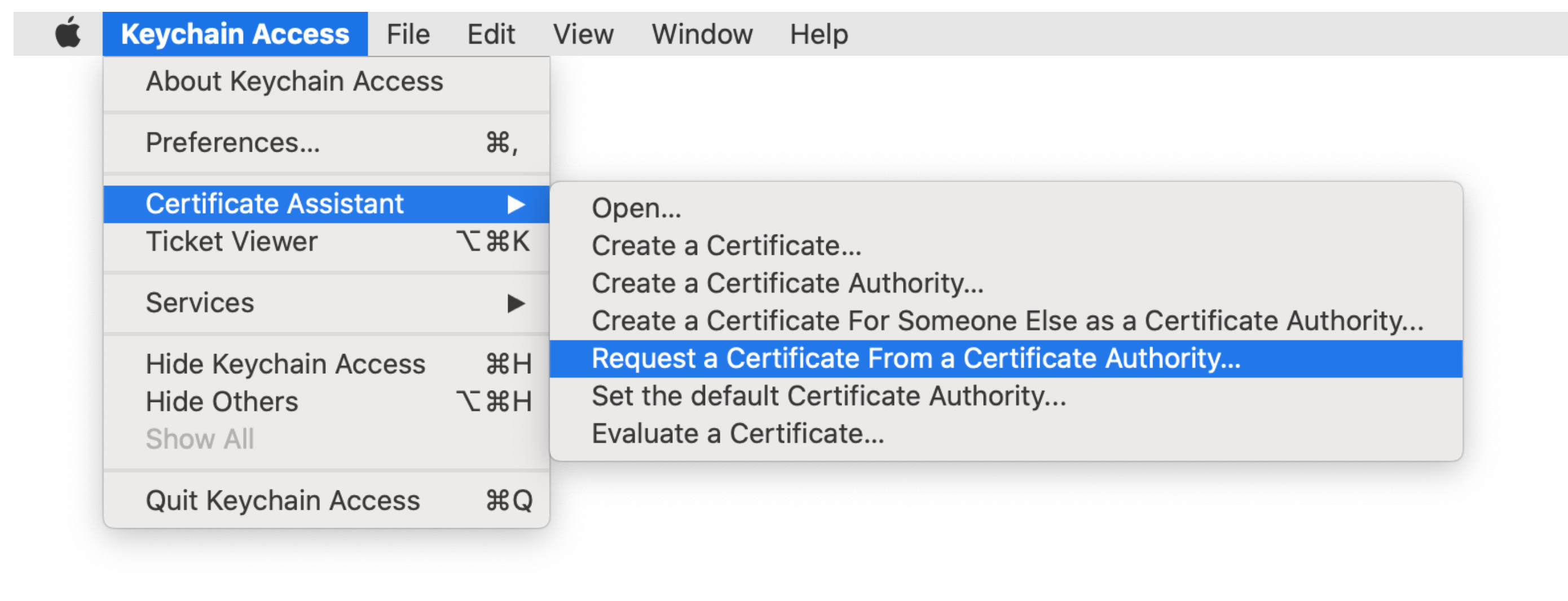
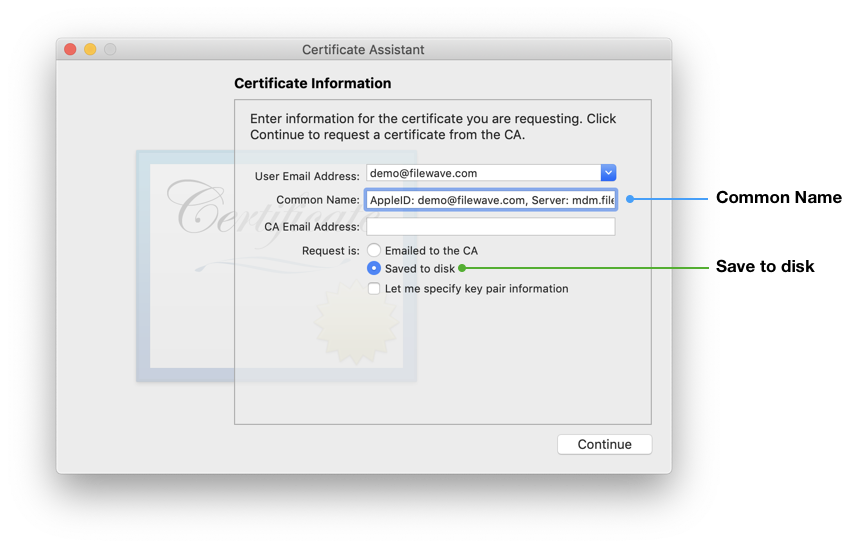
Create a CSR. Keychain Access > Certificate Assistant > Request a Certificate from a Certificate Authority...
-
In the Common Name field, enter the Apple Account and FileWave Server name that will be associated with this certificate.
Common Name
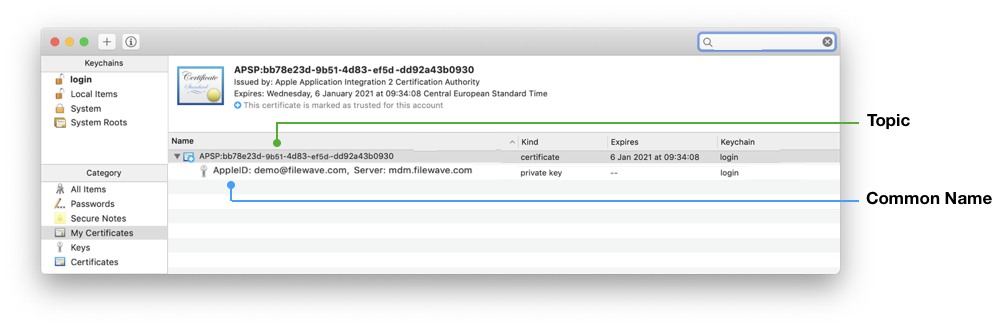
Certificate Private Key names are visible in Keychain and the Common Name is used to set the Private Key name. Supplying the Apple ID and Server as the Common Name, ensures the Apple ID used to generate the certificate will be stored for future reference.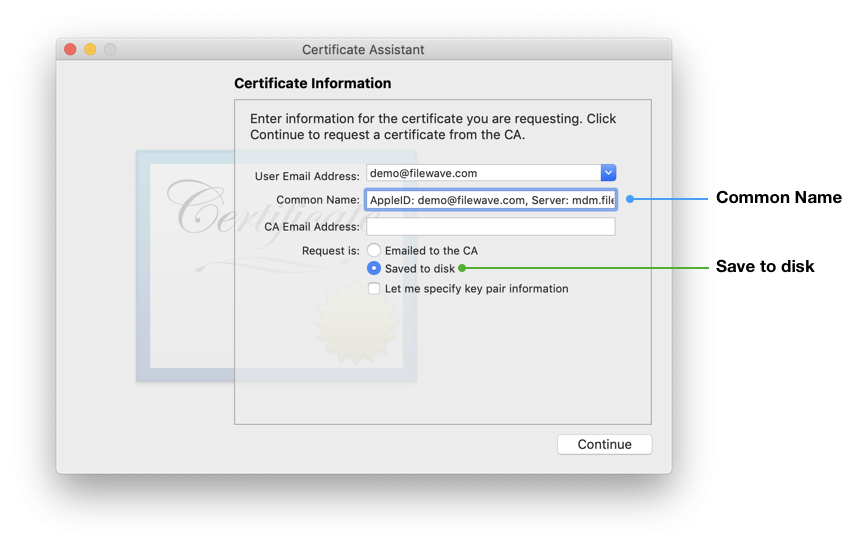
-
Select the radio button "Saved to disk" and click Continue.
-
Save the CSR request, ready to upload to FileWave in the next section.
Certificate storage
Store the CSR, signed CSR, downloaded certificate, and exported.p12in a restricted location organized by server and renewal year. Record the owning Apple Account without storing its password beside the certificate files.
Sign the CSR
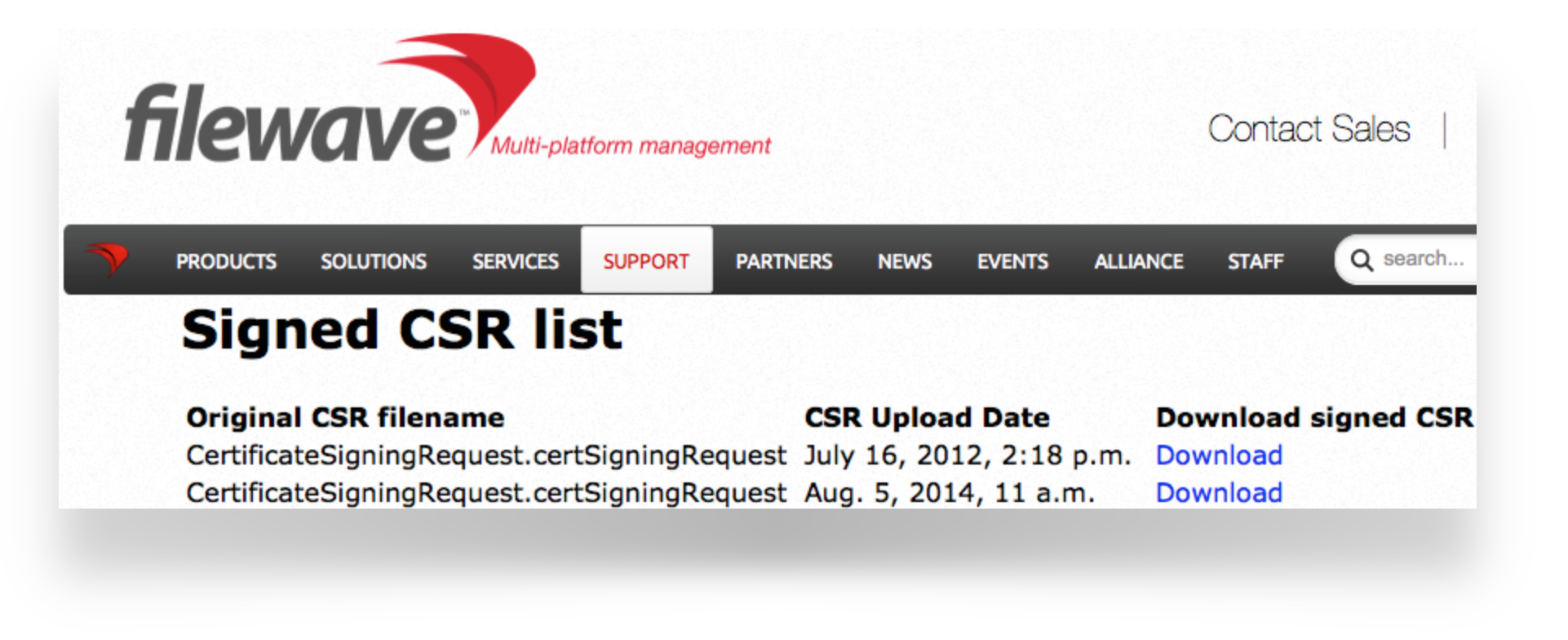
CSR requests must be signed before uploading to Apple. FileWave has a portal for this process, which requires an active FileWave account.
Upload the signed FileWave CSR to Apple
Creating a new Certificate
If you are renewing a certificate then jump to Renewing a Certificate
-
Navigate to: https://identity.apple.com/pushcert/ and log in with an Apple ID.
This Apple Account owns the certificate and is required for every renewal. Use an organization-controlled account rather than a personal account so staff changes do not put renewal access at risk.
-
Click 'Create'.
-
'Accept' Apple's 'Terms of Use'.
Renewing a Certificate
To confirm the certificate, compare the Subject DN (Topic) and current certificate.
Clicking the 'i' button will show the certificate details, including the Topic:
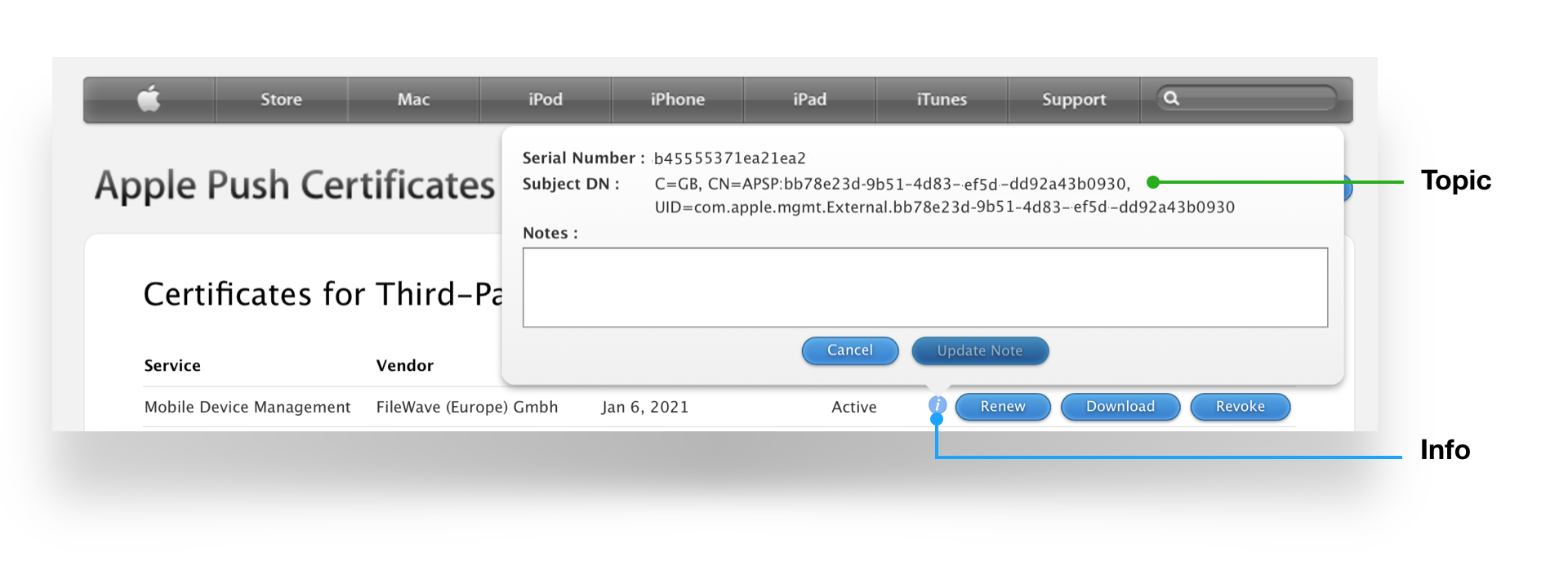
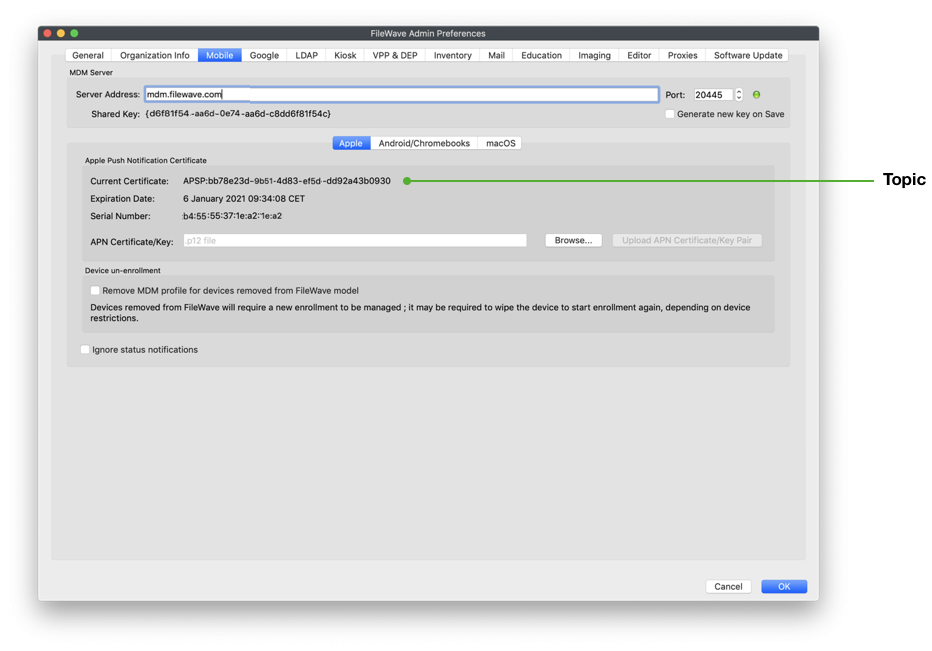
Confirm that the topic matches Current Certificate in FileWave Central > Preferences > Mobile > Apple Push Notification Certificate:
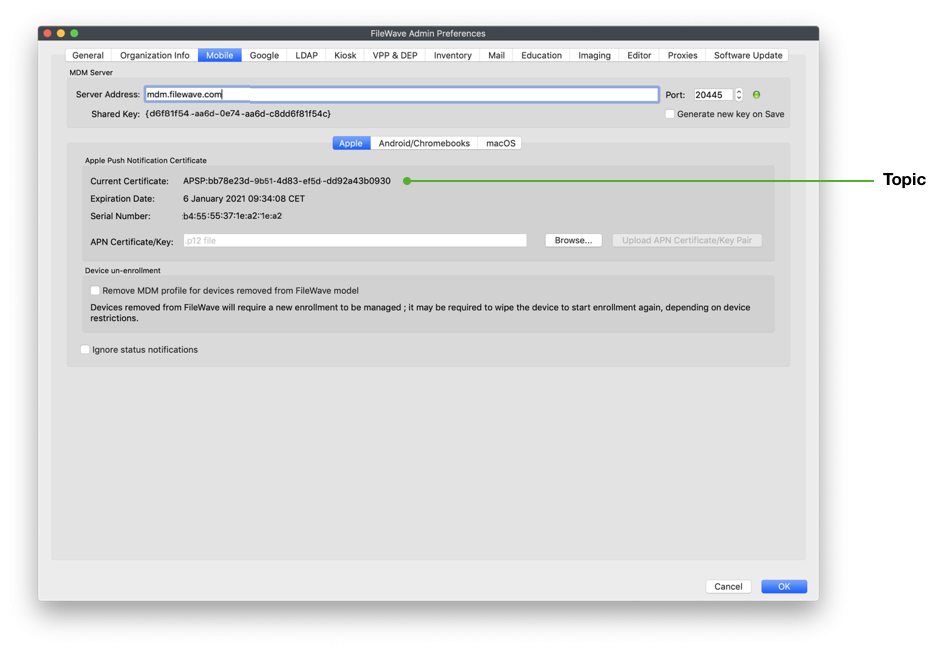
If the topics do not match, stop. If the correct certificate is not listed in the Apple Push Certificates Portal, verify that you signed in with the Apple Account that owns the current certificate. The Keychain private-key Common Name may identify the account recorded during the original setup.
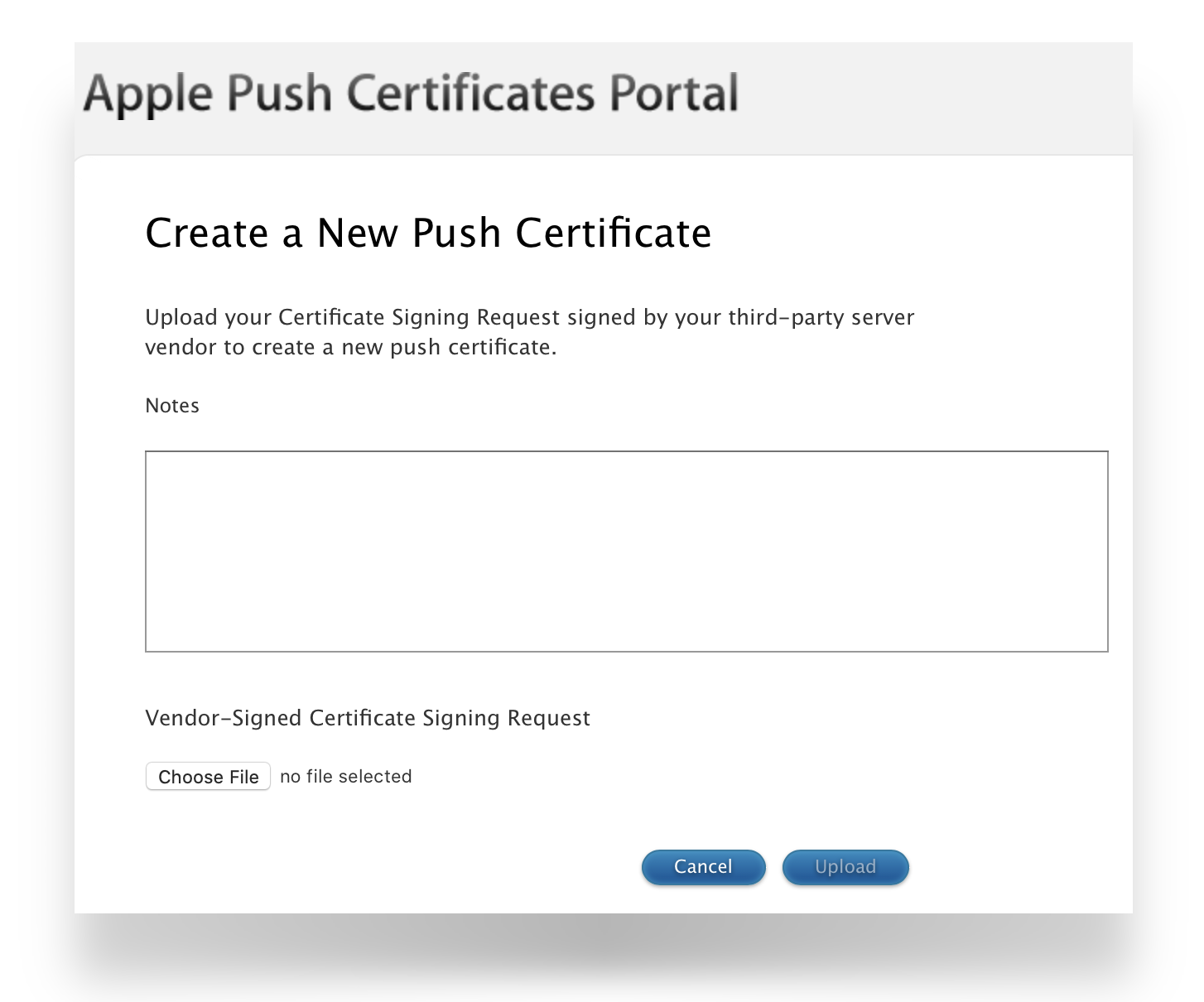
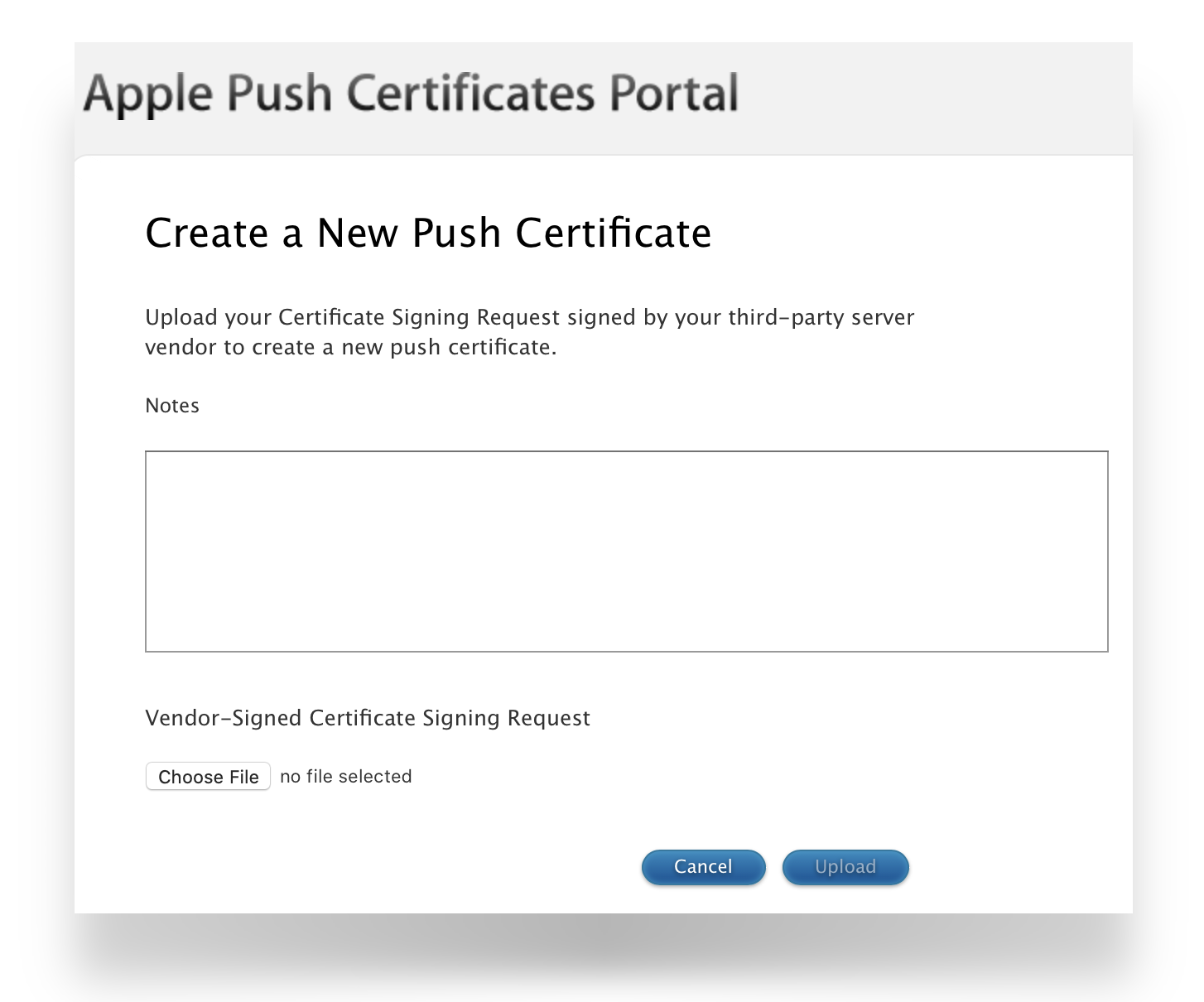
Click 'Choose File' and browse to the signed FileWave CSR from the previous section.
Click 'Upload' and Apple will return a 'Confirmation'.
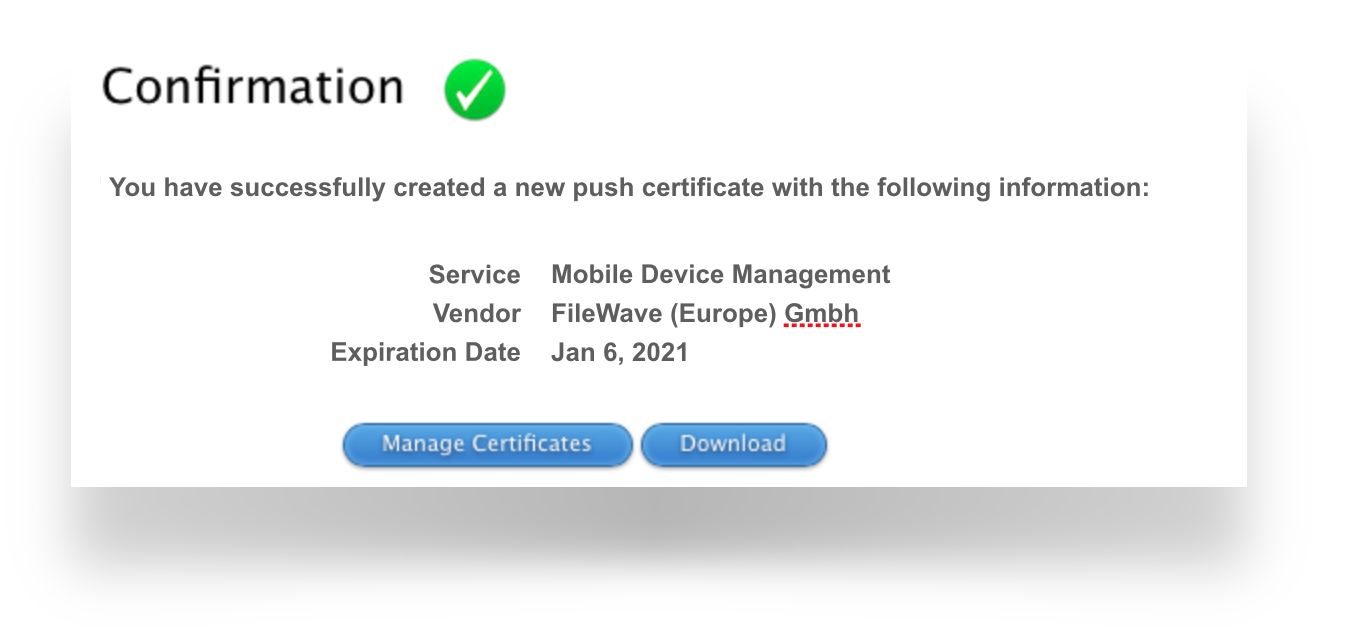
Click 'Download' and save the ".pem" file. Again consider where this certificate is stored.
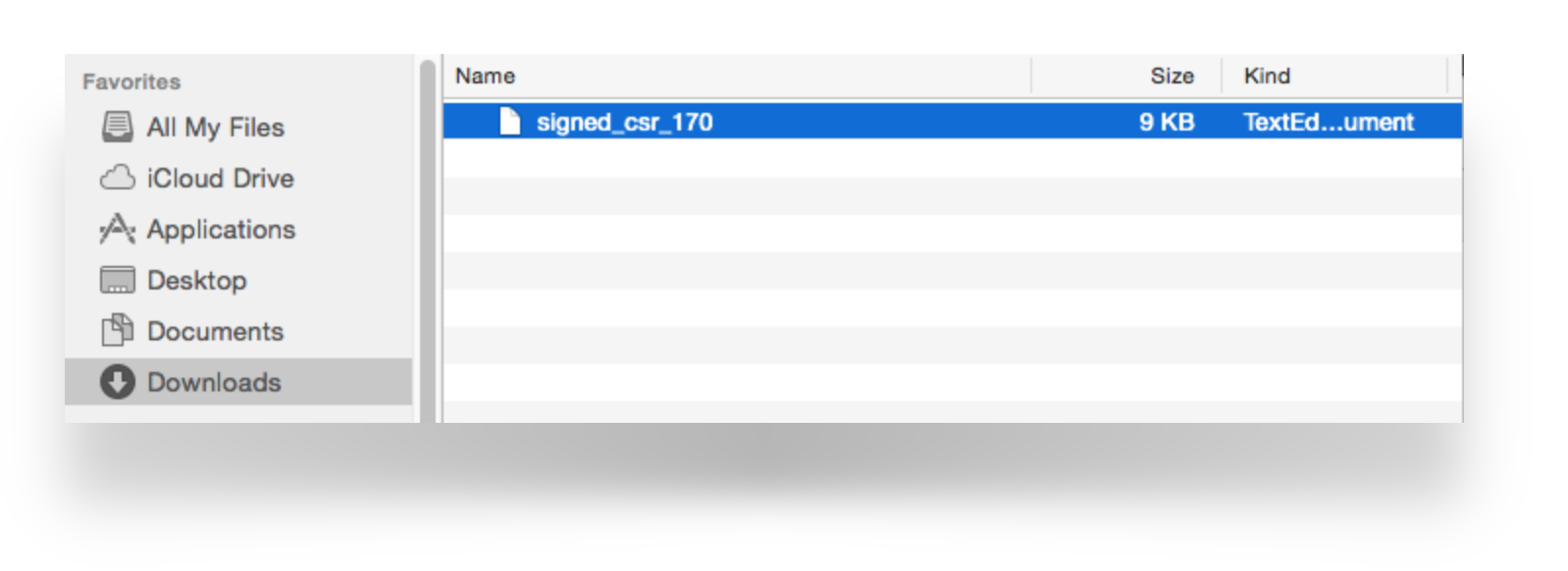
Create a ".p12" from the Signed CSR
-
Open Keychain Access app, select login from the Keychains list and then choose 'My Certificates' tab.
Keychain
If imported into the System Keychain, the Private Key will not be accessible. If 'All Items' tab is selected, private keys will not be available! -
Drag the downloaded PEM file into the Keychain main window.
-
Locate the imported certificate. It will begin with "APSP:".
-
Click the disclosure triangle and select the expanded private key.
Common Name and Topic
The name of the Private Key will show the value defined as the "Common Name" from the creation of the CSR. Where recommendation was followed, this should list the Apple ID and Server name. Additionally the name of the Certificate is the same as the Topic.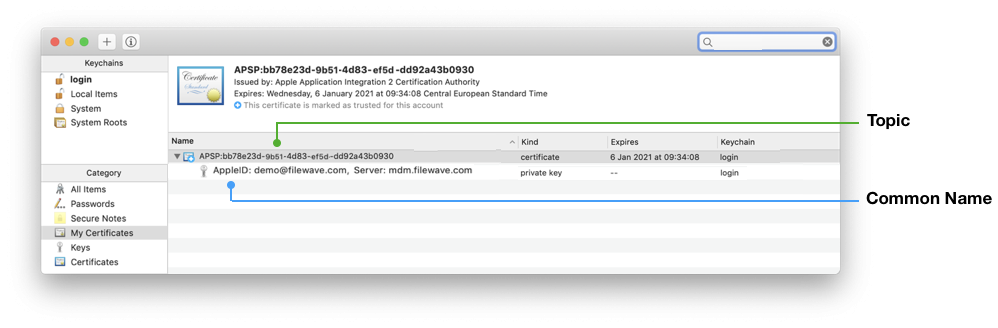
-
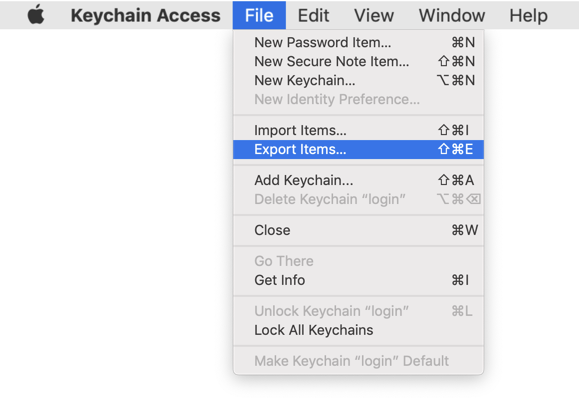
From the 'File' menu, choose 'Export Items...'.
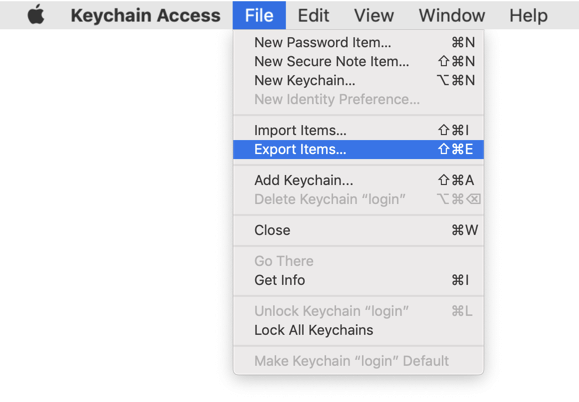
-
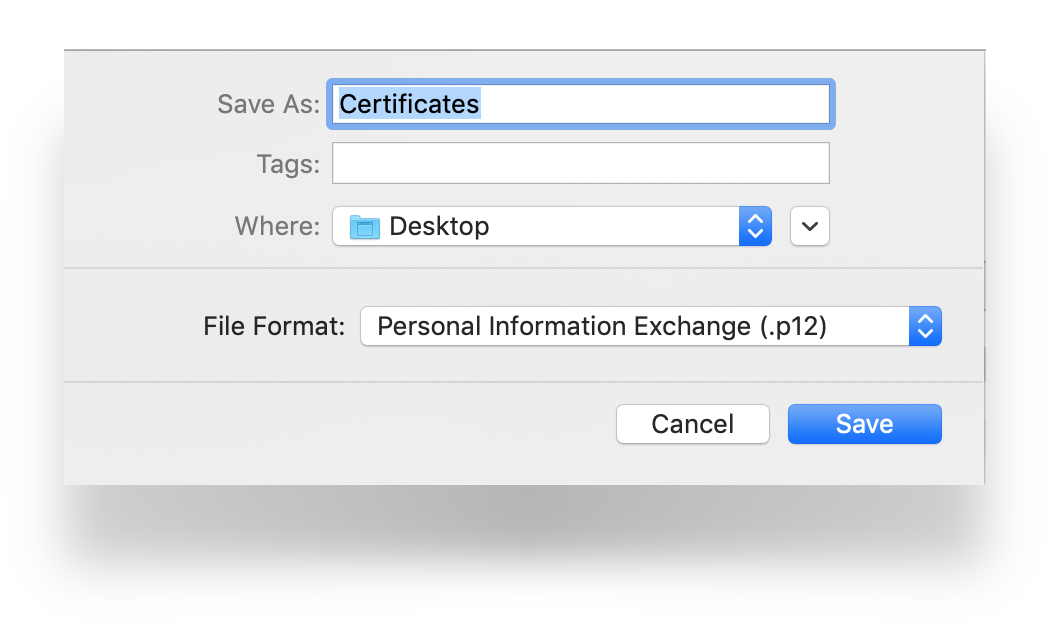
Export as a .p12 file. Again consider where this certificate is stored.
-
Click Save.
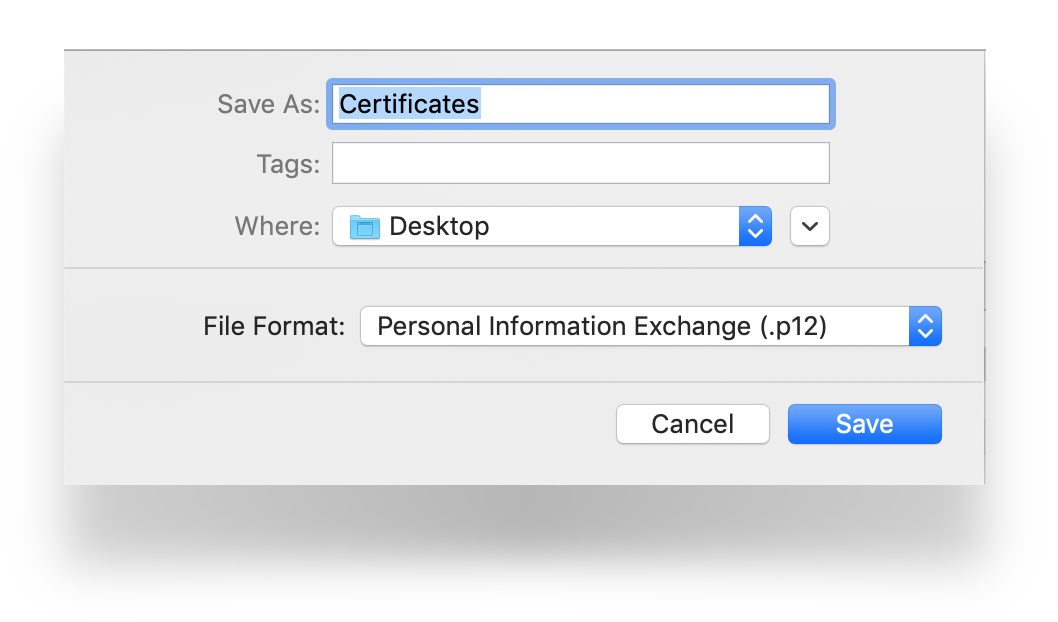
-
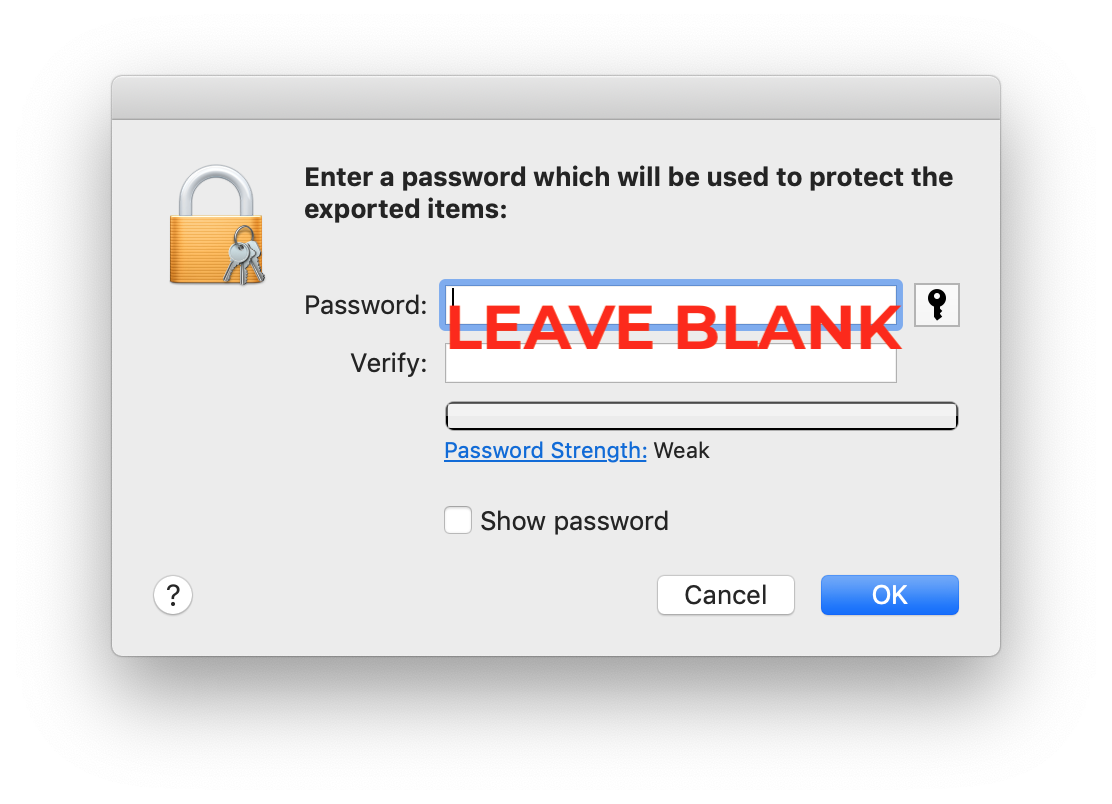
Leave the password blank.
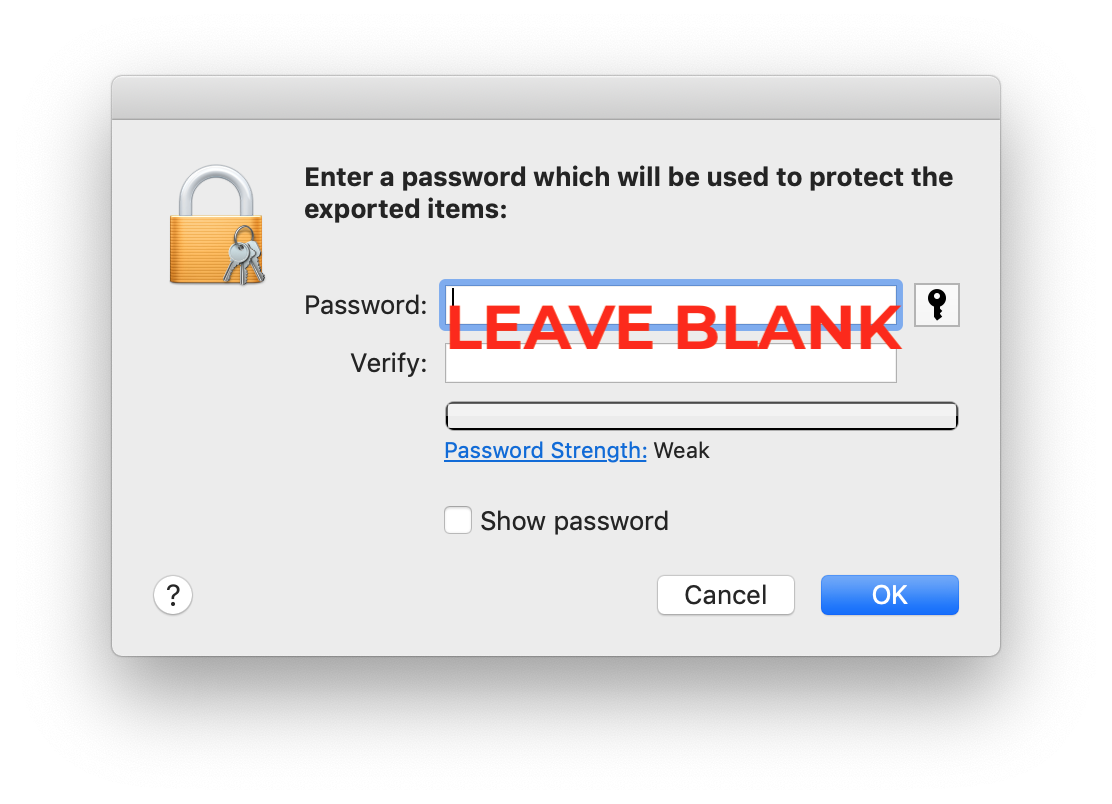
-
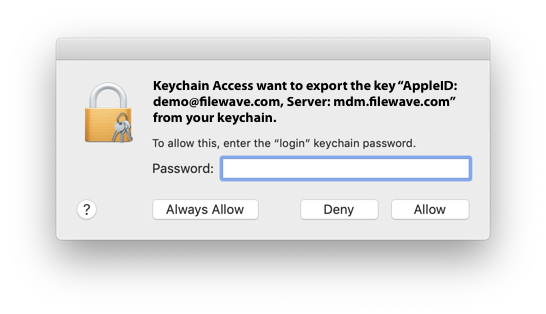
Enter your local admin account, when prompted, allowing Keychain to export.
Uploading the Certificate into FileWave
-
Open FileWave Central and sign in to the FileWave Server.
-
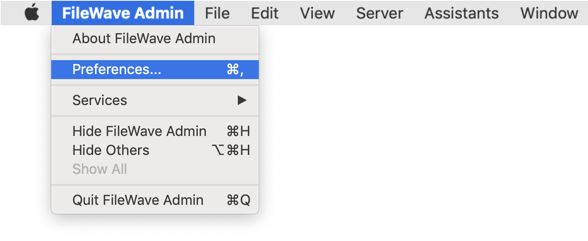
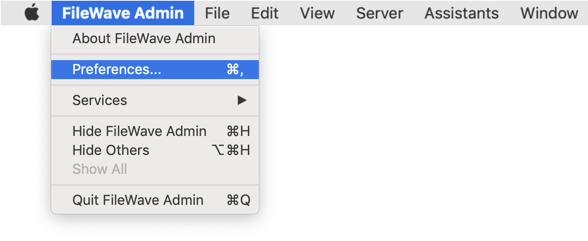
Open FileWave Central Preferences.
-
Select the 'Mobile' tab.
-
Click 'Browse' and navigate to the saved ".p12" APNs certificate.
-
Select the exported ".p12" certificate.
-
Click 'Upload APN Certificate/Key Pair'.
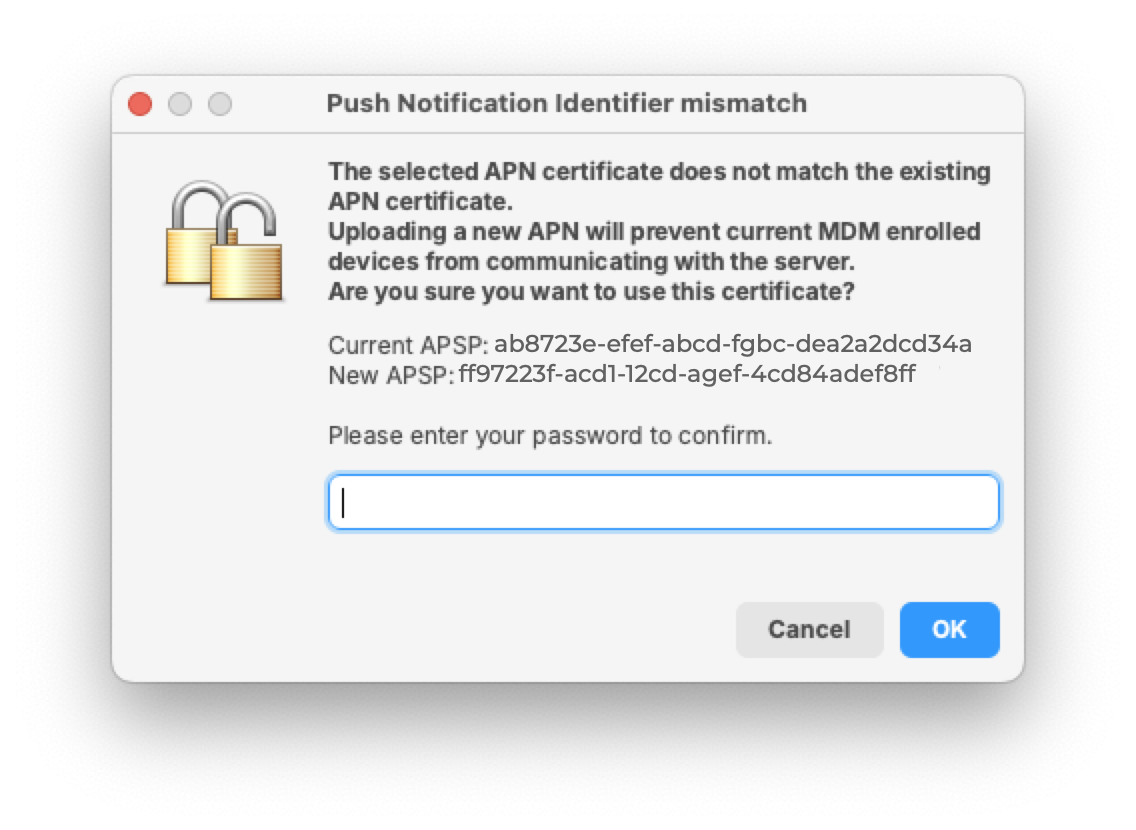
Before accepting the upload, FileWave Central compares the new topic with the current topic and warns when they do not match:
Click 'OK' to save and close the Preferences dialog.
After saving, run Update Model on a controlled Apple device and confirm that it receives the command. This verifies the renewed APNs path before you rely on it for broader management.
Set a renewal alert
In FileWave Central, open Dashboard > Alert Settings and add APN for MDM. Email alerts also require working Server Mail Preferences. Keep a separate calendar reminder tied to the certificate owner so the renewal does not depend on one alert channel.
Contact Apple for help
If you cannot identify or access the Apple Account that owns the certificate, contact Apple Deployment Programs Support before creating a replacement certificate.
Contact Apple for help with APNs certificates
No comments to display
Regarding the statement in the article:
APNs Expiry If APNs certificates are allowed to expire, all MDM communication will be lost, until addressed.
While it is accurate, it would be "more helpful" if some additional text was provided as to WHO the customer needs to contact to address it? FileWave? Apple (and if by Apple, is there a particular Apple group that should be contacted)?
It is up to the customer to address the renewal of the certificate. I'll change the wording to 'until renewed' in case no one else understands that.
Mac OS - FileWave APNS Certificate Creation with SSL.com and XCA
This guide explains how to create the Apple Push Notification Service (APNS) certificate for FileWave using an online CSR generator and the XCA certificate management tool, instead of the Apple Keychain. The Apple Keychain often causes issues with private key handling on newer macOS versions, so this method provides a more reliable alternative. You may use any online CSR generator (for example ssl.com), it does not have to be ssl.com specifically.
Prerequisites
Step 1: Generate CSR (Certificate Signing Request)
⚠️ Keep the .key file safe – you will need it later in XCA.
Step 2: Sign the CSR with FileWave
Before the CSR can be uploaded to Apple, it must be signed by FileWave.
Step 3: Upload the signed FileWave CSR to Apple
Creating a new certificate
Renewing an existing certificate
⚠️ If the topics don’t match, stop – the wrong Apple ID may have been used.
Step 4: Import and process the certificate in XCA
Step 5: Import the certificate into FileWave
Step 6: Verification
In reply to #3
Thanks so much for this. I've created https://kb.filewave.com/link/1090#bkmrk-page-title that is it's own standalone article based on this.
Looks like a correction may be needed:
The topic should match the previous topic. FileWave Central should warn if the topics do match before accepting the upload:
possibly should be:
The topic should match the previous topic. FileWave Central should warn if the topics do not match before accepting the upload:
In reply to #5
@Troy Yochelsonyou are right. I just added the missing "not" there. Thank you.
No comments to display