
APNs Certificate Creation & Renewal on macOS with XCA
Description
Apple device management requires an Apple Push Notification service (APNs) certificate that must be renewed every year.
Do not let the APNs certificate expire
An expired certificate stops Apple MDM communication and prevents Update Model from completing until the certificate is renewed.
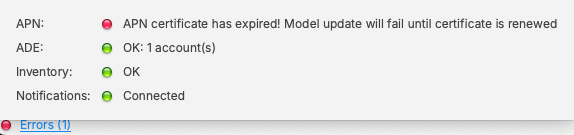
This guide explains how to create the Apple Push Notification service (APNs) certificate for FileWave using an online CSR generator and the XCA certificate management tool, instead of the Apple Keychain. The Apple Keychain often causes issues with private key handling on newer macOS versions, so this method provides a more reliable alternative. You may use any online CSR generator (for example ssl.com), it does not have to be ssl.com specifically.
APNs Topic
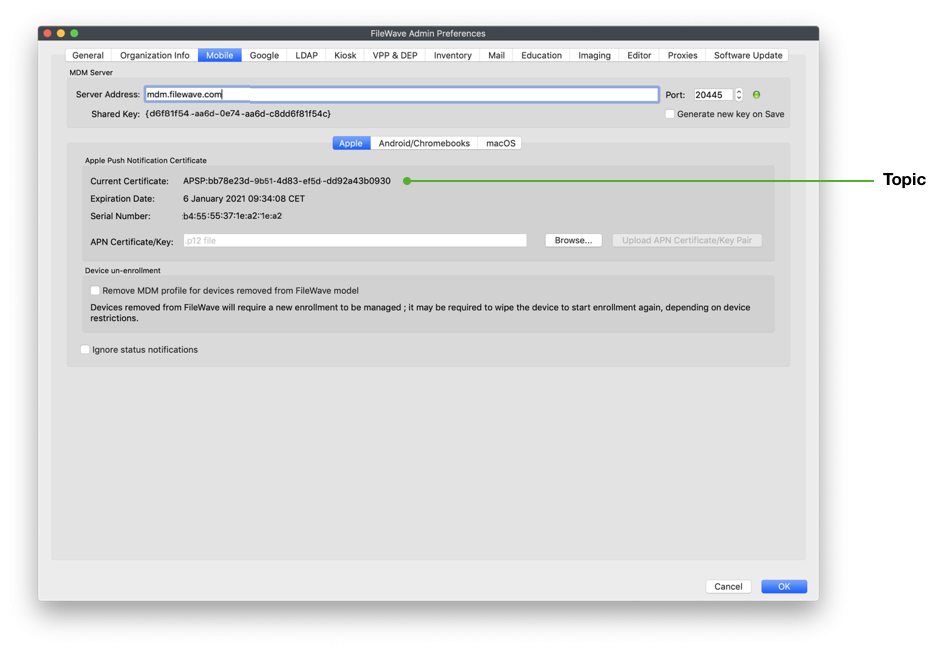
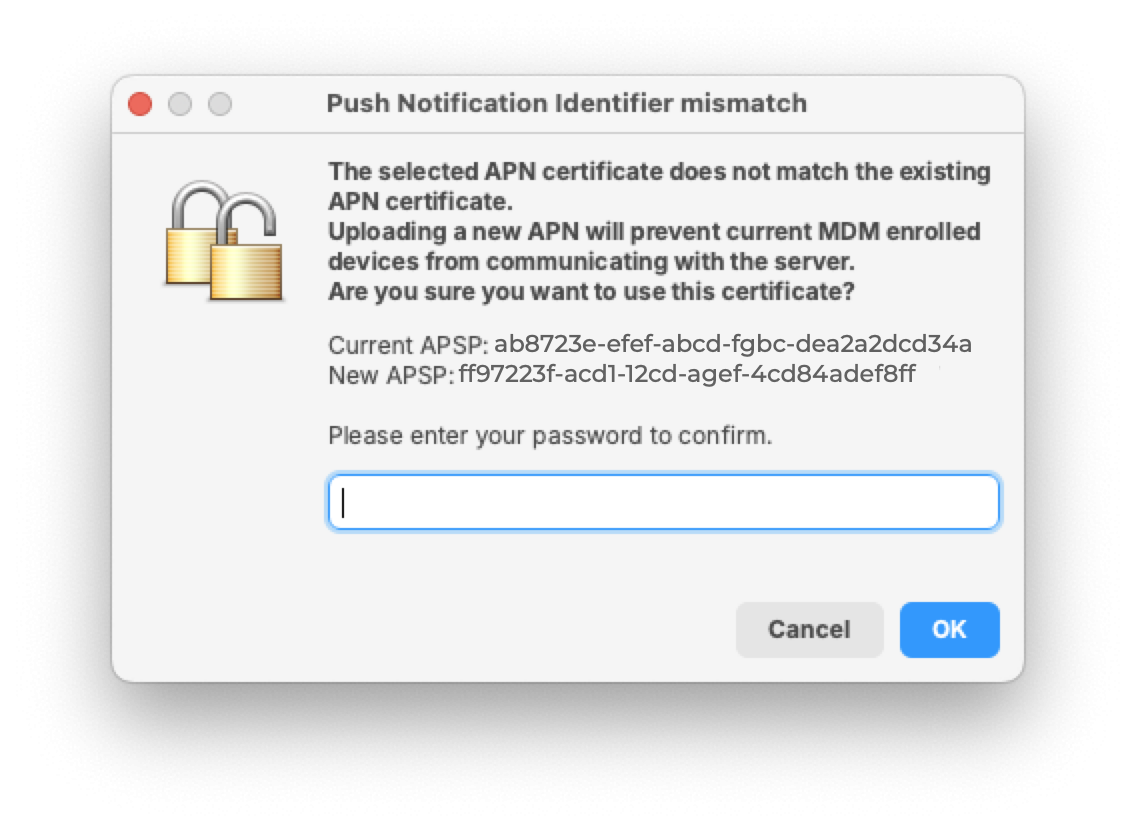
An APNs certificate has a unique topic, in the form of a hexadecimal string, and belongs to the Apple ID used to create the certificate. When renewing, the topic must match to ensure devices continue to communicate with the server. As such, not only must the same Apple ID be used when renewing an APNs certificate, but the current certificate must also be selected for renewal.
Step-by-step guide
Prerequisites
- Access to the Apple Push Certificates Portal ( https://identity.apple.com/pushcert/ ).
- An organization-controlled Apple Account that can access the Apple Push Certificates Portal. For renewal, you need access to the account that owns the existing certificate; record that account separately from the certificate and private-key files.
- Access to the FileWave Central console.
- Installed XCA tool: https://github.com/chris2511/xca/releases
Step 1: Generate CSR (Certificate Signing Request)
- Open the CSR generator at ssl.com. ( https://www.ssl.com/online-csr-and-key-generator/ )
- Enter the required details:
- Common Name (CN): e.g. FileWave APNS
- Organization (O): your company or school name
- Organizational Unit (OU): optional, e.g. IT Department
- Country (C): two-letter ISO code (e.g. DE)
- Generate the CSR and download the files:
- CSR file (.csr)
- Private Key (.key)
⚠️ Keep the .key file safe – you will need it later in XCA.
Step 2: Sign the CSR with FileWave
Before the CSR can be uploaded to Apple, it must be signed by FileWave.
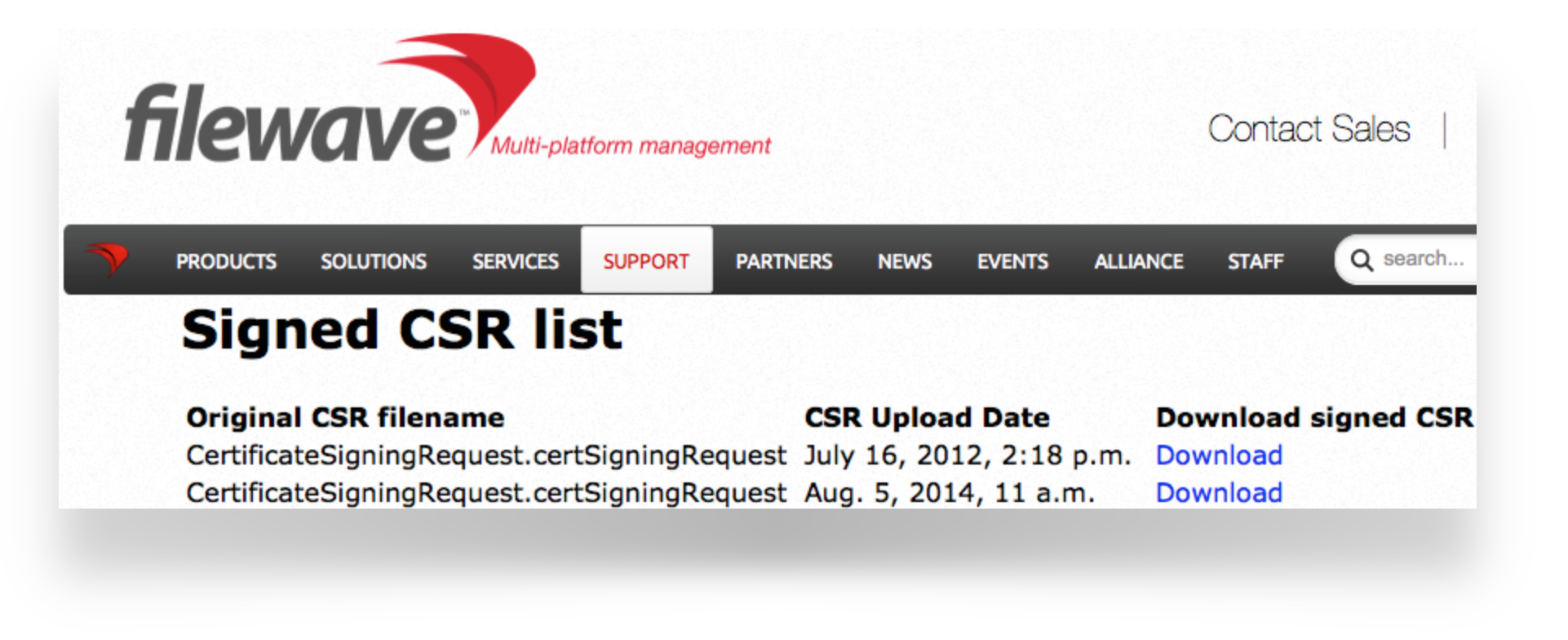
Step 3: Upload the signed FileWave CSR to Apple
If you are renewing a certificate then jump to Renewing a Certificate
Creating a new certificate
- Go to the Apple Push Certificates Portal: https://identity.apple.com/pushcert/.
- Sign in with an Apple ID (⚠️ do not use a personal Apple ID – use a generic business or institution Apple ID for long-term use).
- Click Create.
- Accept Apple’s Terms of Use.
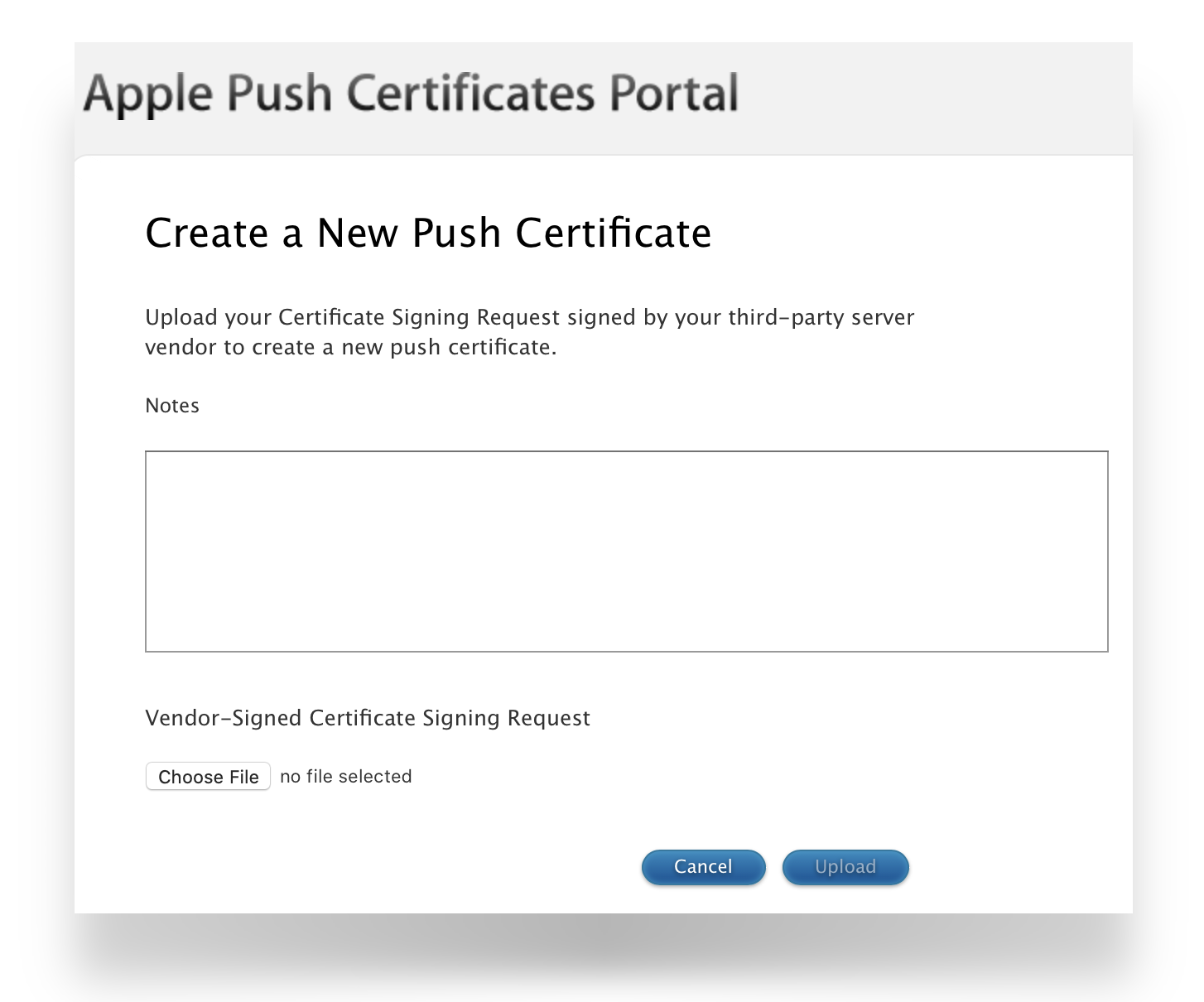
- Click Choose File and upload the signed FileWave CSR.
- Click Upload – Apple will confirm the request.
- Download the issued APNS certificate (.pem or .cer).
Renewing an existing certificate
- Go to https://identity.apple.com/pushcert/ and log in with the same Apple ID that owns the certificate.
- Locate the certificate to renew, confirm the Subject DN (Topic) matches the certificate in FileWave Central.
- Click Renew.
- Upload the signed FileWave CSR.
- Download the renewed APNS certificate (.pem or .cer).
If the topics do not match, do not continue. If the correct certificate is not listed in Apple's portal, verify the Apple Account that owns the current certificate before proceeding. This XCA workflow does not automatically record that account in the private key: the Common Name example above is only a label. Keep a separate record of the owning Apple Account, FileWave Server, topic, and renewal date. If the account cannot be identified or accessed, use Apple's APNs certificate support rather than creating a replacement certificate.
To confirm the certificate, compare the Subject DN (Topic) and current certificate.
Clicking the 'i' button will show the certificate details, including the Topic:
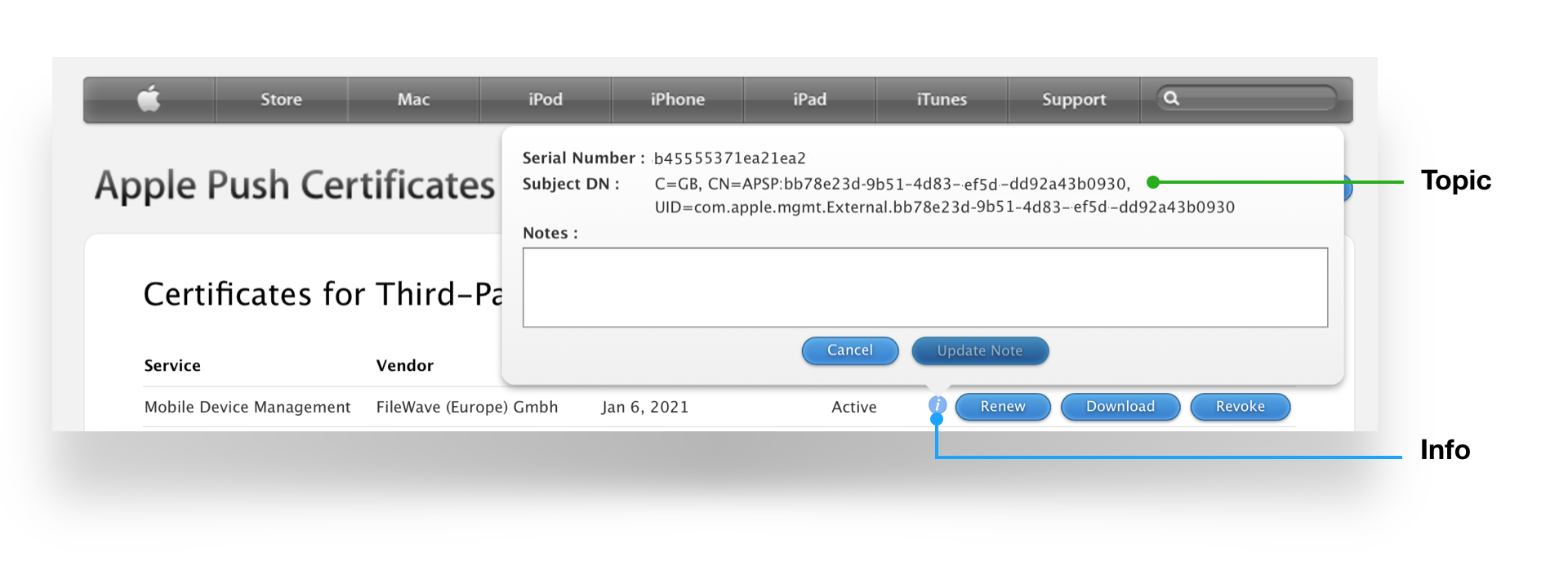
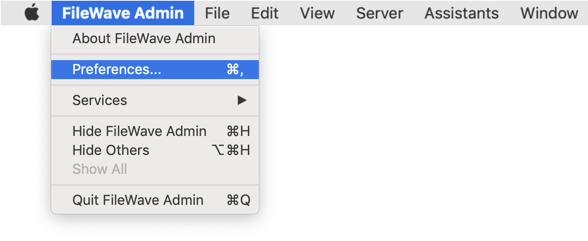
Confirm that it matches Current Certificate in FileWave Central under Preferences > Mobile > Apple Push Notification Certificate:
Step 4: Import and process the certificate in XCA
- First, download XCA for macOS: https://github.com/chris2511/xca/releases
- Install and start XCA. Open your existing certificate database, or use File > New Database to create one and set a strong database password. See XCA's database setup instructions. This password protects private keys in the database; it is separate from the export password in the steps below.
- Go to Private Keys → Import and select the previously saved .key file from Step 1.
- Go to Certificates → Import and load the APNS certificate you downloaded from Apple (.cer/.pem).
- Open the imported certificate's details in XCA and check its corresponding key. It must be the private key from the CSR you submitted for this creation or renewal, not a key from another request. If the matching private key is missing, stop before exporting and locate the correct .key file.
- Export the certificate as a PKCS #12 (.pfx) file – important: without a password. This export contains both the certificate and its private key. Keep the exported file in restricted storage; the database password does not protect the exported copy.
- After export, rename the .pfx file to .p12 (FileWave requires the .p12 extension).
Step 5: Import the certificate into FileWave
- Open the FileWave Admin.
- Go to Preferences → Mobile.
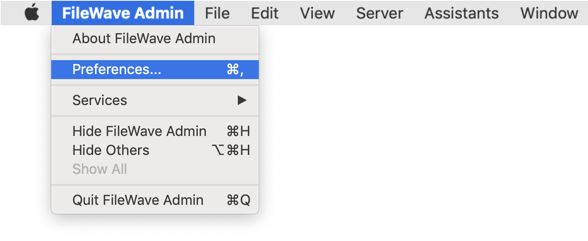
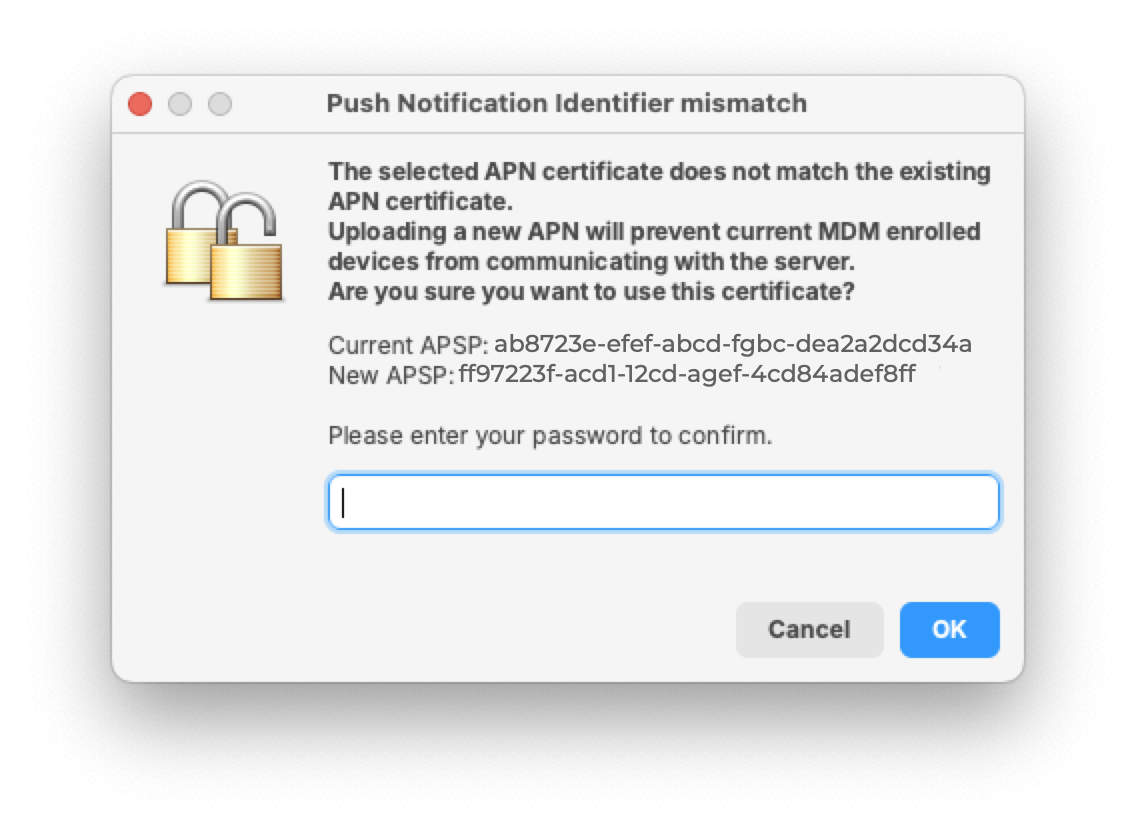
- Import the .p12 file you exported from XCA by browsing to the file and then picking to Upload. For a renewal, the topic must match the previous certificate. FileWave Central warns if the topics do not match before accepting the upload.
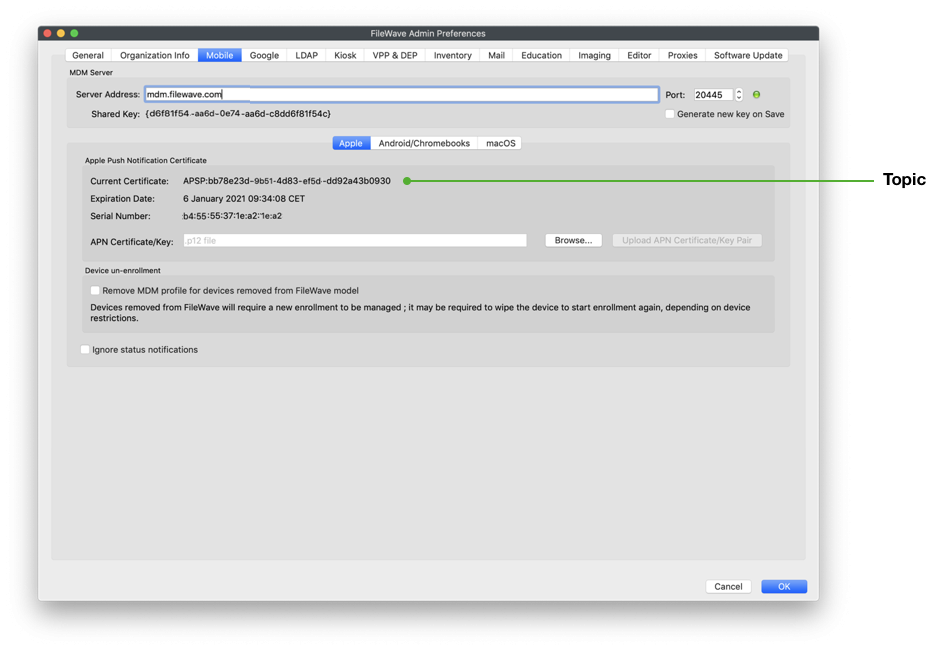
- Save the settings by clicking OK to close the preferences dialog and verify that devices are communicating.
Step 6: Verification
- Test whether new or existing MDM clients correctly connect to the APNS service.
- Check the logs in FileWave Admin to ensure there are no certificate errors.
Set a renewal reminder. In FileWave Central, open Dashboard > Alert Settings and add the APN for MDM email alert. Automated alerts also require the email settings in Central to be configured.
Contact Apple for help
If you cannot identify the Apple ID associated with the Apple Push Notification certificate, contact Apple for help.
Contact Apple for help with APNs certificates
No comments to display
No comments to display