
Forcing Wiped ChromeOS Devices to Re-enroll
What
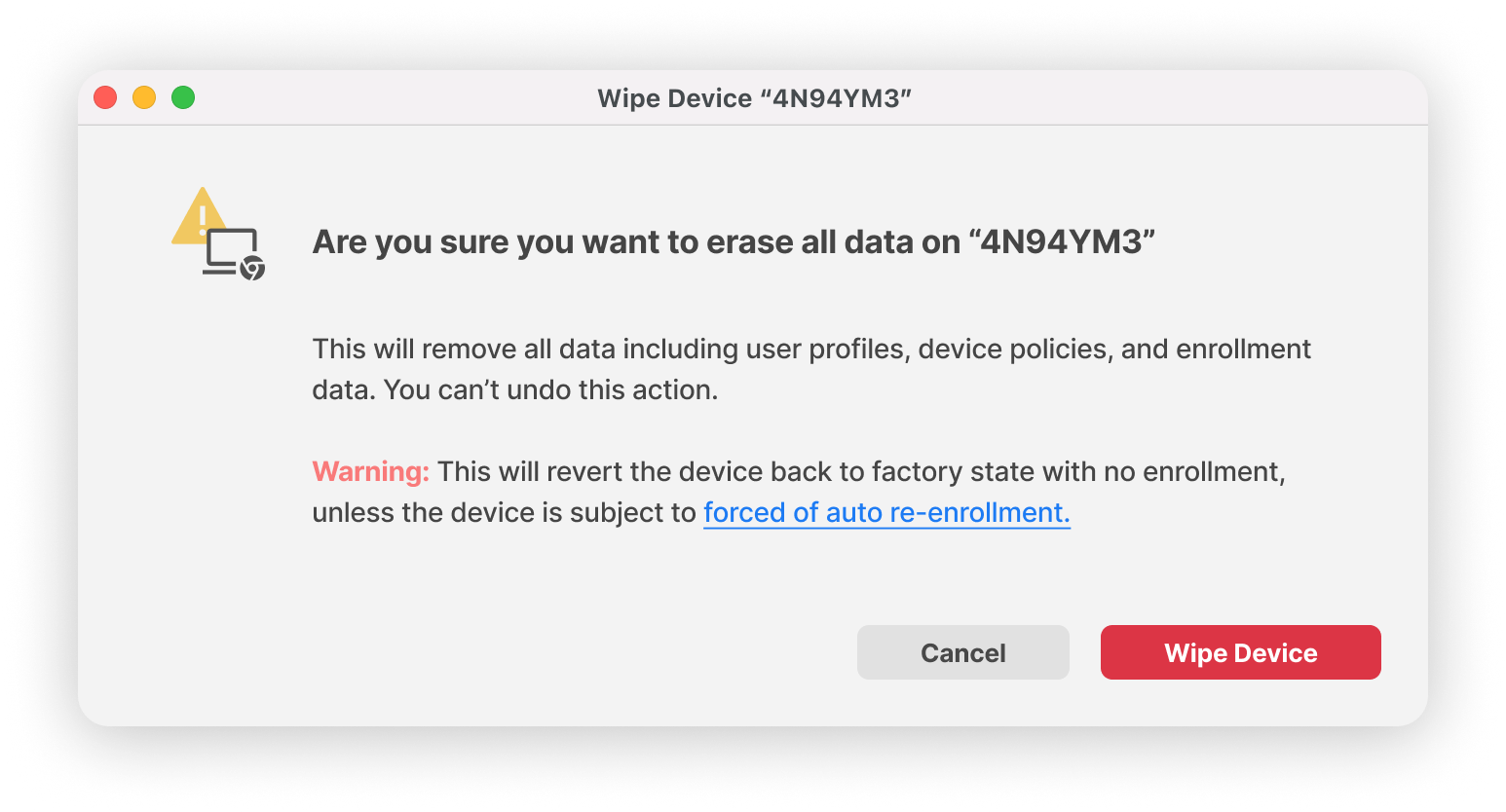
Forced re-enrollment keeps a wiped ChromeOS device managed by the same Google organization. With automatic re-enrollment, users do not need to enter credentials after the wipe. ChromeOS Flex supports forced re-enrollment beginning with ChromeOS 131, but Flex devices always require user credentials after a wipe.
When/Why
Don’t force ChromeOS devices that are used in developer mode to re-enroll. Instead, put them in a different organizational unit and turn off forced re-enrollment for that organization. If a ChromeOS device is no longer going to be managed by your account, you should deprovision the device. For the full removal path, see Removing ChromeOS / Chromebook devices.
How
For convenience we've included Google's documentation below from: Force wiped ChromeOS devices to re-enroll - Chrome Enterprise and Education Help (google.com)
Turn forced re-enrollment on or off
-
Sign in to your Google Admin console.
Use an administrator account with the Mobile Device Management administrator privilege.
-
In the Admin console, go to Menu
Devices
Chrome
- To apply the setting to all devices, leave the top organizational unit selected. Otherwise, select a child organizational unit.
- Go to Enrollment and access.
- Configure the Forced re-enrollment setting:
- Force device to automatically re-enroll after wiping—Wiped ChromeOS devices automatically re-enroll without user credentials. This option does not apply to ChromeOS Flex devices.
- Force device to re-enroll with user credentials after wiping—Users must manually re-enroll ChromeOS or ChromeOS Flex devices into your account.
- Do not force device to re-enroll after wiping—Users can use ChromeOS or ChromeOS Flex devices without re-enrolling them into your account.
- Click Save.
Settings typically take effect within minutes, but it might take up to an hour to propagate through your organization.
If automatic re-enrollment fails, the device prompts the user to select Enroll manually. ChromeOS devices that do not support automatic re-enrollment, along with ChromeOS Flex devices, also prompt for manual re-enrollment.
No comments to display
No comments to display