
FileWave Power/Battery Reporting
Description
FileWave is immensely powerful, but can be daunting when it comes to stitching the various components of a complex workflow together. Content packs are meant to give you aready-made leg-upFileWave inexamples creatingthat distributable content and are also a great way to learn by example! Each content pack is meant to be a "whole solution", putting together all ofcombine the pieces ofneeded FileWavefor a complete workflow. You can use them as-is, adjust them for your environment, or review them to accomplishsee ahow goal.the content is built.
This FileWave Contentcontent Packpack is built to reportreports on battery health and power power-use settings for macOS and Windows clients. It is comprised of all ofincludes the contentscontent listed below:below.
What You Get in this Content Pack
This content pack provides:
Custom Fields:
"Custom Fields" are a terrific way toFields extend the "inventory attributes"attributes ofcollected from your devices. In thisThis content pack we have included:includes:
-
-
- Battery Name: Typically the "model name" of the battery
- Battery Manufacturer: The maker of the battery
- Battery Serial Number: The serial number of this specific battery
- Battery Cycle Count: The number of times a battery has been fully charged/discharged (only some batteries support)
- Battery Capacity: Battery Capacity is represented as a percent of charge the battery can take compared to its original capacity. A lower percentage means degradation of storage ability.
- Display Sleep Setting: The amount of time (in seconds) before the display is configured to go to sleep after idle
- Disk Sleep Setting: The amount of time (in seconds) before the hard drive is configured to go to sleep after idle
- System Sleep Setting: The amount of time (in seconds) before the entire system is configured to go to sleep after idle
- Battery Name: Typically the "model name" of the battery
-
Note that the battery information collected above does not try to account for multiple batteries, so you may want to adjust if you have that scenario in your environment.
Reports (aka Inventory Queries):
Reports are a great way of measuring the effectiveness of distributing content, and can be used for all sorts of compliance purposes as well. Trust, but verify is what reports are all about. In this pack we have included the following reports:
-
-
- Battery Report: Includes information on devices and their batteries
- Low Battery Capacity Report: Includes
information on v=batteriesthat are lower thanbelow 30% capacity...youYou canmodifychangethisthat threshold bymodifyingediting the reportcriteriacriteria. - Power Scheme Report: Includes information on devices and their power saving settings for display, disk and system
- Battery Report: Includes information on devices and their batteries
-
Dashboards:
Dashboards build upon reports and are an incredibly powerful tool for showing aggregated data in charts and graphs. This pack provides the following dashboard(s):
-
-
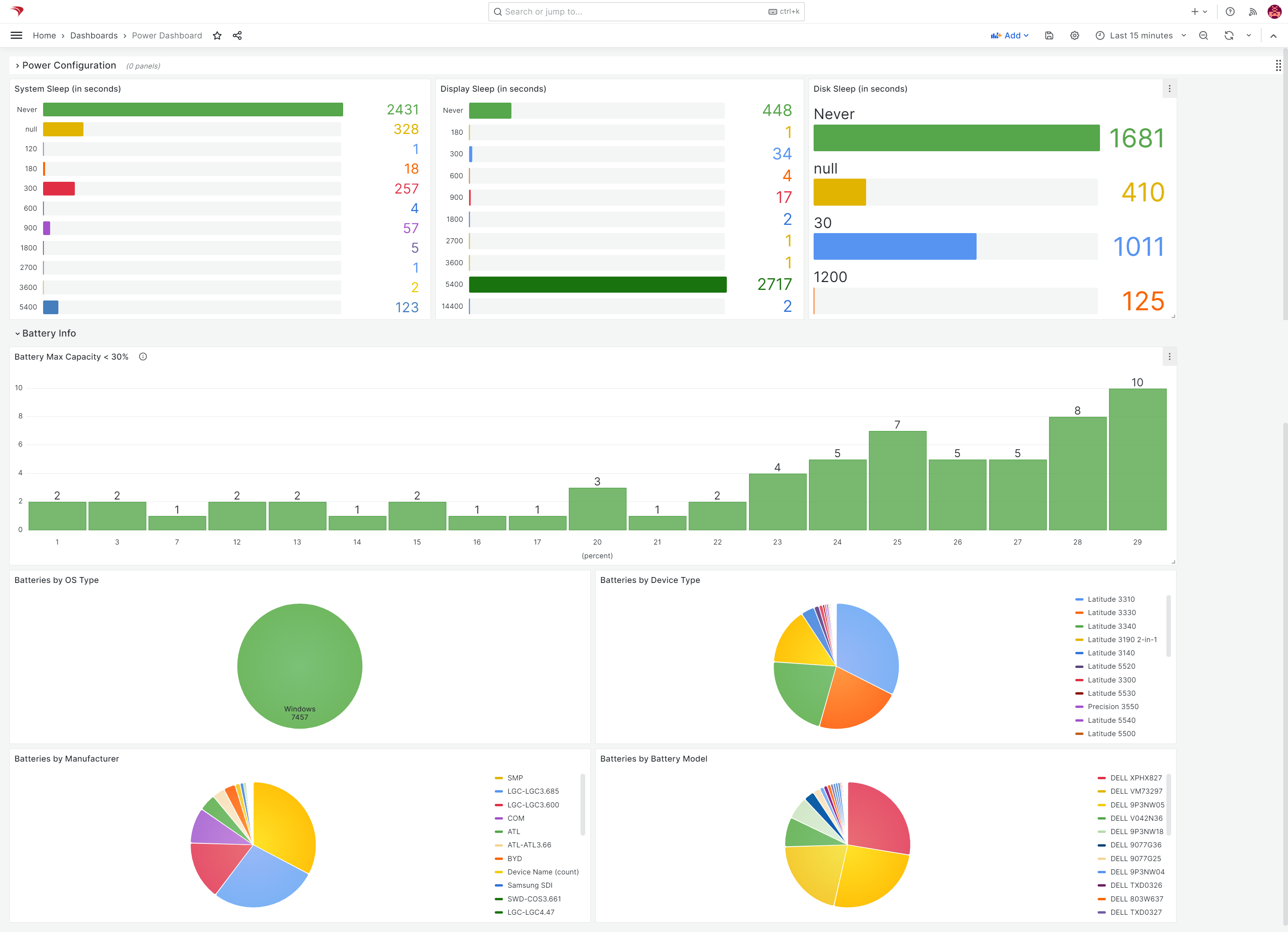
- Power/Battery Dashboard: This dashboard breaks down most of the important power savings and battery utilization information for your environment
-
Ingredients
ForIn FileWave 16.1.0 orand higherlater, you merely need to go inopen FileWave Central and go to Assistants -> Content Packs and then canto add thethis Contentcontent Packpack with 1-click.directly. The intructionsmanual download/import steps below in this article are for belowolder 16.1.0.FileWave versions.
-
FileWave Central Admin & Credentials
- Base64 API Token for 'fwadmin' account
| Windows Content Pack | Windows Content Pack Download |
|
macOS Content Pack (ARM based) |
On macOS, we need to use curl to download so that Gatekeeper doesn't quarantine the import application. You can copy and paste the following into Terminal.app...the example provided downloads import_pack.zip to the desktop
|
|
macOS Content Pack (Intel based) |
On macOS, we need to use curl to download so that Gatekeeper doesn't quarantine the import application. You can copy and paste the following into Terminal.app...the example provided downloads import_pack.zip to the desktop
|
|
On macOS, Apple's Gatekeeper will quarantine the download if you don't use curl to download the zip. Quarantine may be removed, after unzipping the download, with the following command which will allow the tool to run: |
|
Directions
-
Download the above content pack and unzip it
- Run the <app name> tool, using appropriate credentials for your environment
- Once completed, verify the new content in your system (and import dashboards, if applicable)
Sample Screenshots
Notes
Note that youYou can freely edit any ofcontent that this pack imports. Review the contentCustom inFields, thisReports, contentand pack.dashboard first Weso doyou recommendunderstand reviewing each ofhow the typespieces ofwork content as provided first though so that you can get a feel for how things "fit together"together before modification.changing criteria or thresholds.