
MDM Command History Content Pack
Description
The MDM Command History Content Pack installs ready-made Reports and a dashboard for reviewing Apple MDM command activity in FileWave.
Use it to inspect recent commands, connect profile identifiers with profile names, see which apps and profiles are being deployed, and find devices with repeated command problems.
What You Get in this Content Pack
This content pack provides:
Reports (formerly Queries)
The pack includes these Reports for troubleshooting and deployment verification:
-
-
- MDM Command History: Shows recent MDM commands. FileWave retains up to 500,000 commands or seven days of history, whichever limit is reached first.
- Profile Description: Maps the profile identifiers in command history to profile names.
- MDM Command History: Shows recent MDM commands. FileWave retains up to 500,000 commands or seven days of history, whichever limit is reached first.
-
Dashboards:
The included dashboard summarizes the Report data in charts and tables:
-
-
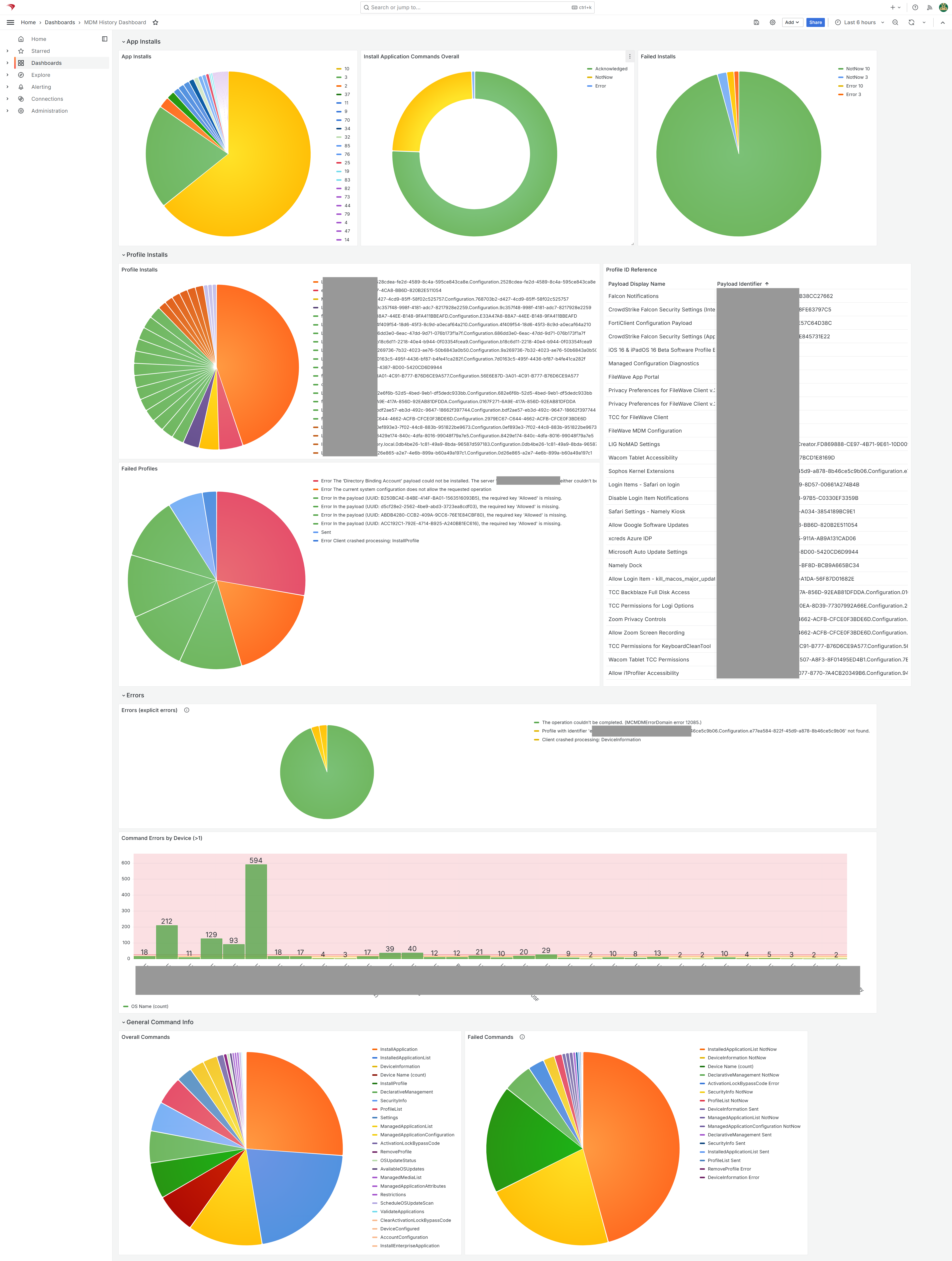
- MDM Command History Dashboard: Shows app updates, profile deployments, command results, and devices that may need troubleshooting.
-
Install the content pack
FileWave 16.1.0 and later includes the Content Packs assistant in FileWave Central. The older stand-alone import tools and administrator-token workflow are no longer needed.
Legacy manual import tools for FileWave versions before 16.1
| Windows Content Pack | Windows Content Pack Download |
|
macOS Content Pack (ARM based) |
On macOS, we need to use curl to download so that Gatekeeper doesn't quarantine the import application.
|
|
macOS Content Pack (Intel based) |
On macOS, we need to use curl to download so that Gatekeeper doesn't quarantine the import application.
|
Directions
- In FileWave Central, open Assistants > Content Packs.
- Select MDM Command History and add the pack.
- Review the imported Reports before using them for troubleshooting or operational decisions.
- Open the dashboard and confirm that it displays current data from your environment.
Sample Screenshots
Notes
You can edit the imported Reports and dashboard. Keep an unchanged copy until you understand which fields and Report identifiers the dashboard expects.