
Combining payloads into a singular deployment based on metadata
What
Every Deployment stores metadata about how content is assigned: the targets and exclusions, deliveryinstallation method,type, timing, applicable license assignment,distribution, and payloadFileset revision choices.
When/Why
Use one Deployment for multiple payloadsFilesets or destinations only when the content should share the same metadata. If one payloadFileset or target needs a different installinstallation method,type, schedule, licenselicense-distribution assignment,model, target list, exclusion, or revision behavior, split it into a separate Deployment.
How
A single Deployment is a good fit when all of the following are true:
- The
payloadsFilesets use the samedeliveryInstallationmethod,Type, such asKioskDirect Installation orStandard/directKioskinstallation.Self-Service. - The timing options match.
TheApplicablelicenseVPP/Appsoptionsandmatch,Bookssuchapplicationsasusedevice-assignedtheVPPsamelicensing.Device or User license-distribution model.- The same targets and exclusions should receive the content.
- There are no
payloadFileset revision conflicts.
For example, if Firefox should be available through Kiosk Self-Service for both Accounting and HR, those groups can be included in the same Deployment as long aswhen the rest of the settings also match.
If Firefox should be available through Kiosk Self-Service for Accounting but installed directly for HR, do not combine those into one Deployment.assignments. The delivery metadata is different,differs, so they should beuse separate Deployments.
DiggingAssociation Deeperconversion
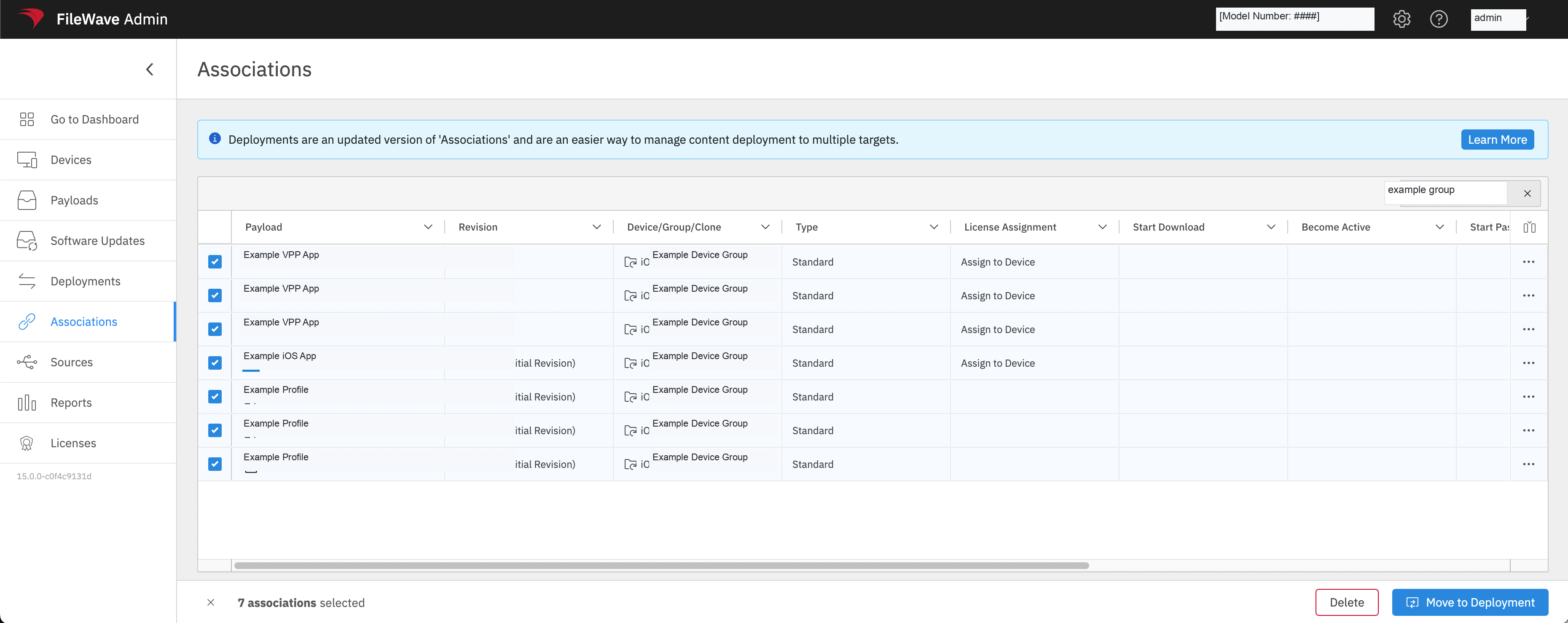
Association-to-Deployment conversion follows the same rule: combine Associations only when their metadata matches.matches and the resulting Deployment should apply every included Fileset to every included target.
In the Associations view, filter the list to find candidates, select the matching Associations, and choose Move to Deployment. Review the conversion preview before publishing. The example belowpreview shows changes to targets, Filesets, options, timing, and revisions; no conversion is committed until you choose Publish.
Conversion replaces the selected Associations. Do not combine Associations that are good candidatesmerely to movereduce intotheir onecount. Deployment.If the preview adds content to a target, removes an assignment, changes timing, or resolves a revision differently than intended, cancel and split the conversion.
Quick
Thesemetadata Associationscheck
are
TheyTargetsareand exclusionsShould every included target receive every included Fileset, with the same exclusions? Installation TypeShould alldirectcontentinstallationuseitemsDirect(Type:InstallationStandard).orTheyallhaveusecommonKiosktiming.
Related content
Deployments in FileWave CentralPro tip: Filtering by Type, such as Kiosk or Standard, is a quick way to isolate similar Associations before moving them into Deployments.
For more on planning Deployment structure, see Should I create one, or multiple Deployments?
and