
Google Chrome Managed (iOS)
Description
Chrome browser user experience may be managed on multiple device types by way of a Google Management Token available through the Google Admin Console.
Details on obtaining a token and Chrome management can be found in the following KB:
The directions below apply the token to Chrome on iOS and iPadOS through FileWave Central. The device must be enrolled in FileWave MDM, and Chrome must be managed by FileWave. If Chrome was installed by the user, review Take management of this app if the user has installed it already in the Apps and Books Fileset settings. For Apple token setup, licenses and the configuration workflow, start with VPP App Configuration.
Ingredients
- Chrome VPP App Fileset (via Apple Business or School Manager)
- Chrome Browser Enrolment Token (only available via Google Admin Console)
Directions
Steps 1 and 2 may be skipped if an iOS Chrome VPP Fileset has already been created.
- If not created already, 'purchase' necessary quantities of Google Chrome from the Apple App Store via Apple School or Business Manager
- Assign the App to the FileWave server, with the Apple management account, then synchronise VPP through FileWave Preferences
- From the created VPP App Fileset, open the Fileset and edit the Configuration settings
- From the Configuration Settings view, under the Configuration section, from the drop down, select Configuration then Edit.
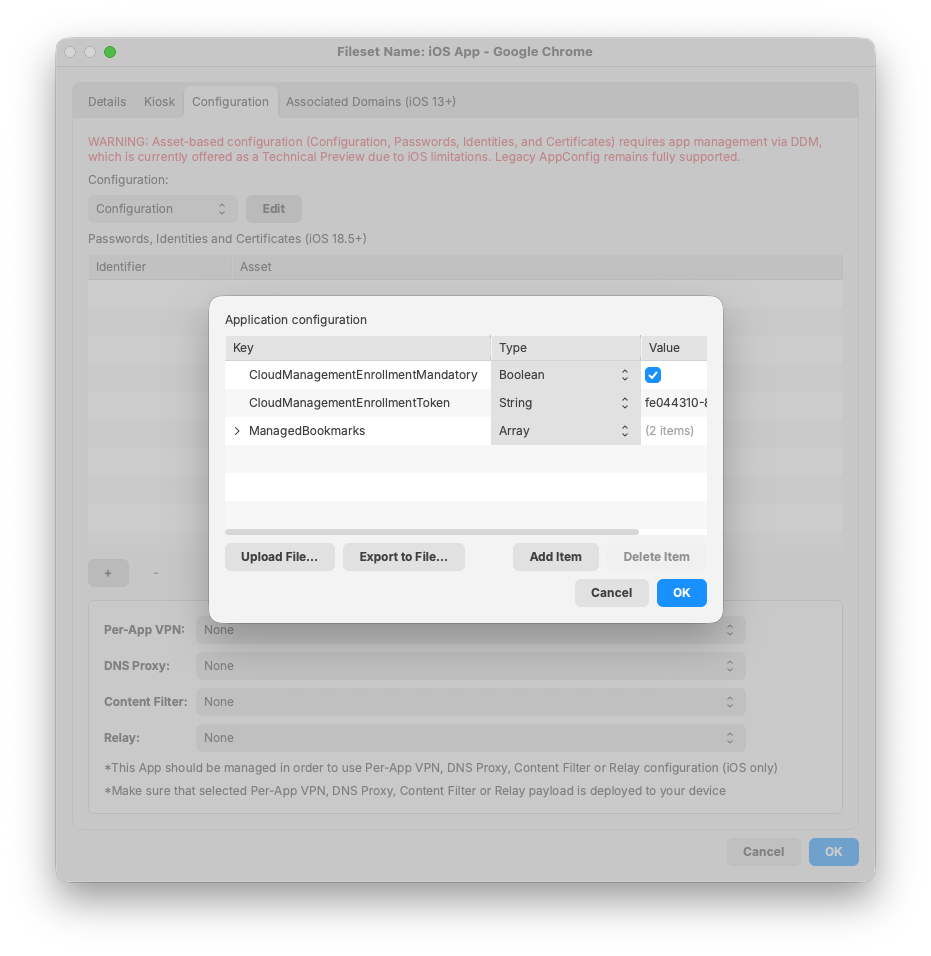
A window will pop up. Add key/value pairs as required.
Google Managed Token:
- Key: CloudManagementEnrollmentToken
- Type: String
- Value: (Copied token value from the Google Admin Console)
The image below includes example settings in addition to the enrollment token. Add only policies that Google documents for your target platform. In particular, CloudManagementEnrollmentMandatory is documented for Linux, Mac and Windows, not iOS. Do not rely on the checked value shown here to block Chrome from opening on an iPhone or iPad if enrollment fails. Once enrolled, use the Google Admin console to configure supported Chrome policies.
Save the app configuration and the Fileset. Target an intended test device with a Deployment, confirm the app license assignment, and review pending changes before updating the FileWave Model. Wait for the device to receive Chrome and its configuration.
Verify enrollment and policies
Close and reopen Chrome on the test device. Confirm that the browser appears in the Google Admin console's managed-browser list. Google notes that enrollment and reporting information can take up to 24 hours to update; enable Chrome browser reporting if you need that data.
On the device, open chrome://policy, tap Reload, and check Show policies with no value set. For each supported policy you configured, confirm that its value matches your intended setting and its Status is OK. Follow Google's iOS setup and policy-verification instructions if a policy is missing or reports an error. Check the exact key, value type, app-management state and enrollment token before expanding the Deployment; an installed Chrome app alone does not prove browser enrollment or policy delivery.
No comments to display
No comments to display