
Configure DRC INSIGHT Cross-Website Tracking on iPad
Description
Use this recipe to deploy the Managed Domains settings required by DRC INSIGHT for WIDA testing on supervised iPads. The downloadable FileWave Fileset includes the required relaxed domains and DRC INSIGHT app identifier.
Data Recognition Corporation published the January 2, 2025 technical bulletin Cross-Website Tracking and Device Supervision Update for DRC INSIGHT on iPads. The attached DRC INSIGHT Cross-Site Tracking Fileset packages the profile settings described in that bulletin.
Important: Sites using iPadOS 16.2 and higher no longer need to enable Cross-Website Tracking as long as the device is supervised, and the domains are relaxed following the instructions below. This can be done using Automated Device Enrollment and MDM software or by using Apple Configurator.
Note:
- Sites using iPadOS 16.1.2 and below must still enable Cross-Website Tracking.
- This is only applicable for WIDA testing content on iPadOS.
- Supervision must be enabled for all devices, regardless of iPadOS version.
Ingredients
- FileWave Central or FileWave Anywhere
- Supervised iPads used for DRC INSIGHT WIDA testing
- The downloadable DRC INSIGHT Cross-Site Tracking Fileset
- Your Central Office Services - Service Device (COS - SD) port, if it differs from the default port 55222
| DRC INSIGHT Profile |
 |
Directions
- Download and import the DRC INSIGHT Fileset in FileWave Central, or upload it in FileWave Anywhere.
- If your COS - SD installation uses the default port
55222, keep the profile values unchanged. - If your COS - SD installation uses a custom port, edit the Managed Domains payload and replace
drc-centraloffice.com:55222with the same port configured for COS - SD. FileWave 16.0 and later includes both the relaxed-domain and relaxed-app fields in the profile editor. You can also make the change with iMazing Profile Editor, then import the finished profile. - Deploy the Fileset to a small test group and run a DRC INSIGHT test before expanding the Deployment.
The included profile contains settings that older FileWave profile definitions did not recognize. Current FileWave releases support both keys, but the general rules for imported profiles still apply. See FileWave Apple Profile Editor Explained.
Details about the Profile
The profile configures the following Managed Domains values on supervised iPads:
- In the Domains payload option within iMazing Profile Editor, locate the Cross-site tracking relaxed for domains field.
- Enter the following domains to be relaxed:
- drc-centraloffice.com
- drc-centraloffice.com:55222
- Note: 55222 is the default port value. Use the same port that you used during COS - SD installation if you used a custom port.
- drcedirect.com
- wida-ams.us
- In the same Domains payload, locate the Cross-site tracking relaxed for apps field and enter the following app ID:
- com.drc.wbte-ipad.drc
On a supervised iPad running iPadOS 16.2 or later, the profile removes the need to enable Cross-Website Tracking manually. If a test shows a content retrieval error, temporarily enable Allow Cross-Website Tracking in the iPad's DRC INSIGHT settings. If that allows the test to begin, recheck the relaxed domains, app ID, and COS - SD port in the deployed profile. If the error remains, contact DRC support.
Below is what this profile looks like in iMazing Profile Editor so you can see the profile payload.
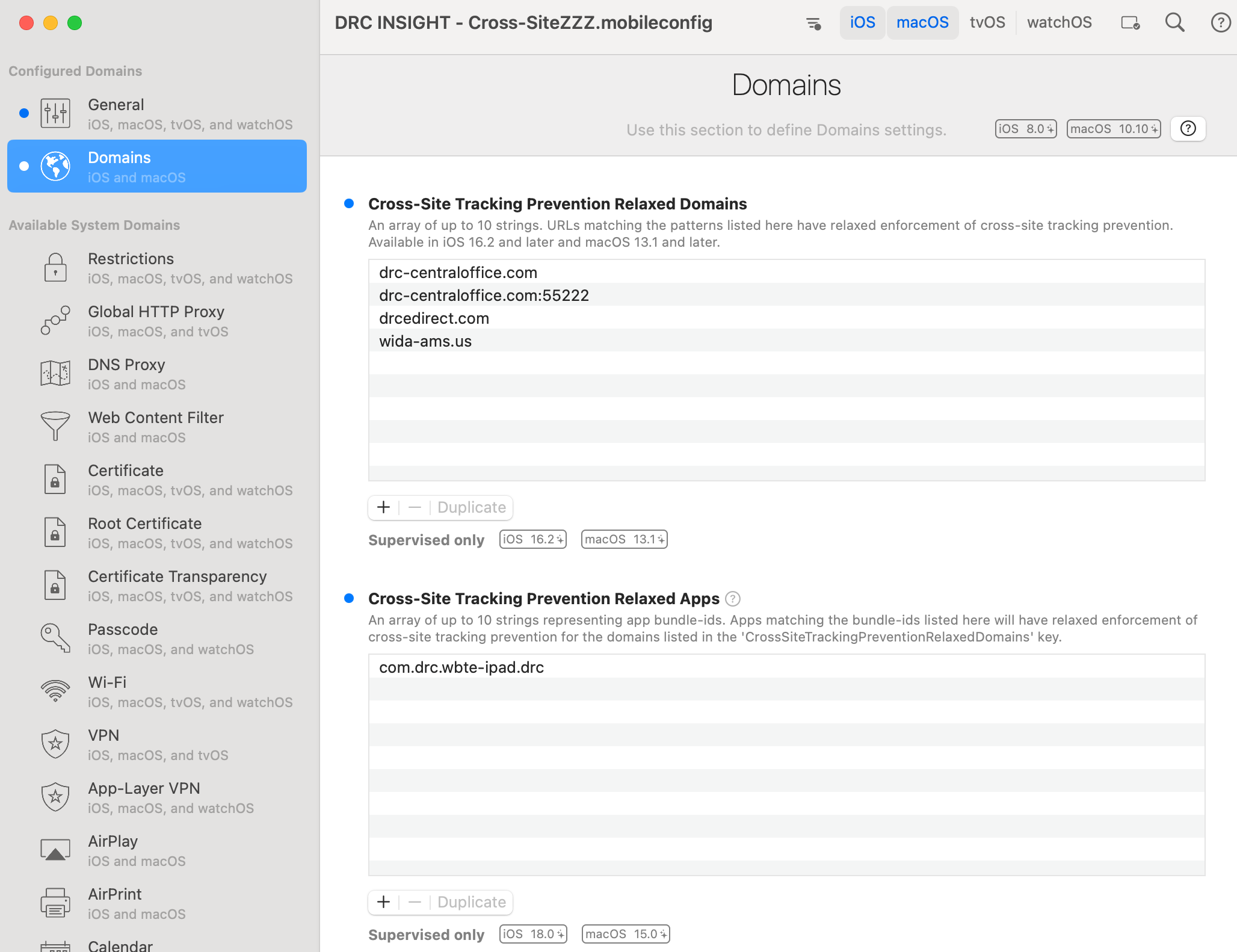
If you create the profile with another editor, drag it into the Filesets view in FileWave Central or upload it in FileWave Anywhere. Confirm that both CrossSiteTrackingPreventionRelaxedDomains and CrossSiteTrackingPreventionRelaxedApps remain present before deploying it.
No comments to display
No comments to display