
Deploy Zscaler Client Connector on iPadOS Using Serial Number Registration
What this workflow does
This workflow uses FileWave to deploy Zscaler Client Connector (ZCC) to organization-owned iPads and register each device without an interactive user sign-in. The iPad serial number becomes the username, producing an identity such as SERIAL12345@ipads.example.org in Zscaler. This identifies the managed device, not the person currently using a shared iPad.
This device-token enrollment method applies to Zscaler Internet & SaaS (ZIA). If the tenant also uses Zscaler Private Access (ZPA), users must sign in manually unless Zscaler Authentication Service is included in the design.
Pilot first. Strict Enforcement and a Global HTTP Proxy can block internet access when the app, profile, token, PAC file, or exclusion list is wrong. Keep a recovery group outside the production deployment until testing is complete.
Requirements
- Organization-owned iPads are enrolled in FileWave through Automated Device Enrollment (ADE). ADE is required if the design uses Apple's Global HTTP Proxy payload.
- Supervision during the deployment prevents users from disabling automatic VPN or removing the profile.
- A supported combination of iPadOS, FileWave, and ZCC that has been validated by the organization.
- A valid FileWave Apple Apps and Books token, enough ZCC licenses, and device-based app assignment.
- The Zscaler device-token feature is enabled by Zscaler, plus a current device token and registered domain approved for this identity-provider flow.
- The correct Zscaler cloud name and, when Strict Enforcement is used, the policy token. Confirm that all tenant values belong to the same Zscaler environment.
- An iOS forwarding profile and app profile in the Zscaler Admin Console, including the intended Z-Tunnel version and trusted/off-trusted network behavior.
- A customer-approved Zscaler configuration profile or sample
.mobileconfigthat has been reviewed for the tenant and the current ZCC release. - A small FileWave pilot group and a tested rollback path.
The serial-number identity is the core workflow. The following controls are conditional:
- Zscaler CA certificate: Required only when the ZIA design performs TLS inspection with that CA.
- Global HTTP Proxy: Use only when the approved design sends HTTP traffic to the ZCC local proxy. It is not required merely to register a device by serial number.
1. Prepare the Zscaler tenant
- Confirm that Zscaler has enabled device-token authentication for the tenant, then create or confirm the device token used by the iPad deployment.
- Configure the Zscaler Client Connector Portal as the identity provider for the registered iPad device domain. Authentication Service is a separate design path; if it is used, follow its device-token and domain-authorization workflow instead of mixing the two configurations.
- Create an iOS forwarding profile for the intended Z-Tunnel version and on-trusted/off-trusted network behavior. Bypass behavior differs between Z-Tunnel versions, so use the exclusions required by that forwarding design.
- Create an iOS app profile that uses the forwarding profile. If the deployment uses a PAC file, configure the customer-approved PAC URL and required bypasses.
- Confirm that the serial-based identities or their Zscaler group affiliation will match the intended iOS app profile after enrollment. A
policyTokenselects the pre-enrollment policy; Zscaler replaces it after enrollment with the app profile that matches the enrolled identity. - If Strict Enforcement is required, copy the app profile's policy token and complete Zscaler's current strict-enforcement requirements. These include a valid
policyToken,cloudname, required exclusions, at least one excluded URL, and the current app-profile settings for disabling iCloud Private Relay and dropping QUIC traffic.
Keep Apple activation and management services, FileWave, Zscaler enrollment, certificate validation, the identity provider, and required captive-portal destinations reachable before enrollment. Build this list from current Apple, FileWave, Zscaler, and IdP documentation instead of copying another tenant's exclusions.
2. Prepare the iPadOS profile
Start from a current Zscaler-provided or customer-approved profile. Importing the .mobileconfig directly into FileWave preserves vendor-specific keys that may not appear in every profile editor.
Serial-number registration parameters
| Parameter | Value and purpose |
|---|---|
userDomain |
The registered device domain, such as ipads.example.org. Zscaler requires this when username is supplied. |
username |
%serial_number%, or another FileWave serial-number variable that has been validated on a pilot device. Zscaler combines this local part with userDomain. |
deviceToken |
The current Zscaler device token. This is an Internet & SaaS setting and should be handled as a sensitive tenant configuration. |
authByTunnel |
1 for persistent automatic enrollment, including after a manual logout or administrative removal. Use 2 only when one-time automatic enrollment is the intended behavior. |
cloudname |
The tenant's exact Zscaler cloud name. Pass it for this Admin Console-as-IdP workflow; it is also required with Strict Enforcement. |
strictEnforcement |
1 only when the fail-closed design and all required exclusions have been tested. |
policyToken |
The policy token for the intended iOS app profile. Zscaler requires it with Strict Enforcement. |
excludeList |
The narrowly scoped destinations that must remain reachable before enrollment. Include only the current Apple, FileWave, Zscaler, IdP, MDM, and captive-portal requirements for this environment. |
externalDeviceId |
Optional. Use %serial_number% when the tenant should associate the FileWave device identifier with the corresponding device in the Zscaler Admin Console. |
FileWave documents both %serial_number% and %SerialNumber%. They are distinct, case-sensitive FileWave variables; %serial_number% is available in FileWave 13.0 or later. Choose one supported token consistently, verify that it resolves to the actual serial number on a pilot iPad, and reinstall the profile after changing it.
Keys found in older or customer-specific samples but absent from Zscaler's current supported-parameters table—such as EnforceConnectOnDemand—should not be treated as generally required. Retain them only when the current Zscaler profile or Support guidance for the tenant requires them.
VPN payload
Use the values from the validated Zscaler profile. Confirm that the profile uses the ZCC VPN subtype com.zscaler.zscaler, the packet-tunnel provider, and an on-demand rule that connects for all domains. On supervised iPads, prevent users from disabling the automatic VPN when that is required by policy.
Do not invent or normalize vendor keys, remote-address placeholders, authentication fields, identifiers, or UUIDs. Preserve the working Zscaler profile values unless current vendor guidance requires a change.
Optional Zscaler CA certificate
If the ZIA deployment performs TLS inspection, include the tenant's approved Zscaler CA certificate. Verify its subject, validity period, and SHA-256 fingerprint against a current export from the Zscaler Admin Console before deployment.
Optional Global HTTP Proxy
Use this payload only when the approved design requires all HTTP traffic to reach the ZCC local proxy through an automatic PAC file.
- Use the tenant-approved HTTPS PAC URL.
- Disable direct fallback when the PAC is unreachable only when fail-closed behavior is intended.
- Allow captive-network access when the deployment must support captive portals.
- Do not deploy a second Global HTTP Proxy payload. Apple allows only one per device.
- Do not hardcode a loopback host, port, or tenant PAC URL pattern unless current Zscaler guidance for the deployed ZCC release explicitly requires it. Prefer the local-proxy value generated by the approved Zscaler PAC.
FileWave Profile Editor example
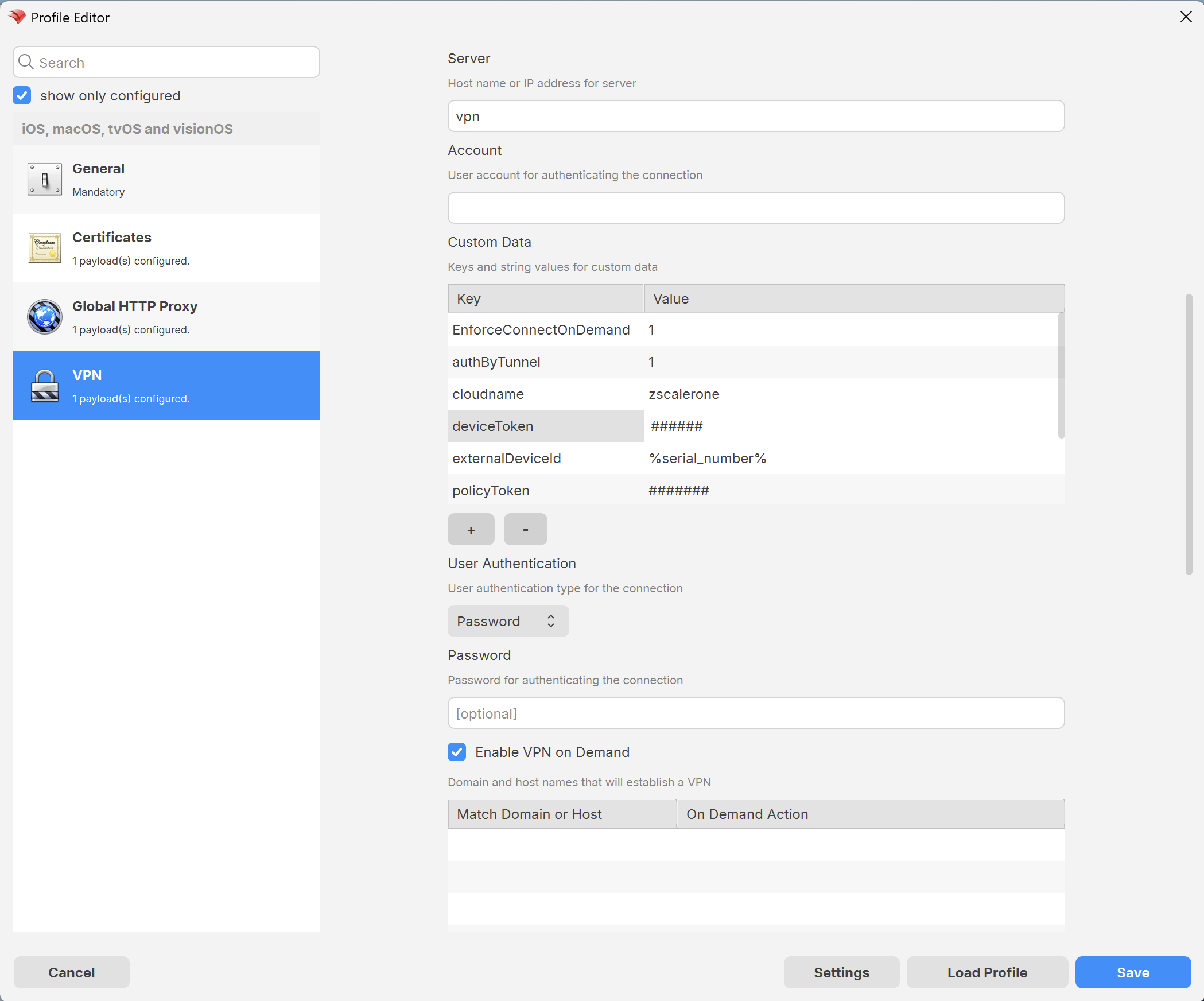
EnforceConnectOnDemand should not be copied unless the current Zscaler profile or Support guidance for the tenant requires it.3. Stage the FileWave deployment
Do not deliver the app and a blocking profile at the same time. A Deployment does not guarantee that ZCC will be installed, launched, and enrolled before Strict Enforcement or Global HTTP Proxy takes effect. Stage the rollout and verify each phase.
- Create or confirm the Zscaler Client Connector Apps and Books Fileset. Use device-based assignment and confirm that enough licenses are available. If users must not remove the app, leave app removal disabled; this requires iPadOS 14 or later and is not retroactive for an existing installation.
- Import a baseline customer-approved
.mobileconfigas a Profile Fileset. The baseline should contain the registration and VPN settings needed for enrollment, but should not enable Strict Enforcement or a no-fallback Global HTTP Proxy:- FileWave Anywhere: In Payloads, create a profile, use the upload action, select the
.mobileconfig, review it, and save. - FileWave Central: In Filesets, create a mobile Profile Fileset and import the
.mobileconfig.
- FileWave Anywhere: In Payloads, create a profile, use the upload action, select the
- Use a first Deployment to install ZCC on the pilot iPads. Confirm the app is installed before continuing.
- Use a separate Deployment to deliver the baseline Profile Fileset. Launch ZCC on each pilot device and verify successful serial-number enrollment and forwarding before enabling any blocking controls.
- After the baseline passes validation, revise or replace it with the hardened profile that enables the approved Strict Enforcement settings and, if required, Global HTTP Proxy. Do not leave overlapping VPN or Global HTTP Proxy payloads assigned to the device.
- Confirm that the profile uses the device channel and that removal restrictions match the organization's recovery plan.
- Test rollback in reverse order: remove or replace the blocking profile first, confirm FileWave management connectivity, and only then remove the app if decommissioning requires it.
4. Validate your test profile
- In FileWave, confirm that the ZCC app is installed before delivering the baseline Profile Fileset.
- After the baseline profile installs, launch ZCC and confirm that serial-number enrollment completes before delivering the hardened profile.
- Confirm that ZCC is connected and that the displayed identity contains the serial number and registered domain, such as
SERIAL12345@ipads.example.org. - If
externalDeviceIdis configured, verify that the Zscaler Admin Console shows the expected serial number for the enrolled device. - Confirm that the enrolled identity receives the intended iOS app profile and forwarding profile, not merely the pre-enrollment policy selected by
policyToken. - Browse to an allowed destination and then to a category that should be blocked. Confirm the expected policy result.
- In the Zscaler Admin Console, confirm the same identity, recent activity, source IP, and expected policy action.
- Restart the iPad and verify that the tunnel reconnects, allowed traffic works, and blocked traffic remains blocked.
- Repeat the test on an off-site network and a captive network before expanding the deployment.
- Exercise the recovery Deployment while ZCC is stopped, the PAC is unavailable, the local proxy is unavailable, and ZIA is unreachable. Confirm that FileWave inventory, commands, and profile replacement or removal still work.
- Remove one pilot device from the hardened deployment, restore the baseline or unblocked state, and verify the documented rollback path before production rollout.
Troubleshooting
- The username contains a literal variable: Verify the FileWave variable spelling and capitalization, confirm the inventory field is populated, reinstall the Profile Fileset, and test again.
- The identity shows only the domain: Confirm that
usernameresolves to the serial number and thatuserDomaincontains only the registered domain. - No internet before ZCC enrolls: The blocking profile reached the device too early. Use the recovery Deployment to remove or replace the hardened profile with the baseline, restore management connectivity, launch ZCC, verify enrollment, and then reapply the hardened profile.
- No internet after enrollment: Identify which control is blocking traffic. Check the ZCC tunnel state and the Strict Enforcement enrollment first; then check
policyToken, the post-enrollment app profile, device-token configuration,excludeList, Global HTTP Proxy fallback, PAC reachability, the local proxy, and certificate installation, where TLS inspection is used. - Strict Enforcement blocks enrollment: Recheck Apple, FileWave, Zscaler, IdP, MDM, and captive-portal exclusions. Do not broadly bypass filtering to make enrollment work.
- The tunnel does not reconnect after restart: Verify the all-domains Connect rule, automatic VPN setting, and profile installation.
- A captive portal does not appear: Confirm that captive-network access is allowed and that the required portal destinations are narrowly excluded.
- The profile will not install: Look for overlapping VPN, certificate, or Global HTTP Proxy payloads and confirm that only one Global HTTP Proxy payload targets the device.
Security and operational notes
- Treat
deviceToken,policyToken, certificates, tenant domains, and PAC URLs as sensitive configuration. Redact them from screenshots and tickets. - Store the source profile in an access-controlled location and rotate tenant values only through a tested change window.
- Keep a narrowly scoped recovery deployment that can remove or replace the fail-closed profile.
- When
authByTunnel=1, disable or remove the automatic-enrollment profile before deleting the device in Zscaler or removing ZCC. Otherwise, the device can enroll again automatically. - The serial-based username identifies the managed iPad. Do not treat it as proof of which person used a shared device at a particular time.
- Review PAC exclusions regularly. Endpoint requirements change, and an obsolete exclusion can either break enrollment or create an unintended bypass.
Related content
- FileWave: Using Parameters in Apple iOS/macOS Profiles
- FileWave: Profile Payload Planning
- FileWave: Apple Apps and Books (VPP) Filesets
- FileWave: Unremovable VPP Applications
- FileWave: Deployments in FileWave Central
- Zscaler: Supported Parameters for Zscaler Client Connector for iOS
- Zscaler: Creating a Device Token
- Zscaler: Using the Zscaler Admin Console as an Identity Provider
- Zscaler: Additional Strict Enforcement settings for iOS
- Zscaler: Configuring Client Connector App Profiles
- Zscaler: Configuring Forwarding Profiles
- Apple: Global HTTP Proxy payload settings
No comments to display
No comments to display