
Install iOS Apps to Devices Using Apple Configurator
Description
Although installation of Apps on devices are usually managed using VPP, it is possible to push Apps using Apple Configurator, including VPP purchased Apps.
Ingredients
- Apple Configurator 2 on a macOS device
- A personal Apple Account, or an organizational Managed Apple Account with permission to acquire and assign Apps and Books licenses
- App licenses already acquired by the selected account or organizational location, including licenses for free apps
If devices are ADE(DEP) enrolled with an enrolment profile configured to deny device pairing, unless a supervising certificate was provided at enrolment, devices cannot be connected to macOS devices to action any of this.
Keep FileWave and Configurator license management separate. Do not reuse the Apps and Books location/token already connected to FileWave in another service. Use a separate location/token for Configurator. Reusing the same token can cause FileWave to report that it is revoked; see Resolve a Revoked Apps and Books (VPP) Token if this has already happened.
Directions
Apple have their own KB on this process:
Add apps to a device in Apple Configurator
In Apple Configurator, choose Account > Sign In and sign in with the account that holds the app licenses. For organizational distribution, acquire the apps and accept the Apps and Books terms in the Apple portal first. A Managed Apple Account cannot purchase apps directly from the App Store. If you use a personal Apple Account instead, the same account used to purchase the apps must also be used on the target device:

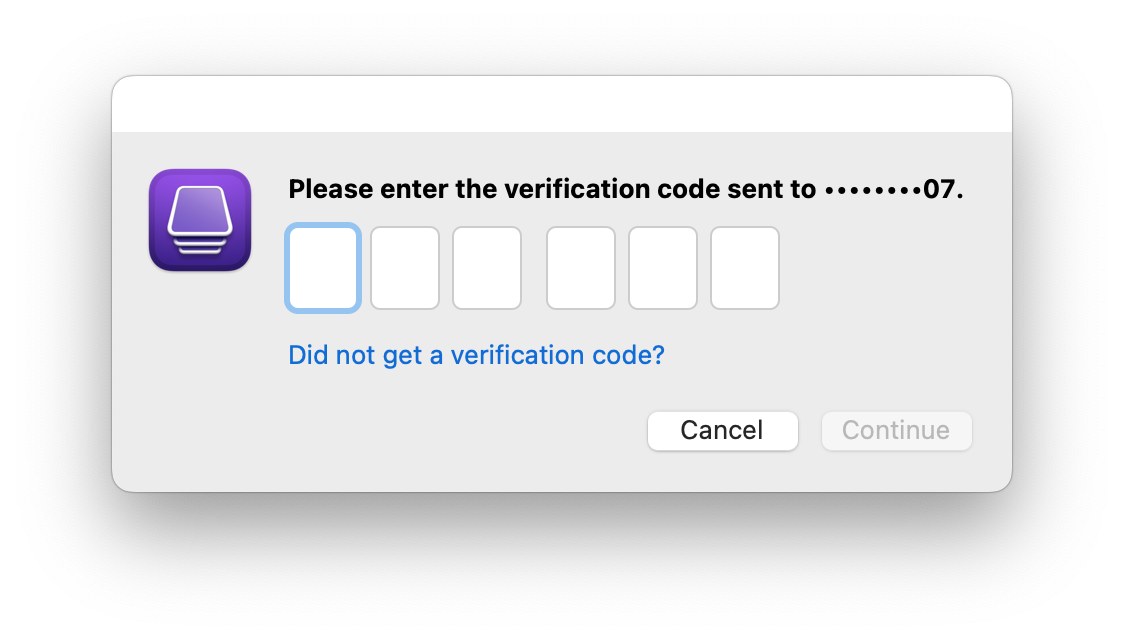
After authenticating, a 2FA prompt should appear:
For organizational accounts, select the location or organizational unit that holds the app licenses after authentication. The example below shows the location selection:

This is the Apps and Books location (often called VPP in FileWave). Apple Business may display organizational units instead of locations.
Select the appropriate location (you may only have one).
Select one or more connected devices in Apple Configurator, then choose Actions > Add > Apps. The window shows apps available to the selected account or location and the number of licenses available for assignment:
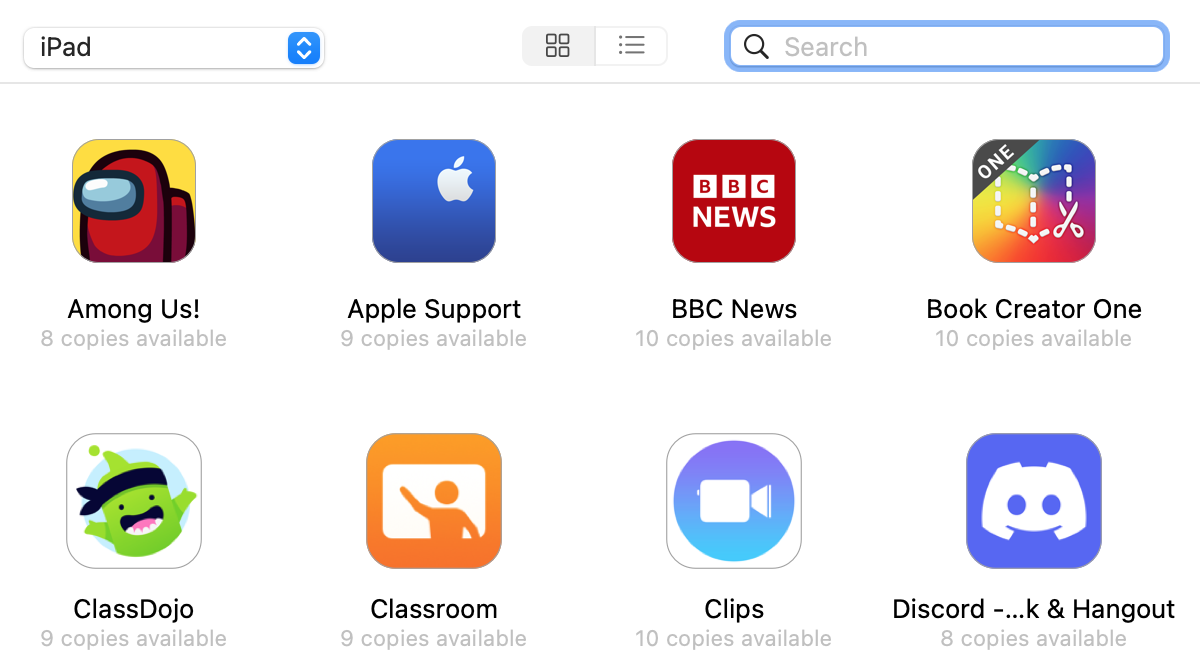
Select the required apps and confirm that enough licenses are available for the devices you selected, then click Add Apps. More than one app may be selected.
The differing steps should be reported through a pop-up window:
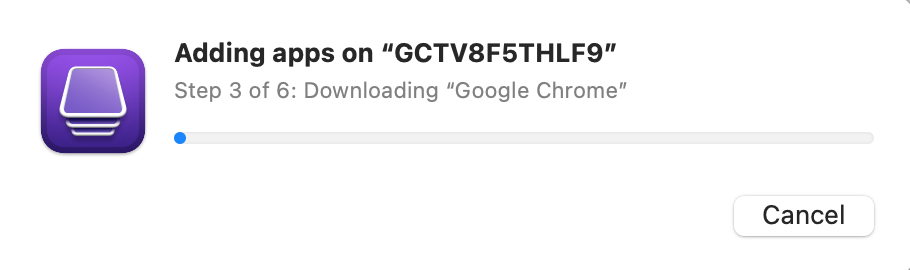
Note the download is to the macOS device and will be followed with a sync:
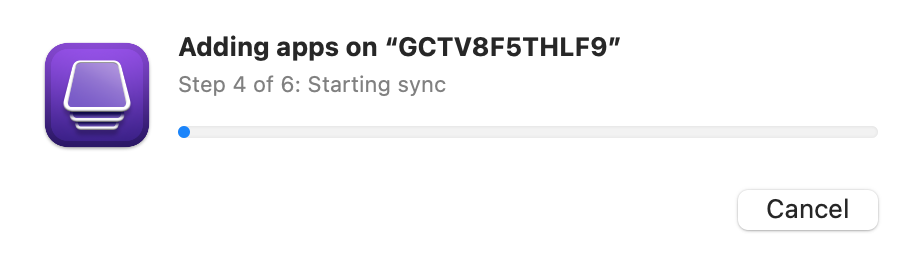
Shortly after, the App icons should appear showing the download process and then installation should be completed.
No comments to display
No comments to display