
Installing Windows Fonts
Description
Installing a Windows font requires more than copying the font file into C:\Windows\Fonts. Windows also needs the matching registry entries. This Fileset installs TrueType fonts by copying the prepared font files into place and registering each one.
Supported font type
This Fileset was tested with TrueType (.ttf) fonts on Windows 10 Pro 1803 and 1903. Test the edited Fileset on your current Windows build before broad deployment.
Registry Editing
This Fileset edits the Windows registry and removes items from its staging folder. Use a dedicated folder containing only the intended font files, not a shared temporary directory. The supplied script does not filter for .ttf files or stop cleanup when a copy or registry operation reports a non-terminating error. Keep the original font files outside that folder.
Information
Download and import the Fileset, then replace the placeholder with the fonts you want to deploy.
Windows Instal Fonts.fileset.zip
Description
The Fileset consists of:
- An activation script
- A folder for the font files, with a placeholder file
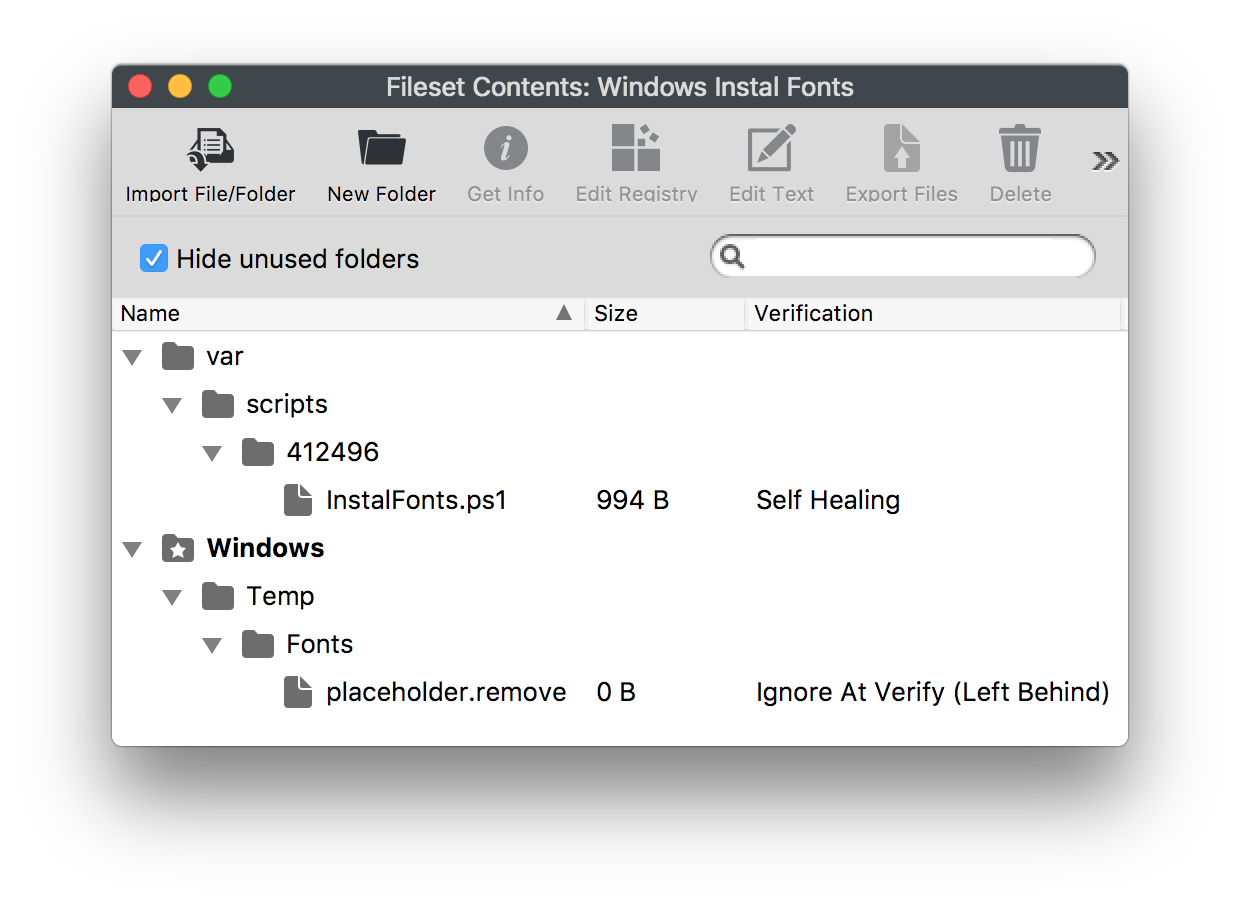
Adding Fonts
- Select the font files in macOS Finder or Windows Explorer.
- Drag the extracted .ttf files directly into the Fileset folder Windows > Temp > Fonts. Do not add a ZIP archive or a containing subfolder: the script does not recursively search for fonts.
- Select the Fonts folder in the Fileset, choose Get Info > Verification, then set Ignore At Verify and Apply to Enclosed.
- Remove the
placeholder.removefile. - Check the activation script's launch argument in InstalFonts.ps1 > Get Info > Executable. It must point to the folder that directly contains your font files, even when you use the illustrated folder layout. See Changing Temporary Folder below.
Example, Montserrat font:
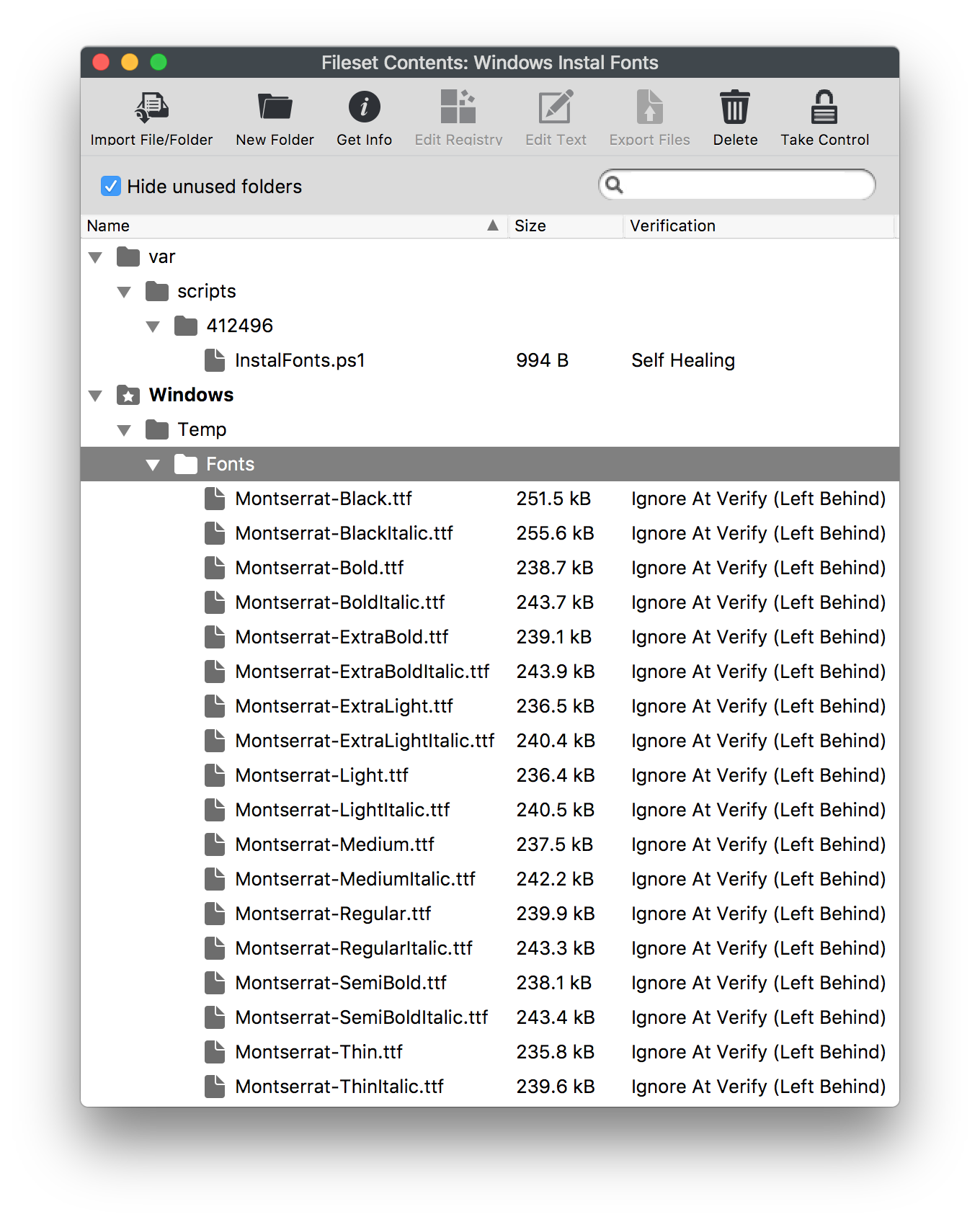
Deployment
After the Fileset is assigned and activated, the script will:
- Copy all files from
C:\Windows\Temp\FontstoC:\Windows\Fontsif they do not already exist. - Check the font registry entry for each non-placeholder item and create it if missing, even when a file with that name already exists in the destination.
- Remove each file from the temporary directory:
C:\Windows\Temp\Fonts.
This is not a font-update workflow: an existing destination file is skipped, not replaced with the staged version. The supplied Fileset also has no uninstall script, so do not assume removing its Deployment unregisters the installed fonts.
Changing Temporary Folder
To use a different temporary folder:
- Drag the fonts to the desired location in the Fileset.
- Change the launch argument to match: InstalFonts.ps1 > Get Info > Executable.
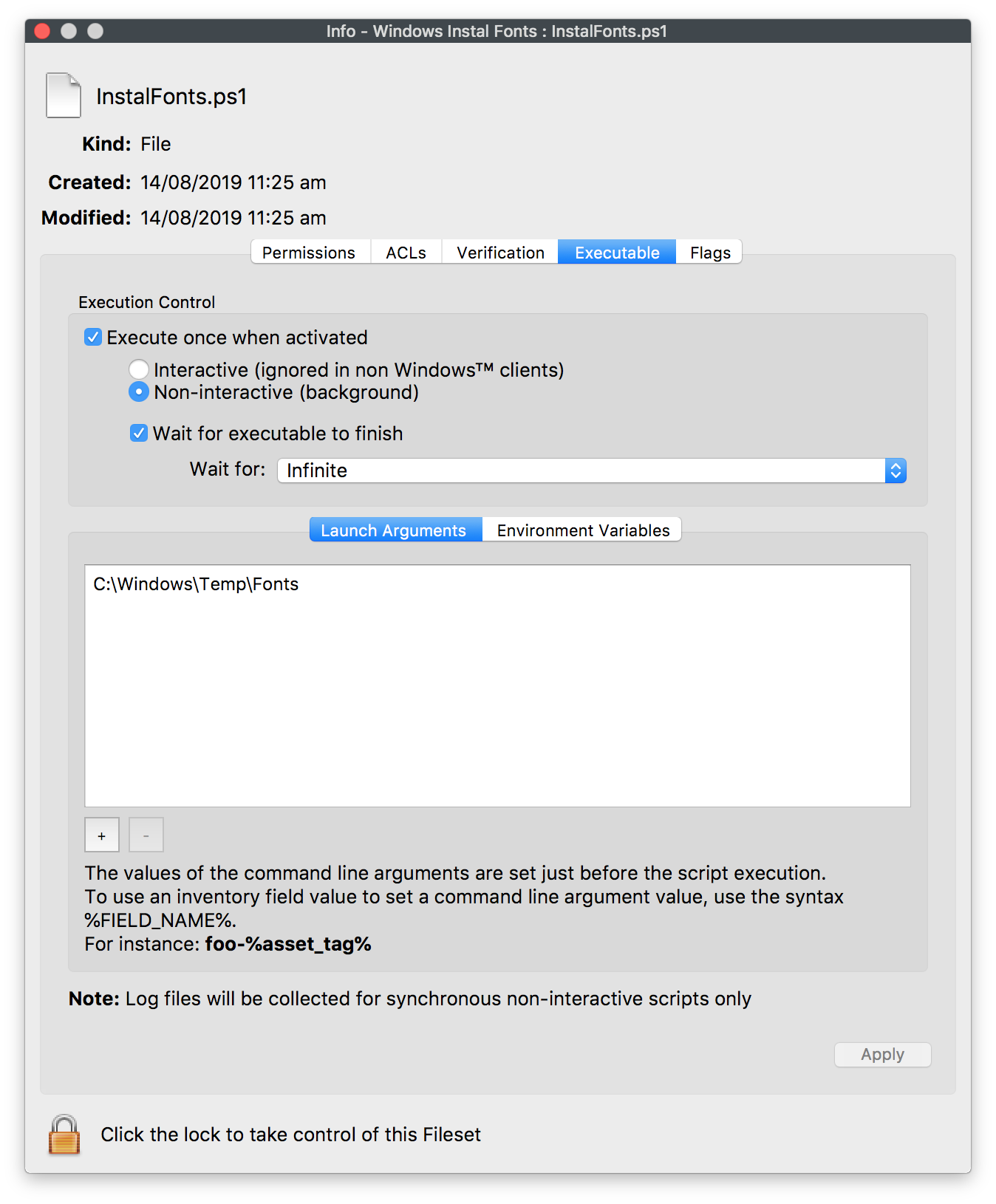
Use Deployments in FileWave Central to target an approved Windows test device first, then save and coordinate the Model Update. Check the activation script output for errors, confirm the expected files and matching font registry entries are present, and confirm the font is available in the application that needs it. An empty staging folder is not proof of success because cleanup follows the copy and registry attempts. Test on your current Windows build before expanding to a small group or deploying broadly.
No comments to display
No comments to display