
Join Windows Devices to Active Directory with a Fileset
What this Fileset does
This Fileset template uses PowerShell Add-Computer to join managed Windows devices to an on-premises Active Directory domain. Configure it for your domain, pilot it on one representative device, and then use a Deployment for the intended Windows devices.
Requirements
- An on-premises Active Directory domain and a delegated account permitted to join computers in the target organizational unit (OU)
- A FileWave-managed Windows 10 or Windows 11 device running a domain-join-capable edition such as Pro, Enterprise, Pro Education, or Pro for Workstations
- Working DNS, accurate system time, and network access from the device to the required domain controllers
- FileWave Central access to import, edit, and deploy the Fileset
Protect the join credential. The supplied template reads a plaintext password from a Fileset environment variable. Use a dedicated, least-privilege domain-join account—not a Domain Admin account—and rotate or disable the credential after the deployment. Anyone who can inspect or export the configured Fileset may be able to recover it.
Configure the Fileset
- Download Active Directory Join.fileset.zip, extract it, and import the Fileset into FileWave Central.
- Open the Fileset, select its PowerShell script, then choose Get Info → Executable → Environment Variables.
- Set the following variables for your environment:
user— the delegated join account asDOMAIN\usernameorusername@example.compassword— the current password for that delegated accountdomain— the Active Directory DNS domain, such asexample.comou— the target OU distinguished name, such asOU=Workstations,DC=example,DC=com
The supplied script forces a restart. Schedule the Deployment for a maintenance window. To manage the restart separately, remove Restart-Computer -Force from the imported PowerShell script before deployment and verify the edited copy on a pilot device.
The script deletes its local working copy after it runs. The original remains in the FileWave Fileset, but the endpoint copy is removed by the script.
Example:
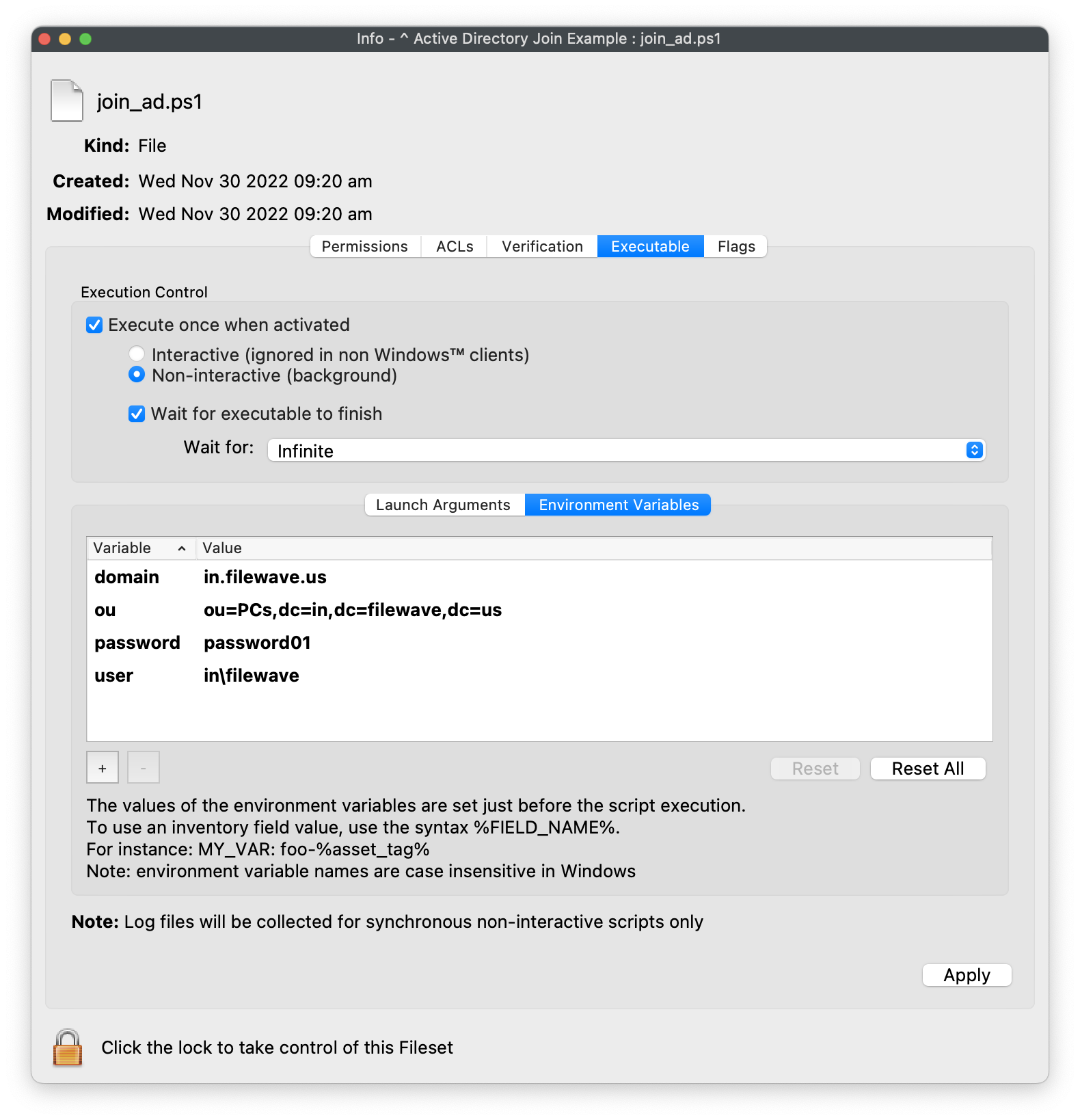
Credential format: Use a fully qualified account such as DOMAIN\username or username@example.com.
Deploy and verify
- Save the Fileset and create a Deployment for one pilot Windows device.
- After the required restart, sign in with a local administrator account and run
Test-ComputerSecureChannelin an elevated Windows PowerShell session. A healthy domain connection returnsTrue. - Confirm that the computer account exists in the intended OU and that a domain user can sign in.
- Review the Fileset result in FileWave, then expand the Deployment in controlled stages.
No comments to display
No comments to display