
Rename Windows Hostname based FileWave Client Name
Description
This Fileset renames a Windows computer so its Windows hostname matches the FileWave Client Name shown in FileWave Admin.
With this Fileset associated, the FileWave Client Name becomes the source of truth. If the Windows hostname is changed directly in Windows, Active Directory, or another tool, the Fileset changes it back to the FileWave Client Name the next time the rename workflow runs.
Use a FileWave Client Name that follows the Windows computer naming conventions. The scripts check the name before attempting a rename. If the name is invalid, they log the reason, exit with code 4, and make no change. A name is rejected if it:
- is longer than 15 characters (the NetBIOS limit)
- contains spaces, underscores, dots, or special characters such as
\ / : * ? " < > | , ~ ! @ # $ % ^ & ' ( ) { } - is made up entirely of digits
Good name examples:
- FILEWAVE-PC
- TCE-3453234
- PRINT-SRV
Bad name examples:
- Jerry's Desktop Computer
- GO_BEARS!
- THISNAMEISMUCHLONGERTHAN15CHARACTERS
Ingredients
- FileWave Client for Windows
- Windows - Rename Windows Hostname (No Domain) PowerShell and Logging.fileset.zip
- Windows - Rename Windows Hostname (Domain Joined) PowerShell and Logging.fileset.zip
Older batch-file versions are still attached for reference, but the PowerShell Filesets are the current examples to start from:
- Windows - Rename Windows Hostname (No Domain).fileset.zip
- Windows - Rename Windows Hostname (Domain Joined).fileset.zip
Requirements
- The script must run elevated, as SYSTEM (FileWave default) or an administrator. It exits with code 6 if it doesn’t. Don’t try to run it as a standard user.
- Domain-joined machines need a reachable domain controller (on-network or VPN) and a domain account permitted to rename computer objects.
Machines not joined to Active Directory
- Download, unzip, and import the Windows - Rename Windows Hostname (No Domain) PowerShell Fileset into FileWave Admin.
- Associate the Fileset with the Windows devices that should follow their FileWave Client Name.
- Rename the device in FileWave Admin.
- Update Model.
- Wait for the client to check in and run the Fileset. The included workflow is designed around the normal FileWave preflight/tickle timing.
- The user receives a reboot prompt, and the device reboots after the configured timeout.
- The Windows hostname is changed to the FileWave Client Name after reboot.
- FileWave Client communication is not affected by the rename.
Machines joined to Active Directory
Domain-joined renames need domain credentials, which the Fileset reads from two environment variables:
| Variable | Value |
|---|---|
user |
A domain account in DOMAIN\username or username@domain.fqdn format. A bare username is accepted, but the script appends @<your domain> and logs a warning. |
pass |
The account’s password |
The script performs the whole rename in a single process. It does not write a second script or save the password to disk, and the password is never written to the log.
Recommended (Optional): Don’t use a Domain Admin account. Create a dedicated service account with delegated rights on the relevant OU to rename computer objects (write to name properties, plus validated write to DNS host name and service principal name). This limits exposure, since the password travels as an environment variable.
- Download, unzip, and import the Windows - Rename Windows Hostname (Domain Joined) PowerShell Fileset into FileWave Admin.
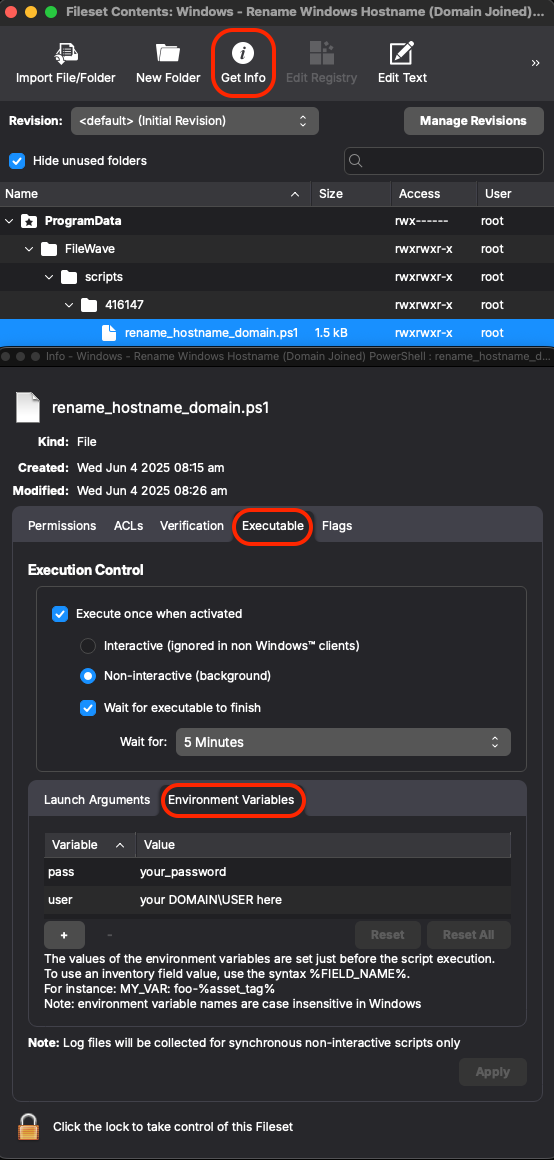
- Set the
userandpassenvironment variables for your environment. Access this by opening the fileset, select the script, choose 'Get Info', then Executable and Environment Variables:
- Test with a small group first. Domain-joined renames depend on Active Directory permissions, DNS/domain health, and the reboot completing successfully.
- Associate the Fileset with the Windows devices that should follow their FileWave Client Name.
- Rename the device in FileWave Admin.
- Update Model.
- Wait for the client to check in and run the Fileset.
- The user receives a reboot prompt, and the device reboots after the configured timeout.
- The Windows hostname is changed to the FileWave Client Name after reboot.
- FileWave Client communication is not affected by the rename.
Logging and troubleshooting
Each run appends to a log on the client:
C:\ProgramData\FileWaveRename\rename.log
The log records:
- The account the script ran as, whether it was elevated, process bitness, and PowerShell version
- Whether the machine is domain-joined, and the domain name
- Every value found under the FileWave registry key, checked in both the 32-bit and 64-bit registry views
- The active, pending, and desired computer names
- For domain-joined machines: a domain controller lookup, a secure channel test, and a credential check against Active Directory
- The result of
Rename-Computerand the reboot scheduling, including full error details and a hint on failure
Exit codes
| Code | Meaning |
|---|---|
| 0 | Name already correct, or a rename is already pending a reboot |
| 1 | Could not read fwUser from the registry |
| 2 | Renamed successfully, reboot scheduled |
| 3 | Rename-Computer failed (see log) |
| 4 | Invalid computer name |
| 5 | Domain-joined, but user/pass environment variables are missing |
| 6 | Not running elevated |
Common log findings
| Log shows | Likely cause and fix |
|---|---|
Admin/elevated: False |
The Fileset isn’t running as SYSTEM/admin. Change the FileWave script’s run-as setting if you set one. |
Credential validation against AD: False |
Wrong password, locked account, or username format. Try DOMAIN\user or user@domain.fqdn. |
Validation True, but “Access is denied” on rename |
The account is valid but lacks rights on the computer object. Delegate rename permissions on that OU. |
nltest or secure channel failures, “domain controller” or “RPC” errors |
The machine can’t reach a DC. Check VPN/network and DNS. |
Key not found or an empty fwUser value |
The FileWave Client Name isn’t populated on the client. Confirm the device was renamed in Admin and the model was updated. |
| Exit code 4 | The Client Name is invalid. Rename the device in FileWave Admin using a compliant name. |
Customize the reboot prompt or timeout
The PowerShell Filesets include the reboot prompt and timeout in the imported script, on this line:
shutdown.exe /r /t 60 /c "Computer renamed to $fwClientName. Rebooting in 60 seconds." /f /d p:4:1Change the /t 60 value for the timeout in seconds, and update the text after /c if you want the user prompt to say something different. If you change the timeout, update “60 seconds” in the message to match. The older batch-file Filesets use the same command, with %fwClientName% in place of $fwClientName.
Sync Computer Name
When a client is manually renamed in FileWave Admin, FileWave disables Sync Computer Name for that client. That allows the Fileset to apply the FileWave Client Name to Windows instead of having Windows immediately sync its old computer name back into FileWave.
No comments to display
No comments to display