
Apple Client Pre-Requisites
Prepare only the Apple services your test needs
Choose one organization-approved test device and one management method before changing an Apple integration. A Mac can run the native FileWave Client, use Apple mobile device management (MDM), or use both. The Client performs file-level delivery and inventory work; Apple MDM installs management profiles and performs supported Apple management tasks. Installing the Client does not enroll a Mac in MDM.
| Your next task | Prepare now | Not required just for this task |
|---|---|---|
| Install the native Client on a Mac for a first file delivery | Correct Server connection, a supported Client PKG, local administrator approval | APNs, ADE, Apps and Books |
| Manually MDM-enroll an approved Mac, iPhone, or iPad | APNs certificate, trusted reachable enrollment URL, approved enrollment authentication | ADE assignment; Apps and Books unless delivering an App Store app |
| Enroll an organization-owned device through ADE | APNs plus the organization's Apple enrollment service and the exact test serial assigned to FileWave | Apps and Books unless delivering an App Store app |
| Deliver an Apps and Books app | Working Apple MDM enrollment, an approved Location token, the correct app/platform, and an available license | A second ADE setup if the device is already correctly enrolled |
Use the selected FileWave release's platform requirements rather than treating this table as an OS support matrix. Hosted customers do not perform Server shell work. If you are an existing customer, contact FileWave Support. If you are evaluating FileWave, contact your assigned FileWave Systems Engineer (SE). Use that channel to arrange hosted-server authentication and service changes. Self-managed Server owners must confirm readiness using FileWave Server Setup.
Protect existing management first
Record the test device's serial number, its current MDM owner, and your cleanup plan. Do not reassign a working device, replace an existing APNs certificate, take ownership of another MDM's token, or change default enrollment rules merely to complete this walkthrough. Use an approved spare device and a separate Apps and Books Location/token when another MDM is already in use. If you find an ownership conflict, stop and contact the current owner.
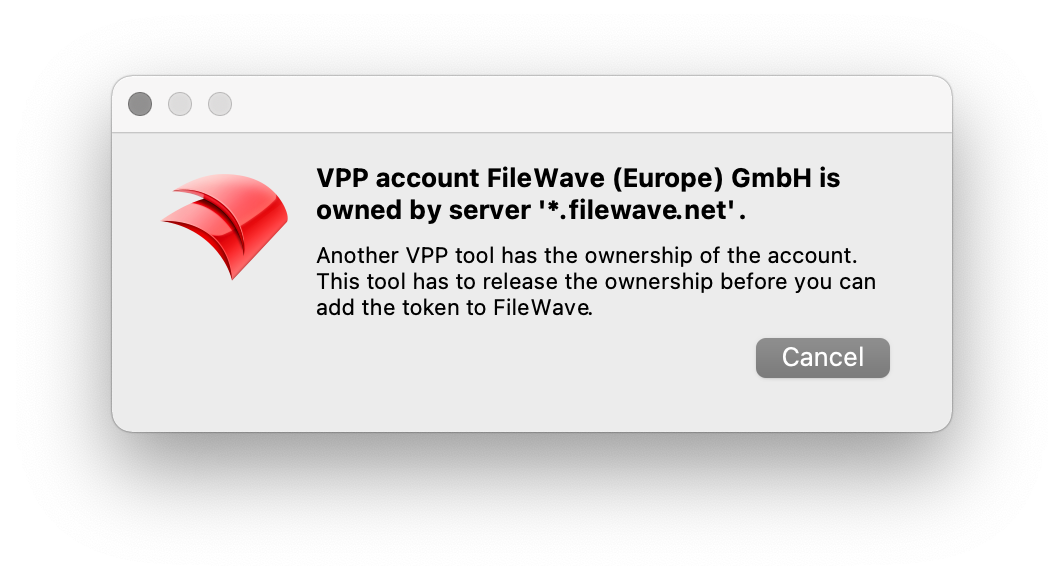
If a token belongs to another MDM, stop and contact its owner rather than accept a takeover. This screenshot shows an older interface; use your organization's approved settings.
1. Establish the APNs identity for Apple MDM
Apple Push Notification service (APNs) lets FileWave notify Apple devices that management work is available. It is not the native Mac Client installer. Before creating anything, check whether this Server already has a valid certificate. In Central 16.4.1 and later, look under Preferences > Enrollment; in 16.4.0, the tab is Mobile. The APNs examples below show the older Mobile label.
For a new certificate:
- Use an organization-controlled Apple Account whose owner can renew the certificate. On a Mac, create a Certificate Signing Request in Keychain Access with Certificate Assistant > Request a Certificate from a Certificate Authority, saving it to disk. On Windows, use the Windows certificate procedure linked below; the Mac Keychain steps do not apply.
- Sign the CSR through FileWave's CSR portal, then submit the signed request to Apple's Push Certificates Portal using that Apple Account.
- Download Apple's certificate and combine/export it with the private key created by your CSR. The macOS Keychain procedure or Windows procedure supplies the platform-specific certificate/export steps. Keep the certificate and key files restricted; do not put them in screenshots or support notes.
- In Central's Apple push-certificate controls, select the prepared certificate/key file, upload it, and save Preferences. Check the displayed topic and expiration. If a current certificate already exists, renew that identity rather than replace it.
Renew the same certificate, with the same Apple Account and topic. A different certificate can break existing MDM communication and require reenrollment. Add the Server DNS name to the certificate's Notes in Apple's portal, compare topics in Apple and Central, and stop if they differ. Schedule reminders 45, 30, and 15 days before expiry; Dashboard email alerts are an additional reminder, not the only one. An accepted upload and a future expiration date show that the certificate configuration is ready. The enrollment and device-result checks on the next pages confirm communication with the device.
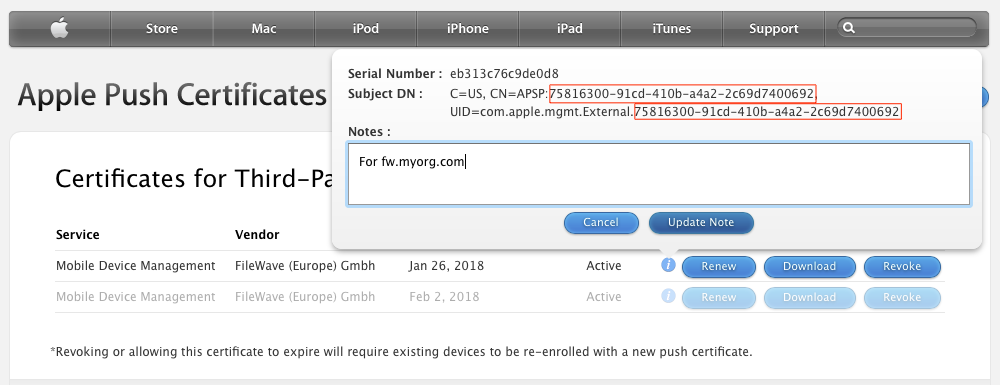
Check your certificate's topic in Apple's portal; do not copy the value shown in this older screenshot.
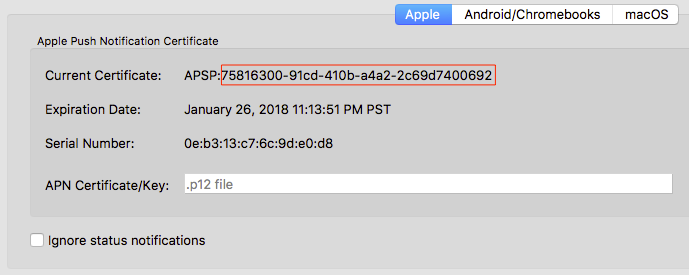
Compare your certificate's topic in Central with its topic in Apple's portal. This older screenshot uses the Mobile tab label; follow the version-specific navigation above.
2. Configure ADE only if you chose ADE enrollment
If the intended ADE account is already configured and valid, use it and continue with the test-serial assignment and synchronization below. Do not repeat the certificate and token setup.
- In Central, open Preferences > VPP & ADE > Configuration > Download Certificate on 16.4.0 and later. Earlier versions do not have the Configuration subtab.
- In the organization's Apple portal, create or select the intended external FileWave management service and upload that public certificate. Current Apple Business navigation uses Devices > Management Services; older Apple Business Manager/School Manager layouts and screenshots may say MDM Server under Settings.
- Download the Apple service token. In Central's Configure accounts control, add that token to the intended ADE account. Confirm account information and expiration. Keep the token private and assign an annual renewal owner. A routine token renewal normally does not require re-uploading the public certificate; see ADE token creation and renewal.
- In Apple's device inventory, select only the approved test serial and assign it to the FileWave service. In Assistants > ADE Association Management, use Synchronize and confirm that serial appears. If it is missing, first check the Apple assignment and account; use the optional full-sync guidance below only after those checks.
- Continue to Apple ADE Enrollment to create and assign the enrollment profile before device activation. Automated Device Enrollment (ADE) uses the Apple assignment to enroll the device during setup. The assignment alone does not complete MDM enrollment or install the Client.
3. Prepare Apps and Books when you are ready to deliver an app
A Location in Apple School Manager owns its Apps and Books licenses, and its server token lets FileWave synchronize those licenses. Current Apple Business calls these organizational units; FileWave and older Apple Business Manager screens still use Location/token terminology. FileWave also uses VPP in several controls.
If the intended Apps and Books token is already configured and valid, use it. Check its existing automatic-Fileset destination and licenses before the app exercise; do not reimport the token or change a fleet destination to follow this guide.
- Have the Apple administrator select or create a separate test Location if another MDM uses the existing token. Download that Location's token from the portal's Apps and Books/server-token settings. Never accept an ownership takeover as a routine import step.
- In Central Preferences > VPP & ADE > Configuration (16.4.0+; the single pane in earlier versions), open Configure tokens, give the token a name you can easily distinguish from other tokens, and import the downloaded
.vpptoken. Record its owner and expiration. If it is not visible, ask a FileWave administrator to check your token permissions before importing it again. - For a new token, create an unassigned test Fileset group. In the token's Auto create filesets settings, use Choose to select that destination, then save the token and Preferences. Do not choose a Fileset group already deployed to a fleet: newly imported content could become part of that Deployment. The administrator can review token visibility under Assistants > Manage Administrators > Manage VPP Tokens; the Manage VPP codes permission also affects access. See Managing FileWave Administrators.
- Acquire one approved free app for the correct platform and test Location, with enough licenses for the test. Apple requires a configured payment method even for free licenses; have the authorized Apple administrator arrange that rather than purchase paid content as a workaround. Current Apple Business uses Apps & Services > Apps and Books > App Store and an organizational-unit selection; School Manager uses Apps and Books and Location. Choose managed licenses, not personal redemption codes. Wait for Apple to make the licenses available; an acquisition receipt is not installation evidence.
- In Central License Management, select Synchronize VPP. Review any automatic-Fileset-creation message and confirm both the license counts and the resulting app Fileset in the intended group. Availability is not guaranteed within a fixed number of minutes.
Return to iOS and iPadOS Software and Profiles for the one-app exercise. Readers using only the Mac Client can proceed through Apple Manual Enrollment to the macOS file exercise without configuring Apps and Books.
Resolve authentication without weakening it
Use the organization's approved enrollment identity policy. A generic shared account, an identity-provider flow, and no generic authentication are different decisions. An unexpected login prompt is a reason to confirm the policy and URL—not permission to disable authentication.
Central Preferences explains enrollment authentication and the hosted/self-managed boundary. If a change is required on a self-managed macOS Server or Debian appliance, the authorized Server owner must establish the release-specific configuration, backup, validation, activation, and recovery procedure first. Do not replace the active authentication file with an example or assume that FileWave’s Apache wrapper supports a generic Apache check or graceful reload. If that procedure is not established, stop and use the appropriate help route above. Hosted customers request Server-side changes through their FileWave contact.
Ready to continue: the intended route is recorded, required integration identities are accepted, the test device is approved, and no existing fleet integration was taken over. If any of those is uncertain, stop before enrollment.
When an ADE serial or an app license is missing
Check the account and assignment before repeating an import. An ADE service token connects an Apple device assignment service; an Apps and Books token connects a Location's licenses. Replacing one cannot repair the other.
- ADE: verify the exact serial is assigned to the intended FileWave management service in Apple, confirm the ADE account and token expiration in Central, and synchronize. If the serial is still missing, holding Option or Alt exposes the full-sync action in ADE Association Management. Use it deliberately after the account/assignment checks, then confirm the serial appears before assigning a profile.
- Apps and Books: confirm the app platform, owning Location/token, acquired quantity, token permissions, and synchronization result. A token hidden by permissions is not a reason to import it twice or take ownership. In the token details, Department, Owner, and Owner Email can help administrators record responsibility; they do not grant access.
- Automatic Fileset creation: confirm both the app's license count in License Management and its Fileset in the intended unassigned test group. If either is missing, resolve the synchronization or import result before creating a Deployment.
Apple's instructions explain acquiring licenses in School Manager and configuring School Manager Locations. Use the portal and role for your organization; Apple Business uses organizational units rather than the School Manager Location layout.
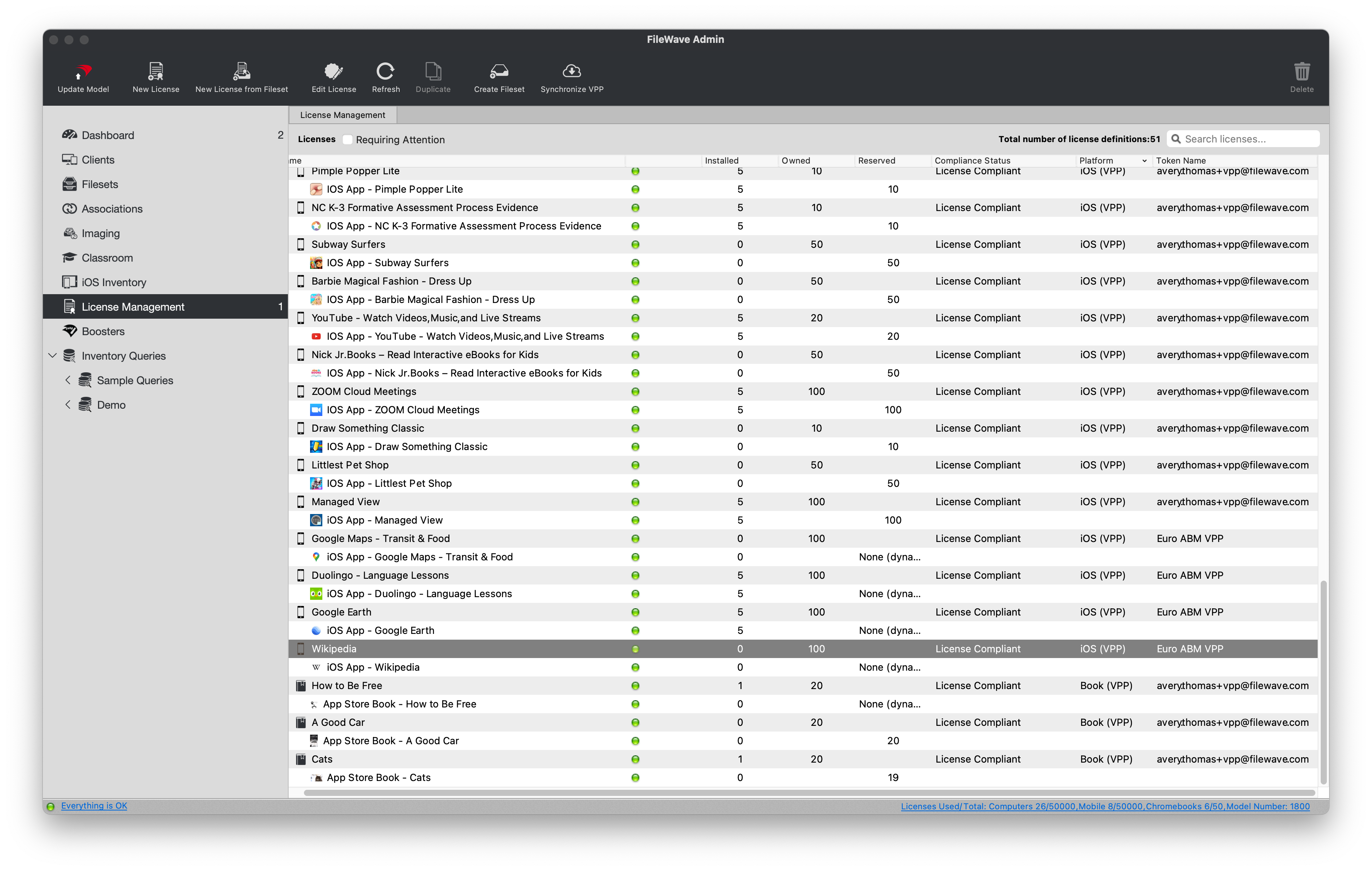
Check your app and license counts using the synchronization steps above, not the example values in this older screenshot.
No comments to display
No comments to display