
Chromebook Client Pre-Requisites
Start with one known test Chromebook. Your goal is to find its Google-enrolled record in FileWave, then read the inventory available for that device. Google Admin Console owns ChromeOS enrollment and policy. FileWave synchronizes Google's device records; the optional FileWave Inventory Extension adds direct device inventory and communication. These are separate checkpoints, not a desktop Client installation.
Before setup, confirm capacity for the total number of Provisioned Chromebooks in Google Admin Console under Server → Activation Code in Central. For an evaluation, email that total to your FileWave Account Executive or assigned Systems Engineer (SE) and request the temporary activation code. Existing customers should confirm their current Chromebook license coverage with the environment owner and contact Customer Success if additional licenses are needed. Chromebook Management says FileWave synchronizes the full Chromebook device list, and insufficient Chromebook licenses can prevent a Model Update. Do not test that limit by committing a model.
Your exercise focuses on one test device, but the connector can synchronize the full Chromebook list. A selected Google organizational unit (OU) can scope a Google policy; it does not establish a one-OU FileWave synchronization or licensing boundary. Have the Google administrator and FileWave environment owner approve the actual organization-wide import and license requirement before configuring or synchronizing a new integration. If that scope is unsuitable, stop and ask them for an approved test environment.
Google enrollment licensing is separate from FileWave activation. Have your Google administrator confirm the applicable ChromeOS Enterprise Upgrade or ChromeOS Education Upgrade, availability in your region, accepted terms, and enrollment permissions for the test user. The ordinary signed-in-user route here is not the Kiosk & Signage route. Consult Google's enrollment requirements.
Chromebook features: choose what you need
- Google-synchronized inventory and OU information: the first outcome. Google device and group records are not ordinary FileWave Client groups that you can delete independently.
- Additional hardware and software/extension inventory and user activity: the optional Inventory Extension adds installed apps/extensions, current user, network, fonts, and storage information. Check available fields rather than expecting every field on every device.
- FileWave and Google Custom Fields: a later exercise. ChromeOS annotated fields can write back to Google immediately when saved; they are not passive inventory labels.
- Location Tracking: optional, with explicit privacy approval and effective geolocation policy.
- Google OU creation, renaming and moving devices; disable/deprovision; Powerwash & Wipe Users; reboot: management actions, not checks for this exercise. OU changes can change inherited policy, and wipes can destroy data.
For capability and timing details, see Inventory Extension Capabilities and Inventory Extension Behavior. Neither an imported record nor a successful sync proves that the extension is installed or that an action completed.
Setup
Required items and owner checks
- An organization-controlled Google domain and Google Cloud/Firebase project, with its administrators available. Do not use a personal account or replace an existing integration to make room for this test.
- One approved Chromebook, with its serial number recorded. If already enterprise-enrolled in the correct Google organization, leave it enrolled. Otherwise follow Chromebook Enrollment after the connector is ready.
- An authorized enrollment user and an agreed Google OU structure. Review the effective policies for both the user and device, including inherited settings. A new test OU is not automatically isolated.
- A running, supported FileWave Server and matching Central, enough FileWave Chromebook licenses for the full synchronized scope, and a root-trusted SSL certificate, not a self-signed certificate.
- Required network access confirmed with the server/network owner. Use Default TCP and UDP Port Usage for the relevant ChromeOS traffic, not as an instruction to open every listed port.
- Google administrator approval for API access, Identity and Access Management (IAM) permissions, service-account key handling and domain-wide delegation. Google requires a super administrator to authorize domain-wide delegation; that does not establish the minimum role the FileWave delegated user needs during normal operation.
If the intended integration is already configured and working, retain its project, accounts and credentials and proceed to the synchronization and inventory checks below. Do not recreate it. For a new integration, have the Google owner confirm the permission configuration for your FileWave release before creating accounts or granting access. If you are an existing customer, contact FileWave Support for this confirmation. If you are evaluating FileWave, contact your assigned SE. If they cannot confirm the required roles, stop; do not broaden permissions in an attempt to make synchronization work.
Hosted users do not run server shell commands or restart services. For hosted certificate, connectivity or service work, contact FileWave Support if you are an existing customer, or your assigned SE if you are evaluating FileWave. For self-managed servers, those tasks belong to the authorized server owner under an approved procedure.
Firebase Cloud Messaging setup — ChromeOS only
Firebase Cloud Messaging provides the push-notification channel for the Chromebook integration. Android Enterprise does not require this separate ChromeOS Google Cloud Messaging/Firebase configuration. If Android is your goal, use Configure Android Enterprise in FileWave instead. Its activation JSON is not the ChromeOS service-account key or extension policy.
For a new, owner-approved ChromeOS project:
- Open Firebase Console and sign in with the organization-controlled account approved for this setup.
- Accept applicable agreements only with organizational authority.
- Select Get started with a Firebase project, or the equivalent project-creation control in the current console.
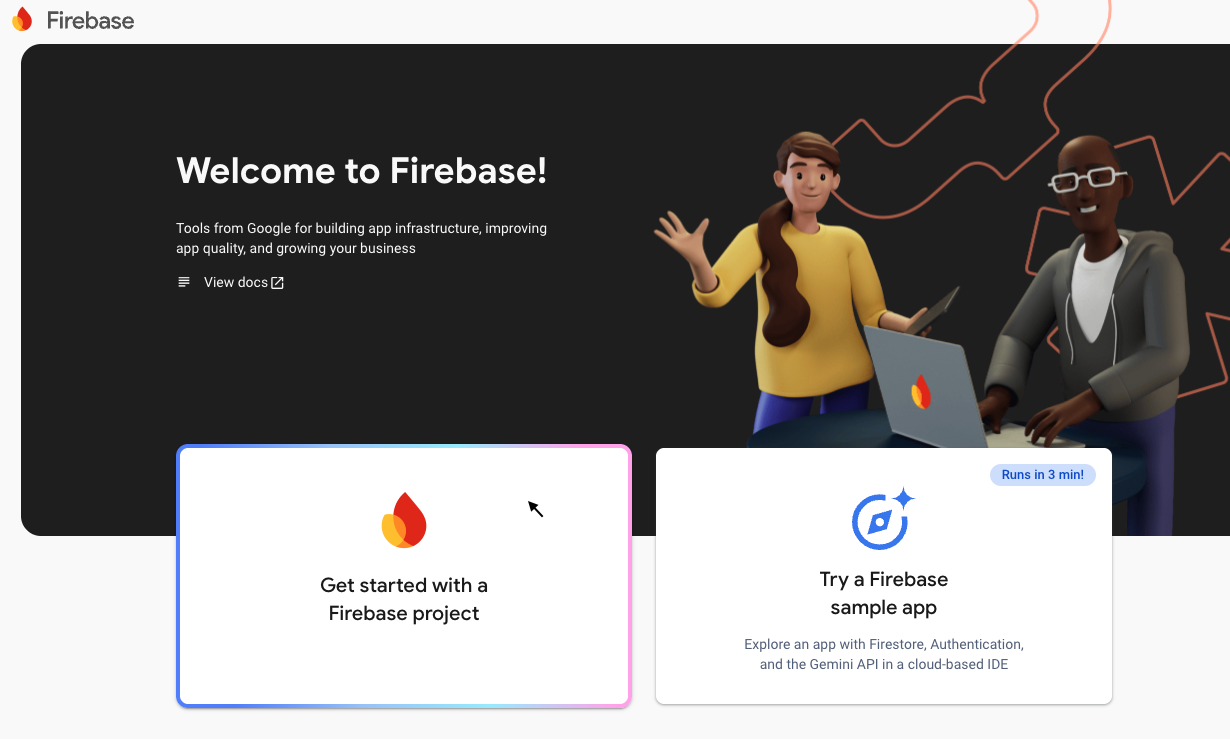
Example of starting a Firebase project; console wording may differ.
Enter a recognizable project name and confirm the intended organization before continuing. The organization shown in the example is illustrative, not a value to copy. Some account types do not offer an organization selector. Stop if the expected organization is missing.
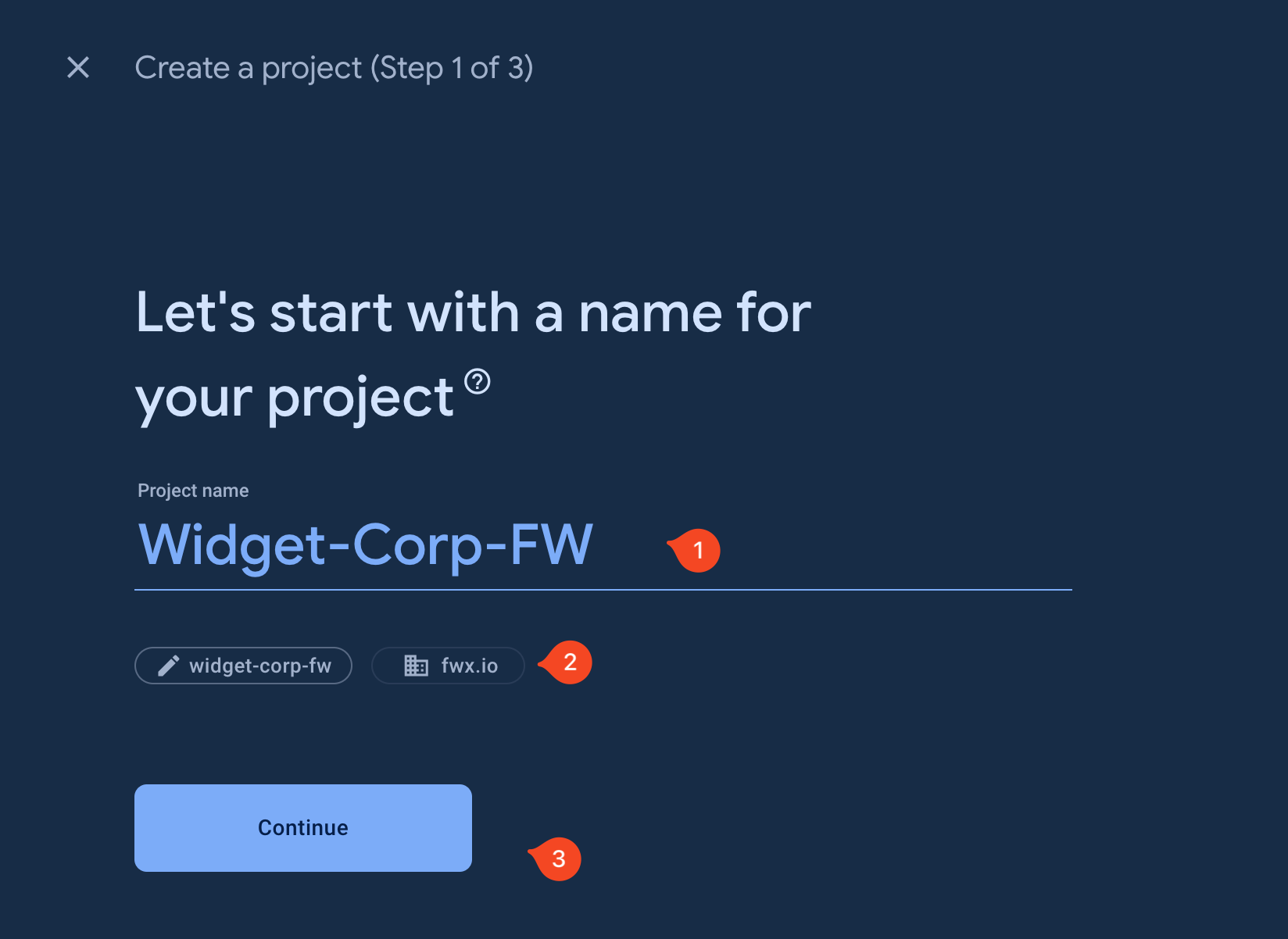
The documented FileWave setup disables Google Analytics for this project; Analytics is not part of this exercise. Follow the current console's create/continue prompts without enabling unrelated optional products.
Once the project is created, select Continue and record its identity for the owner. Use this same project for the FileWave integration's service account and required Firebase APIs.
Configure Google-to-FileWave synchronization
This connects FileWave to Google inventory. It does not enroll a Chromebook, install the Inventory Extension, or enable location tracking by itself. Complete it only after the import scope, licensing and security configuration have been approved.
Enable access to APIs
In the approved Google Cloud project, have the owner confirm the Admin SDK/Directory access required by the connector. For FileWave 15.4.0 and later, Enable Required Firebase APIs for Chromebook Management explicitly requires Firebase Management API (firebase.googleapis.com) and Firebase Cloud Messaging API (fcm.googleapis.com) in that same project. Confirm the selected project before enabling either service, then verify the result through Central's Google synchronization status.
Enable only the APIs approved for the supported FileWave connector. Enabling an API and granting OAuth access are separate steps. If the connector needs additional services, resolve the list with your Google owner and the appropriate FileWave contact before continuing.
Create a service account and protect its credentials
A service account is a Google Cloud identity used by software rather than a person. Its JSON key is a credential for that identity, not a Chrome extension policy or an Android activation file. The delegated Google user is the Workspace identity whose approved privileges the integration uses; have the Google owner confirm both identities and their permissions.
After the owner approves the required IAM configuration:
- In Google Cloud, open APIs & Services → Credentials → Create Credentials → Service Account.
- Give the service account a recognizable name. It may match the project name, but does not have to. Select Create and Continue.
- Apply the IAM role configuration agreed by the Google owner and the appropriate FileWave contact for this FileWave release. Stop if that configuration is unresolved; do not grant Owner or guess a narrower role to continue.
- Complete the remaining creation prompts; the older flow used Continue, then Done, with no additional access grant in the final section.
- If an exported key is approved, open Manage Service Accounts → [the intended account] → Manage keys → ADD KEY → Create New Key and download the JSON key. If organization policy blocks keys, stop for a supported alternative; do not disable the policy.
Keep that service-account JSON in approved secret storage and transfer it only through the intended FileWave import. It contains private credentials. Do not paste it into tickets, email threads, screenshots or the Google extension-policy editor.
Delegated user and service-account access
Have the Google owner confirm the delegated Google identity, its required Workspace privileges, and any service-account IAM grants needed for the supported connector. Workspace administrator privileges, IAM roles and domain-wide delegation are different controls; one does not replace the others.
OAuth Client ID and domain-wide delegation
In IAM & Admin → Service Accounts, open the intended account's details (Manage Details in the older action menu), expand Advanced settings, and copy the Client ID under Domain-wide Delegation. This is the service account's client identifier, not its private key and not its display name.
The Google super administrator performs this step, following Google's domain-wide delegation instructions:
- Open Google Admin Console, then Security → Access and data control → API controls → Manage Domain Wide Delegation.
- Select Add new and enter the copied Client ID. Older instructions called this field Client Name; Google's current documentation calls it Client ID.
- Review the required OAuth Scopes (older label: One or More API Scopes) against the supported FileWave configuration. The documented FileWave scope list is:
https://www.googleapis.com/auth/admin.directory.device.chromeos,
https://www.googleapis.com/auth/admin.directory.customer,
https://www.googleapis.com/auth/admin.directory.orgunit
- Only after approval, authorize the agreed scopes. Complete any multi-party approval required by the organization. Open the client entry's View details and confirm every approved scope is listed. Google says changes can take up to 24 hours, though they usually propagate sooner.
These are write-capable directory scopes, not a promise of read-only integration. Google's device-list API also supports a read-only scope and OU query parameters, but that does not establish a supported read-only or OU-filtered FileWave connector. Do not silently replace the documented scope list or assume an extension-policy OU limits domain-wide delegation. If permission requirements are still unclear, ask the appropriate FileWave contact and Google owner to resolve them rather than trying additional grants.
Import into FileWave and check setup success
- Confirm the ChromeOS Firebase/API and delegated-account setup above is complete and approved.
- Open FileWave Central → Preferences → Google. Older screenshots call the application FileWave Admin; some references call Preferences Settings.
- In OAuth 2.0 Service Account, select Configure OAuth token and complete the prompted authentication with authorized access.
- Enter the intended delegated Google Account, then import the service-account JSON key from the credentials step—not the Android activation JSON and not an exported extension policy.
- Check the account/project identity before selecting OK. The documented workflow starts synchronization automatically; this can import the full Google Chromebook list, not just your test OU.
- Wait for a successful Google sync status and note the Last synchronization time. If devices were already enrolled, inspect Clients → Chromebooks for the Google OU structure and match the known test serial number. A large first import can take time; do not change server timeout settings yourself to hurry it.
Setup succeeds when the intended integration has a successful synchronization and the expected Google-derived records, within the approved license scope. If the test device is not yet enrolled, finish that checkpoint in Chromebook Enrollment. A green connector status alone does not prove direct extension communication.
Optional: deploy the FileWave Inventory Extension
Skip this section if your first goal is Google-synchronized inventory only. For additional device inventory, agree on the policy scope for the test user and device, and verify inherited settings before changing Google policy. Keep location collection off unless separately approved.
- In Central, open Preferences → Google, find Chromebooks Extension, and select Export Policy for Extension. Older instructions refer to this as the Google/Chromebooks tab.
- Store the export securely. This extension-policy JSON is not the service-account key. It can include an inventory token and server/FCM settings; do not publish its contents or send the key JSON to endpoints.
- In Google Admin Console, open Devices → Chrome → Apps & Extensions → Users & browsers.
- Select the approved policy OU. Use + → Add Chrome app or extension by ID and enter
ldhgnmkjehdokljjhcpkbhcmhoficdio. Select Save. - Open Policy for extensions and upload the JSON exported in step 1 of this section. Save the policy.
- Set the approved installation policy to Force install or Force install + pin to the browser toolbar, then save. Verify the effective extension policy reaches the intended signed-in user and device; selecting a similarly named OU is not proof. Have the Google administrator resolve user/device OU inheritance rather than applying the policy at the domain root to make it work.
- On the known test Chromebook, sign in as the approved managed user, keep the device awake and connected, and open Chrome. In
chrome://policy, inspect ExtensionInstallForcelist for the extension ID and the FileWave policy section. Do not change policy or enable developer tools merely to read inventory. - Allow the extension's reporting schedule to run. In FileWave, inspect that same serial-number record for extension-derived inventory and Last Connected. The extension needs an installed, signed-in user context, Chrome open, and network access to FileWave. A Google sync by itself does not force a fresh extension report.
If extension-derived inventory or Last Connected is missing, first check the effective policy, confirm that the policy export and server identity are correct, and check user context, connectivity and certificate trust. Use ChromeOS communication troubleshooting with the owner for deeper diagnostics. Do not share tokens in console logs or exports.
Optional: changing check-in frequency
The extension-policy attribute below controls reporting in minutes. The documented default is 1440, once per day. Keep the default for the first exercise unless the owner approves a different interval and its reporting load. This is separate from Central's Google Admin synchronization schedule; Google Admin Sync Interval documents a default of 24 hours and a configurable range of 1–24 hours.
In a valid extension-policy export, the setting is UpdateIntervalInMinutes, with its interval under Value. Change only that value if the owner approved a different interval, then validate and save the complete policy JSON.
Optional: location tracking permissions
Location collection is not required to prove enrollment or inventory. Obtain organizational privacy approval first, including who can view the data and the allowed collection scope. In the documented Google interface, use Devices → Chrome → Settings → User & Browser Settings, then Security → Geolocation → Allow sites to detect Users' geolocation. Confirm the effective policy reaches the intended user and device; do not apply it domain-wide as a troubleshooting shortcut.
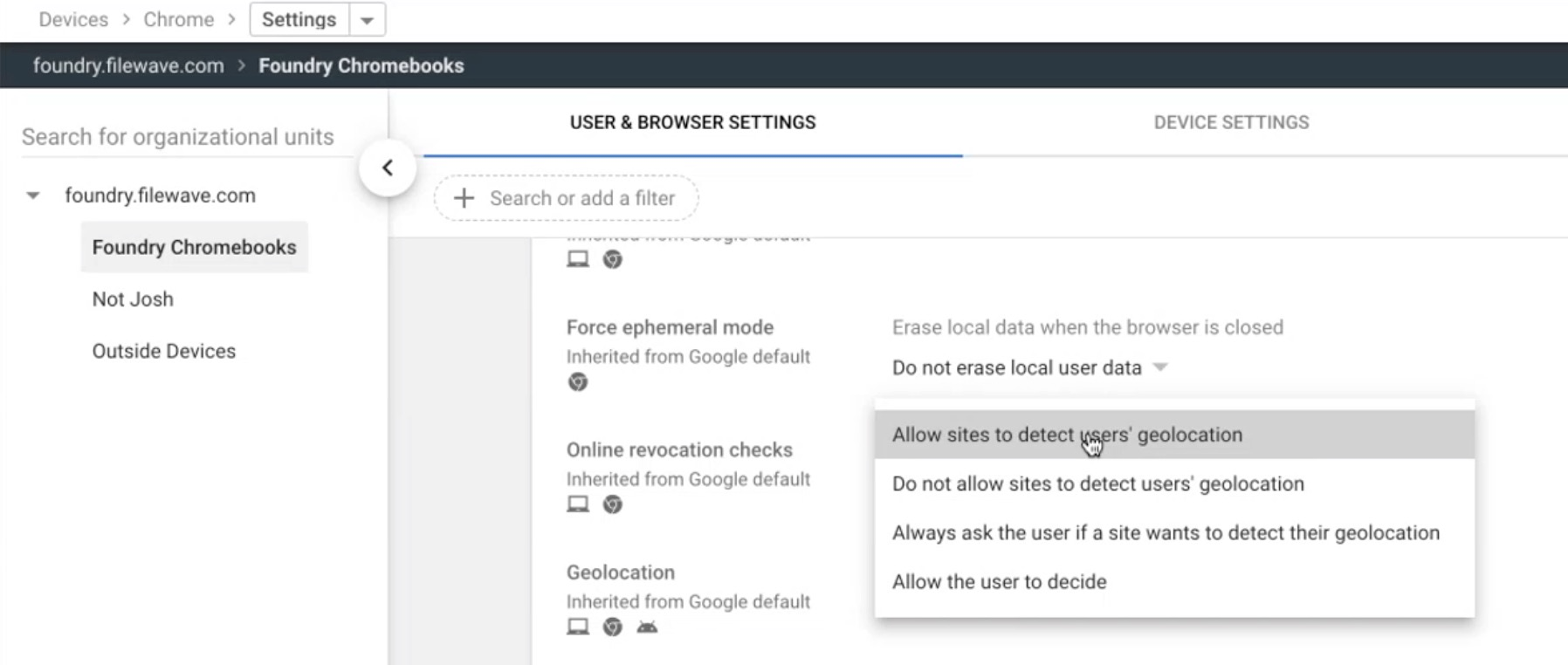
Older interface example with Foundry Chromebooks selected. The menu shows the geolocation option, not proof that it was saved. Its User & Browser Settings tab does not establish the effective policy on the device or other OUs. Domain-level settings can be inherited, and child OUs can override them; review those settings with the Google administrator.
Next: complete Chromebook Enrollment if the test device is not already enrolled in the correct Google organization, match the Google and FileWave identities, and read the inventory available for that device. Stop there before considering any OU move, annotated-field write, remote action or location test.
If the result is missing
Check the intended Google organization, Chromebook provisioning state, FileWave activation, project/service-account identity, Google synchronization status and last successful sync time first. For extension-only gaps, check the signed-in user's effective policy and reporting conditions. Do not reset a device, recreate the connector, broaden permissions or run a Model Update just to make a record appear.
Chrome Troubleshooting Guide includes deeper logs and self-managed server procedures; those are owner-led diagnostics, not extra beginner steps. Verify/Refresh Inventory can process device work and is not a passive screen refresh. This read-only outcome needs neither Verify nor a Model Update. If a later approved action requires a Model Update, use the shared model-change lesson: review pending work beforehand because the commit is shared and its dialog is confirmation only.
No comments to display
No comments to display