
Configure Shared iPad with FileWave
Shared iPad lets multiple users sign in to one supervised iPad with organization-owned Managed Apple Accounts. Apple Classroom can use Shared iPad, but Classroom and Shared iPad are separate features.
Enable Shared iPad
- Confirm that the iPad model has at least 32 GB of storage and supports Shared iPad.
- Add the device to Apple School Manager and assign it to the FileWave MDM server.
- Enable Shared iPad in the FileWave Automated Device Enrollment profile before the device activates.

- Device must then be re-activated (wiped)
Shared iPad and multiple users
Maximum resident users
You can define, in the Automated Device Enrollment profile, the maximum number of users that can use a Shared iPad. Note: this only configures how many slices the user space will be divided into. For instance, on a 128 GB iPad, if you allocate 10 max users, each user will have an equal amount of storage space for personal data. Ten students can log into the device and will have a nearly instant login once their data is cached on the device. If an 11th student logs in, the oldest account will be deleted to free space for this user - so the login will be pretty long (sync user 1 data to iCloud, remove user 1 data from device, download user 11 data from iCloud).
User Management
There is a new entry in the Client Info dialog showing users on a shared device:
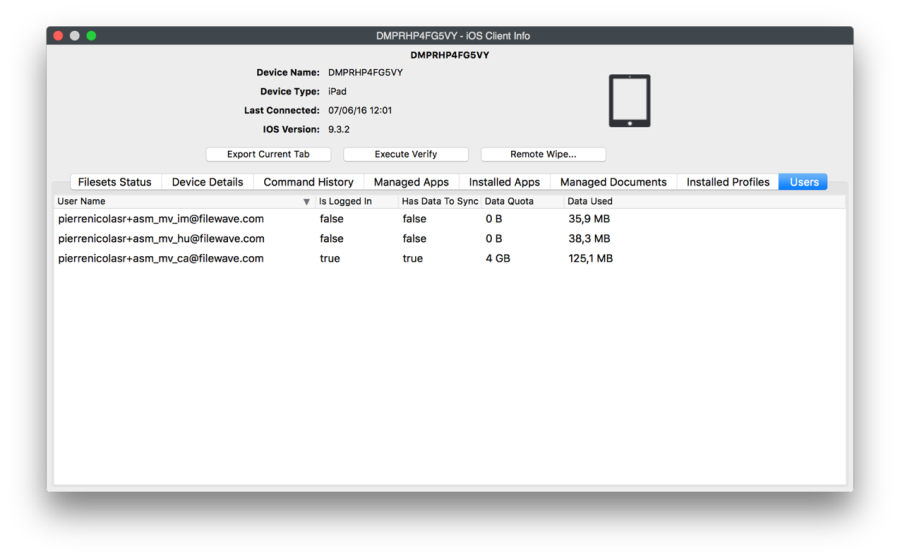
It returns data regarding who is logged in and the amount of space used by that user.
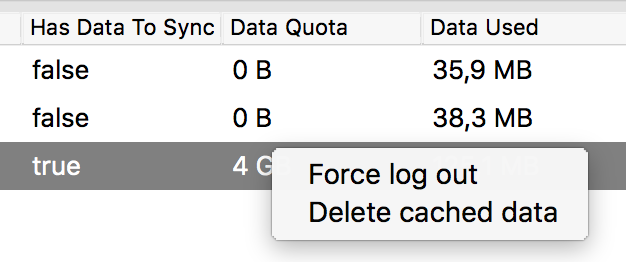
You can:
- Delete a user's current cache on a device: next login will be slower, but this will save a slot
- Log a user out
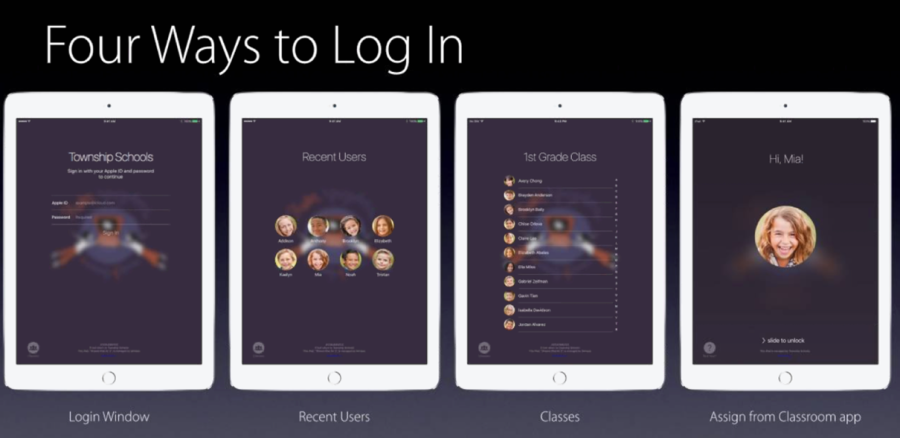
Shared iPad and Login
- Enter the full Managed Apple Account address
- Select one of the recent users
- Select a class and then a user from the class
- Use "Assign" feature from Classroom app
Passcode is still required; this is pre-login only.
By default, FileWave will use passcode type "four." This can be changed.
Choose the default passcode type
On a self-managed FileWave Server, edit /usr/local/filewave/django/filewave/settings_custom.py, set the value below, and restart Apache. Supported values are four, six, and complex.
settings.CLASSROOM_DEFAULT_PASSCODE_TYPE = "six"Hosted FileWave customers need FileWave Technical Support to make this hosted-server change because they do not have direct access to the server file.
The Roster API returns a single name value. FileWave uses the first word as the first name and the remaining words as the last name.
Application installation on Shared iPad
Applications can install only when no user is logged in. If a user is signed in, the device can report an invalid MDM command. Use this workflow:
- Pre-deploy all required apps before school starts
- If you need to deploy an app during school time, then:
- FileWave can be configured to automatically log out users at a given time and proceed with Application self-healing. You can prepare app installation during the day and let FileWave log users out and then install apps overnight; or,
- If urgent, you have to either force logout of all users or get them to manually log out.

No comments to display
No comments to display