
FileWave Central Server and Assistants Menu Reference
FileWave Central groups several administrative tools under the Server and Assistants menus. UseThe thisavailable pageAssistants ascan avary quickby descriptionFileWave of each menu itemversion and followadministrator permissions.
Server menu
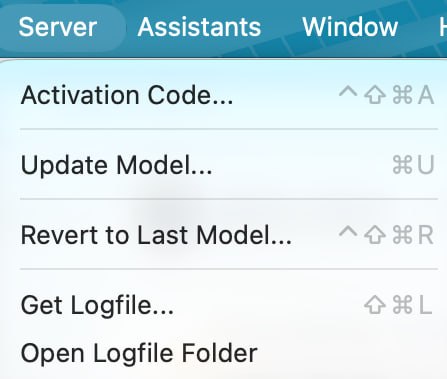
Activation Code…
Opens the linkedFileWave articlesactivation fordetails completeused workflows.
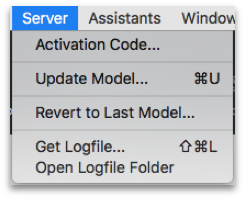
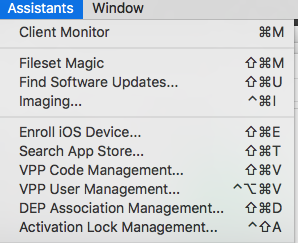
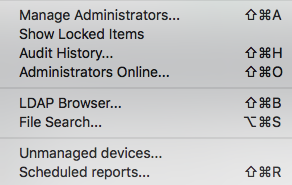
The screenshots showlicense the menu groups. The descriptions below explain what each item opens or changes.environment.
Activation
Update Code…
Model…
ThisWrites ispending theadministrative accesschanges to the code you received when you purchased your FileWave license.Server
Update Model…
FileWave, at its core, is a SQL database. As such, it is constantly managing large amounts of data as you,database and possibly other administrators, add new clients, create Filesets for new content distribution, and manage your devices. When you are performing many of these operations,creates the information is being written into RAM on the server. A Model is an instance in time for the FileWave database. When you choose the Update Model, you are telling the server to write the changes you have made into the database, and create a manifest for the Clients. This manifest is sent to eachClients. ClientUpdate whenthe itModel checksafter in,changing tellingdevices, itFilesets, whatDeployments, changesor haveother been made. If there is a changesettings that effects the Client, it will then request any new or updated Filesets and will then make the appropriate changes on the device. Whenever you make changes to device(s), edit Filesets, or do anything that may affect themanaged relationship between a device and the server, you should update the model.devices.
Revert to Last Model…
If you have made a change toReturns the Model, then realize that you may have damaged a setting, or distributed a broken application, you can revertServer to the previous modelModel. withinThis does not necessarily undo changes that devices have already completed, so review the FileWaveaffected database.Deployments Inand manydevices cases,before this can be done without any irreversible changes to the client devices.reverting.
Get Logfile…
Open Logfile Folder
ClientAssistants Monitormenu
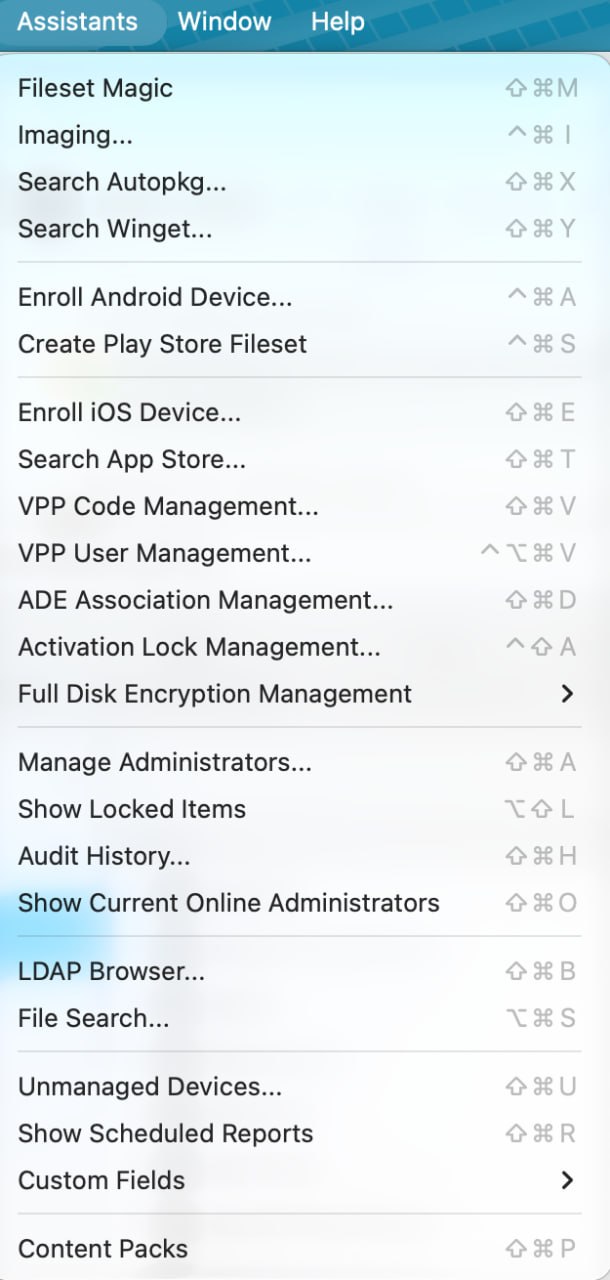
Fileset Magic
Custom content can be created using the Fileset Magic tool.compares Itsnapshots allowstaken you to take a snapshot of the current status of a device, installbefore and configureafter newsoftware content,is takeinstalled or configured, then builds a second snapshot, and build a distribution Fileset from thosethe detected changes. For more Fileset Magic guidance, seeSee Filesets / Payloads. for related deployment workflows.
Find Software Updates…
Imaging…
ThisOpens menuthe item opens a managementImaging pane to look for all iOS / macOS / Windows software updates that are available. The updates can be viewed by just the ones that your devices have been requesting, or by every update published for that platform. For software-update workflows, see Filesets / Payloads.
Imaging…
This item opens the Imaging pane that allows youused to associate disk images with OS X and Windows devices for re-imaging. This is covered in detail inSee Network Imaging / IVS.
Search Autopkg…
Searches AutoPkg recipes and creates macOS software Filesets. See AutoPkg with FileWave.
Search Winget…
Searches the WinGet repository and creates a Windows Fileset from the selected package. See Microsoft WinGet Overview.
Enroll Android Device…
Creates Android enrollment tokens for supported Android Enterprise enrollment methods. See Android Enrollment.
Create Play Store Fileset
Creates a Fileset for an application selected from managed Google Play.
Enroll iOS Device…
This item opensOpens the pane with the various settingsassistant for enrollingmanual iOSApple devices,MDM and AppleTV, either manually or automatically. enrollment.
Search App Store…
VPP Code Management… / VPP User Management…
DEP
ADE Association Management…
Activation Lock Management…
Full Disk Encryption Management
Opens the FileWavefull-disk-encryption serverconfiguration forand yourrecovery-key usemanagement whentools. takingSee theseFileVault devices- outGetting of service. Started.
Manage Administrators…
Show Locked Items
In the meantime, any administrator trying to work on those areas,Administrators can use thethis Show Locked Items menuview to viewidentify areaswho they cannot control.
If an administrator has left items locked too long, or walked away from their system with items still locked, you can force quit that administrator (see Administrators Online… below). You should also make sure your sub-administrators setholds a reasonablelock auto-logoutbefore timedeciding inwhether intervention is needed.
Audit History…
Audit History…
This menu item displays a log of all actions takenperformed by FileWave administrators,administrators.
Show Current Online Administrators
Administrators
LDAP Online…
Browser…
LDAP Browser…
This menu selection displays adirectory tree offrom yourthe LDAP configuration that matchs what you entered in theFileWave LDAP preferences.Preferences.
File Search…
ThisSearches itemfor displaysfiles inside Filesets. Select a searchresult windowand that allows you to locate any item in a Fileset using a text string search.Once you have located your item, you can click onuse Reveal in Fileset to display the contents ofopen the Fileset withthat contains it.
Unmanaged Devices…
notUnmanaged Devices…
This menu item displays a pane withrun the "non-client"FileWave devices you are keeping track of. You can enter itemsClient, such as printers, scanners, cameras,and etc.cameras.
Show Scheduled Reports
Custom clickingFields
Opens the window.Custom Fields submenu for importing values and editing Custom Field definitions. See Custom Fields.
Scheduled
Content Reports…
Packs
ThisOpens menuthe itemContent allowsPacks youbrowser for reviewing and importing packaged FileWave solutions. See How to createImport anda generateContent Inventory reports that are automatically sent to designated email accounts.
Pack.