
Google Admin Sync Interval for ChromeOS
What
As an administrator managing ChromeOS devices, you may want to change how often FileWave syncs with Google Admin.
When/Why
FileWave syncs ChromeOS data from Google Admin, including the organizational unit a device belongs to. If you make frequent changes in Google Admin, a shorter sync interval can help FileWave pick up those changes sooner. This is separate from the FileWave Inventory Extension reporting schedule; shortening the Google interval does not force a Chromebook to send fresh extension inventory.
Before changing the interval: Confirm that the intended Google integration is already configured and synchronizing successfully. If it is not, start with Chromebook Client Pre-Requisites; changing the interval does not configure OAuth access or enroll devices. The integration can synchronize the full Google Chromebook list, not just the OU containing your test device.
How
In FileWave Central, go to Preferences > Google, then adjust the value for "Synchronize with Google Admin every 24 hours." The value can be between 1 and 24 hours. The default is 24 hours.
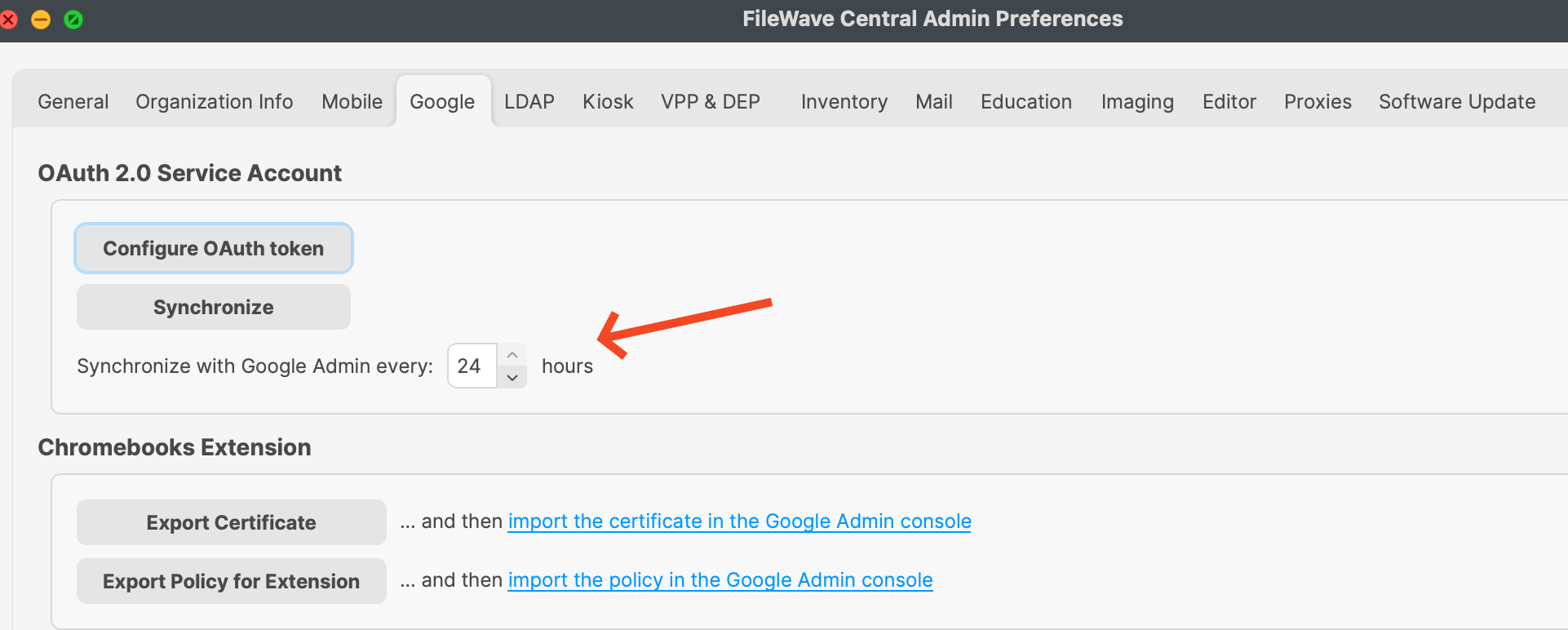
Check the synchronization result
If you need an on-demand Google-to-FileWave synchronization, use Synchronize in the same Google preferences pane rather than lowering the recurring interval just for one check. Review the synchronization status and Last synchronization time, then compare a known device serial number and its Google-derived OU information in FileWave. A successful Google sync does not prove that the Inventory Extension is installed or communicating.
For extension reporting conditions and the distinction between Last Sync and Last Connected, see Inventory Extension Behavior. For annotated Custom Field changes, use Sync ChromeOS Annotated Custom Fields; those field-specific actions are separate from this general interval.
No comments to display
No comments to display