
Deploy apps and extensions to Chromebooks (17.0+)
Use FileWave Central 17.0 or later to deploy one approved Chrome Web Store extension to a pilot Google organizational unit (OU). A Chromebook App Fileset identifies the extension and its installation policy. A Deployment connects that Fileset to the OU. Update Model commits the change so FileWave can send the policy to Google; Google and ChromeOS perform the installation.
This is an optional next step after Chromebook preparation and Chromebook enrollment and inventory. Matching a Google-enrolled Chromebook to its FileWave record and reviewing its inventory is already a complete onboarding result. App deployment is not required for that result.
Chromebook App Filesets also support web apps and Android apps, but those are different app kinds with different identifiers and installation choices. This walkthrough covers a Chrome Web Store extension, not a desktop installer, an Android package, or deployment of the FileWave Inventory Extension itself.
Before you start
- Use a working Google/FileWave integration, FileWave Server and Central 17.0 or later, and sufficient FileWave Chromebook license coverage. The Chromebook must already be enrolled in the intended Google organization with the applicable Google ChromeOS management license.
- Keep the existing Google Cloud/Firebase project, service account, delegated Google identity and credentials. Do not recreate the connector or remove its token for this exercise. For initial integration setup, use Chromebook preparation.
- Choose one benign extension approved by your organization. Review its publisher, permissions and purpose in the Chrome Web Store. Record its listing URL or extension ID and whether it is already installed. Avoid an extension that changes network access, security controls or access to sensitive data for a first deployment.
- Identify the approved pilot OU and the managed user who will sign in to the test Chromebook. Review the OU's existing and inherited app policies, its child OUs, and other FileWave Deployments for this extension before creating anything.
- For FileWave's Installed reporting, the FileWave Inventory Extension must already be configured and reporting from the intended user session. Google synchronization alone is not an inventory-extension report. The optional extension setup is covered in Chromebook preparation.
Additional Google access for app deployment
Ask the administrators responsible for the existing integration to verify these additional requirements. Enabling a Cloud API, authorizing OAuth scopes, assigning a delegated user's privileges and granting FileWave permissions are separate controls.
| Requirement | What to verify |
|---|---|
| Google Cloud APIs | Chrome Management API and Chrome Policy API are enabled in the same approved Cloud project used by the integration. |
| App metadata scope | https://www.googleapis.com/auth/chrome.management.appdetails.readonly is authorized for the existing service account's domain-wide delegation. This permits app-details lookup, not a complete installed-app inventory. |
| App policy scope | https://www.googleapis.com/auth/chrome.management.policy is authorized for that same integration. This is policy-writing access; the read-only policy scope does not replace it. |
| Existing connector scopes | Retain the existing Directory scopes: https://www.googleapis.com/auth/admin.directory.device.chromeos, https://www.googleapis.com/auth/admin.directory.customer, and https://www.googleapis.com/auth/admin.directory.orgunit. The two app scopes are additions, not replacements. |
| Delegated Google user | The Google administrator confirms that the delegated identity has Manage Application Settings for the intended management scope, along with the privileges needed by the working connector. |
| FileWave administrator | Use an authorized account that can create and modify Filesets, manage the intended Deployment and perform the agreed Model Update. An administrator authorized to access the Chromebook connection preferences performs the scope check. Google privileges do not grant these FileWave permissions. |
Use your organization's approved administrator for Cloud/API and domain-wide delegation changes. Those setup responsibilities do not mean that the normal delegated operating account must be a Google super administrator or have the Cloud Owner role. If the integration's permission design is unresolved, have the Google owner and FileWave Support—or your assigned SE during an evaluation—resolve it before continuing. Do not add permissions experimentally.
Google's references explain Chrome Management API setup and Chrome Policy API setup. Keep the FileWave connector's supported configuration rather than switching authentication methods from a generic Google example.
Check access in Central
- Open FileWave Central → Preferences → Google.
- Select Check App Push Scopes.
- Confirm that the check reports OK. If it reports MISSING or a refused-scope/API error, have the integration administrator resolve the named requirement. Both APIs and both scopes are needed; a disabled API can produce an access error even when its scope is authorized.
A successful check confirms that the app-push preflight passed. It does not verify the target OU, policy inheritance or installation on a Chromebook. Do not include client identifiers, account details or credentials from an error in a public screenshot.
1. Confirm the OU and signed-in user
An OU target is not a single-device target. FileWave deploys Chromebook app policy to Google OUs, not individual Chromebooks. Child OUs can inherit that policy, and in FileWave 17.0 a Chromebook OU cannot be used as a Deployment exclusion. Review the full policy impact rather than relying on the number of devices currently visible in the pilot OU.
Google applies this app policy to the signed-in user's OU. Merely placing a Chromebook in an OU does not make that OU's user policy apply to whoever signs in. A user in a parent OU does not inherit a policy set only on a child OU.
Before proceeding, have the Google administrator confirm that the selected pilot OU and its effective policy cover the approved user's session, without affecting unapproved users. Inspect both the user and device OU memberships. If the intended user policy cannot be targeted through the OU available in FileWave, resolve that design before deploying. Do not move users or devices, widen the target to the domain root, or assume an exclusion will isolate one Chromebook.
Record the test Chromebook's identity, the approved user context, existing extension state and the exact target OU. Leave existing production policy unchanged.
2. Create one Chromebook App Fileset
- In Central, choose New Fileset → Google → Chromebook → App or Extension.
- Select App or extension. Enter the approved extension's Chrome Web Store listing URL or bare extension ID. Do not enter an Android package name or an ordinary website URL for this extension.
- Review the lookup's name and description against the approved listing. FileWave can allow creation without resolved metadata; for this pilot, resolve a missing or unexpected lookup before deploying rather than treating a saved Fileset as validation of the identifier.
- Select Force install explicitly. Do not rely on the initially selected value. This walkthrough deliberately uses the forced-install policy; Allow install is not a substitute for automatically installing the extension. Leave pinning and other installation behaviors for a later, separately reviewed change.
- Enter a recognizable pilot name in Name, then select Create.
- Double-click the Fileset and open Details. Confirm its App ID and Install type. Review any retrieved metadata against the approved listing; a saved Fileset may have no resolved name, icon or publisher. The app ID is read-only: if it identifies the wrong extension, do not deploy it; create the correct Fileset instead. Select OK to save any approved changes, or Cancel to leave the dialog without saving them.
The available installation choices depend on app kind. Do not use the extension choices as an installation-mode list for web or Android apps.
Choose the right app kind
| Type | App value | Install type choices, in menu order |
|---|---|---|
| App or extension | Chrome Web Store URL or extension ID | Force install + pin to browser toolbar; Force install; Force install, allow users to disable; Force install + pin to browser toolbar, allow users to disable; Allow install; Block; Block, uninstall from Chrome |
| Web app | Website URL, such as https://www.filewave.com |
Force install + pin to ChromeOS taskbar; Force install; Allow install |
| Android app | Package name, such as com.google.android.apps.docs |
Force install + pin to ChromeOS taskbar; Force install; Allow install; Block |
Android apps must be approved in Managed Google Play at admin.google.com before Chromebooks will install them. This is an additional prerequisite for that app kind, not an Android Enterprise enrollment procedure. The walkthrough continues with the approved Chrome extension; the Web and Android choices are shown for comparison, not as equivalent removal or reporting workflows.
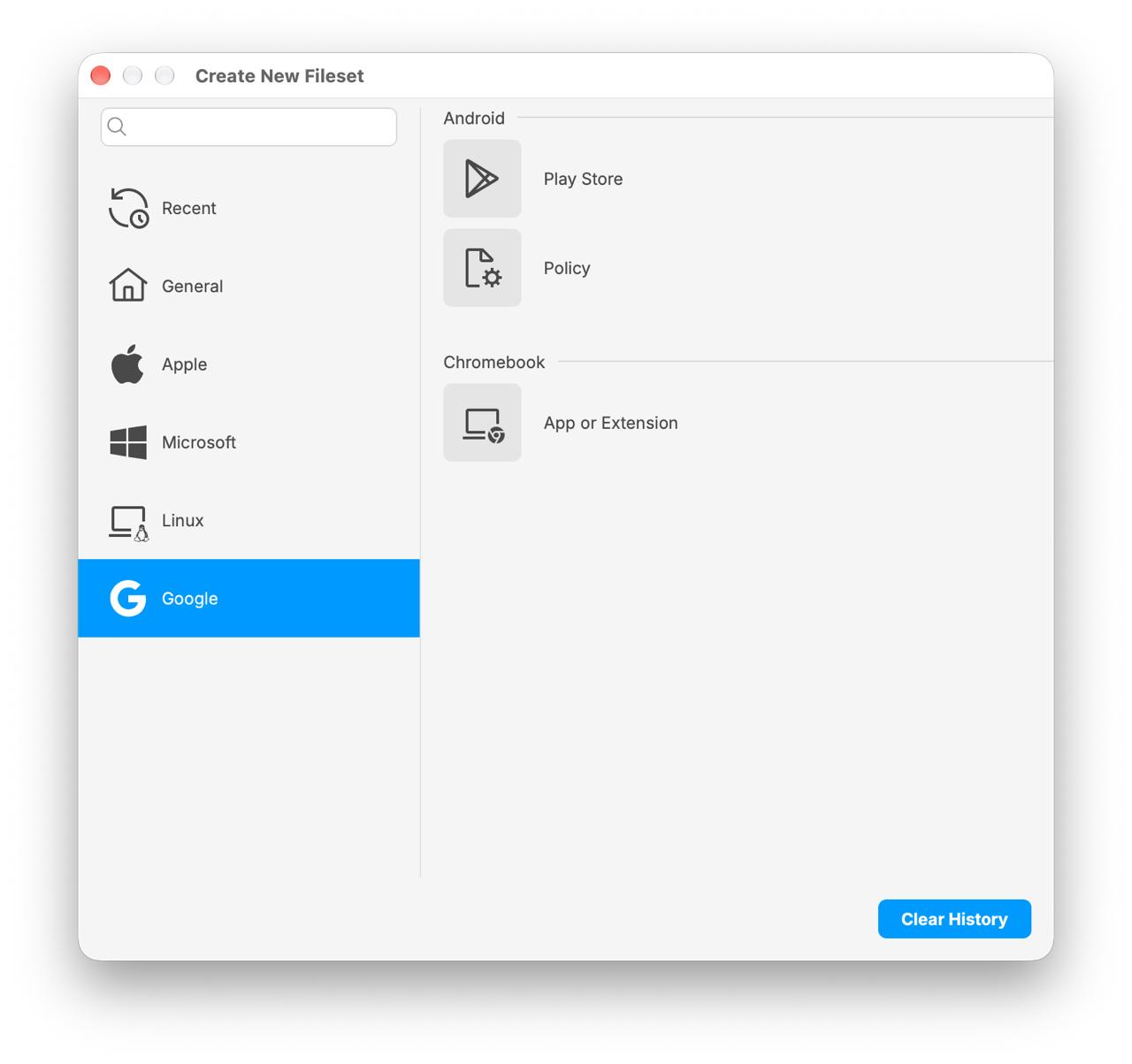
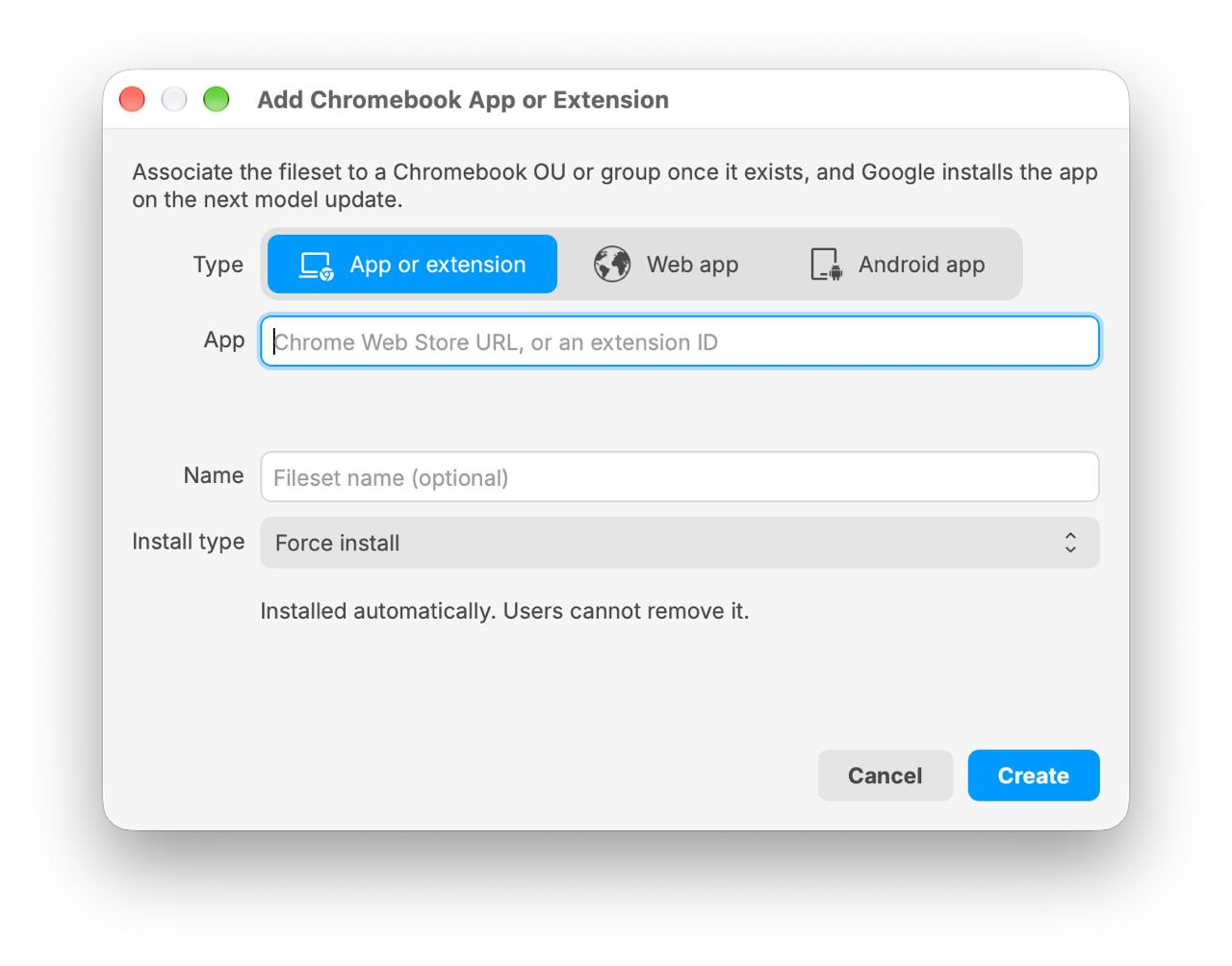
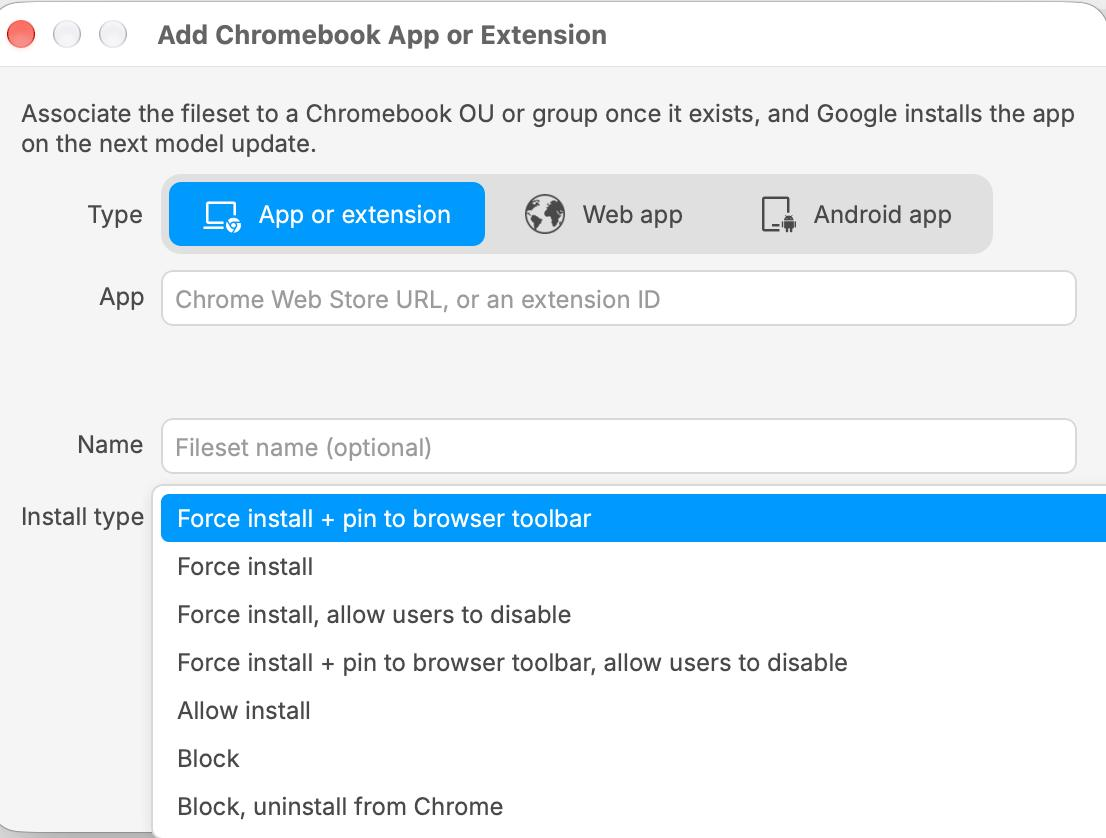
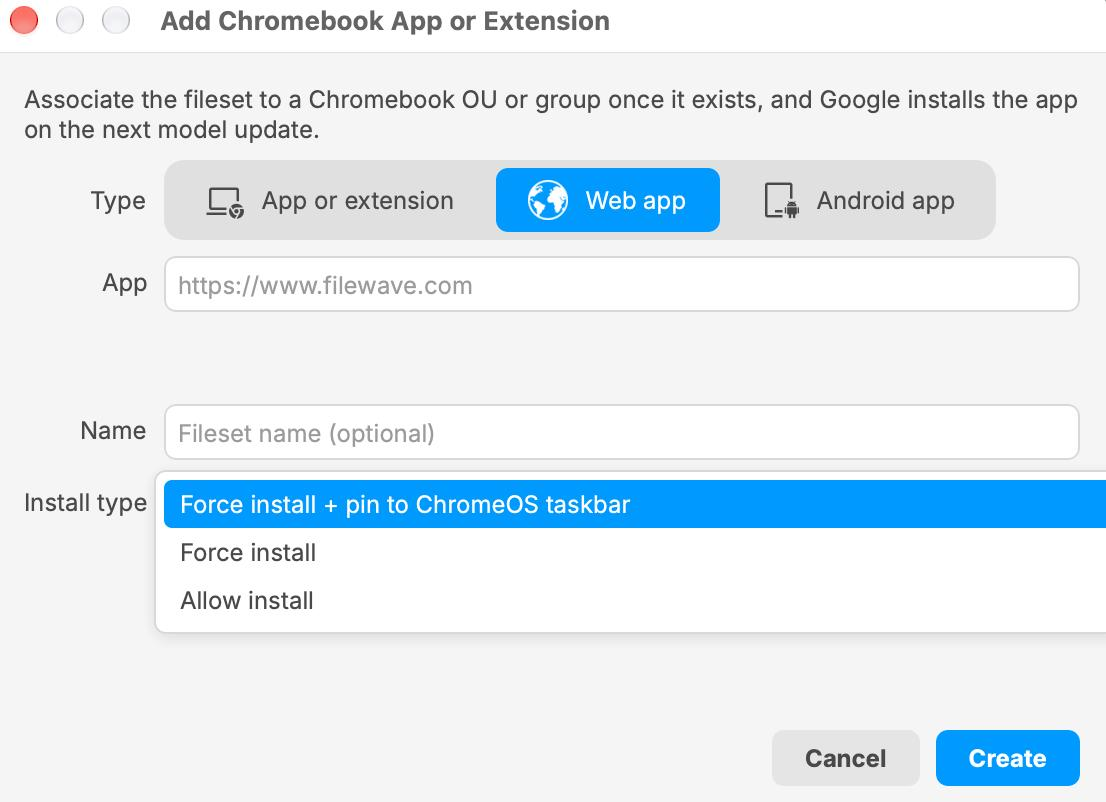
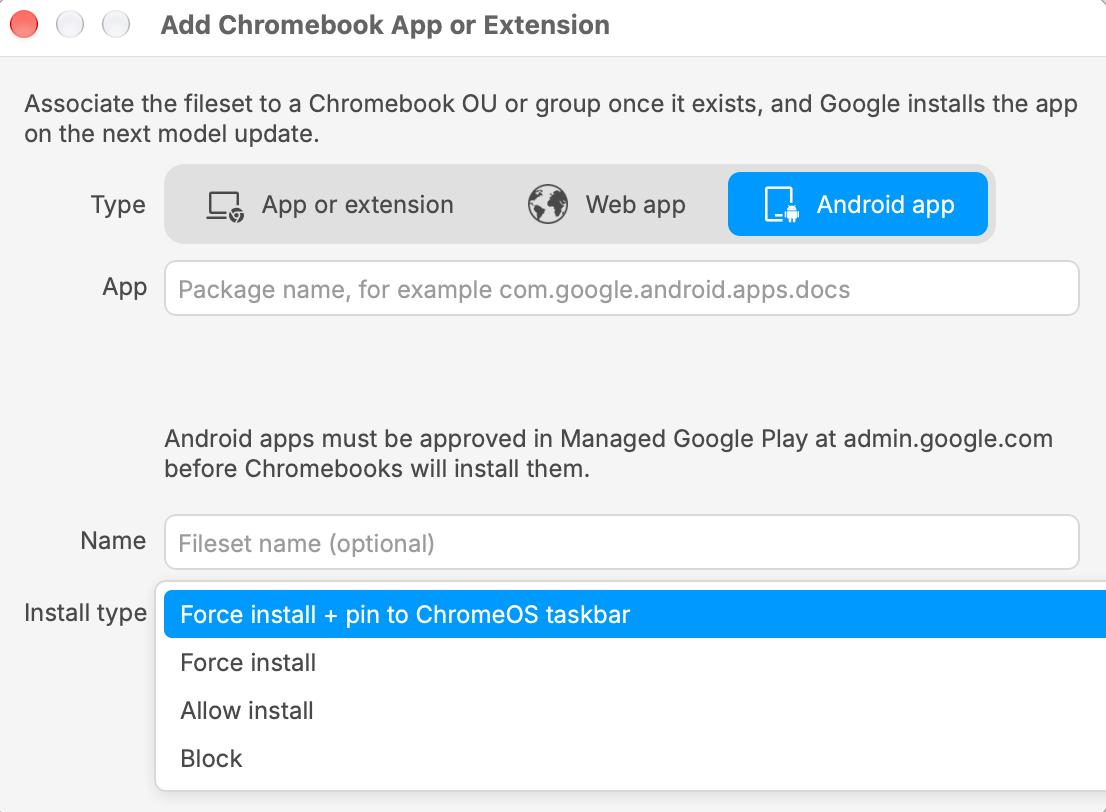
These illustrations show controls and example selections, not recommended defaults. Choose Force install explicitly for this extension walkthrough.
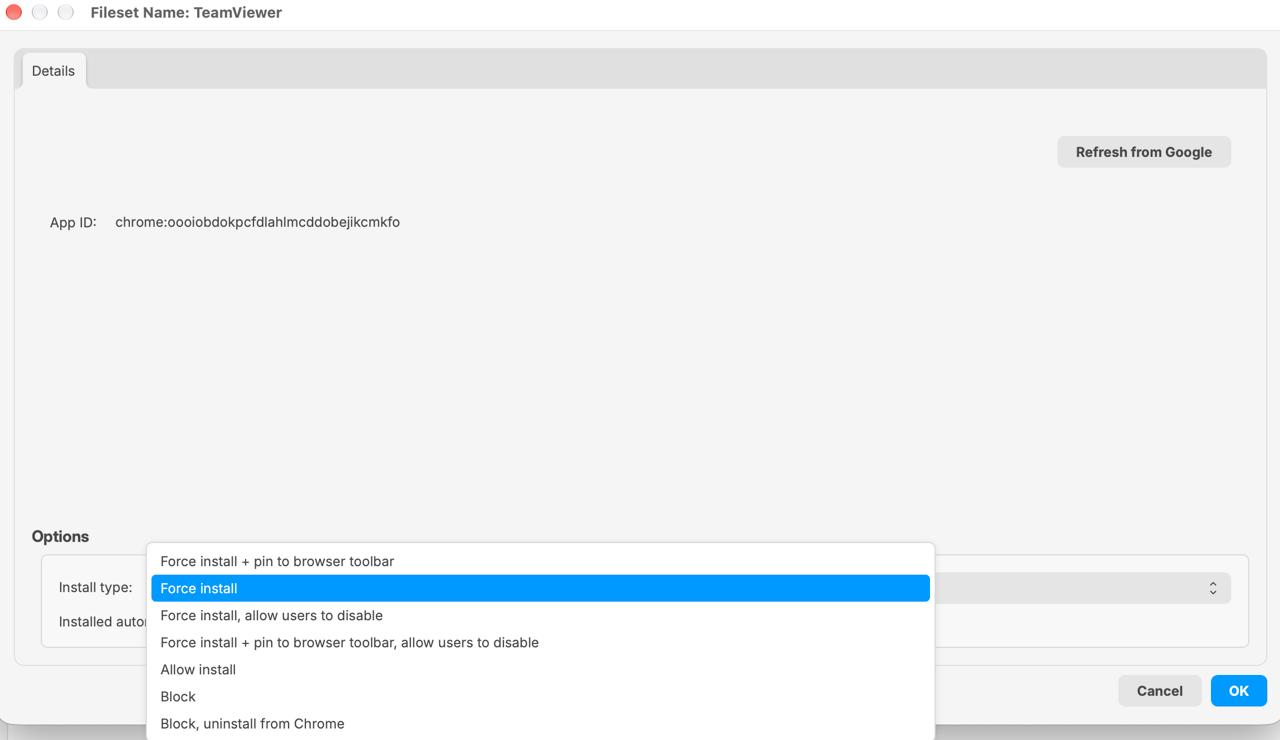
The saved Fileset named TeamViewer is a Chrome extension example, not a native TeamViewer installer or a remote-control permission configuration. It demonstrates the Details controls; choose your own approved extension rather than copying that example.
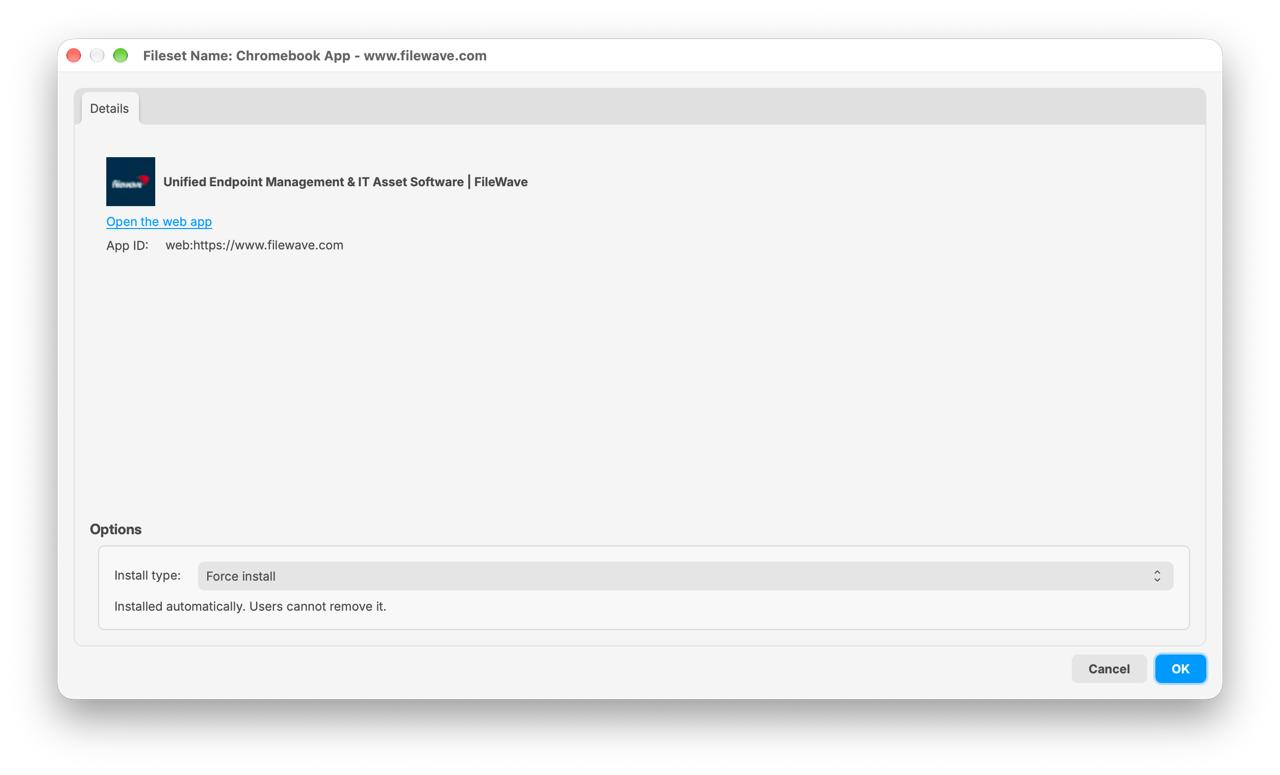
This separate Web app example uses https://www.filewave.com; its saved App ID is web:https://www.filewave.com. It is not the extension used in the preceding example.
3. Create one OU-targeted Deployment
- Open Deployments in Central and create a Deployment with a recognizable pilot name.
- Use the + beside Clients to include the approved Chromebook OU group. Select the exact Google OU represented under Chromebooks, not an ordinary group, Smart Group or individual Chromebook. Recheck the OU path and inherited impact established above.
- Use the + beside Filesets to include only the Chromebook App Fileset created in step 2.
- Review the included OU and Fileset. For this pilot without a scheduled start or deletion, expand Options and leave Activate files at: and Delete files at: unchecked. Do not add a Kiosk Self-Service route or use scheduling as a rollback plan. Unchecked timing does not mean installation finishes immediately.
- Select OK to save the Deployment.
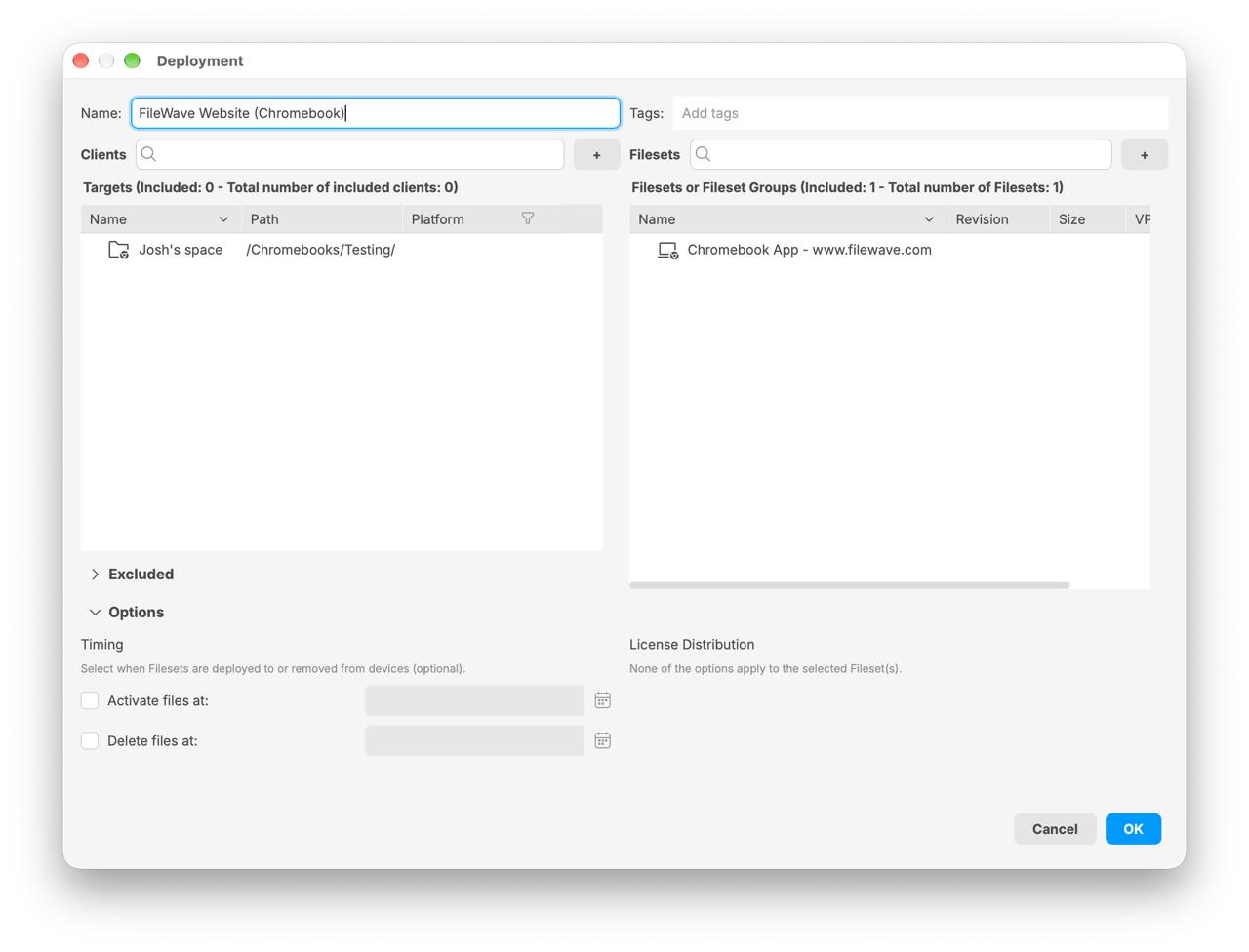
The illustration is a separate Web app example: FileWave Website (Chromebook) selects Josh's space under /Chromebooks/Testing/ and Chromebook App - www.filewave.com. For the extension walkthrough, select your own approved OU and the extension Fileset instead. The displayed target count of 0 does not establish that the OU is empty or that the policy has no effect. Verify the intended OU and effective user policy independently. The Excluded section is not permission to treat Chromebook OUs as supported exclusions.
Create only this Deployment. You do not need to create or convert a legacy Fileset Association, or repeat the exercise in a general deployment checklist.
4. Review and update the model
Before updating the model, review the extension, its Force install setting, the target OU and other administrators' pending changes. A Model Update can commit shared pending work, not just this pilot. Coordinate any unrelated changes before proceeding.
- Select Update Model in Central's toolbar.
- In the Update Server Model confirmation dialog, choose Update Model to commit, or Cancel if the work is not ready. The dialog is a confirmation, not a list of pending changes.
- Check that Central's server model number changes and record it with the Deployment.
The next Model Update sends the app policy to Google. A changed model number is not installation proof. FileWave continues reconciling the app policy: a conflicting manual change in Google Admin can be changed back to the FileWave setting. Coordinate policy ownership rather than editing the same app independently in both systems.
5. Verify policy and actual installation
Check these separate results:
| Checkpoint | What to inspect | What it establishes |
|---|---|---|
| Saved and committed configuration | The intended Fileset, OU-targeted Deployment and new server model number | FileWave committed the intended configuration, not that installation finished. |
| Google policy | Have the Google administrator inspect the extension's effective app policy for the approved user's OU, including inheritance | Google has the intended policy. Policy acceptance alone does not prove the user's Chromebook installed the extension. |
| FileWave reporting | Open the intended Chromebook's Client Info → Filesets Status and inspect this Fileset | Associated is not installation confirmation. Installed depends on the FileWave Inventory Extension reporting the extension. Read the current status and details rather than treating a policy-applied message as installation. |
| User-session result | On the approved Chromebook, in the intended managed user's Chrome session, inspect the installed extensions and confirm the approved extension is present and usable | The extension is actually available in the session this deployment was intended to affect. |
Allow time for Google's policy processing and the Inventory Extension's reporting schedule. Keep the Chromebook online, awake and signed in with Chrome open for extension reporting. Do not use repeated Model Updates or Verify/Refresh Inventory as a harmless screen refresh.
The deployment is complete when the intended policy is effective and the approved extension is present in the intended user session; record FileWave's reporting state and its freshness too. If the extension is present but FileWave has not yet reported Installed, record that reporting gap rather than recreating the deployment.
These checks concern the managed extension. They do not establish a complete application inventory or prove installation of web and Android apps, which have different visibility through the Inventory Extension.
If the result is missing
- Access error: recheck the two app APIs, two app scopes and delegated Google user's application-management privilege with the integration administrator. Do not replace credentials or broaden permissions as a diagnostic shortcut.
- Wrong or unresolved app: compare the app kind and exact identifier with the approved Chrome Web Store listing. A successful Fileset save alone does not prove the identifier resolved correctly.
- Policy accepted but no installation: inspect the signed-in user's effective OU policy, not only the device's OU. Do not rely on FileWave to warn about every user/device OU mismatch.
- Conflicting policy: inspect other Filesets for the same extension, overlapping Deployment schedules and inherited Google policies. Resolve the intended policy with its owner; do not add another competing Fileset.
- Installed locally but reporting is behind: check the Inventory Extension's current reporting, signed-in user context and network connectivity. Google synchronization and extension reporting are separate.
Keep the extension, or remove it later
A deploy-and-retain workflow ends after verification. Keep the Fileset and Deployment in place while the extension should remain managed. No uninstall/reinstall exercise or connector cleanup is required.
For a later, intentional removal, review the extension's data and user impact, every Deployment using its Fileset, and inherited or competing policies first. Changing the shared Fileset affects every target that uses it. Changing Force install to Allow install can uninstall the managed extension; it is not a safe way to promise retention.
If the approved goal is to block and uninstall this pilot extension, and the Fileset is used only for the reviewed pilot scope:
- Double-click that Fileset, open Details, and change Install type to Block, uninstall from Chrome. Block is a separate choice; do not treat it as the same removal instruction. This is an extension-specific removal policy, not simply an end to management.
- Select OK to save the change, review the affected OU scope and shared pending work, then perform the same Model Update review and confirmation described above.
- Verify the effective policy and actual extension absence in the intended user session. Check FileWave's reporting after a fresh extension report; a policy change alone is not proof of removal.
This leaves the blocking policy managed. Ending policy management is a different decision: review the remaining and inherited policies before removing the Deployment's assignment. Do not delete a shared Fileset, production parent policy or the Google connector as cleanup.
If FileWave reports Removal blocked at Google, read the details and involve the administrator responsible for the named ancestor OU. Do not remove a parent policy simply to complete a pilot. Policy removal and actual disappearance of the extension are separate outcomes and must be checked separately.
No comments to display
No comments to display