
Deploy Cloudflare WARP with FileWave (macOS, iOS, Windows, and Android)
What this recipe deploys
FileWave can deploy Cloudflare WARP applications and their vendor-supplied managed configuration across macOS, Windows, iOS, and Android.
Third-party software
Cloudflare WARP is not a FileWave product. Use the current Cloudflare managed-deployment documentation as the authority for installers, configuration keys, and supported values.
Requirements
- Cloudflare PKG and/or MSI installer for managed computers
- Apple Apps and Books (VPP) access for iOS
- Managed Google Play access for Android EMM
- Configuration values for your Cloudflare Zero Trust organization
Download current desktop installers from the Cloudflare WARP download page. The examples below show how those vendor artifacts map into FileWave.
Platform workflows
Pilot each platform separately because its installer, managed-configuration format, and app-store path differ.
macOS
Cloudflare WARP for macOS requires the PKG installer, plus a configuration profile.
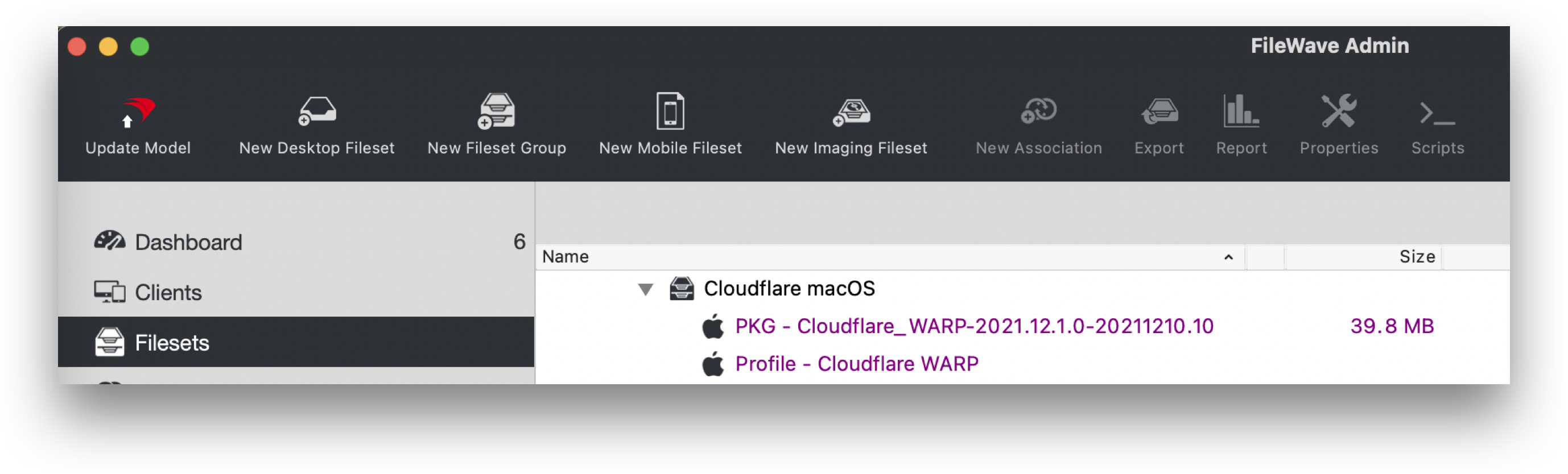
- Create a Fileset Group and give it a clear name, such as Cloudflare macOS
- Download the Cloudflare PKG
- Drag the PKG into the Fileset Group in FileWave Central
- Select the Fileset Group and create a New Desktop Fileset
- Select Profile
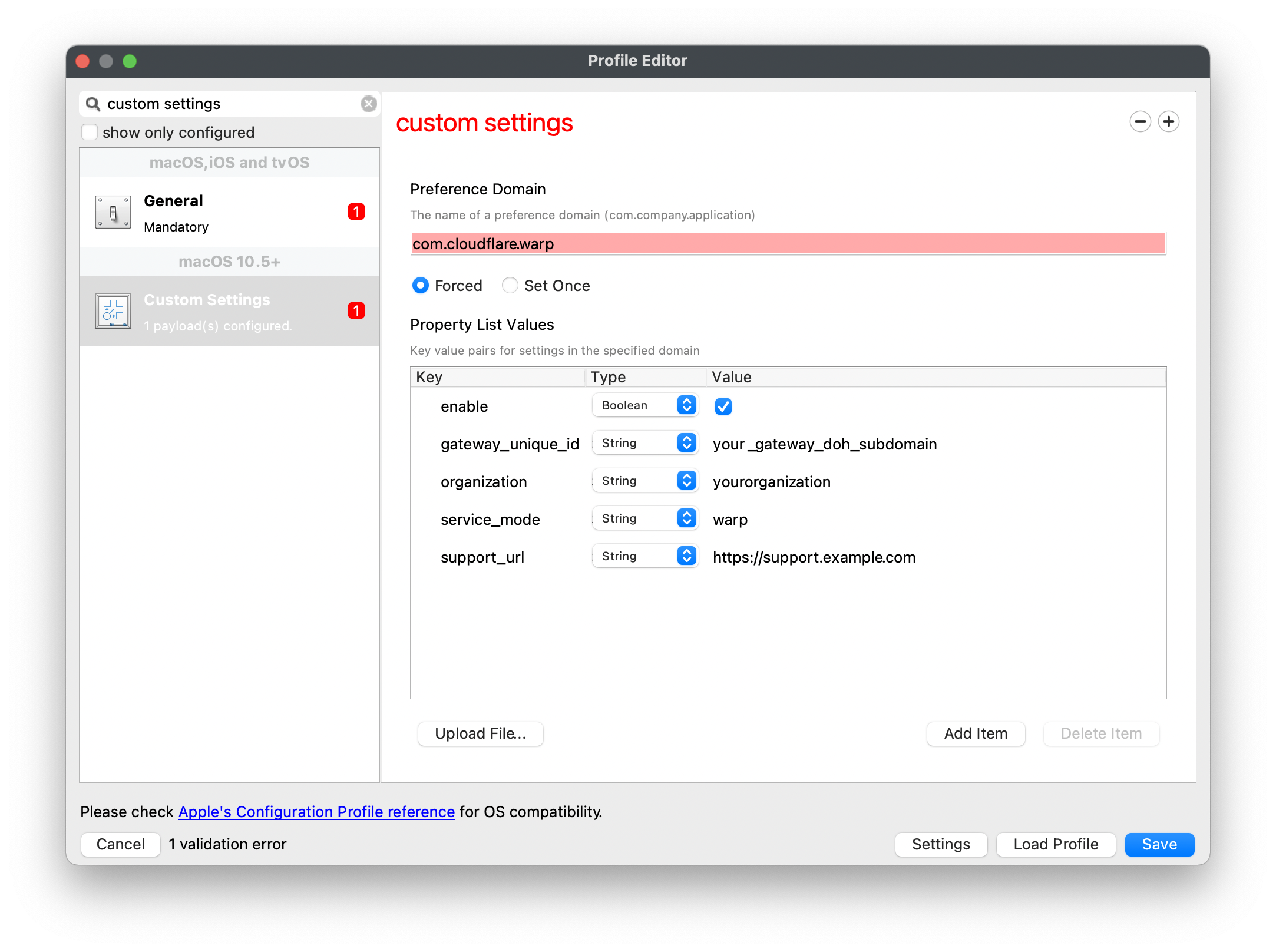
- In the Profile Editor window choose the Custom Settings Payload and Configure
- Build the profile from scratch, or download Cloudflare's example template and use Upload file in the Profile Editor
- If building manually, the preference domain should be: com.cloudflare.warp
- Edit or add/remove keys and values as required. Details of Cloudflare Parameters below
- Create a test Deployment for the Cloudflare Fileset Group, validate the result, and then expand the target scope
Example Fileset Group
Example Custom Settings Payload, edit details as required
Windows
Cloudflare WARP for Windows requires the MSI installer and an mdm.xml configuration file.
- Download the Cloudflare MSI
- Drag the MSI into the FileWave Central Filesets view to create a new Fileset
- Download the mdm.xml template provided by Cloudflare or create one
- Create a folder called Cloudflare within the ProgramData folder of the Fileset
- Upload the XML file into this Cloudflare directory
- Edit or add/remove keys and values within the XML as required. Details of Cloudflare Parameters below
- Create a test Deployment for the Cloudflare Fileset, validate the result, and then expand the target scope
Example Cloudflare Fileset
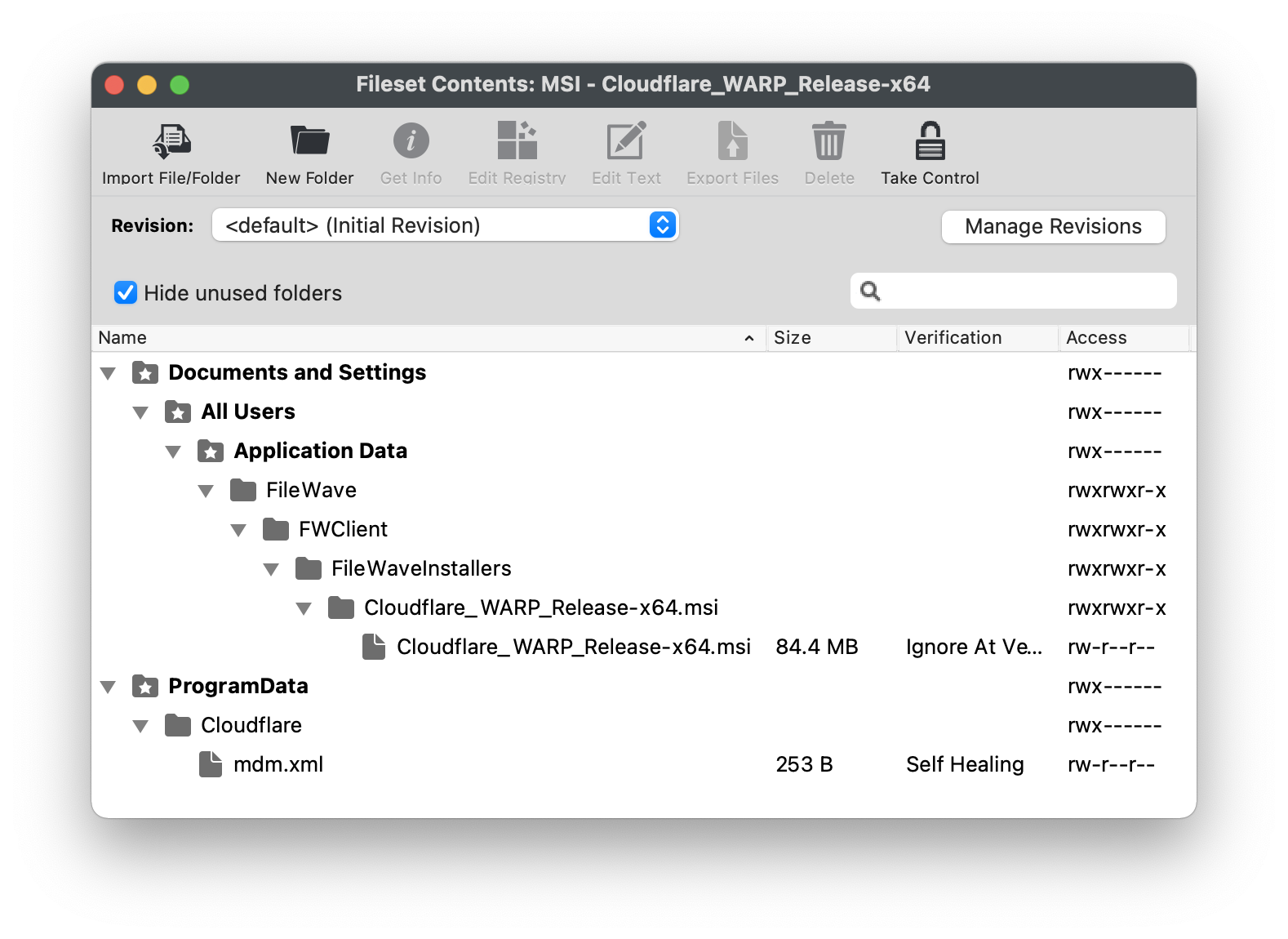
Example mdm.xml file, edit details as required
<dict>
  <key>organization</key>
  <string>exampleorg</string>
  <key>service_mode</key>
  <string>warp</string>
  <key>gateway_unique_id</key>
  <string>fmxk762nrj</string>
  <key>support_url</key>
  <string>http://support.example.com</string>
</dict>
iOS
For iOS Zero Trust deployments, use Cloudflare One Agent with managed app configuration, not the consumer 1.1.1.1: Faster Internet app. Cloudflare no longer supports the 1.1.1.1 app for mobile Zero Trust features.
If migrating an existing managed installation, first follow Cloudflare’s mobile migration procedure. Update the old iOS app to 6.22 or later, then deploy the new app with the organization’s managed configuration. Keep the new app identity; changing a Fileset name does not change which App Store app it installs. Cloudflare documents automatic registration-data migration on iOS, without user reauthentication.
- Acquire the free Cloudflare One Agent app by Cloudflare in Apple Business Manager or Apple School Manager
- Assign the app to the relevant Apps and Books location, sync VPP in FileWave preferences, and accept creation of the Fileset
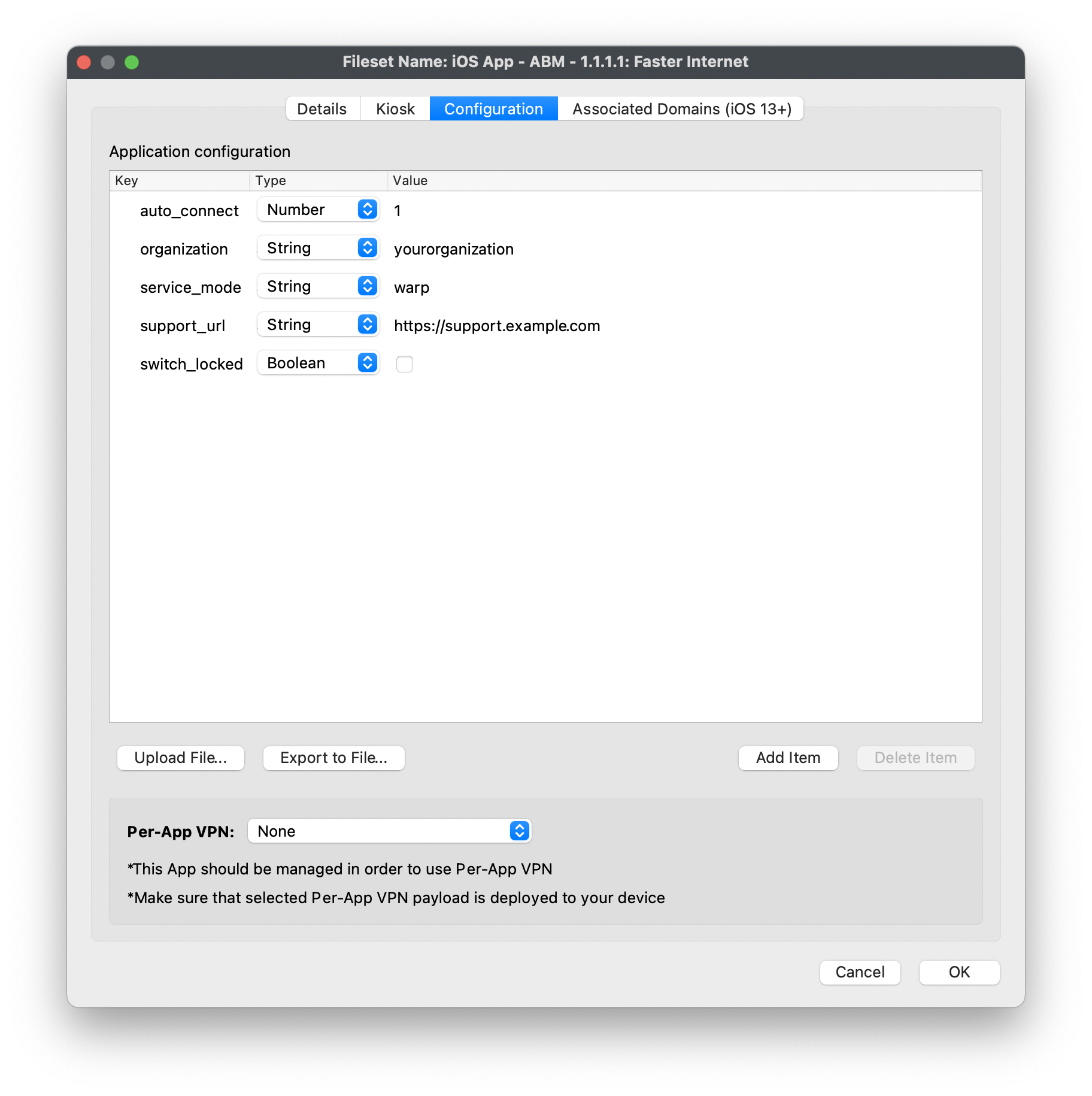
- Double click the newly created Fileset and choose the Configuration tab
- Manually create keys and values or upload the Cloudflare example template file
- Edit or add/remove keys and values within the xml as required. Details of Cloudflare Parameters below
- Create a test Deployment for the app Fileset, validate its configuration, and then expand the target scope
Historical iOS configuration example: the screenshot shows the older 1.1.1.1 app Fileset, which previously provided mobile Zero Trust access. Use the Cloudflare One Agent Fileset for current deployments and review its configuration against Cloudflare’s current parameters. The pictured organization, connection options, and support URL are examples, not defaults to copy.
Android
For Android Zero Trust deployments, use Cloudflare One Agent from managed Google Play, with package ID com.cloudflare.cloudflareoneagent. The consumer 1.1.1.1 app is no longer supported for mobile Zero Trust features.
For an existing managed 1.1.1.1 deployment, update the old Android app to 6.29 or later before migrating. Transfer the organization’s managed configuration to the new app without overwriting its package ID, and plan for users to authenticate again in Cloudflare One Agent. Follow the linked Cloudflare migration procedure for the complete platform-specific requirements.
- Choose New Mobile Fileset
- Select Play Store
- Select the free Cloudflare One Agent app by Cloudflare in managed Google Play to create its Fileset
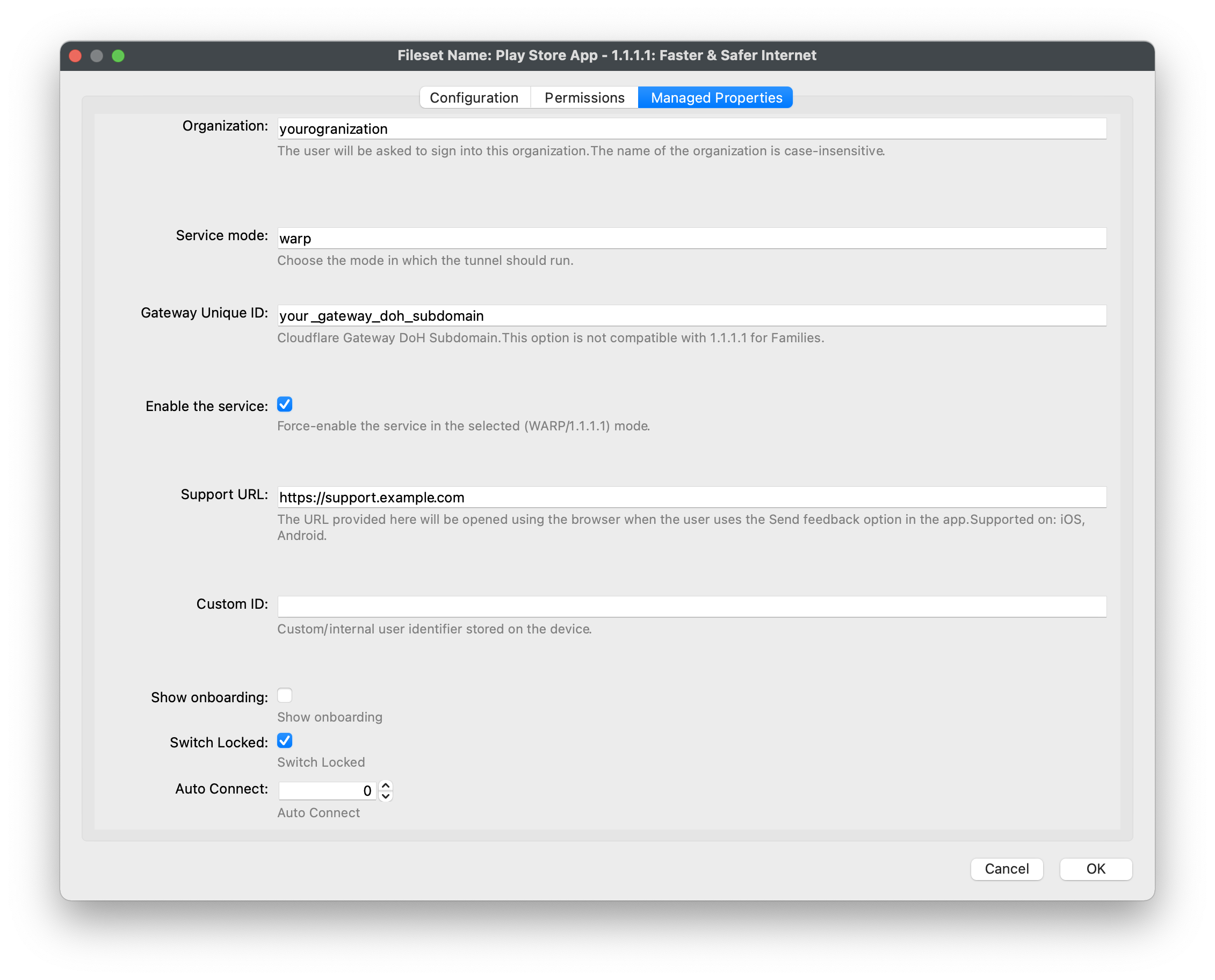
- Double click the newly created Fileset and choose the Managed Properties tab
- Edit or add/remove values as required. Details of Cloudflare Parameters below
- Create a test Deployment for the app Fileset, validate its managed properties, and then expand the target scope
Historical Android managed-properties example for the older 1.1.1.1 app. Configure the new Cloudflare One Agent Fileset instead. Review the current app’s available properties and your intended connection behavior; the checked Enable the service and Switch Locked options shown below are example values, not a required baseline.
Verify mobile migration: Open Cloudflare One Agent on the pilot device and confirm access to an intended organizational resource. In the Cloudflare dashboard, the migrated registration appears as a new device with a new device ID; the old 1.1.1.1 registration remains inactive. Only one of these apps can connect at a time. Do not treat successful app installation alone as proof that the user has migrated. This app replacement applies to iOS and Android; Cloudflare does not require the same migration for desktop clients at this time.
Cloudflare Parameters
All the above example configurations will require adapting to include appropriate keys and values for each environment. Explanations of each key and its possible requirements and values can be found in the Cloudflare Parameters list.
No comments to display
No comments to display