
Use Apple Classroom with FileWave

Apple Classroom is a teacher app for supported iPad and Mac devices. Teachers can open apps and websites, view or lock student screens, share student work through Apple TV, and manage Shared iPad sessions. FileWave can deploy the app to teacher devices and deliver the education configuration profile used by MDM-created classes.
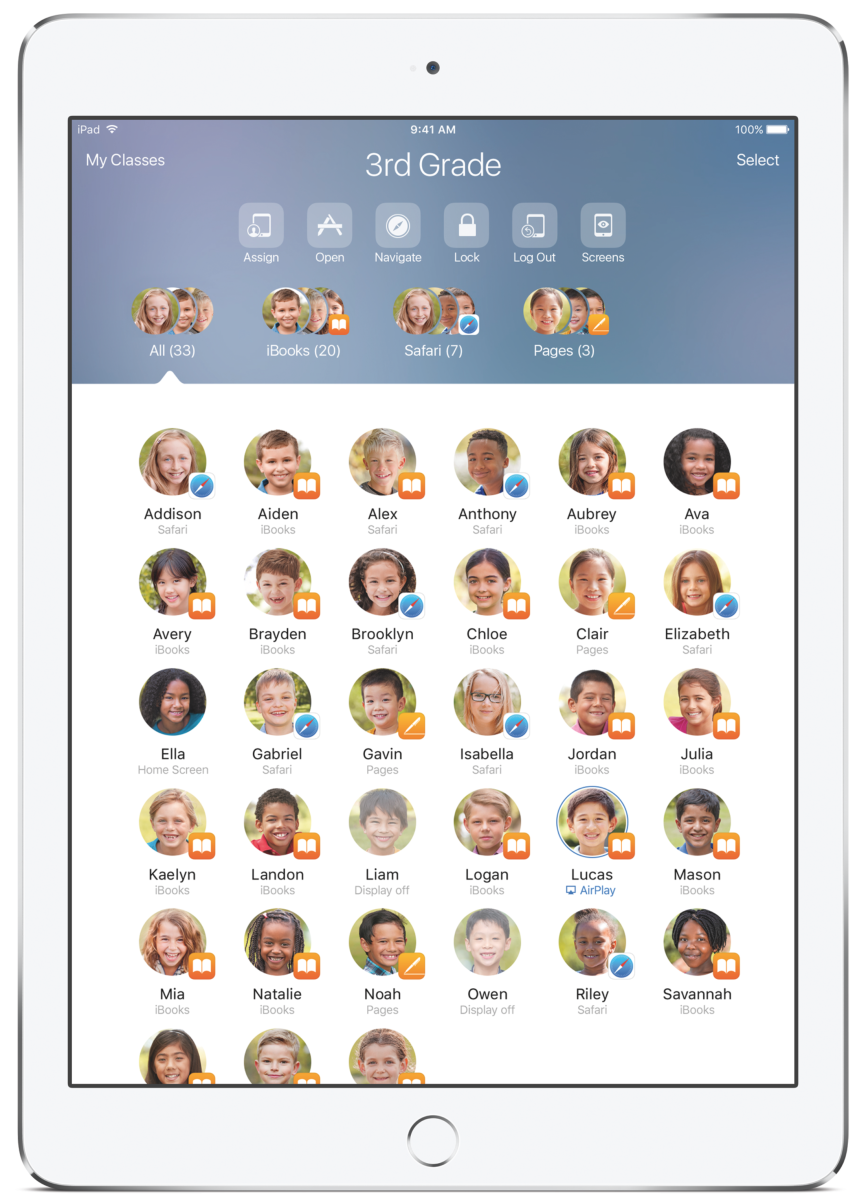
Main features:
- Show, for each device, what the student is doing (which app is in the foreground)
- Lock student devices (eyes up front)
- Open an app or a specific Safari page on student devices, with or without Single App Mode
- Observe (without interaction) student devices
- Pre-assign shared iPad to student to ease login
- Display student iPad screen on Apple TVs
- Sign users out
- Change user passwords (with Managed Apple IDs)
Install Classroom on teacher devices. Student devices receive class configuration through MDM and do not need the Classroom app. Apple supports classes synced from Apple School Manager, classes created directly by an MDM solution, and unmanaged nearby classes. Apple School Manager is required when the workflow relies on Managed Apple IDs or Shared iPad.
For MDM-created classes, review Apple's current Classroom device, network, supervision, and Managed Apple ID requirements before rollout.
How FileWave supports Apple Classroom
For an MDM-created class, every teacher and student device must be enrolled and receive the class configuration from FileWave. The workflow uses:
- Client SSL certificates for each device
- A specific profile ("education payload") that will configure both the Classroom app and Shared iPad devices
For MDM-created classes, FileWave sends Apple's education configuration through the device channel on iPadOS and the user channel on macOS.
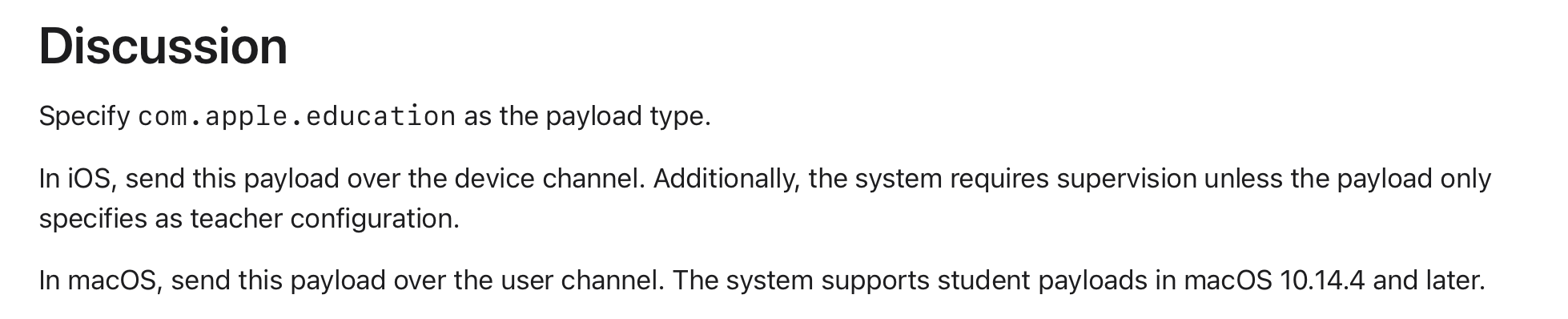
On macOS, user-channel payloads apply only to users managed through MDM. Review Apple's MDM device and user management guidance before relying on Classroom for multiple local users.

Federated authentication in Apple School Manager can connect an identity provider to Managed Apple IDs used by Classroom and Shared iPad.
FileWave classroom workflow
Before generating Classroom certificates, decide who will retain the root CA private key and where its secure backup will be kept. FileWave does not retain a recovery copy on the Server; the key is needed for intermediate CA renewal or revocation, not for individual teacher or student certificate renewal. Follow Classroom Identity Certificate Management for setup and key handling.
- Import class and roster information from a supported SIS source.
- Associate people with one-to-one devices or associate classes with shared-device carts.
- Support both one-to-one and Shared iPad deployments.
- Generate and deploy the education configuration for each assigned device.
- Import device placeholders so app and profile assignments can be prepared before devices arrive.
Classroom assignments use the same FileWave workflow as other app and profile deployments.
Use Apple Classroom Deployment Scenarios to choose a rollout order and check device-to-person or cart-to-class mappings. Invalid mappings are not used to generate education profiles. Before expanding the rollout, confirm that one class's teacher and student devices have received their education profiles, then open Classroom on the teacher device and check that the expected class and students appear. Installing the app alone does not complete Classroom setup.
No comments to display
No comments to display