
Android Lost Mode
What
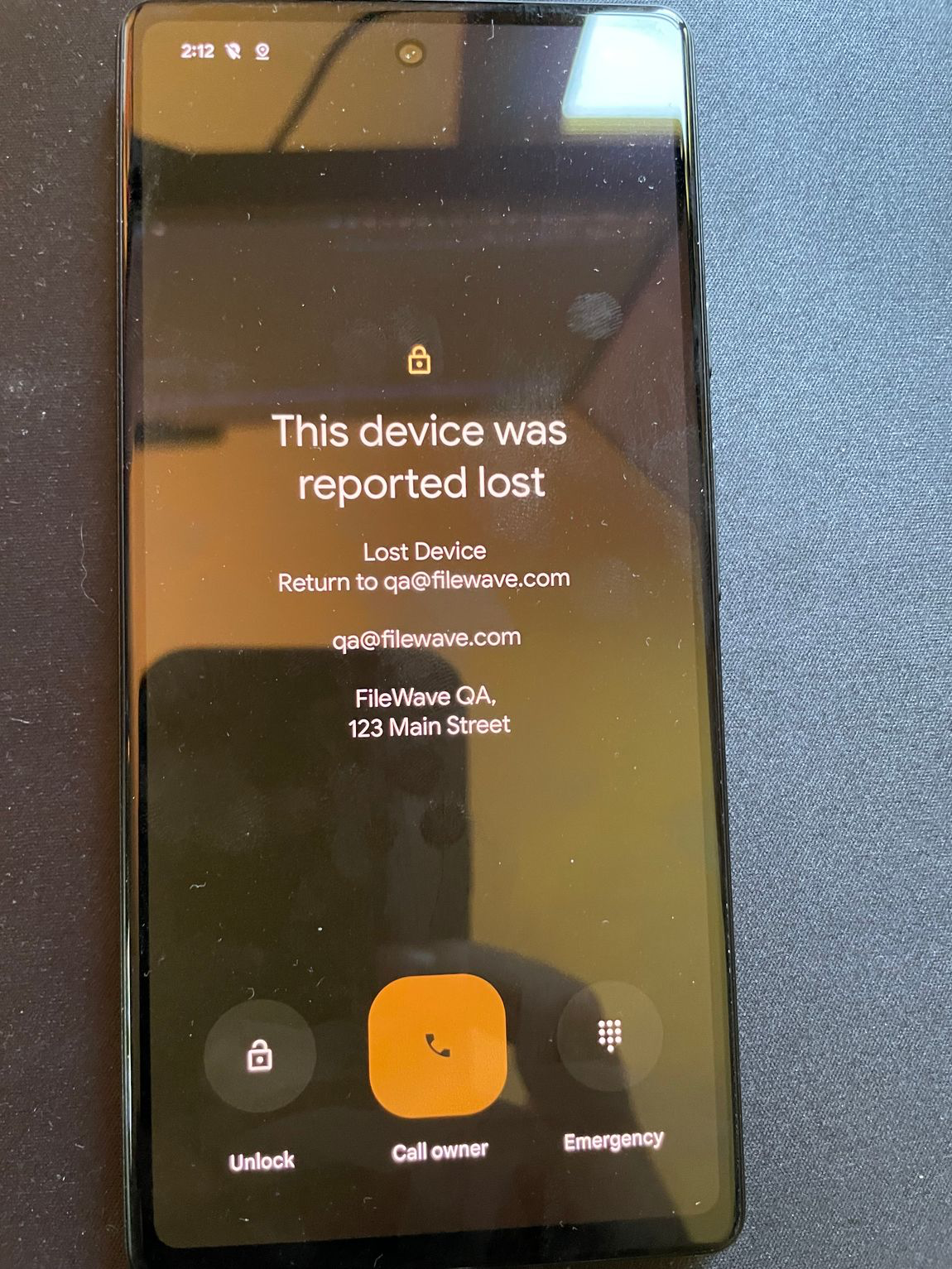
Android Lost Mode is a FileWave EMM security action for corporate-owned Android devices. It remotely locks an enrolled device reported as missing, shows a custom message, and prevents normal use until the device is unlocked with the correct passcode.
When/Why
Use Android Lost Mode when a managed Android device is misplaced, suspected stolen, or needs to stay locked while you decide whether to recover or wipe it. Lost Mode helps protect organizational data by blocking normal device use and showing recovery information on the lock screen.
How
Device Eligibility
Before activating Lost Mode, make sure the device meets these requirements:
- Corporate ownership and Android version: The device must be corporate-owned, not BYOD. Android 11 is the minimum for fully managed devices. Google requires Android 13 or later for a work profile on a company-owned device; check that your enrollment mode is supported in FileWave before using this workflow.
- Not already in Lost Mode: The device should not currently be in Lost Mode.
- No recent password reset: The device password must not have been reset by an IT administrator in the last 12 hours.
- No recent manual exit from Lost Mode: The device must not have been manually exited from Lost Mode in the last 12 hours.
Activating Android Lost Mode via FileWave
EMM devices in the Missing Client State use Android Lost Mode. In FileWave Central, right-click the device and choose Client State > Missing.
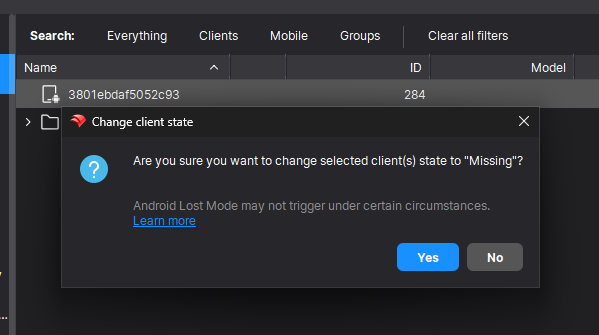
Android Lost Mode allows the end user to exit Lost Mode by entering the device passcode. FileWave reports both the current state and expected state in inventory. After the device is in Lost Mode, you can right-click it and choose Play Lost Mode Alert.
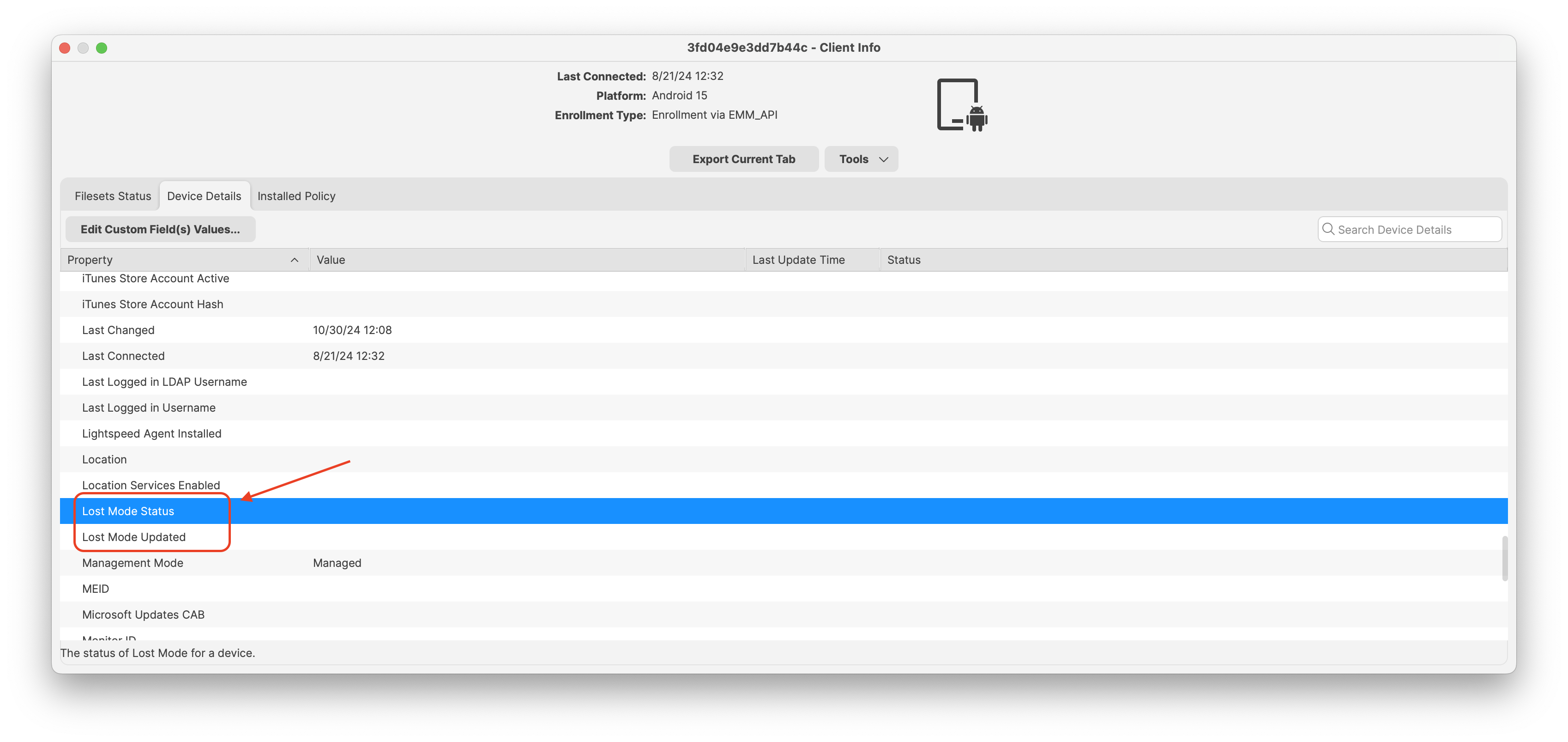
The status report appears in Device Details. Compare the reported current state with the expected state before treating the device as locked; setting Missing records the requested action, not proof that the device has applied it. The screenshot identifies Lost Mode Status and Lost Mode Updated, but its blank values do not show a successful lock. Recheck the state after the device reports back.
Disabled Devices and Lost Mode
 |
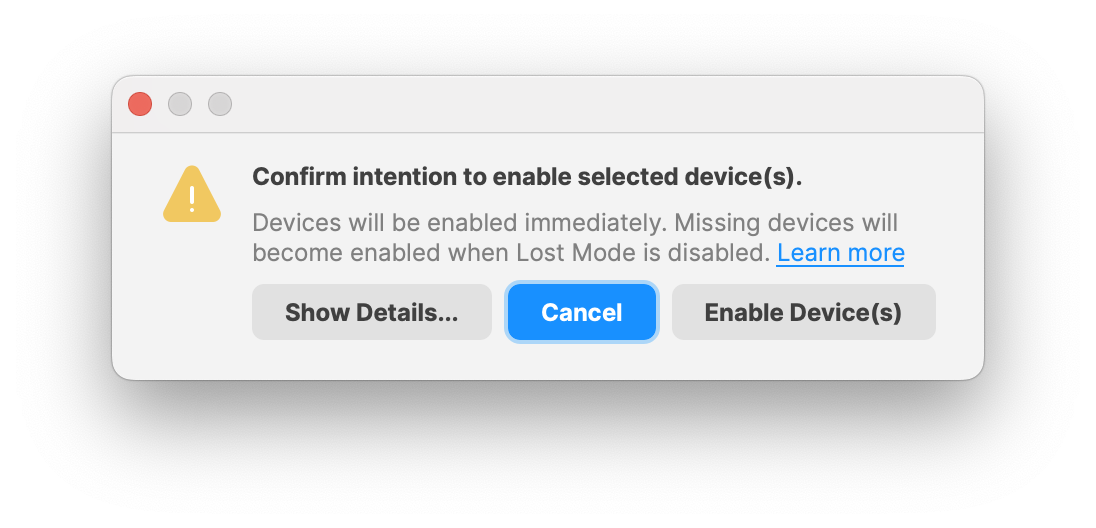 |
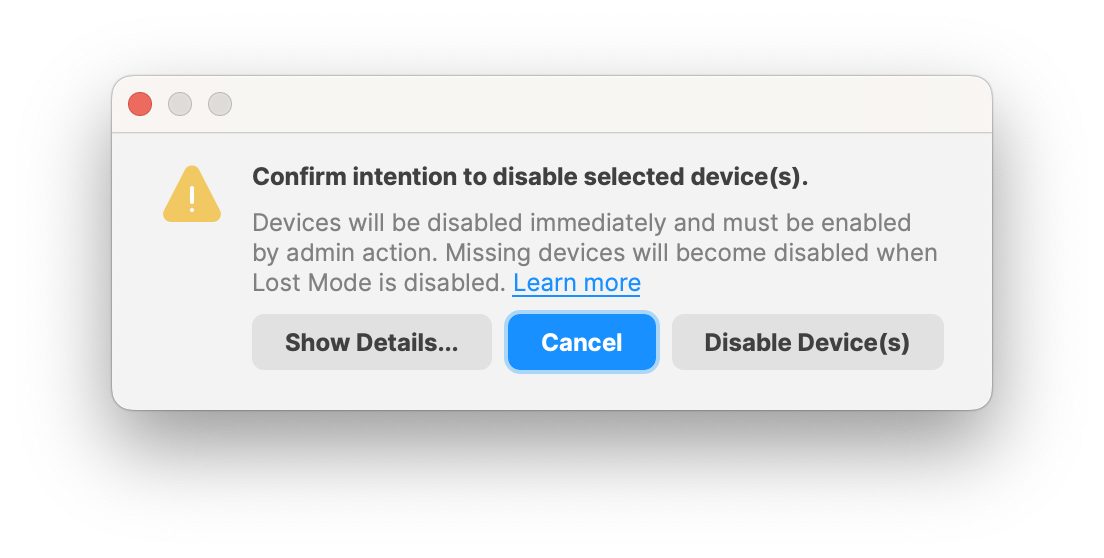
When selecting an Android device, you can enable or disable the selected device. When an Android device is set to Disabled, FileWave limits the device to Google services instead of normal device use. Core apps such as Phone, Google Play Store, and Settings are part of that restriction.
When the device is set back to Enabled, Google Play services resume and all apps are usable again. Exiting Lost Mode is a separate action: Android returns the device to the state it had before Lost Mode. A device that was Disabled before entering Lost Mode returns to Disabled; ending Lost Mode does not by itself enable it.
Important Considerations
- Passcode requirement: Devices should require a passcode so Lost Mode can be exited only by an authorized user.
- User communication: Tell users what Lost Mode does and how they can exit it by entering their passcode.
- Policy compliance: Use Lost Mode as part of your organization's missing-device and data-protection process.
No comments to display
No comments to display