
Android Zero-Touch Enrollment with FileWave
What zero-touch enrollment does
Android zero-touch enrollment (ZTE) automatically enrolls eligible organization-owned devices into Android Enterprise management during initial setup. The reseller adds eligible devices to the organization's zero-touch account, and an assigned configuration directs those devices to FileWave.
Before you begin
Your organization must be enrolled in Android zero-touch enrollment and able to open the Android zero-touch portal.
Coordinate with an authorized reseller so purchased devices appear in the portal.
Why use zero-touch enrollment
Use ZTE when organization-owned Android devices should enter management during first-time setup without relying on users to complete an optional enrollment workflow.
Configure FileWave and the zero-touch portal
The device inventory and assignment are managed in Google's portal, while FileWave supplies the DPC extras JSON that points enrollment to the correct FileWave Server.
Create an Android zero-touch configuration that points devices to FileWave. For Google's configuration workflow, see Create and assign configurations in the zero-touch portal.
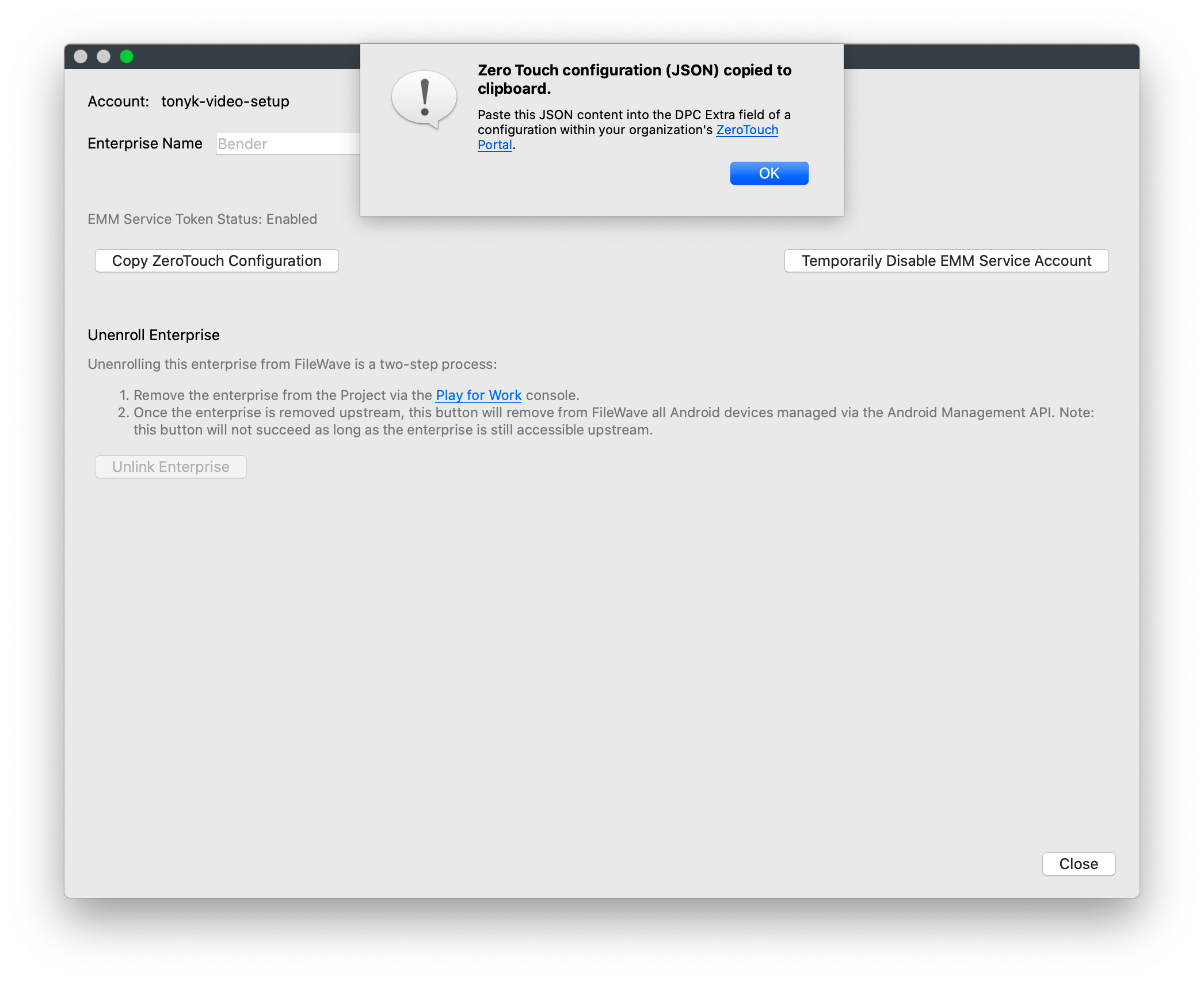
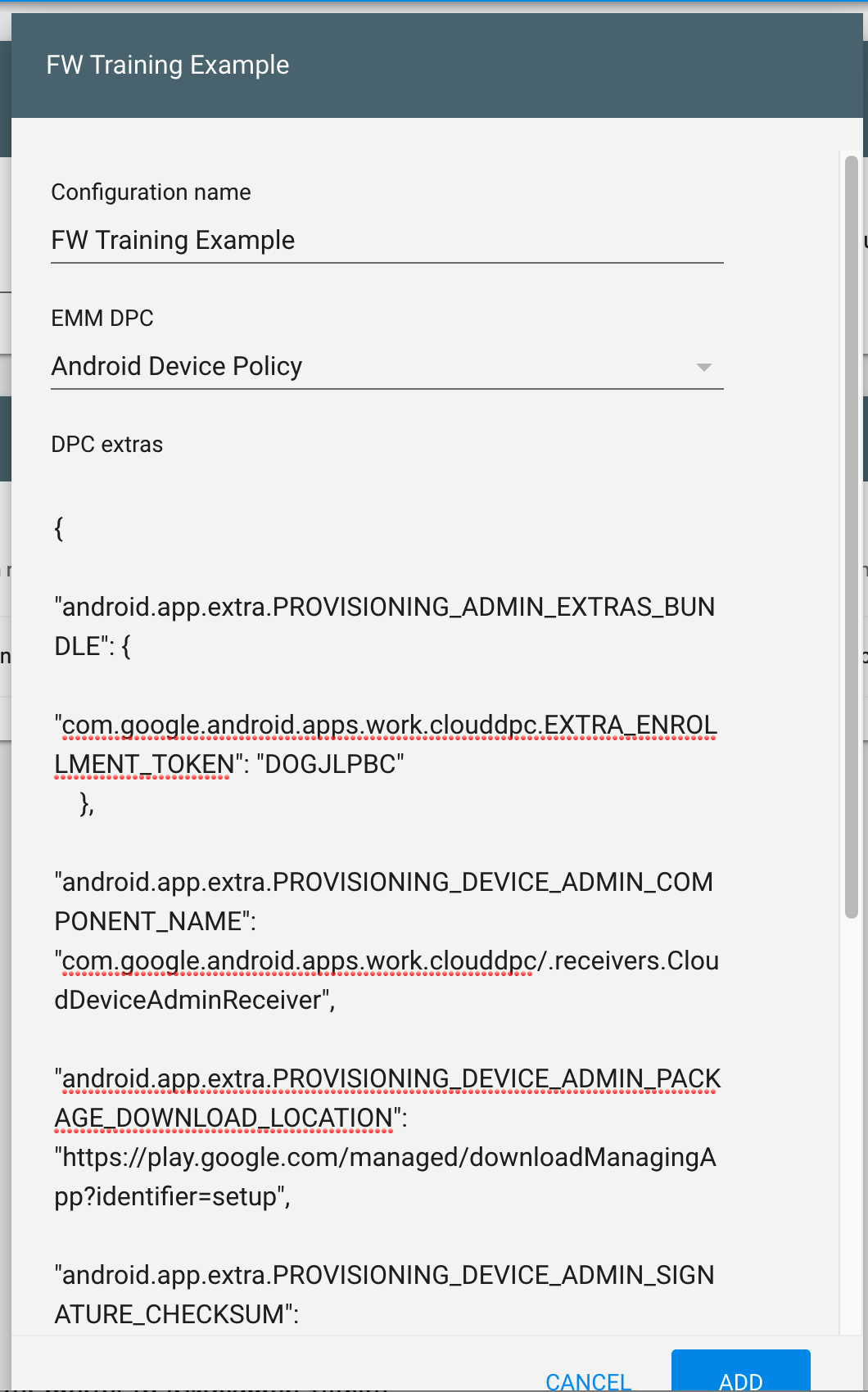
In the configuration, select Android Device Policy as the EMM DPC. In FileWave Central, go to Preferences → Google → Configure Enterprise → Copy ZeroTouch Configuration, then paste that FileWave JSON into the portal's DPC extras field. The screenshots below show the FileWave and portal values.
Assign each device in the zero-touch portal to the configuration it should use. The example below shows that assignment.
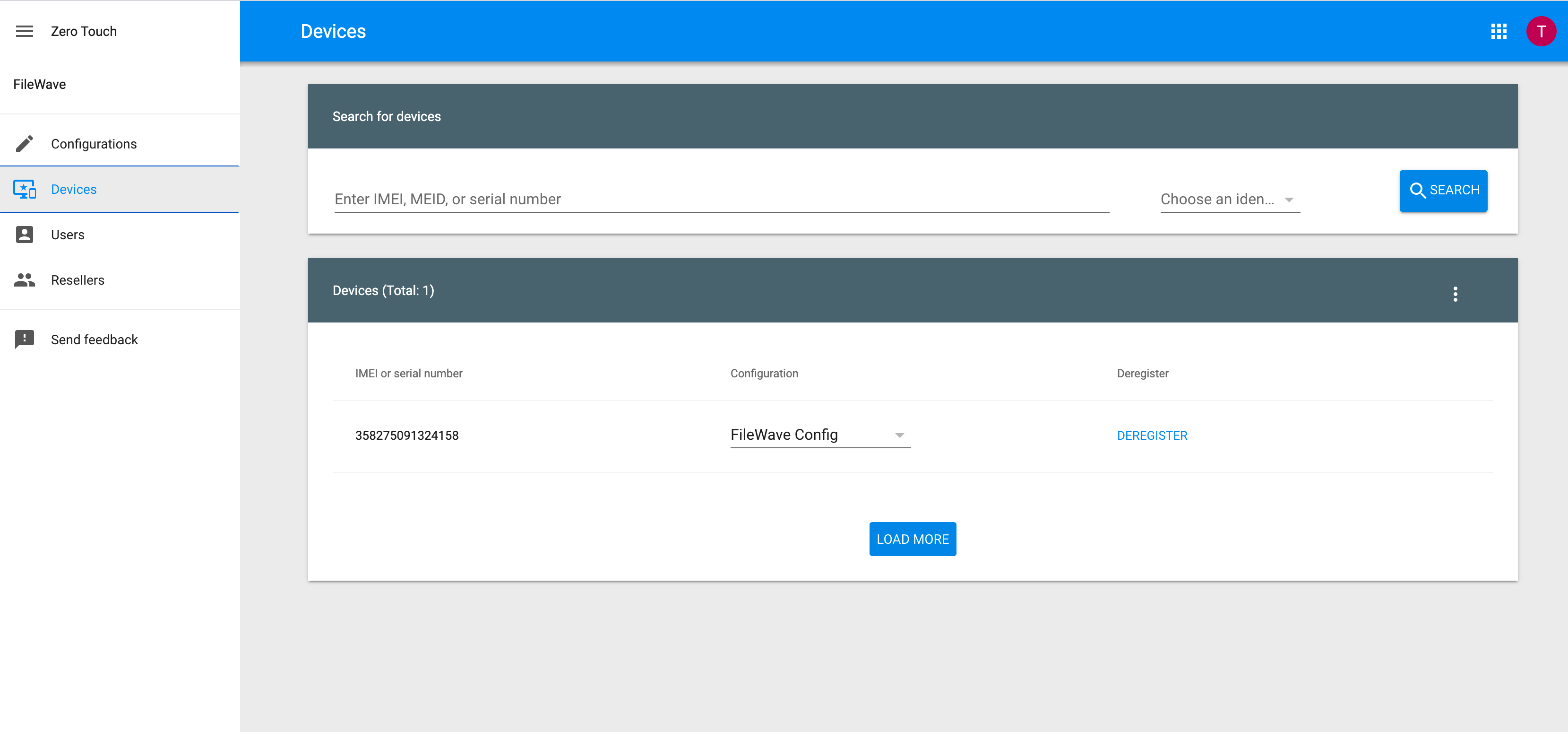
After a device appears in the portal and has a configuration assigned, it enrolls into management during initial setup.
|
Reseller and assignment requirement. Devices appear in the zero-touch portal through reseller-provided records. Coordinate that process with the reseller, then confirm that every imported device has the intended configuration assigned. |
No comments to display
No comments to display