Fileset Creation and Deployment
Section Details
Please reviewUse the sub-platform sections inbelow thisto "Filesetcreate Creationthe andFilesets Deployment"or guide for your managed OS platforms. Onceprofiles you haveneed. After you have at least one FilesetFileset, created, please reviewuse this page to seeassociate howit towith Associatedevices youror Filesets.groups.
- Windows Software
- iOS Software and Profiles
- macOS Software and Profiles
- Android Software and Policies
- Windows Imaging Setup
- OS Software Updates
Associate Filesets to Clients
NowAfter that we have youra Fileset created, let'sexists, associate themit towith yourclient Clientdevices devices,or setgroups. themA tostandard eitherassociation deployinstalls in the backgroundbackground, withouta anyKiosk userassociation interaction or on-demand viamakes the FileWaveitem Kioskavailable on demand, and possiblyscheduled scheduleassociation theoptions installation.let you control download, activation, inactivation, deletion, and reboot timing. This section will covercovers the mostcommon commonlyassociation usedworkflow methodsin toFileWave associateCentral. FilesetsYou tocan devices.also However,create there are "shortcut" methods to associate new content directlyassociations from the "Clients" perspectiveClients or "Filesets"Filesets perspective.views when that is faster for your workflow.
Associate Fileset using drag-n-and-drop
- Open FileWave
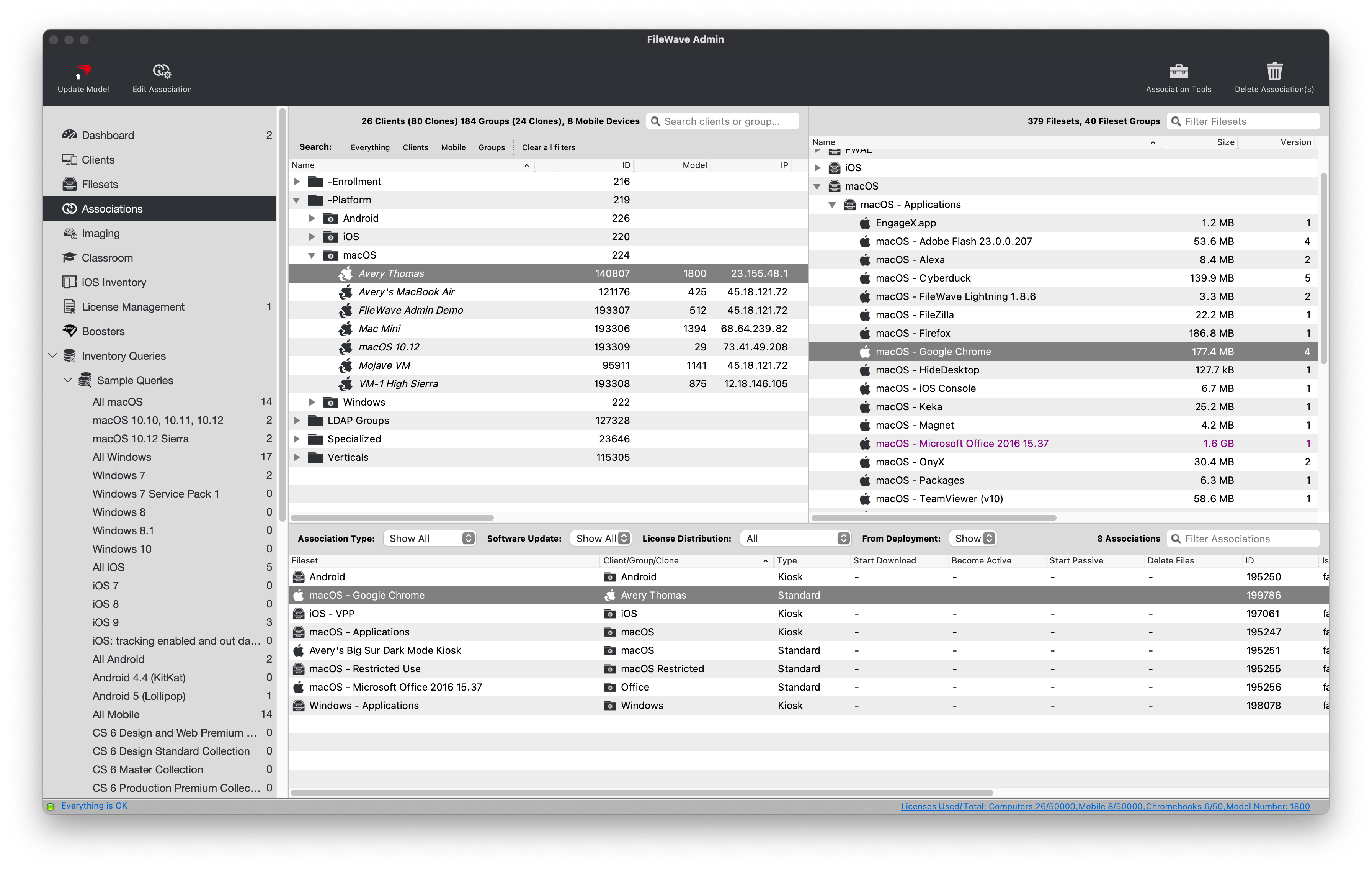
AdminCentral and navigate to"Associations"Associations. - Find and select
eitheran individual device orClientclient group from theleft-handleft pane.WeThiswillexamplebe usinguses the macOS device named "Avery Thomas".
- Find and select
eitheran individual Fileset or Fileset group from theright-handright pane.WeThiswillexamplebe usinguses the macOS Fileset named "macOS - Google Chrome".
Drag-n-dropDrag the "macOS - Google Chrome" Fileset from theright-handright pane onto the "AveryThomasThomas""macOS device.- You can associate Filesets
atone-to-one,any level; one toone-to-many,manyorto one, one tomany-to-one.
- You can associate Filesets
You should now see aA new"Standard"StandardAssociationassociationappearappears in the bottom pane."Standard"Standard associations are the default andwill deployinstall in the background withoutanyuser interaction.

Deploy Fileset in the Kiosk
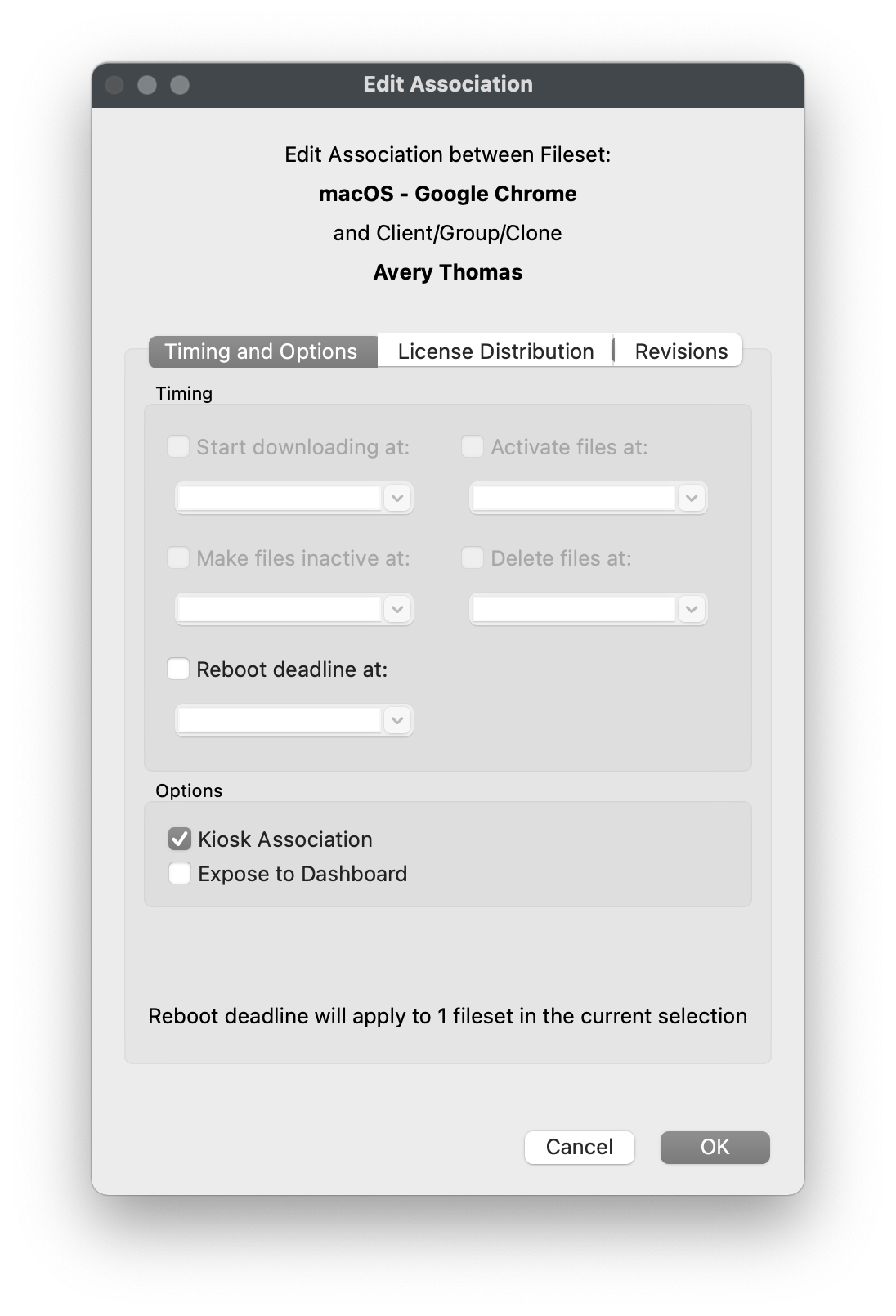
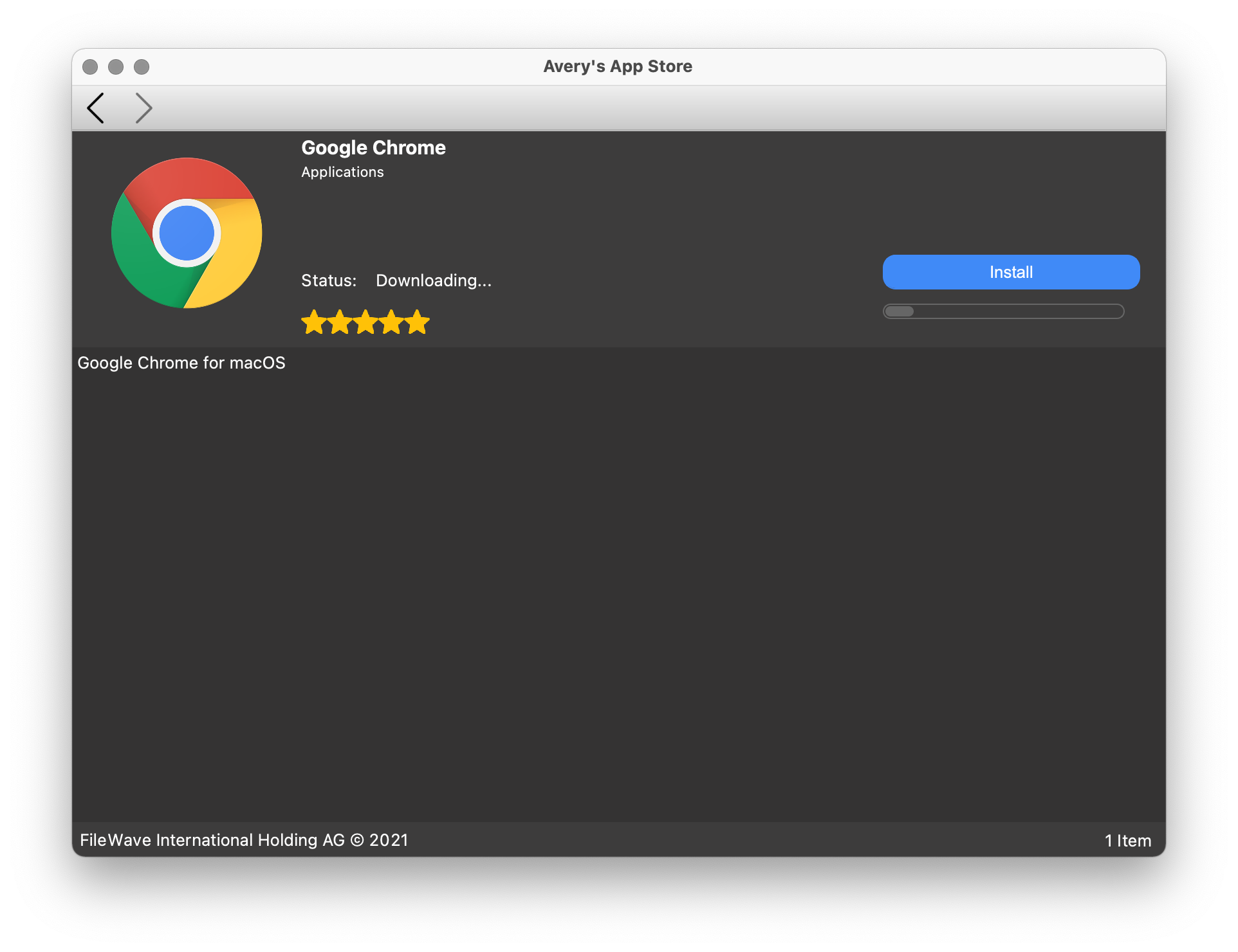
AsA mentionedStandard above,association installs in the defaultbackground. deployment setting is "Standard" which will result in a background deployment without any user interaction. If you'd like toTo make the Fileset installation optional tofor the end-userend you canuser, change the Associationassociation type to "Kiosk"Kiosk. You can think of the Kiosk as your in-house App Store as it can also be customized to match your organization's look and feel. The FileWave Kiosk is available on macOS, Windows, and iOS (App Portal)., and can be customized to match your organization's look and feel.
- Open FileWave
AdminCentral and navigate to"Associations"Associations. - Double-click an existing
Associationassociation from the bottom pane. - Check
the"KioskAssociation"box.Association. - Click
"OK"OK to save thechanges.change. "Run UpdateModel"if you'd likeModel to commit theAssociationassociationchangeschange to devices.


Schedule Fileset deployment
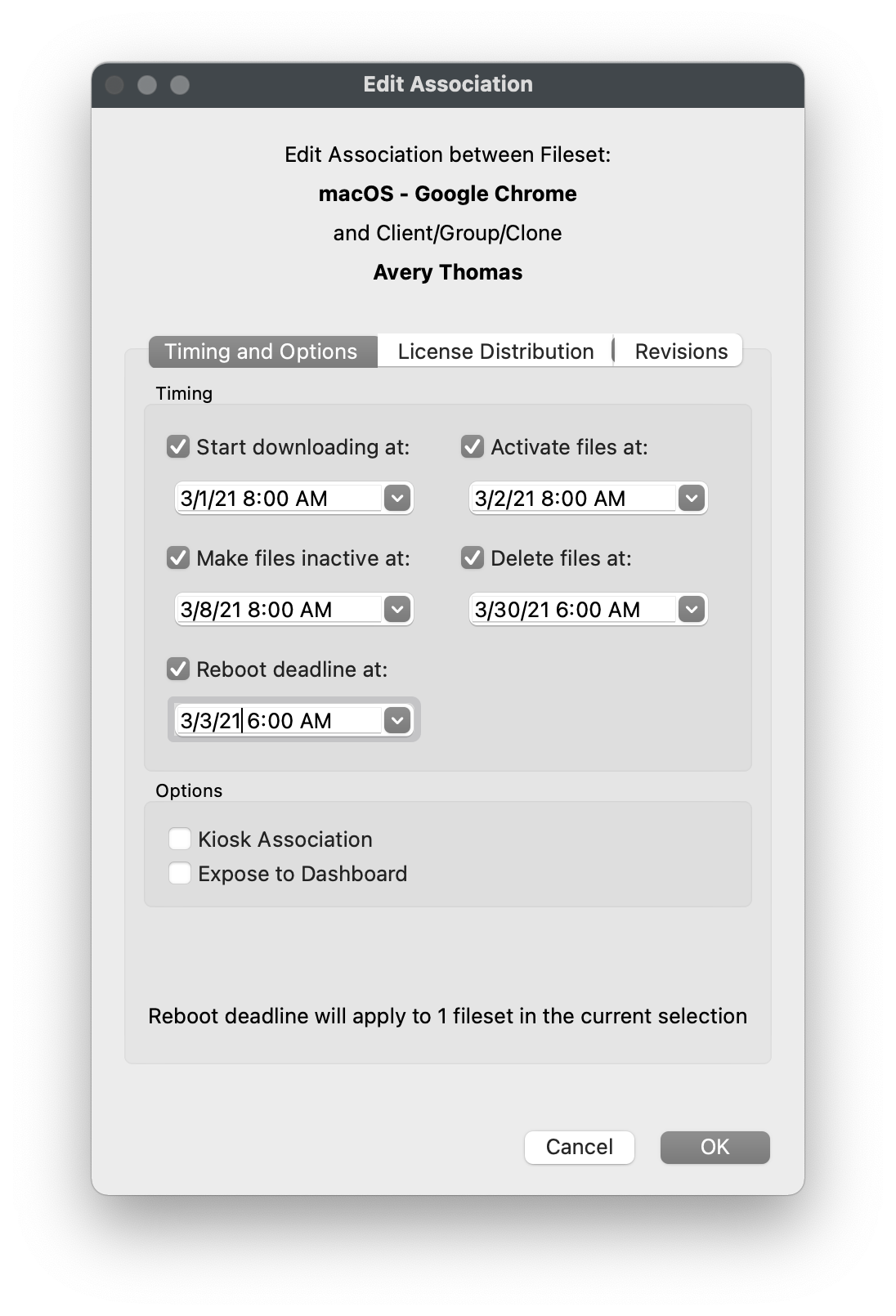
IfUse youassociation needscheduling to precisely schedule the deployment ofwhen a Fileset or a group of Filesets,Filesets pleaseneeds followa specific deployment window. Kiosk associations cannot be scheduled except for the steps below. Please note that you cannot schedule the deployment of a Kiosk association with the exception of the "Reboot Deadline".deadline at option.
- Open FileWave
AdminCentral and navigate to"Associations"Associations. - Double-click an existing
Associationassociation from the bottom pane. - Specify a
timedate anddatetime for anyof theneeded scheduled events.- Start Downloading at:
- Start downloading allDownloads Filesetfilesfiles, includinginstallersinstallers, to adiscreettemporary location. - Activate files at:
- MoveMoves Fileset files tothetheir final location andexecute anyruns installers or"Activation"activation scripts. - Make files inactive at:
- MoveMoves Fileset files from their final location back todiscreeta temporary location. - Delete files at:
-Deletes the Fileset filesentirely.from the device. - Reboot deadline at:
-Forces a reboot of theClientclientdevice;device. The Fileset must have"RequiresReboot"Reboot enabledfromin Fileset Properties.
- Start Downloading at:
- Click
"OK"OK to save the changes. "Run UpdateModel"if you'd likeModel to commit theAssociationassociation changes to devices.