
Change a Local Administrator Password on macOS
Use the downloadable Fileset to change the password for an existing local administrator account on managed macOS devices. Configure the account name and passwords as environment variables, test on a representative Mac, and verify the result in Fileset Status.
Requirements
- FileWave Central
- A managed Mac with the FileWave Client
- An existing local administrator account whose current password is known
Deploy the Fileset
-
Download and Import the Fileset
- Download Change Admin Password (Ventura+).fileset.zip
- Import the Fileset into FileWave Central.
-
Edit Environment Variables
- This Fileset uses environment variables for the administrator username, current password, and new password. Edit each value before deployment and do not reuse the example Fileset without reviewing those credentials.
- To do this, double-click on the Fileset to open it.
-
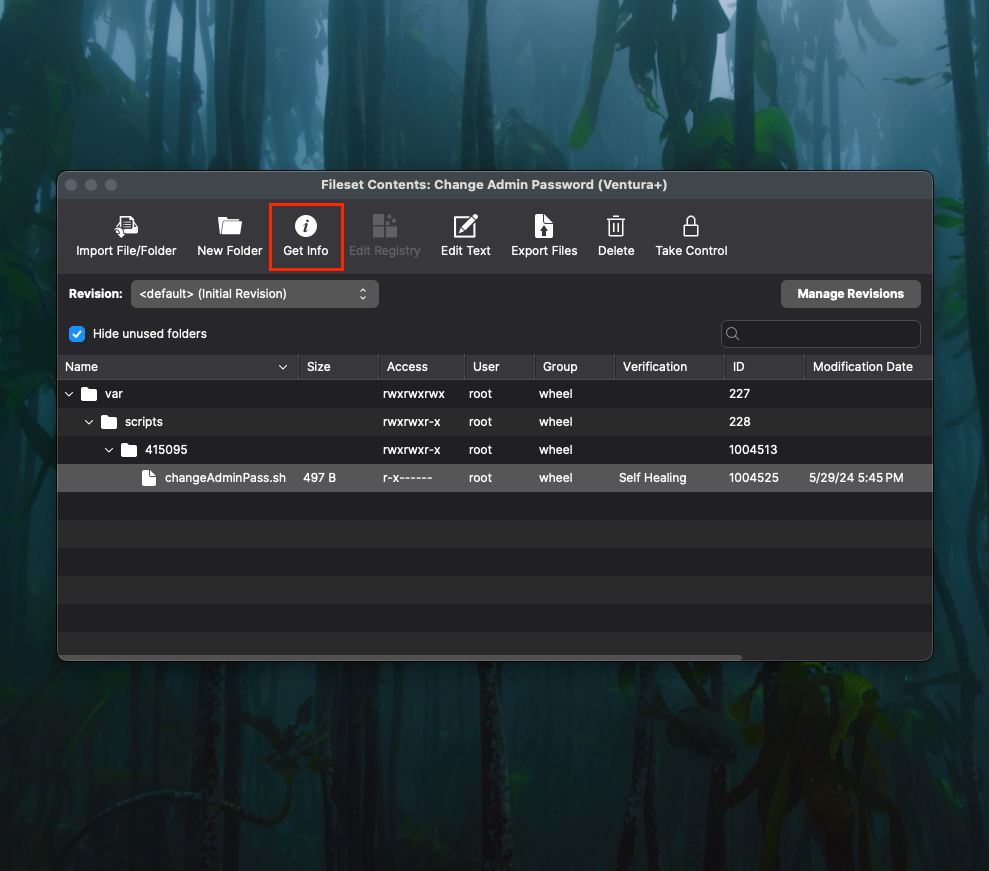
Navigate to the Script
- Hold the Option key (macOS) or Alt key (Windows) to expand the full directory (as shown below).
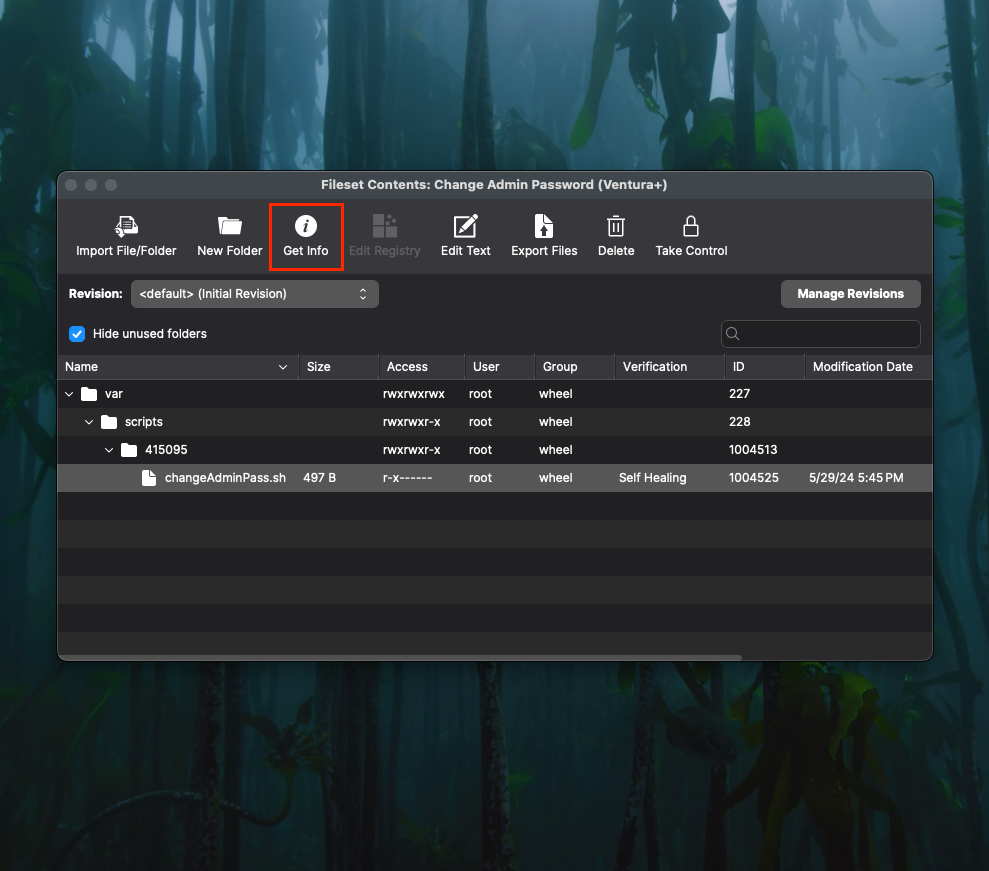
- Select the script and click Get Info.
- Update Environment Variables
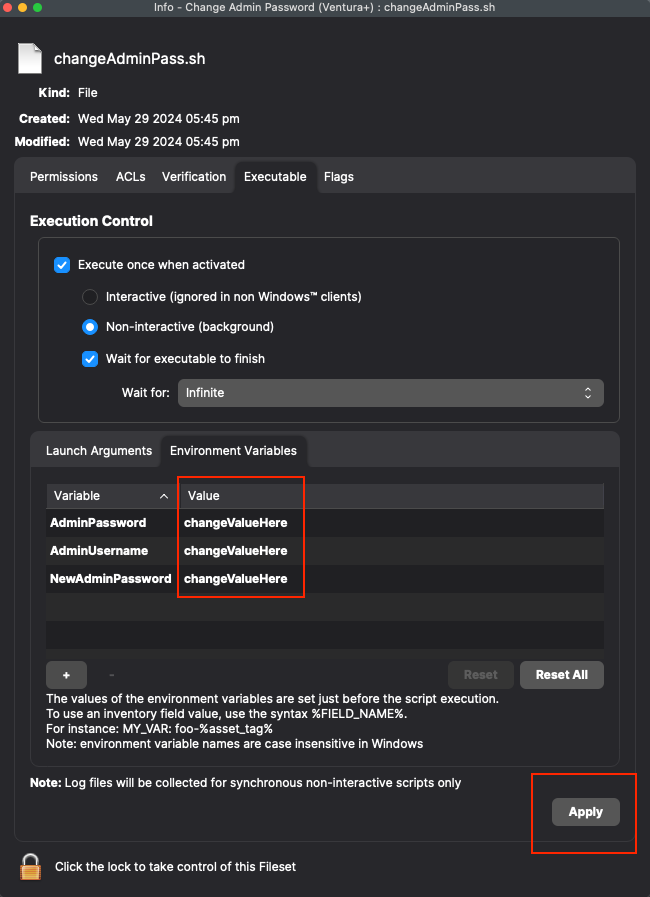
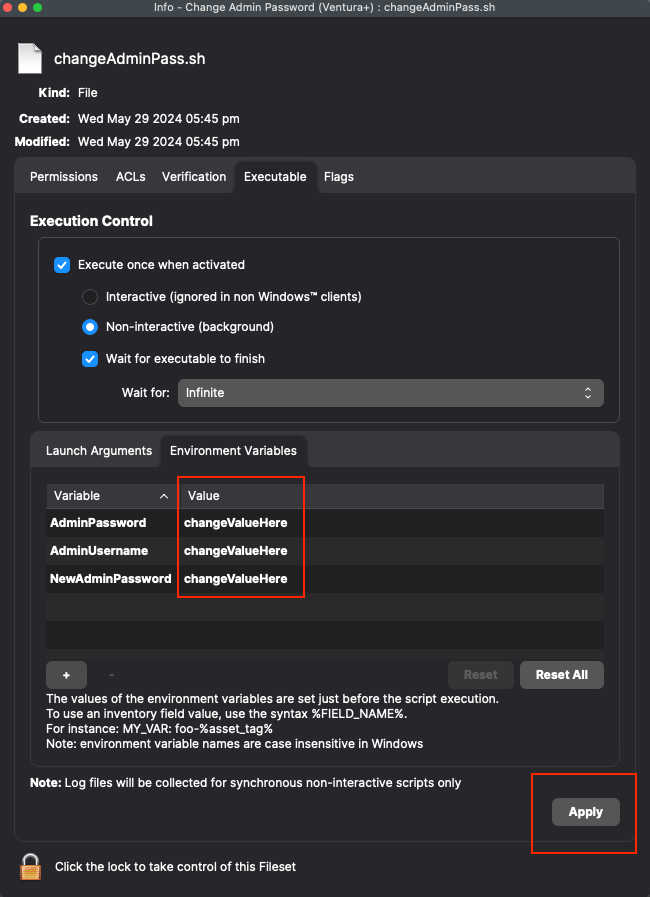
- On the Executable tab, locate Environment Variables.
- Enter the local administrator username, current password, and new password.
- Click Apply to save the changes.
- Test your deployment
- Deploy the Fileset to a test device that has the specified local administrator account, then update the model.
- Confirm Fileset Status reports success and verify that the new password works on the test device before expanding the Deployment.
Tested on macOS Ventura and Sonoma (macOS 13+). The script should reflect a proper success or failure in Fileset Status if the AdminPassword or AdminUsername value is incorrect.
No comments to display
No comments to display