
Deploying iOS Applications to macOS Devices Using FileWave
What
FileWave can associate iOS app Filesets with compatible macOS devices. If Apple allows the app to run on Mac and your organization has available licenses in Apple School Manager or Apple Business Manager, FileWave can install that app on eligible macOS devices.
When/Why
When to Use
Use this when an iOS/iPadOS app is also available for Mac, often because the vendor ships it as a Universal app or Catalyst app. Associating the iOS app Fileset with macOS devices lets you:
- Expand app availability: Provide a Mac-compatible iOS app to users on supported Macs.
- Reuse the existing assignment workflow: Manage the app through the same iOS app Fileset instead of building a separate macOS package.
- Keep app access consistent: Offer the same app to users who move between iPad and Mac workflows, when the vendor supports that use case.
Why This Feature Matters
Apple silicon Macs running macOS 11 Big Sur or later can run supported iPhone and iPad apps when the app developer allows Mac availability. In FileWave, this means organizations can:
- Use available app licenses: Assign eligible app licenses to compatible Macs.
- Support mixed Apple fleets: Make the same supported app available across iPad and Mac where the vendor permits it.
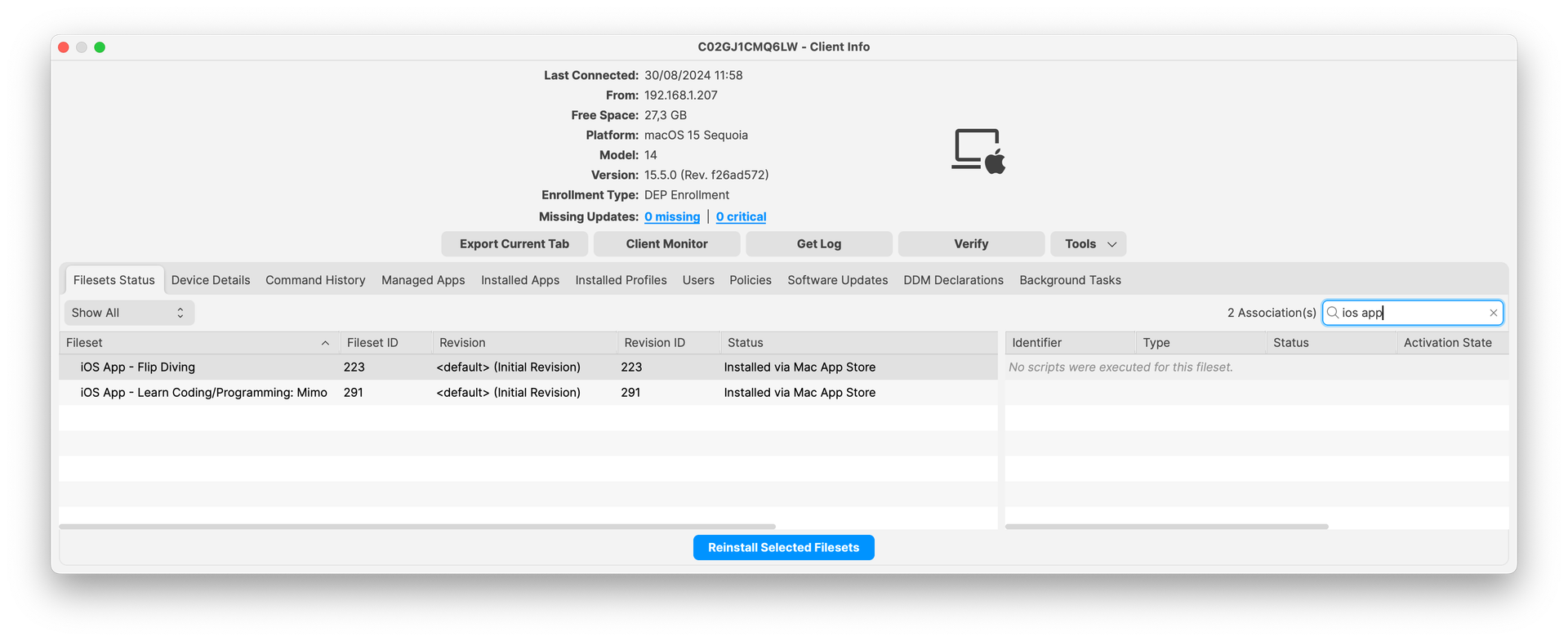
- Track deployment from FileWave: Monitor installation through FileWave instead of treating the Mac install as a separate manual process.
How
Prerequisites
Before deploying iOS applications to macOS devices, ensure the following conditions are met:
- Compatible macOS devices: Devices must be running macOS 11 Big Sur or later on Apple silicon.
- Compatible applications: The iOS/iPadOS app must be available for Mac. If the developer has disabled Mac availability, FileWave cannot force the app to install on macOS.
- Licenses: Sufficient licenses must be available through Apple School Manager (ASM) or Apple Business Manager (ABM).
Monitoring and Troubleshooting
- License availability: Make sure enough licenses are available. If licenses are exhausted, the app will not install on additional devices.
- Deployment status: Use FileWave Central to monitor deployment status and confirm installation.
- Compatibility issues: If the app fails to install, confirm that the app is available for Mac and that the device meets Apple's requirements. If the app installs but will not open, the app vendor may need to update the app for macOS compatibility.
No comments to display
No comments to display