
Firmware Password on Intel-based Macs (Fileset)
Description
This Fileset recipe uses Apple's firmwarepasswd tool to create, change, or delete a firmware password on an Intel-based Mac. It does not apply to a Mac with Apple silicon.
Pilot this recipe on one representative Intel Mac before wider deployment. A wrong or forgotten firmware password can block macOS Recovery and startup from another disk. Store the password securely and confirm your recovery process before deployment; Apple requires in-person service and proof of purchase when a forgotten firmware password cannot be recovered.
Apple silicon
Apple does not use firmware passwords on Apple-silicon Macs. Use FileVault for startup-data protection and FileWave's MDM lock controls where an administrative device lock is required.
Ingredients
- FileWave Central
- An Intel-based Mac running a supported macOS release with
/usr/sbin/firmwarepasswdpresent - Supplied Fileset - Set Firmware Password V1.1.fileset.zip
Review the attached script before deployment.
The supplied Fileset was created for older Intel macOS releases and passes the old and new firmware passwords as script launch arguments. Treat the Fileset and its revision history as credential-bearing content, restrict administrative access, and validate the script on the exact Intel Mac models and macOS versions you manage.
Directions
- Download and extract the Fileset recipe, then import it into FileWave Central.
- Duplicate the Fileset for each action you need and append New, Change, or Delete to the name.
- Set the script Launch Arguments for that action using the table below. Do not reuse a password-bearing Fileset for a different password without checking its revision history and access.
- Review the script's reboot behavior and choose either the script option or the Fileset reboot properties that match your maintenance window.
- Create a Deployment to one test Intel Mac, run Model Update, and complete the verification steps before targeting more devices.
Launch Arguments
To set the Launch Arguments
- Open the Fileset
- Select the script within the Fileset
- Choose Get Info
- Select Executable tab
There are 3 options for this fileset: New, Change or Delete. The Launch Arguments should be set as required based upon these options as seen in the table below:
|
Launch Argument |
New |
Change |
Delete |
|
1 |
new |
change |
delete |
|
2 |
new password |
new password |
old password |
|
3 |
old password |
Verification
- Confirm the Fileset completed successfully on the test Intel Mac and review its script output in FileWave.
- On the test Mac, run
/usr/sbin/firmwarepasswd -checkand confirm the reported state matches the requested action. - If you created or changed the password, restart during an approved maintenance window and verify the intended macOS Recovery or alternate-startup-disk password prompt.
- After successful recovery testing, expand the Deployment in controlled stages.
Examples
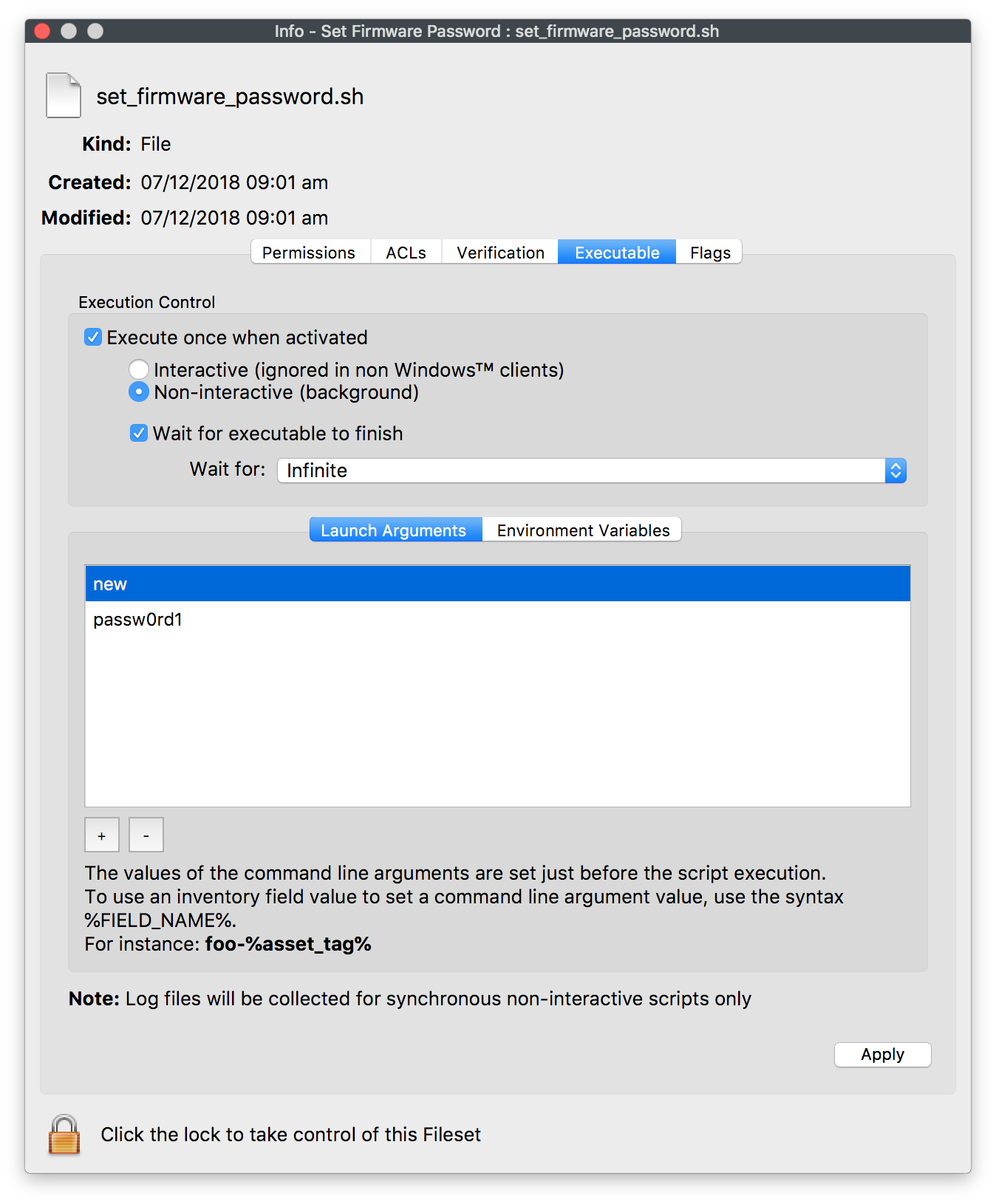
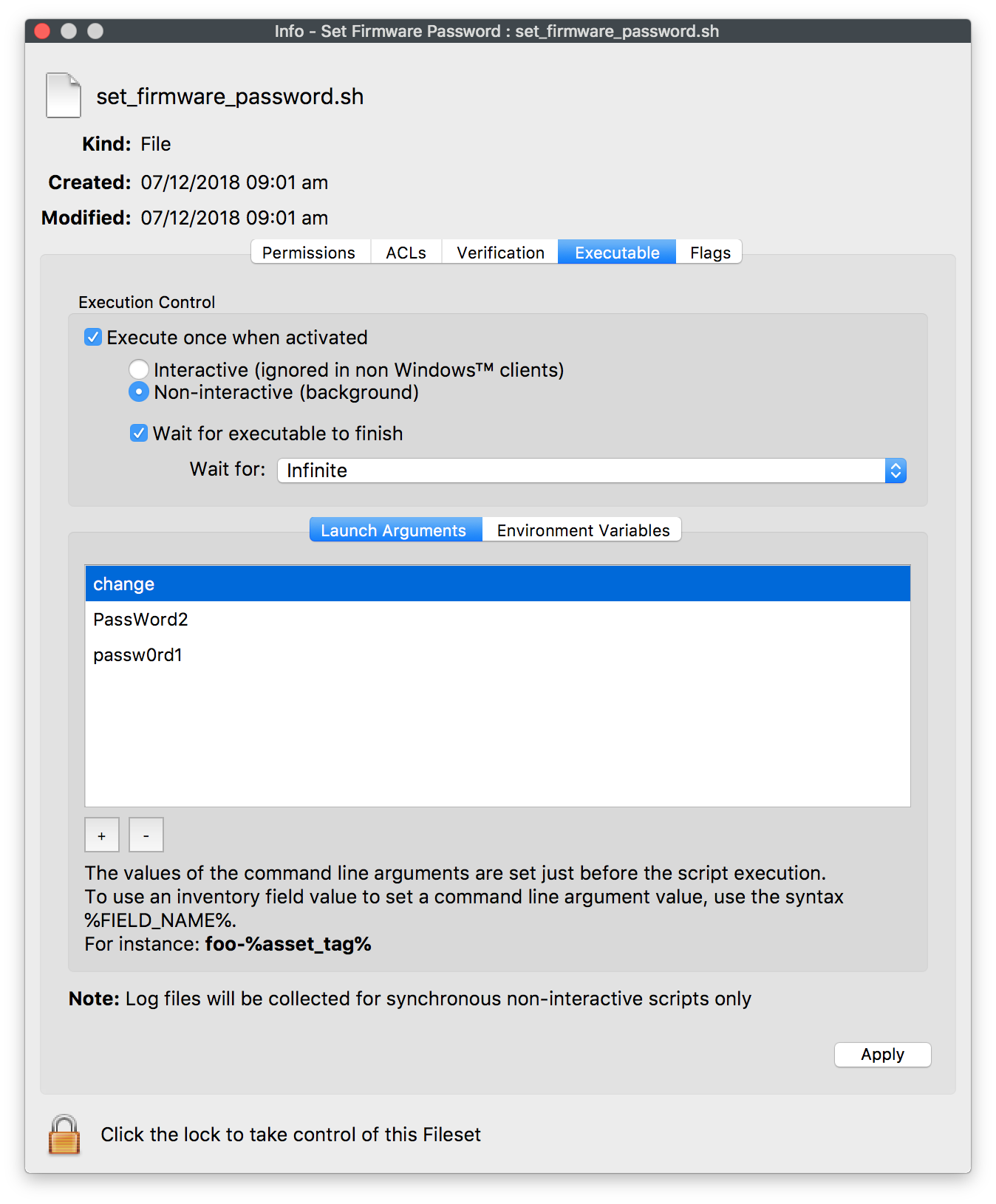
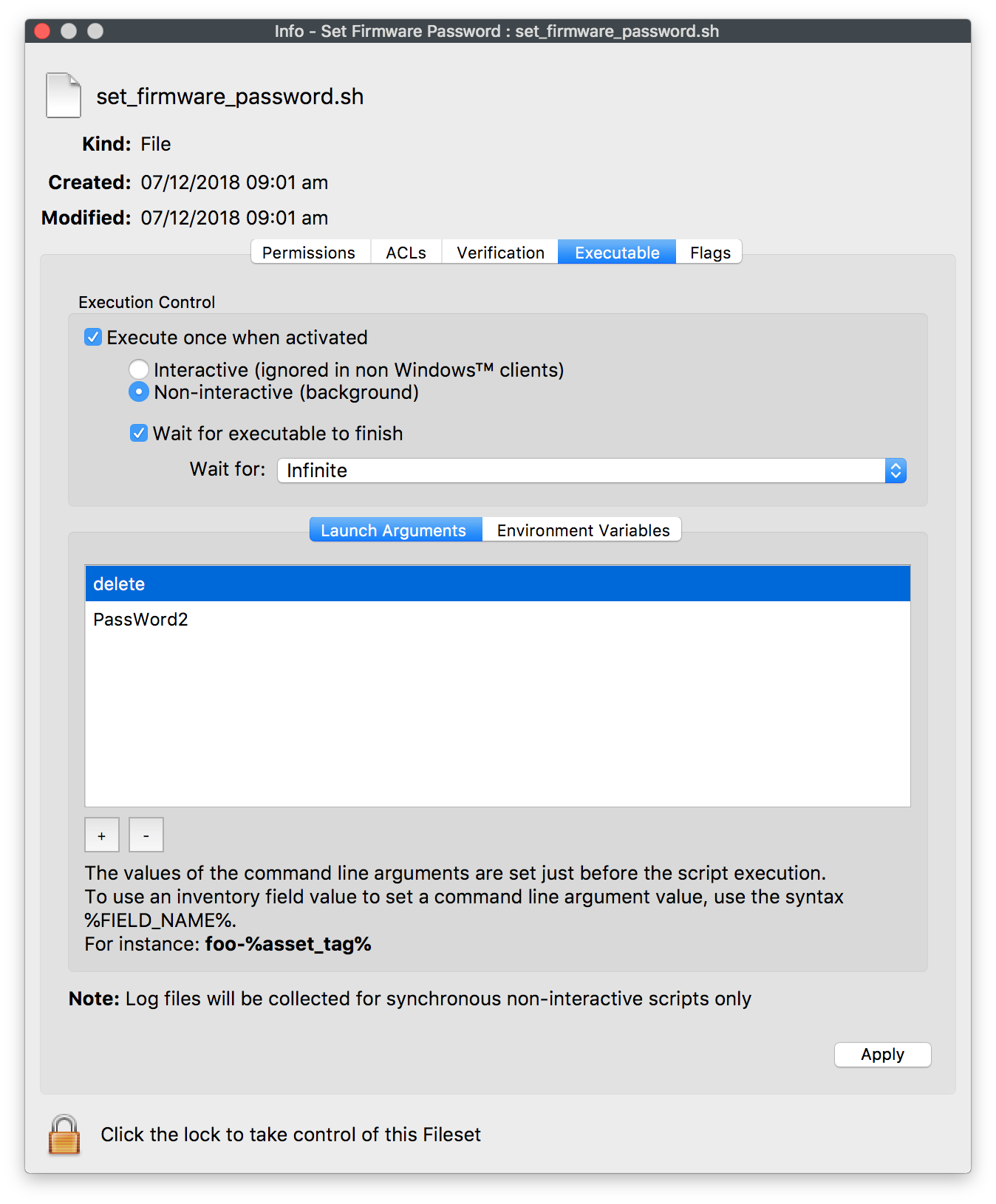
Reboot Options
By default, the script will not reboot once completed. However, a reboot is required after setting. This could be achieved by setting the Fileset Properties. Alternatively, an option is built into the script to allow for this. Please edit the script appropriately:
reboot_flag=false
# Default - do not reboot at script end; consider using Fileset properties for reboot.
# Firmware password change requires reboot.  Tests for alternate boot drive selected
# Alternative options: error, set or ignore
# Use ignore to set default to reboot
# Uncomment command as desired
# error: Script will abort and no firmware password will be set if set boot drive does not match current booted drive
# reboot_device error
# set: Script will set the firmware password without a reboot attempt if set boot drive does not match current booted drive
# reboot_device set
# ignore: Script will continue regardless, setting firmware password and rebooting
# reboot_device ignore
If choosing an option that does not reboot, the device will need a reboot before the firmware password setting is complete.
Options 'error' and 'set' will check to see if currently set boot drive matches currently booted drive. If true, both options will continue to set the firmware password. If false, 'error' will exit an error without any change, whilst 'set' will set the password but will not reboot.
All options: 'set', 'error' and 'ignore', will ensure (on success) that the current set boot drive matches the currently booted drive before rebooting.
Examples:
For the script to reboot, un-hash the following line:
# ignore: Script will continue regardless, setting firmware password and rebooting
reboot_device ignore
To allow the password to be changed, but only reboot if set boot drive matches currently booted drive, un-hash the following line:
# set: Script will set the firmware password without a reboot attempt
reboot_device set
Only un-hash one line from these options.
Firmware Password Unlock Seed
On an Intel-based Mac, the unlock seed is a recovery value generated when the firmware password changes. Apple can use it during an eligible service recovery; it is not a substitute for storing and testing the firmware password. The historical security-guidance page below includes an example Custom Field for reporting this value.
EUD Security Guidance for macOS 10.13 (Historical)
No comments to display
No comments to display