
Geofencing for Android EMM Devices
What
FileWave 14.1 and later supports geofencing for Android EMM devices. Use a FileWave Policy to define a geographic boundary and choose the action taken when an Android device leaves it.
Remember: A FileWave policy is a fileset for specifying things in/for a filewave endpoint.
This is not the same as a configuration profile, or an Android Policy
When/Why
Using a geo-fence can be useful if you want to make the devices unusable by an individual that removes a device from a specific location, or just notify them they have gone too far away from "home".
An example would be a tablet used in a store for customers to browse an online library...if the device leaves the store location, you might like to disable functionality and tell the person to return the device.
The reason that this is a FileWave client policy and not something run on the FileWave server is that the client will know soonest that it is has left the location, and might not have connectivity to send info to the server.
Also think about the type of devices typically managed - these are usually WiFi only devices. If a user was to take a device, and leave an area (and also WiFi range), how would your FileWave server be able to reach that device, tell it it is out-of-bounds, and make action on it? It can't, there is no channel for communication at this point.
So, a client policy is much more effective because the client can take action without needing communication to the FileWave services, or the internet at all.
How
Requirements
Before configuring geofencing, confirm that the Android EMM device is reporting location in FileWave Central or FileWave Anywhere (Individual Device View).
Ensure location services and the required location permissions are enabled on the Android device. See Force Location for EMM Android Devices for Android setup guidance, or Location Tracking for troubleshooting.
Creating the Geofencing Policy
In case you were wondering, the standard for GPS is in meters, so please keep that in mind when specifying this policy.
To set a geo-fence, I first need to know the longitude and latitude of my location, then how far out from that center point I want my boundary.
An easy way to do this is to:
-
Go to a maps site like http://maps.google.com/ and enter the address of the location I want.
-
Right-click in the center and copy the Latitude and Longitude.
-
Then right-click and select "measure distance"
-
Move the first dot to the middle of your location (if needed)
-
Then place a second dot with a standard click at the farthest location of your geofence
-
Take note of the distance in meters
| Figure 1.1 - Obtain coordinate and radius from a map |
Now, we need to specify that data into the FileWave Policy
-
Filesets > New Desktop Fileset > Policy
-
Under General: give it a name (like: "Site A Geofence")
-
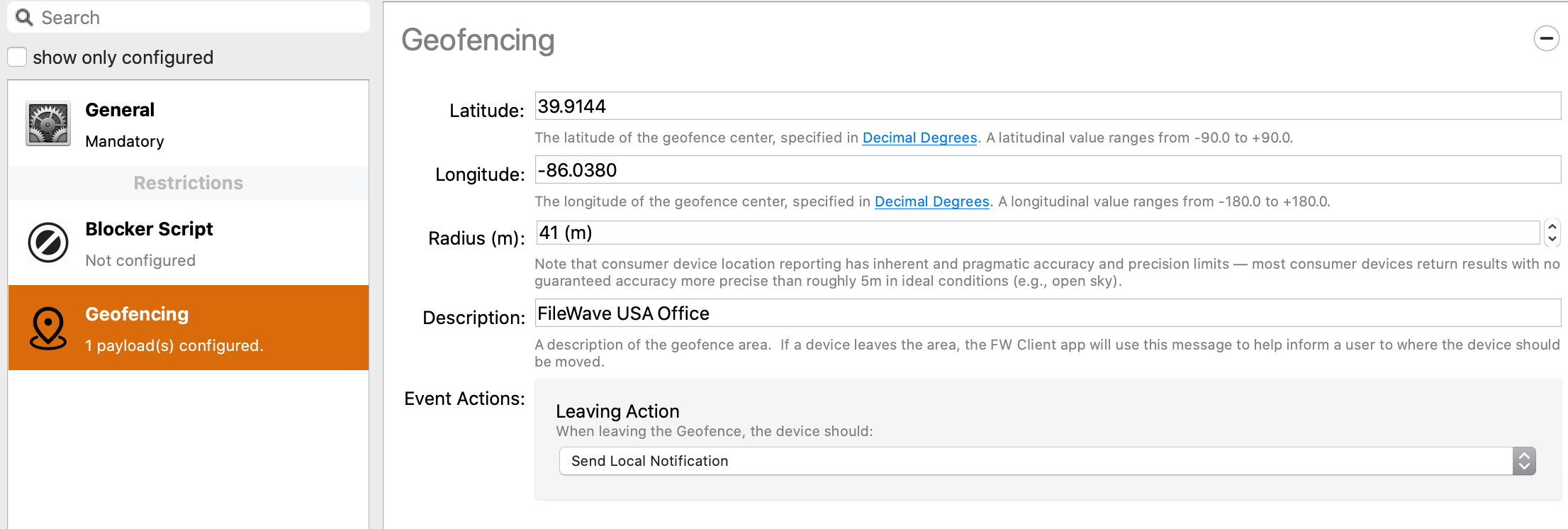
Under the Geofencing payload, enter the latitude, longitude, and radius you obtained from the map
-
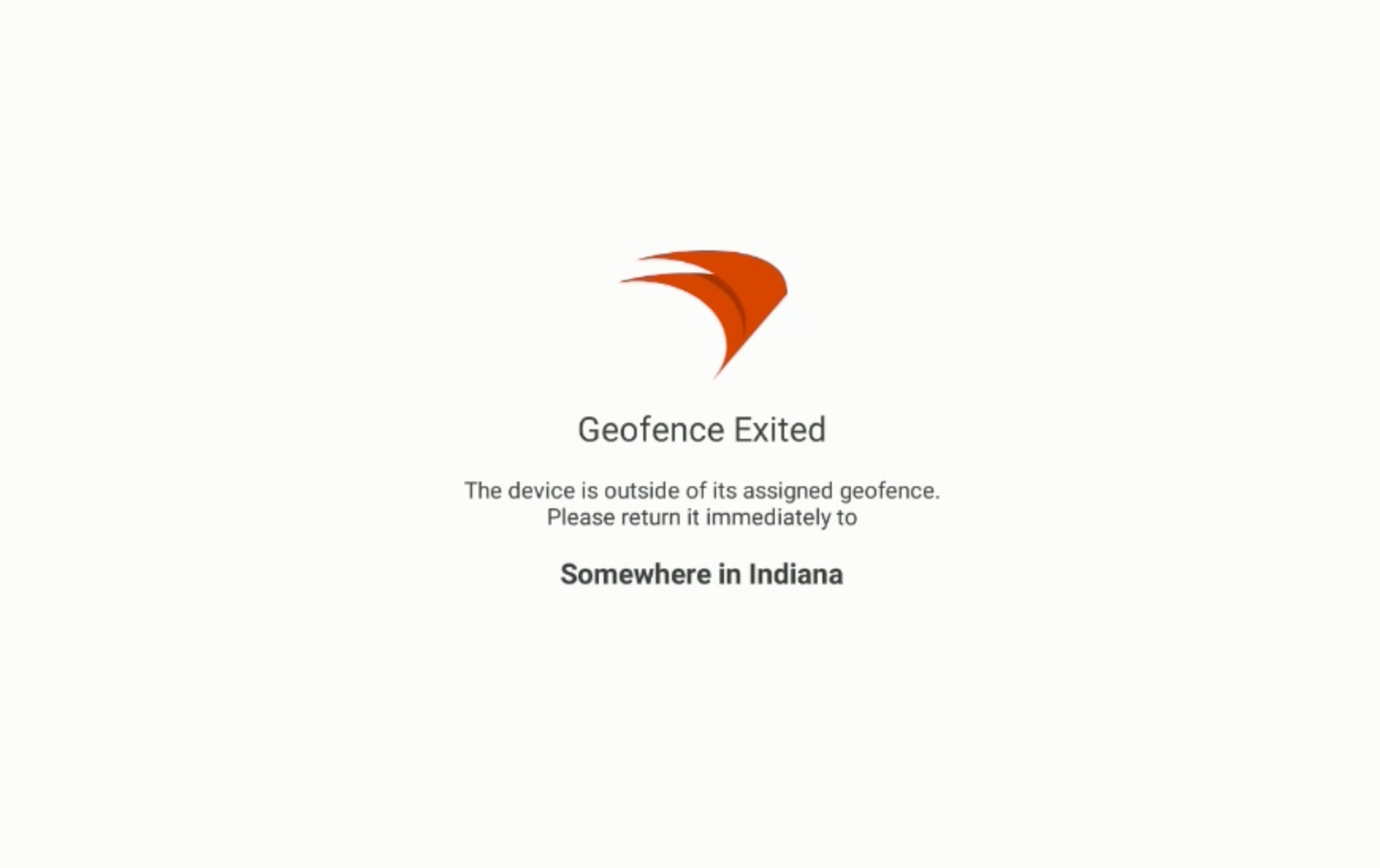
For Description, enter a location. Ideally the location you would want a device returned to, as this description will be used in the message on the device. A bad example would be something too generic like in Figure 1.3
-
Event Action: you can select one of two things
-
Send Location Notification: This is the more subtle approach, a user actively on the device might see this, but continue on their way. If they are unlocking the device they would also see this message, but it could be dismissed
-
Disable All Applications: This is the more stern approach, a user actively on the device would not be able to use it anymore, tapping the notification would tell them why that is happening (Figure 1.3)
-
|
|
| Figure 1.2 - Geofencing Policy |
|
|
| Figure 1.3 - Full screen message after user tapped notification |
Finally, we need to assign policy out
Associate the Fileset with the intended Android EMM devices, either individually or through a group or smart group:
-
a smart group
-
a group
-
a specific device
Then update the model and you are done.
Want more geofencing capabilities or support for additional operating systems? Submit or vote for a feature request on FileWave Innovate to help Development understand your needs.
No comments to display
No comments to display