
FileWave Anywhere Device Detail View
What
The FileWave Anywhere Device Detail view brings one device's inventory, assigned content, command history, users, groups, and available actions together. Its direct URL follows https://my.server.address/devices/<fw_device_id>/info, so authorized administrators can share a link to the same device record.
When/Why
Use this view for device-specific checks and troubleshooting when a fleet-wide Report would add unnecessary work.
How
In FileWave Anywhere, open Devices and select a device name:
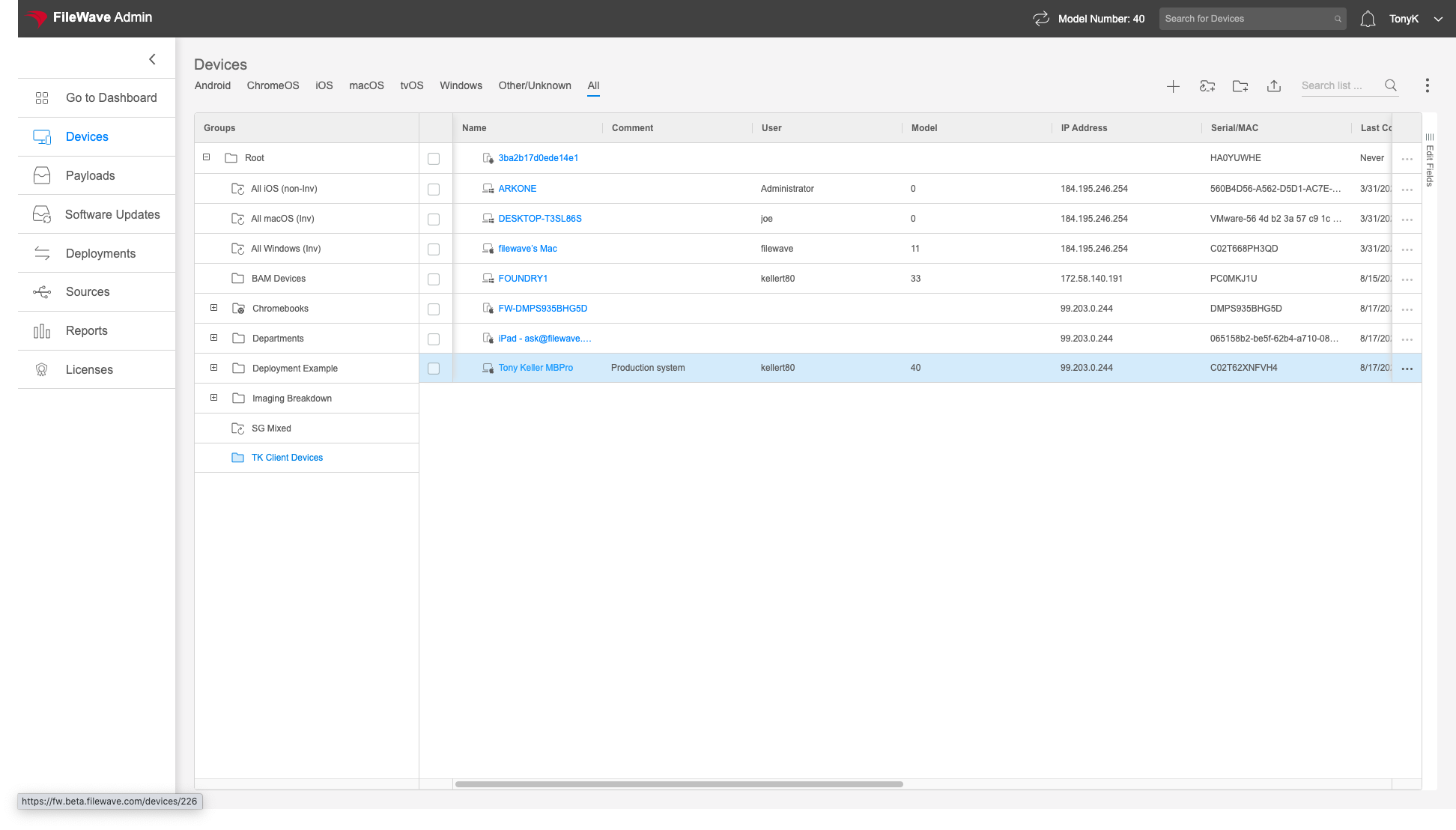
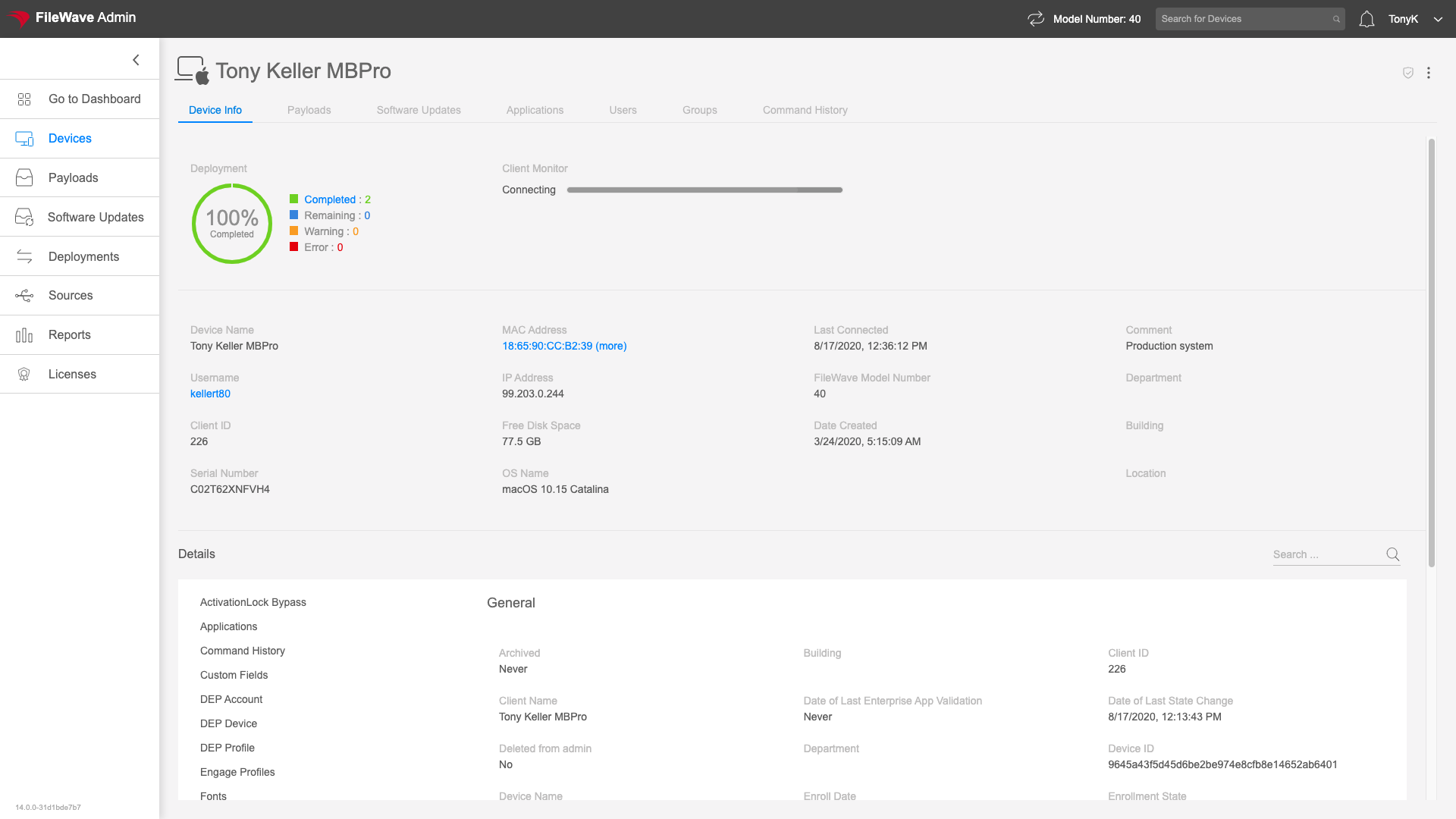
The tabs organize the available device data and actions. The sections below explain what each tab is useful for and when its data may be stale or platform-limited.
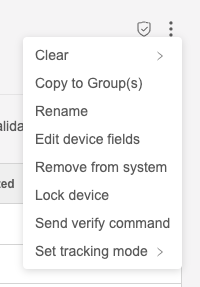
You can send pertinent action commands to a device in the Device Detail view from the vertical ellipsis in the top-right:
Applications
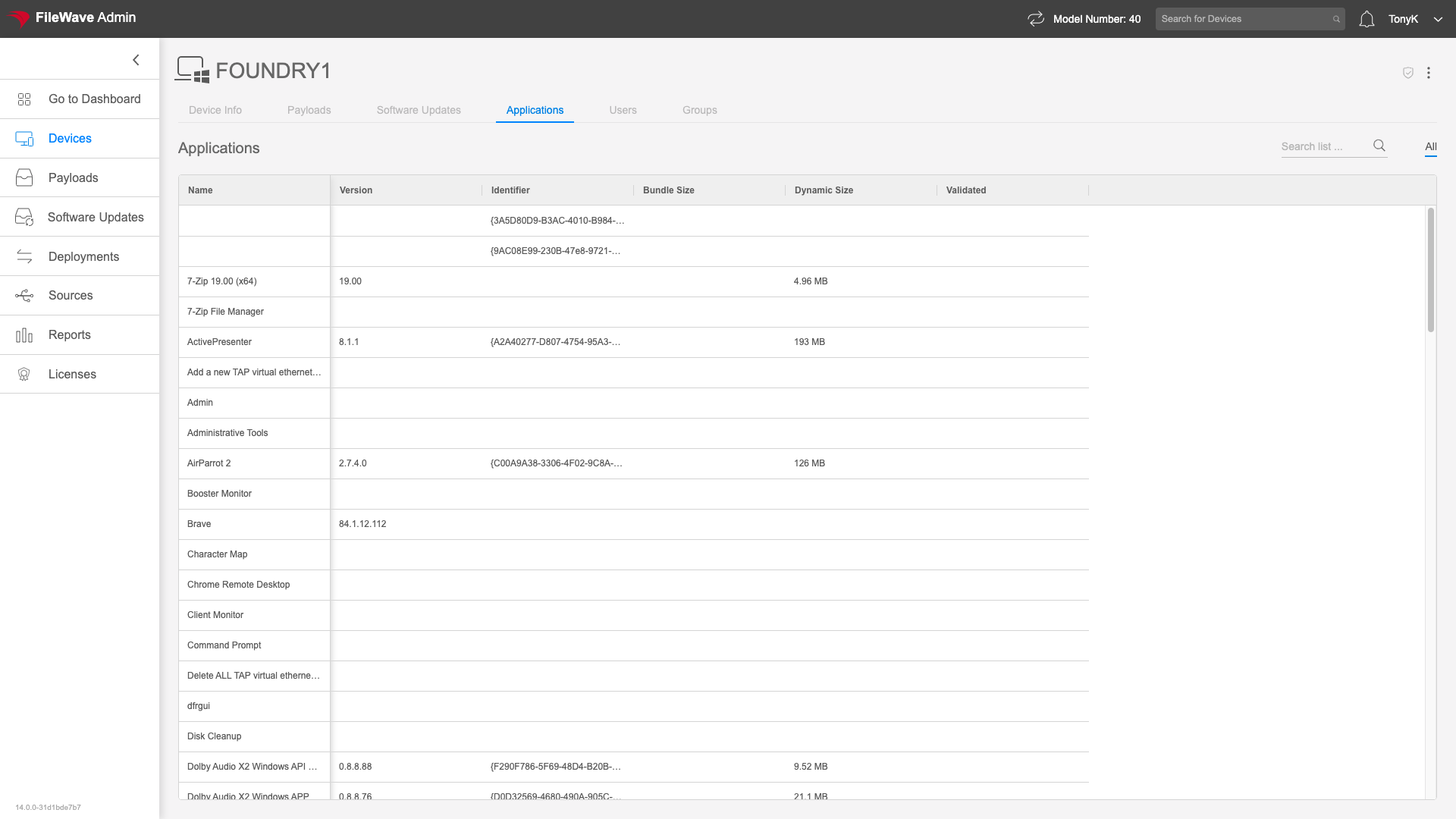
The Applications tab in the Device Detail view gives you a list of applications installed on the particular endpoint. The details provided differ by platform and type of enrollment. The view is directly linkable via https://my.server.address/devices/<fw_device_id>/apps
Use Applications to check whether a product is installed and which version last reported. The data is only as current as the device's latest inventory submission. For example, a device that has been offline in storage for three months can still show the older Chrome version it last reported.
How
We access the Applications tab just by clicking on the tab at the top of the view. This view can be controlled by sorting and pinning columns. The filtering option for this table makes it really easy to isolate records.
Certain enrollment types (like iOS BYOD enrollment) prevent the inventory of applications beyond the applications that are "managed". That is, with those devices, you can only see what has been installed by FileWave.
Command History
The Command History tab is only shown for devices that are Apple MDM enrolled. This tab shows the recent history of MDM commands that have been sent to this device. Command History is reached at https://my.server.address/devices/<fw_device_id>/commands
This view is used very heavily whenever troubleshooting anything related to an Apple MDM device. For instance, if a device seems to not be getting a profile installed correctly, one might go to the Command History view to see the status of the latest Install Profile command.
How
Simply click on the Command History tab to see the latest info:
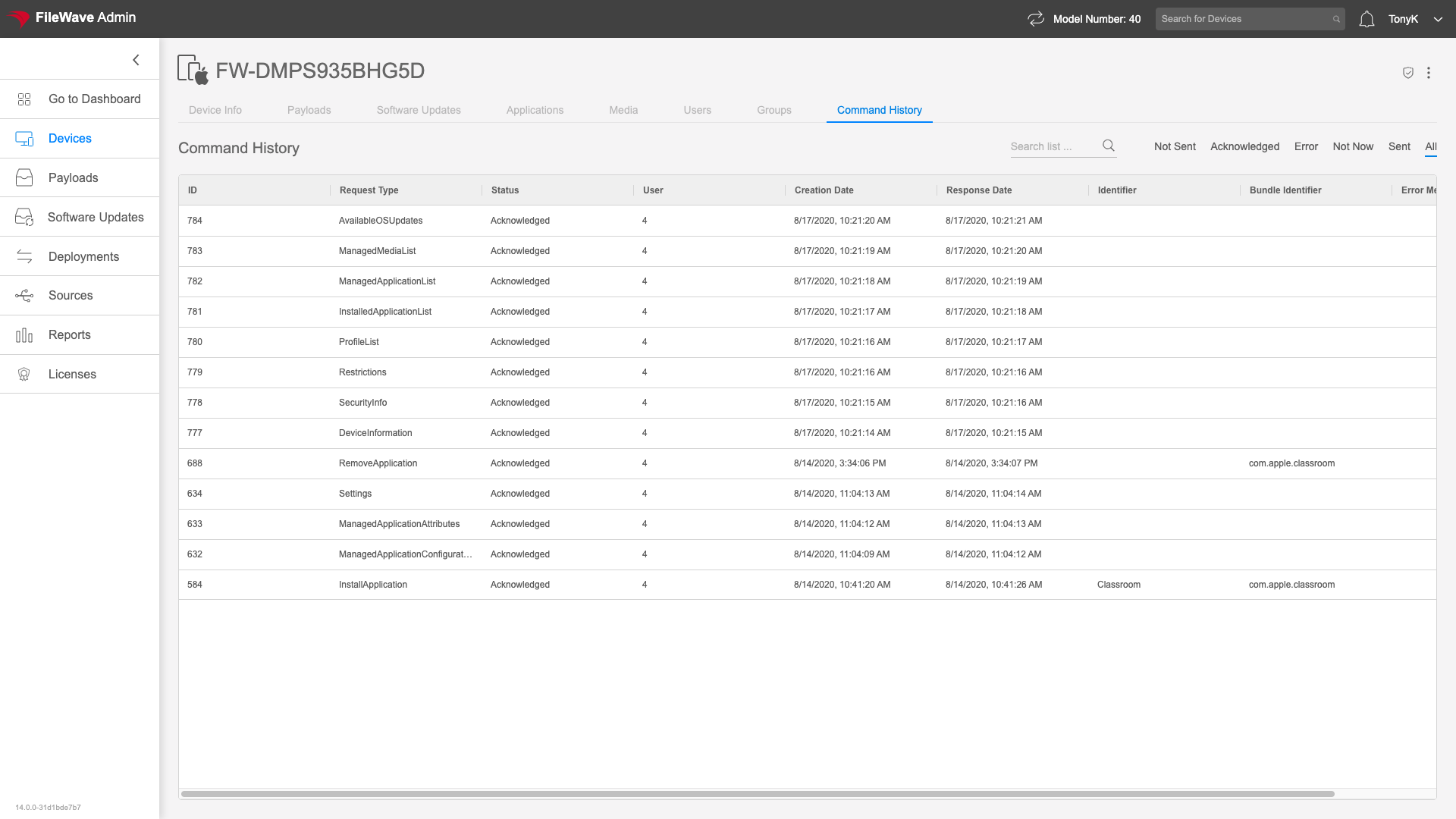
Note that the default view is ordered showing most recent commands at the top. We hope to see "Acknowledged" as the state for any good command, but sometimes you might see errors as well, and this view gives good detail on what the issue may be as you can see below:
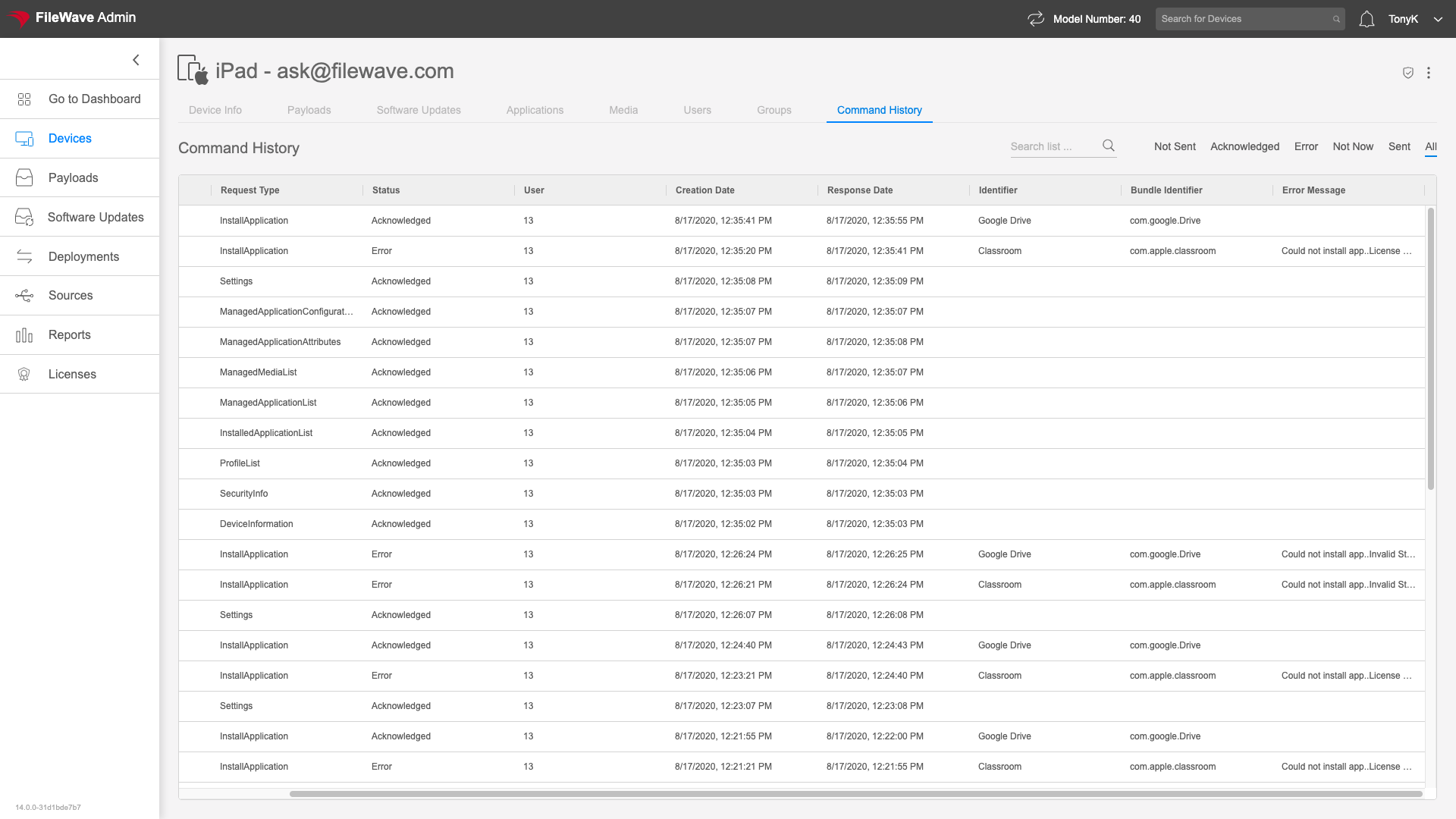
Use the command-state filter in the top-right of Command History to isolate queued, completed, or failed commands.

Device Info
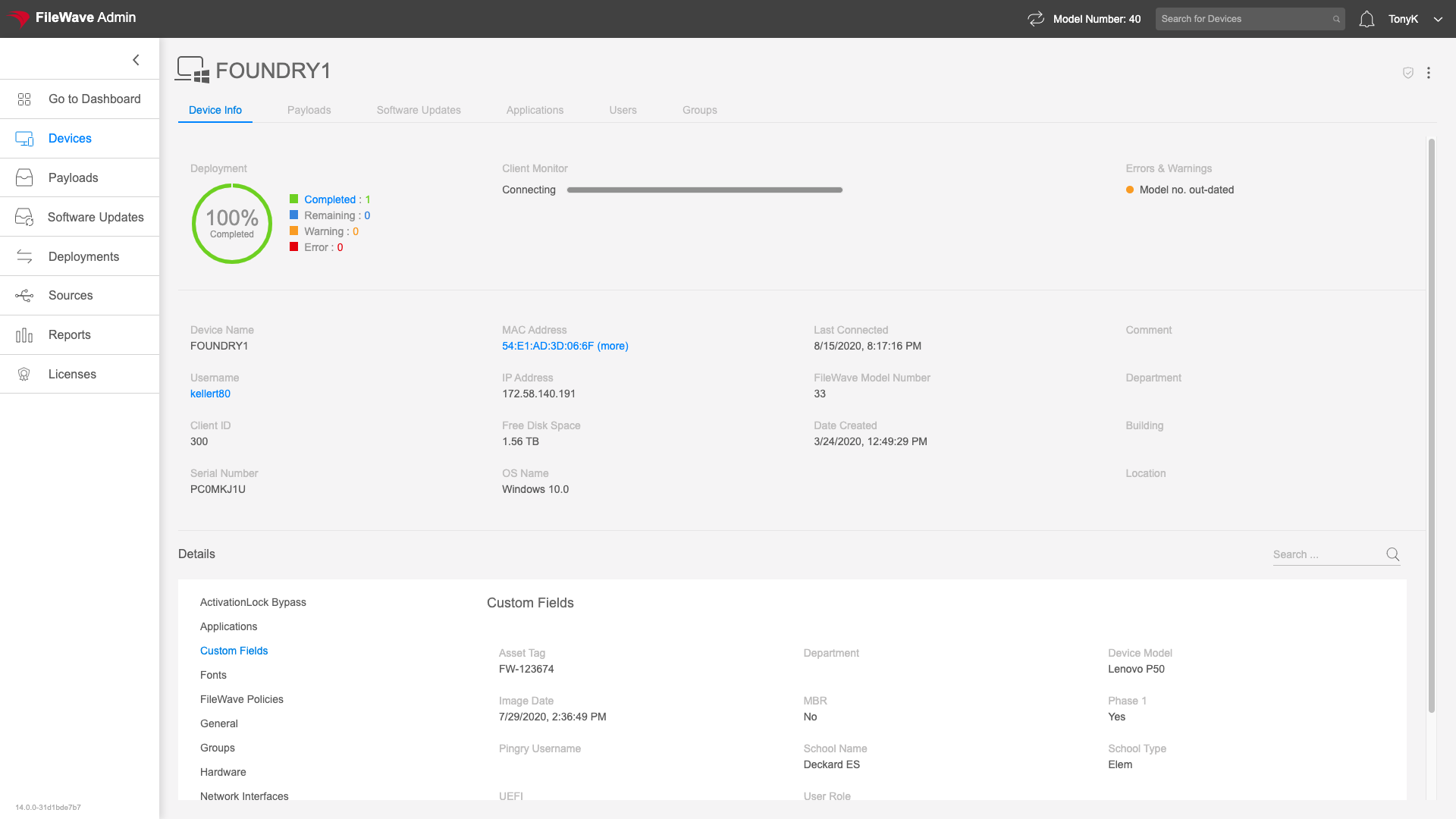
The Device Info tab summarizes the device's deployment status and reported inventory, including memory and network-adapter details. Its direct URL is https://my.server.address/devices/<fw_device_id>/info.
We'll use this view whenever we want to see device specific information. We could create a report to do the same thing of course, but this view is much simpler and quicker.
How
The Device Info tab is the default tab when you click on a particular device in the Devices view. You'll see some of the most used summary information at the top of the view:
With detailed tables below broken out into data categories. Here we are looking at network details for a Windows device:
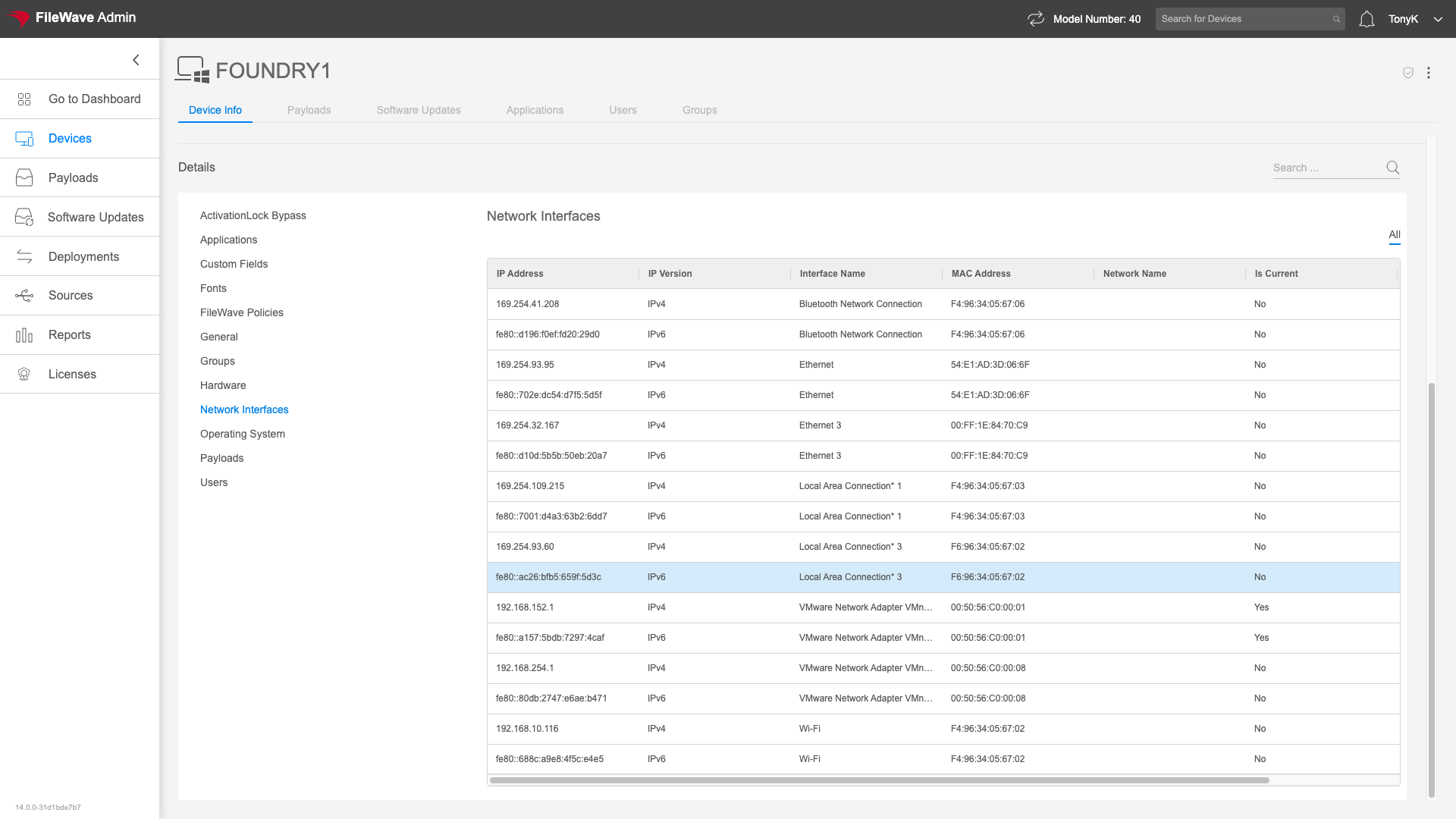
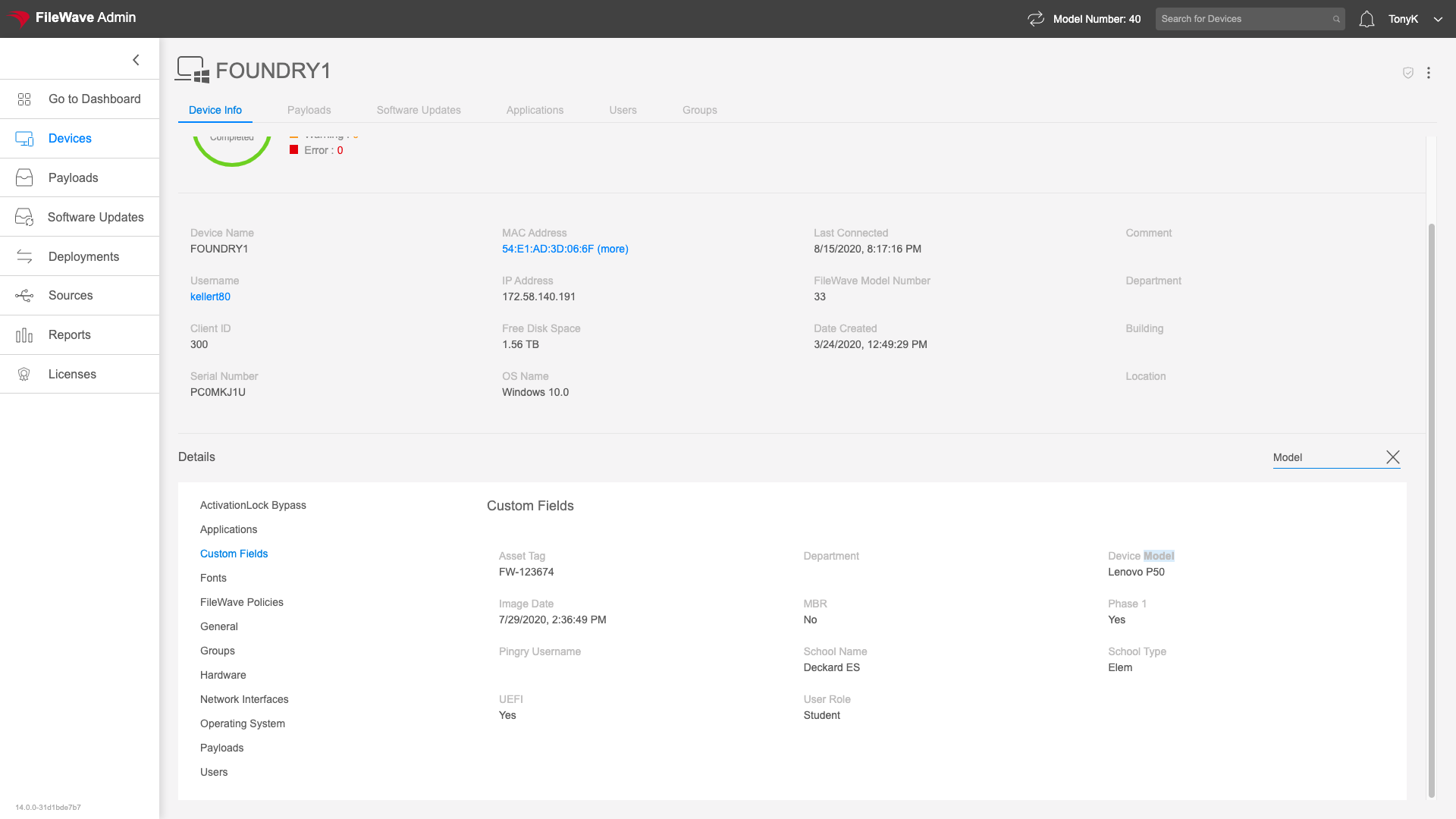
The sub-tables in this view do have their own filter. Filtering for search terms will highlight the content in the view:
Groups
The Groups tab of the Device Details view gives information about in which FileWave Groups a device is located. This view is addressable at: https://my.server.address/devices/<fw_device_id>/groups
Use Groups to investigate unexpected membership. A device may appear in the wrong group because a Custom Field value is incorrect or Smart Group criteria match more devices than intended.
How
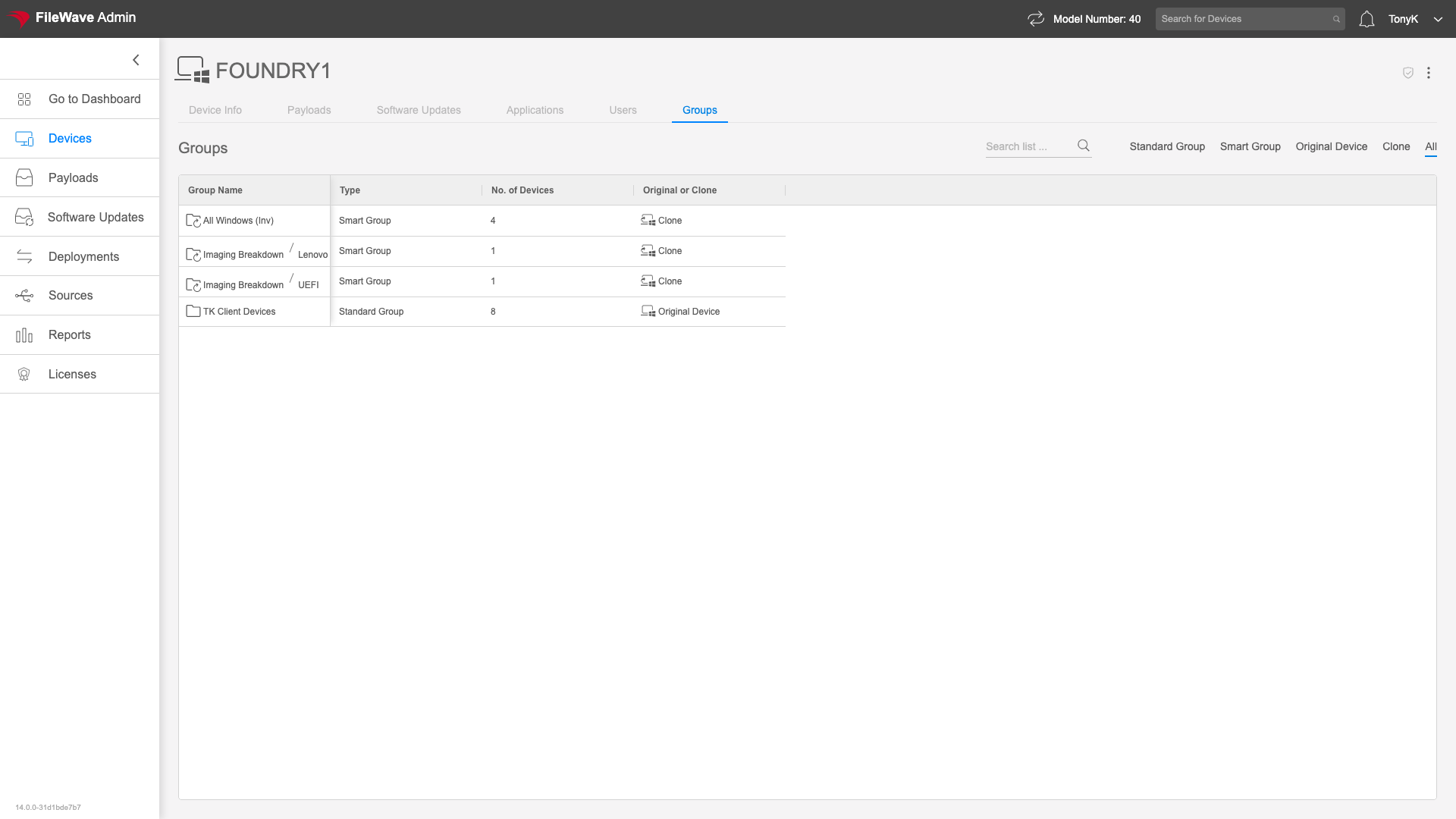
Just click on the Groups tab to see what FileWave groups the device is in as we have done on the Windows device below:
Location
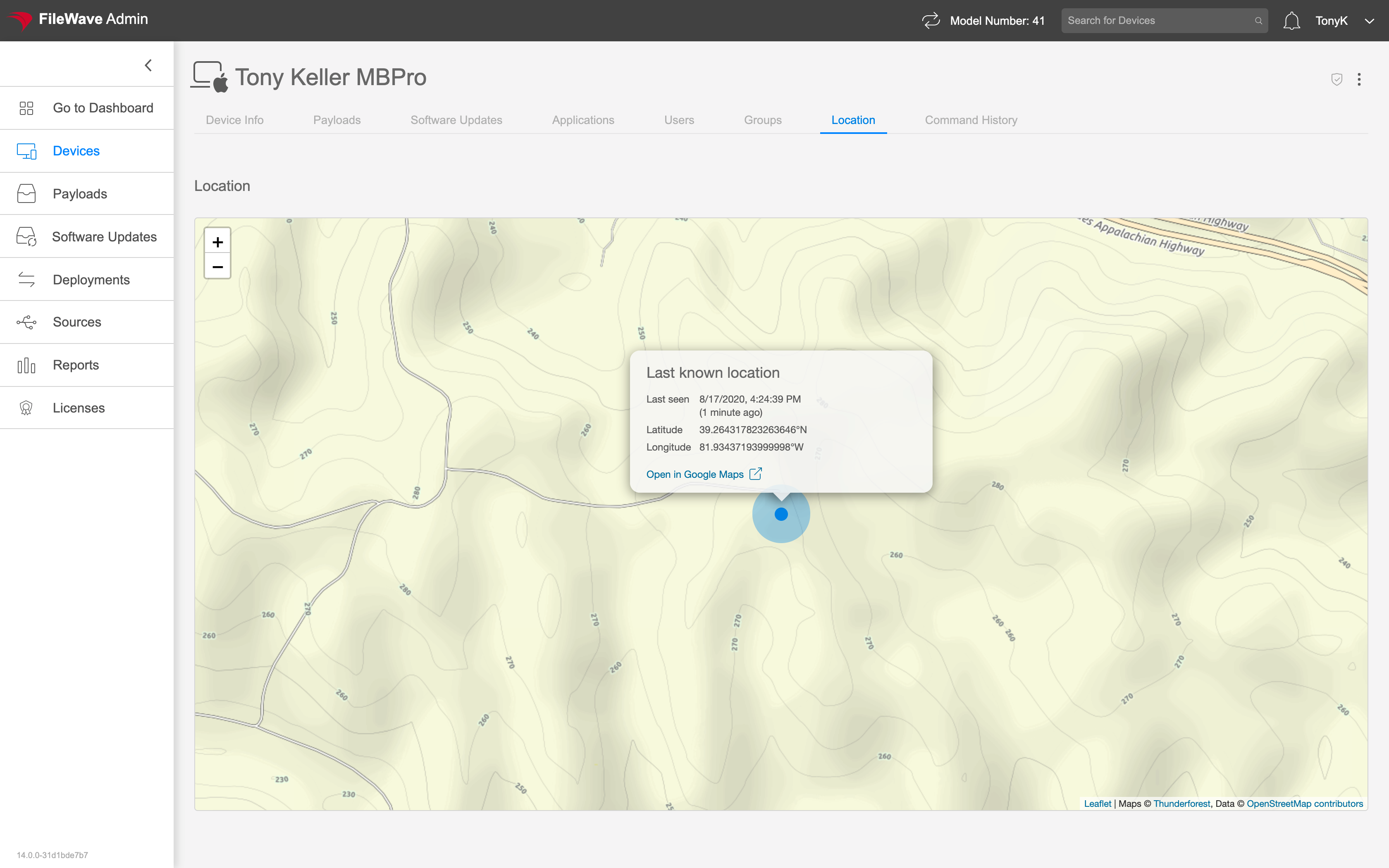
The Location tab of the Device Detail view gives information about the reported last location of a device. This tab is only shown if location data has been submitted for the particular device. The url for this tab is: https://my.server.address/devices/<fw_device_id>/location
Seeing this data is very helpful for either a lost or stolen device.
How
Simply click on the Location tab to see the map (if available):
Media
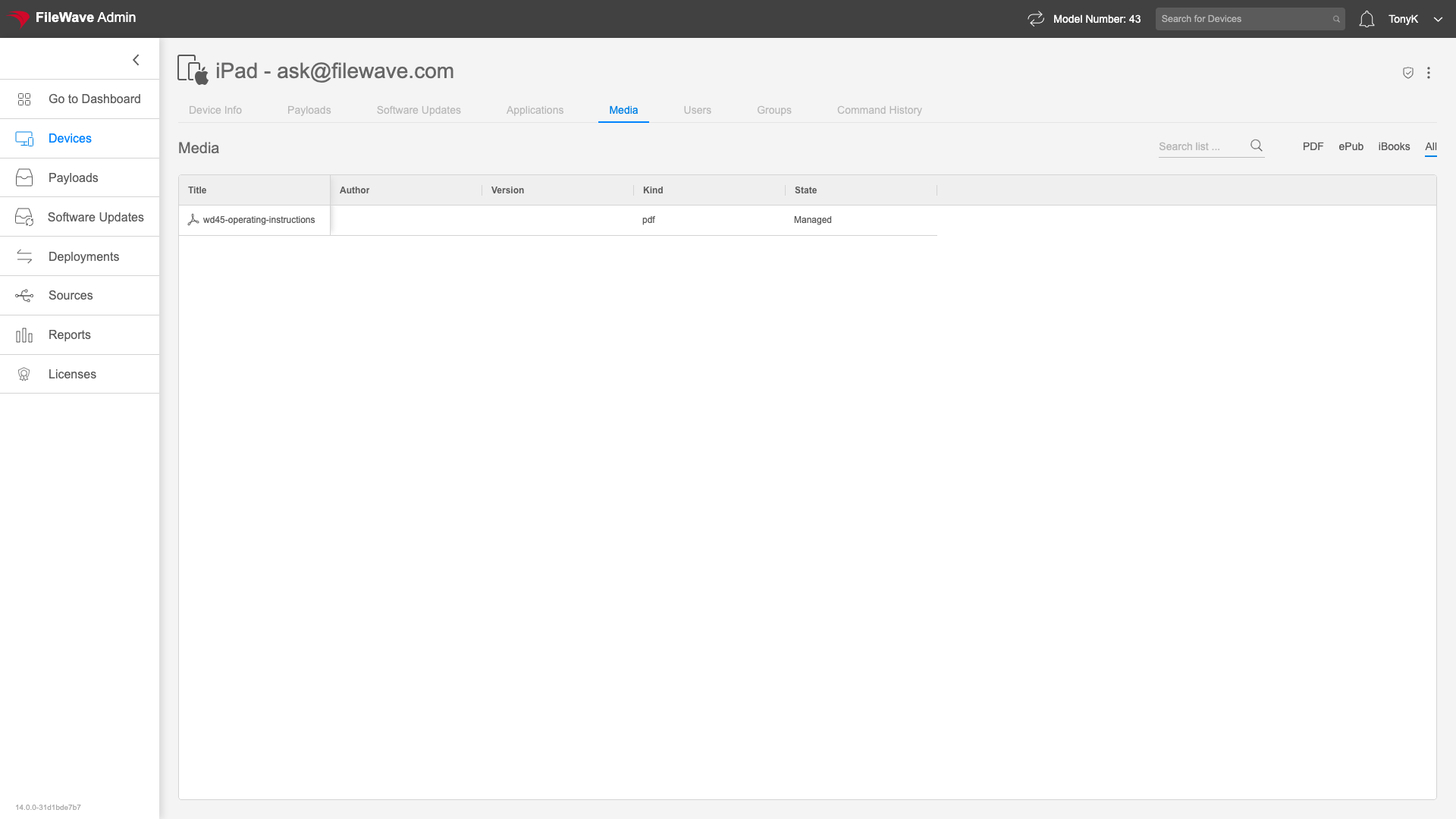
The Media tab shows documents managed on an iOS or iPadOS device through FileWave. It appears only for supported Apple mobile-device records.
PDFs are the most common type of media delivered to endpoints, and the PDFs (once installed) will show in the Books app. You can get to the Media tab at the following url: https://my.server.address/devices/<fw_device_id>/media
How
Just click on the Media tab to access the data reported from the endpoint. As with all inventory, the data shown is accurate as of the last data submission from the device.
Payloads
The Payloads tab shows the content assigned to the selected endpoint and its current delivery state. Its direct URL is https://my.server.address/devices/<fw_device_id>/payloads.
We will typically use the payloads tab to get summary information on payloads sent to (or pending) to an endpoint. This information can tell us where we have potential issues with deployments. It also can be very useful simply to backtrack how something is associated...that is, how that particular payload is assigned to this device.
How
Note that the Associations column shows how the individual payload is assigned. In this case, three individual associations and one association to a smart group:
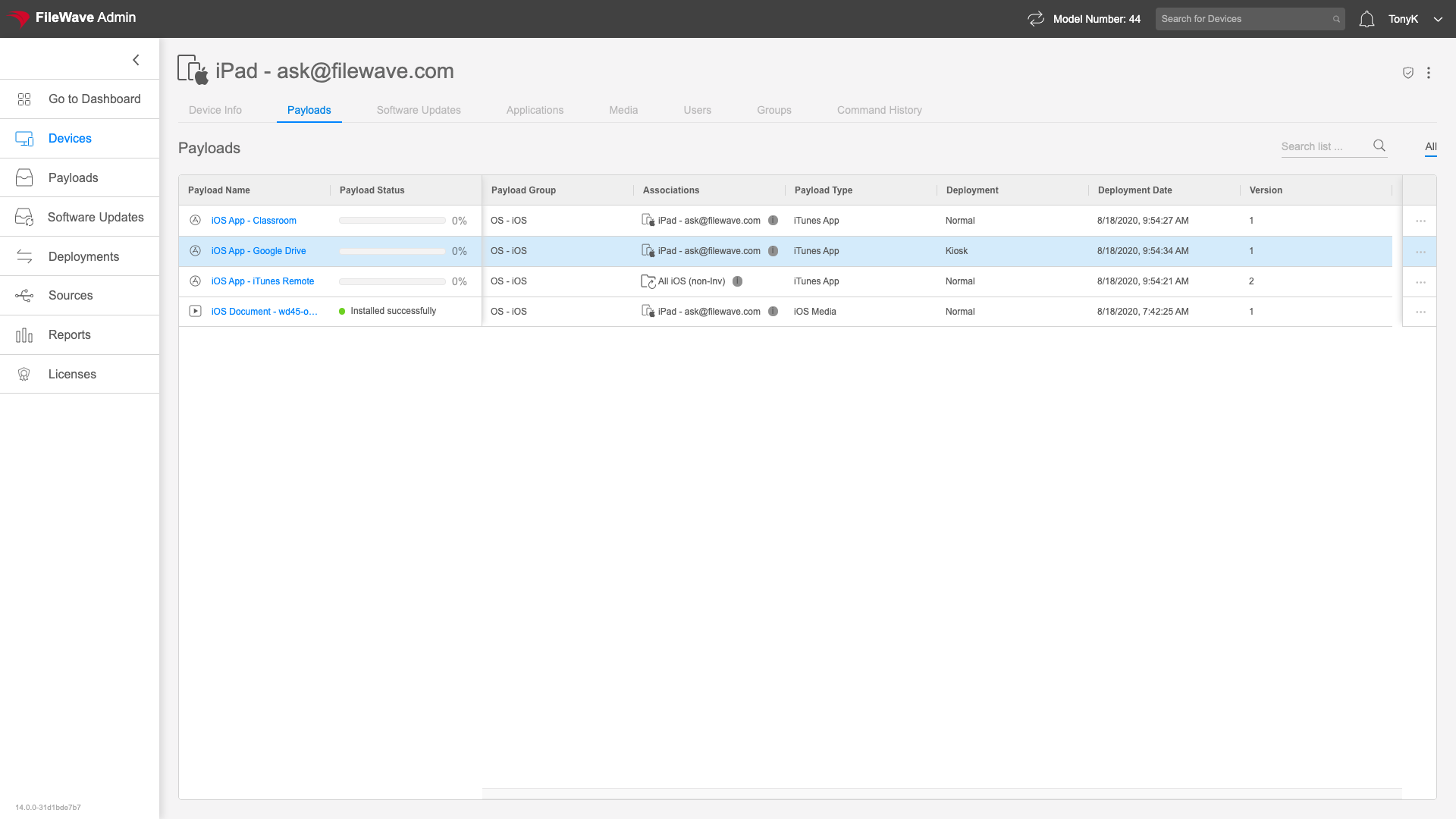
From the ellipsis to the right of any payload, you can choose to Reinstall if you have an error as you see below:

Software Updates
The Software Update tab shows all pertinent software updates for the particular device. The URL for this tab is: https://my.server.address/devices/<fw_device_id>/updates
Using this tab is an excellent way to see any missing patches for a particular device, which gives us a sense of the device's relative health.
How
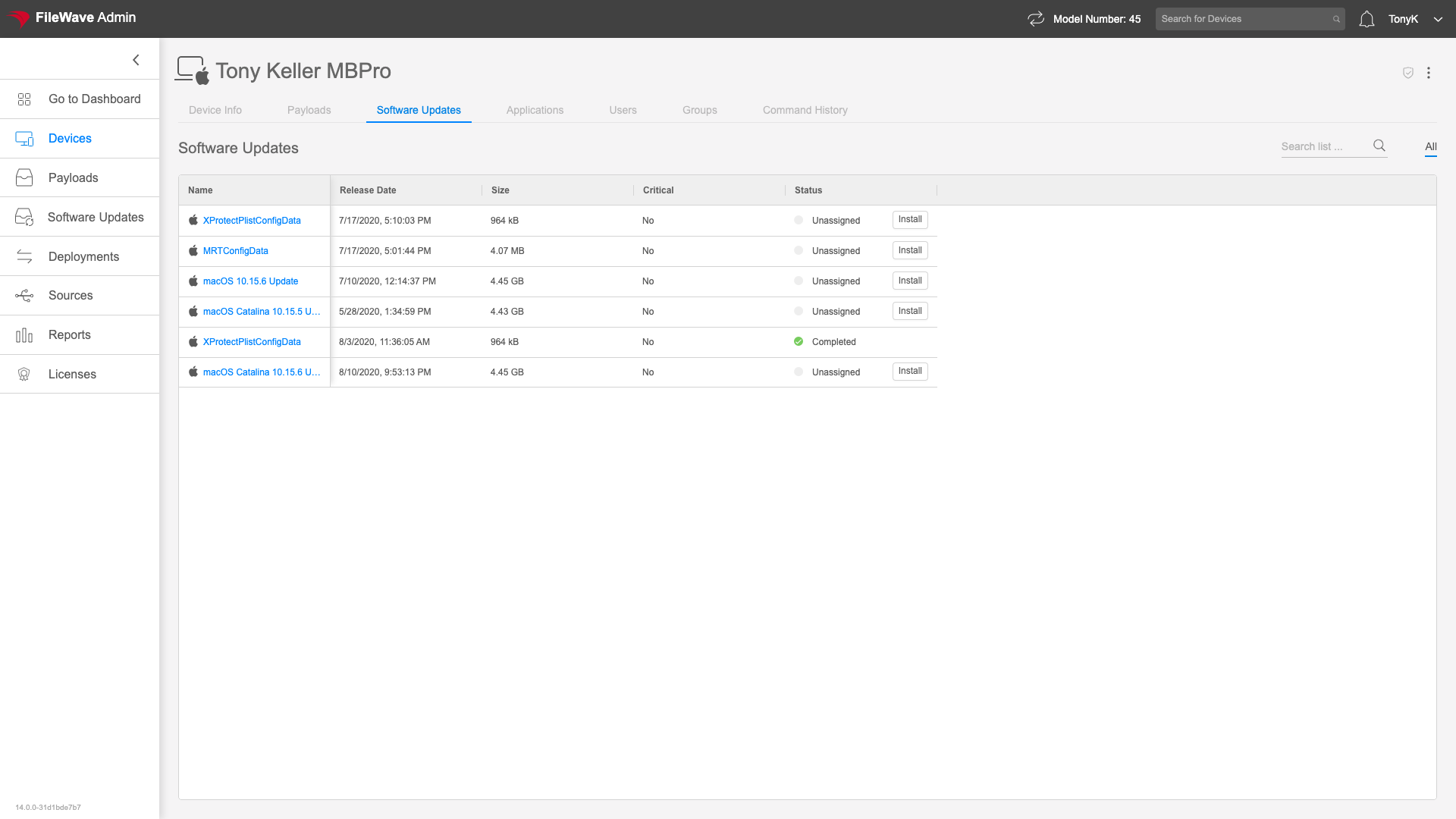
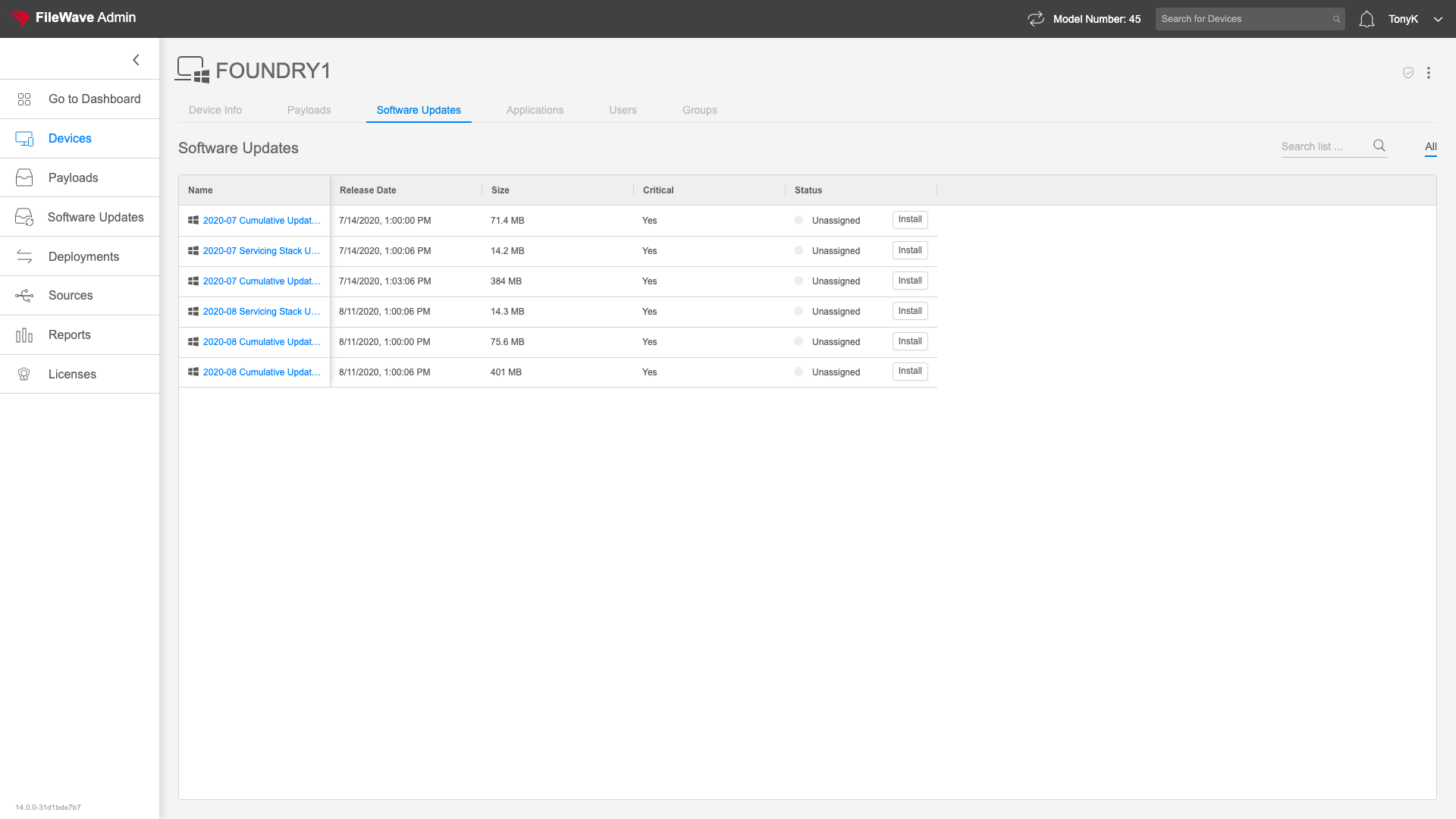
Note that the updates that are shown will be any updates not yet applied, as well as updates deployed through FileWave that still have an association remaining. Examples shown below for macOS, Windows, and iPadOS respectively.
 .
.  .
. 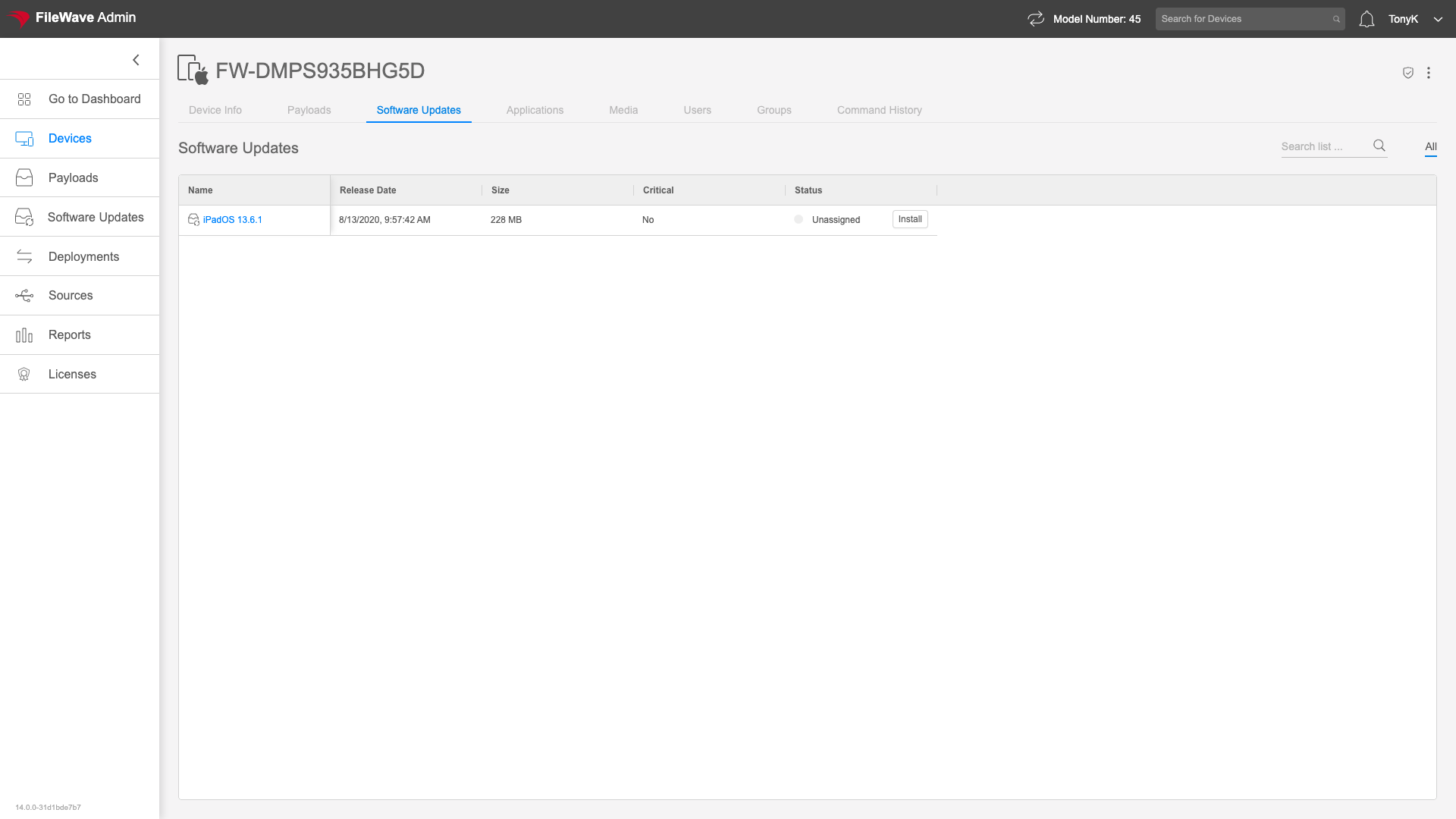
Clicking on the "Install" button to the right of any update will associate that update to this particular device. A subsequent model update will make that change effective. While that association exists, you'll see a status for the particular update.
Users
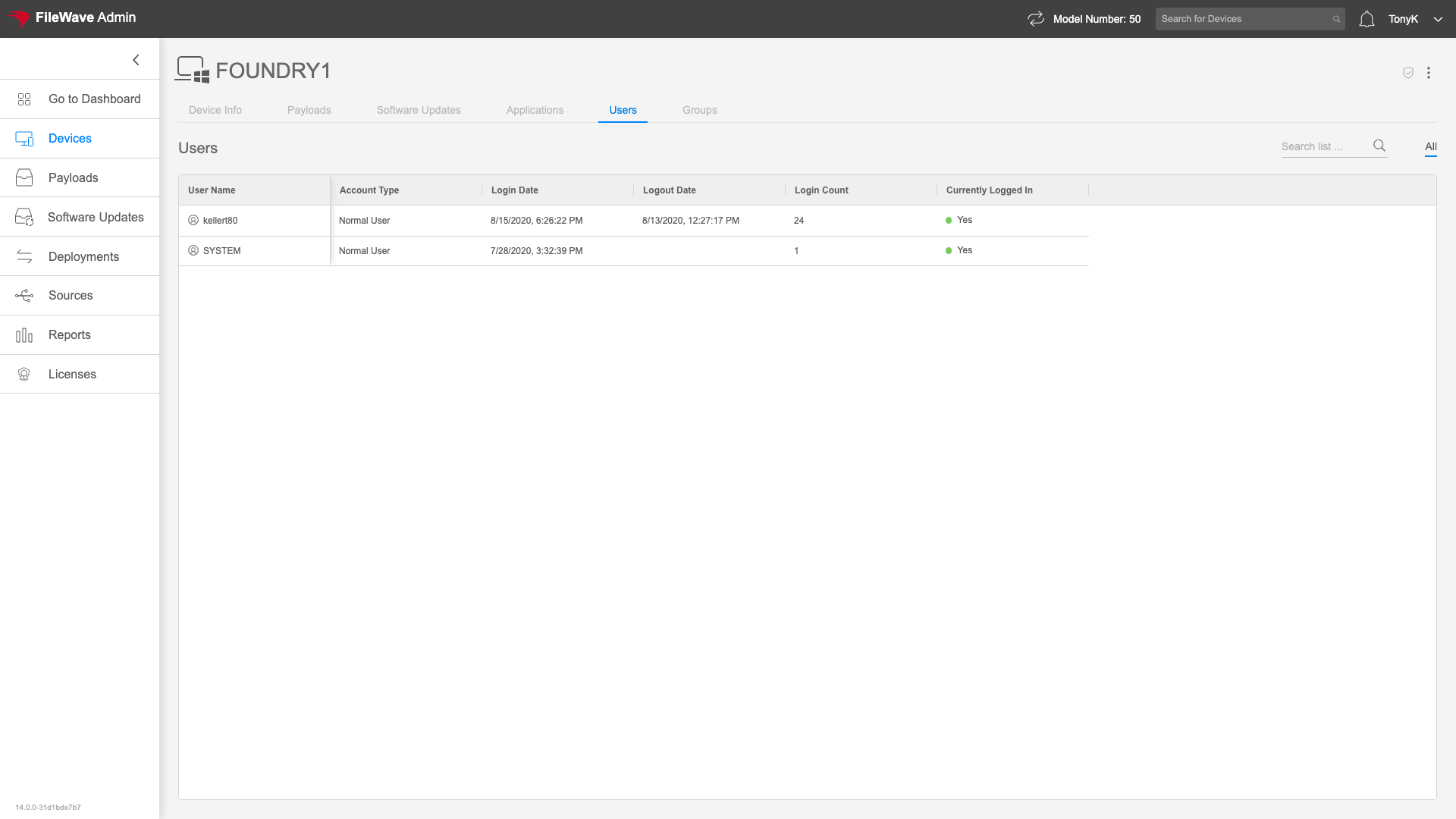
The Users tab in Device Details gives information about users who have logged into the endpoint. You can reach this tab at: https://my.server.address/devices/<fw_device_id>/users
Normally, we are going to use the users tab to get information about who has logged onto a device. Login count gives a pretty good indication of whom the primary user is (assuming of course that folks do logout/login occasionally).
How
Note that data will only show where it makes sense for the OS flavor. Below is an example of a simple Windows device:
No comments to display
No comments to display