
Block the Apple TV App on Supervised iPhone and iPad Devices
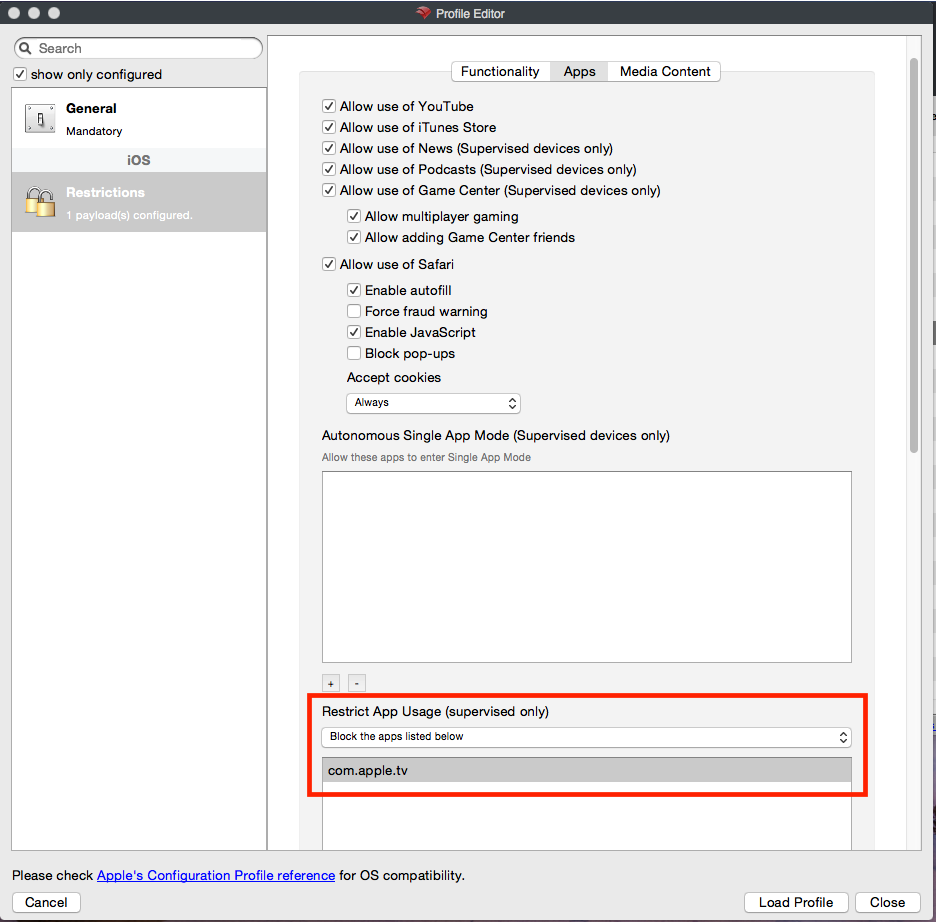
Use an iOS/iPadOS Restrictions profile to hide the Apple TV app on supervised iPhone and iPad devices. The profile blocks the app by its bundle identifier, com.apple.tv.
Create the Restrictions profile
- Once in the Filesets view, select New Mobile Fileset at the top and then select the Profile option.
- Name the profile in the General payload. Other settings in this area are optional.
- Find the Restrictions payload in the left pane for iOS.
Tip: Use the search feature at the top of the window to filter your payloads. - Once you have found and selected your Restrictions payload for iOS, click the Configure button on the right pane to enable the payload for this profile.
- In the profile you will see three tabs across the top. Select the middle Apps tab.
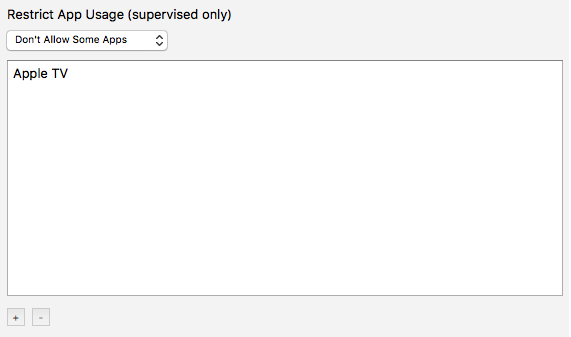
- Scroll down to the section Restrict App Usage (supervised only) and from the drop down menu select "Don't Allow Some Apps".
- To create a new object, click the plus sign at the bottom left of the current pane that says:

- After you have double-clicked the new object, type in the following and then press enter/return to save the entry:
com.apple.tv
Create a test Deployment for a small group of supervised devices. Confirm that Apple TV is unavailable before expanding the Deployment.
No comments to display
No comments to display