
Force Enable Notifications on iOS and macOS for FileWave Kiosk
What
Deploy an Apple Notifications profile when FileWave Kiosk and End User Notifications must remain enabled on managed macOS, iOS, and iPadOS devices. The profile controls the permitted notification presentation for each Kiosk bundle identifier and prevents users from changing those managed settings. It does not prove that a message was delivered, read, or acknowledged.
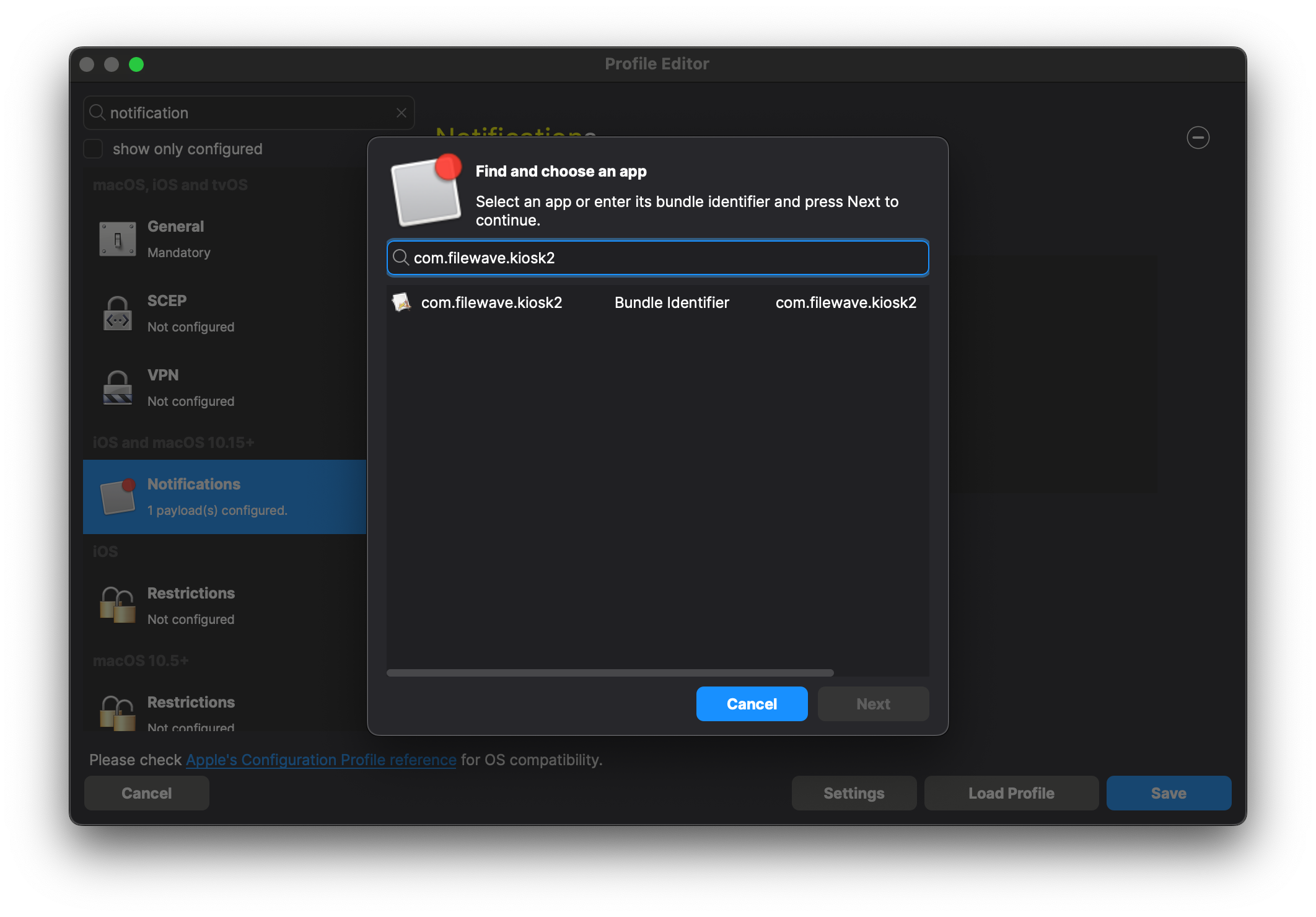
Bundle identifier note: the macOS Kiosk app remains com.filewave.kiosk2. For iOS/iPadOS, use com.filewave.ios.app.kiosk2 on FileWave 15.3.0 through 16.2.x, and use com.filewave.ios.app.kiosk3 on FileWave 16.3.0 and later.
When/Why
When to Use
- Important communications: Keep Kiosk notifications enabled for maintenance notices, security guidance, or required user actions.
- Policy consistency: Apply the same notification settings across supervised or otherwise eligible managed Apple devices.
- Standardizing User Experience: To provide a consistent notification experience across all macOS devices in your organization.
Why Use This Feature
- Reduce disabled-notification risk: Keep users from turning off the notification settings managed by the profile.
- Prevent User Modification: Users will not have the ability to disable or modify notification settings for the FileWave Kiosk app, maintaining administrative control.
- Support communication policy: Standardize how Kiosk alerts appear, without treating the profile as proof that a user acknowledged a message.
- Enhance Support Efficiency: Reduces support tickets related to users not receiving critical notifications.
How
Use the downloadable Profile - Apple FWKiosk Notifications.fileset.zip or create the profile with the steps below. The current download contains com.filewave.kiosk2 for macOS and com.filewave.ios.app.kiosk3 for iOS/iPadOS. If your iOS/iPadOS devices run FileWave 15.3.0 through 16.2.x, change that entry to com.filewave.ios.app.kiosk2 before deployment.
In FileWave Central or Anywhere you can create the profile. The images that follow are from Central, but the process is the same in Anywhere.
-
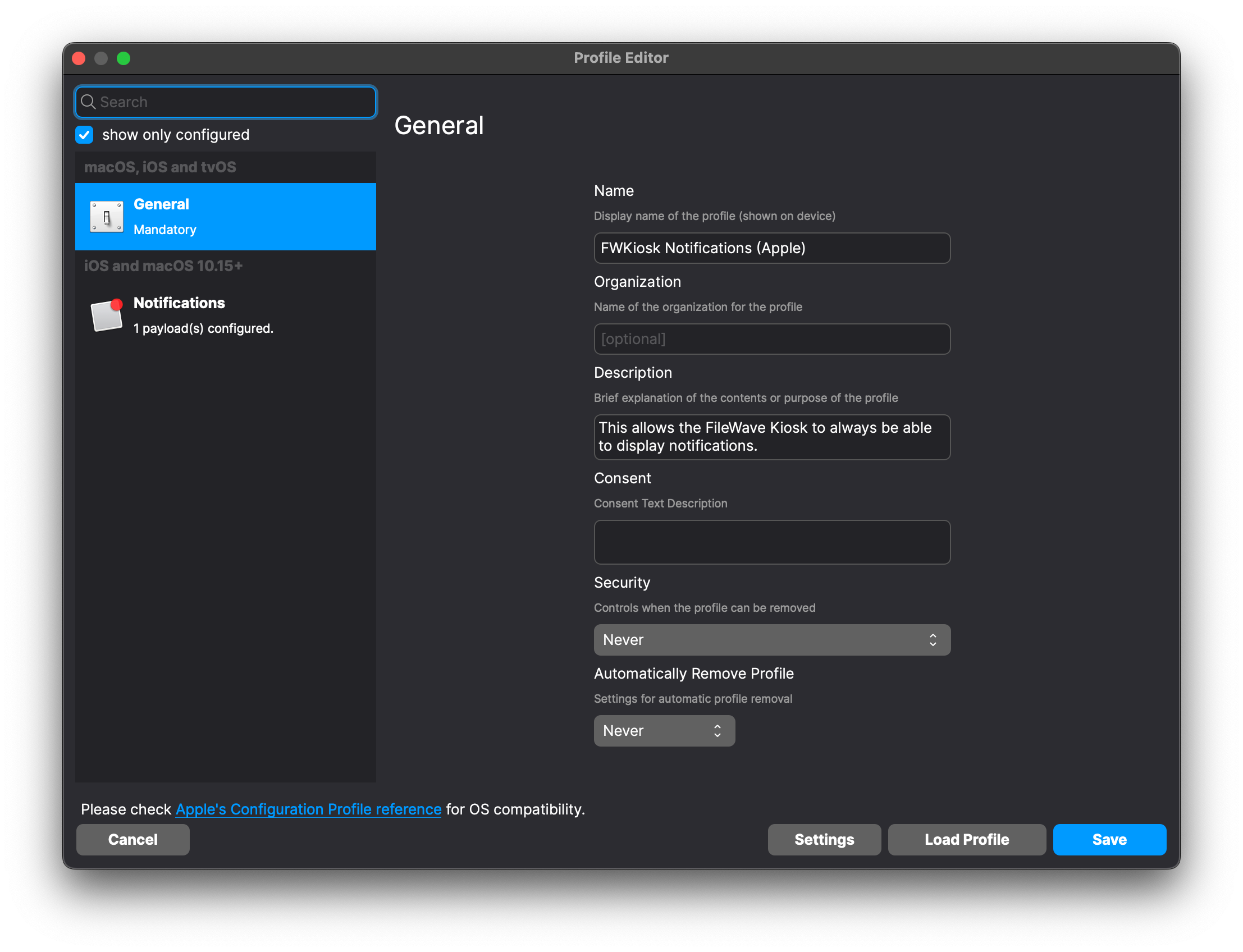
Filesets → New Fileset → Apple → Profile and then fill out the General information as below.
-
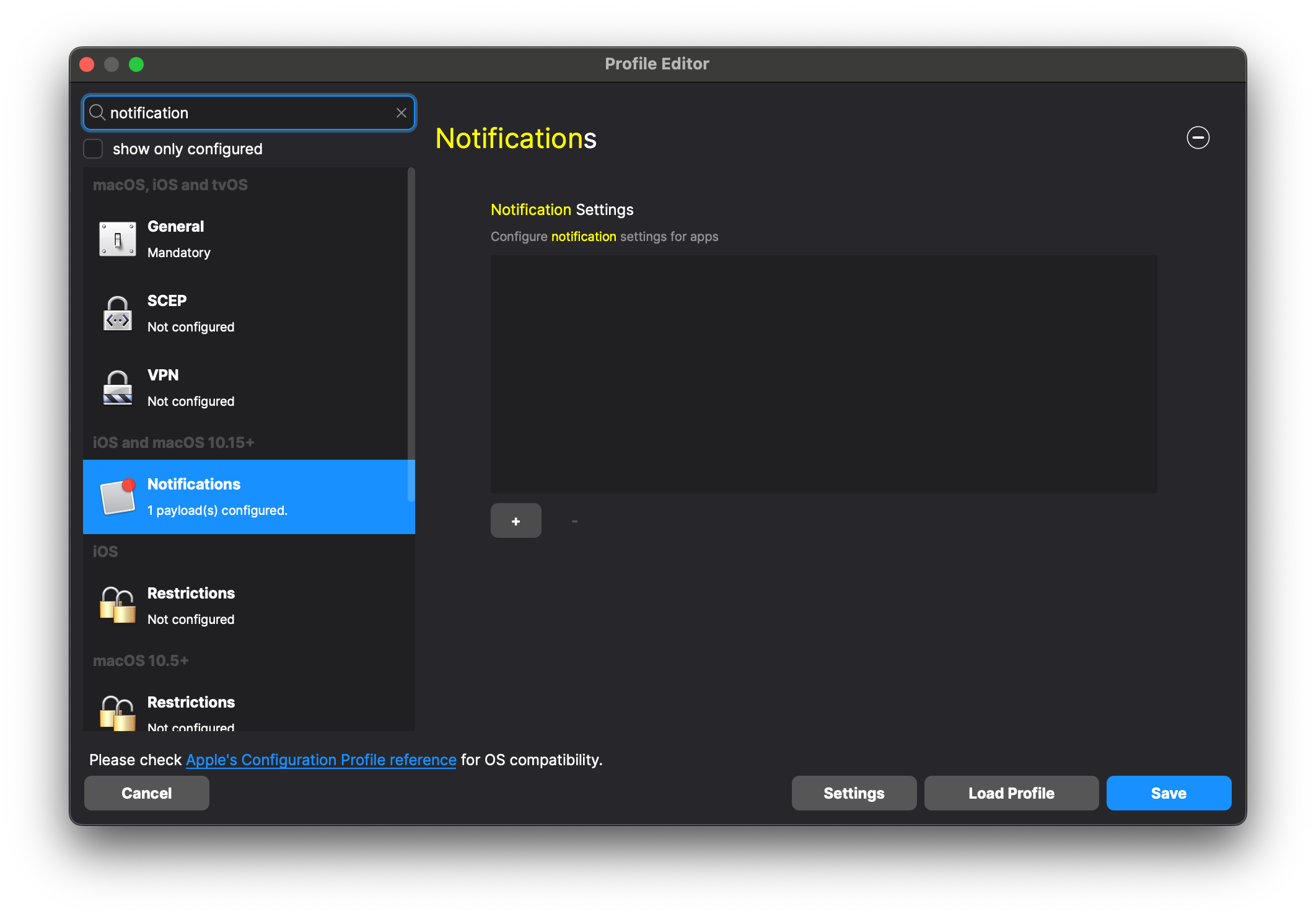
Search “Notifications” to easily find that and then add it as shown.
Enter the bundle identifier, select it, and choose Next. Add com.filewave.kiosk2 for macOS. For iOS/iPadOS, add com.filewave.ios.app.kiosk2 on FileWave 15.3.0 through 16.2.x or com.filewave.ios.app.kiosk3 on FileWave 16.3.0 and later.
-
-
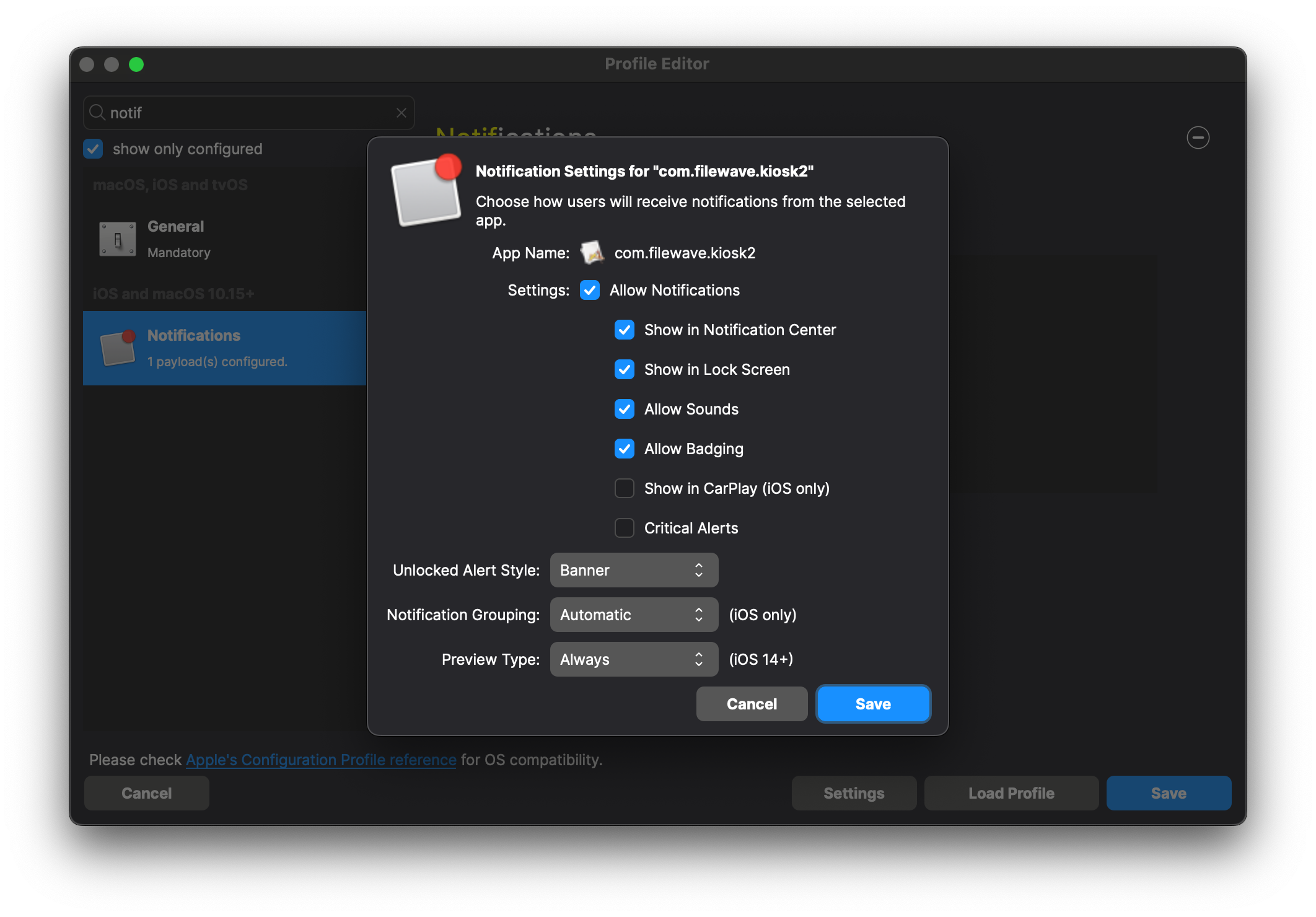
Set up behavior that you would like for the notifications and click Save
-
-
Save the profile, add it to a Deployment for the intended devices, and Update Model. After the profile is installed, verify the Kiosk entry in the device's Notifications settings and send a controlled test notification before a wider rollout.
Device Behavior
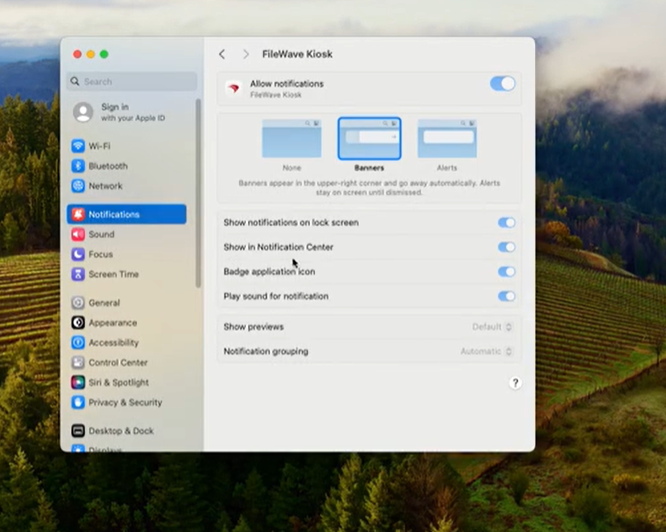
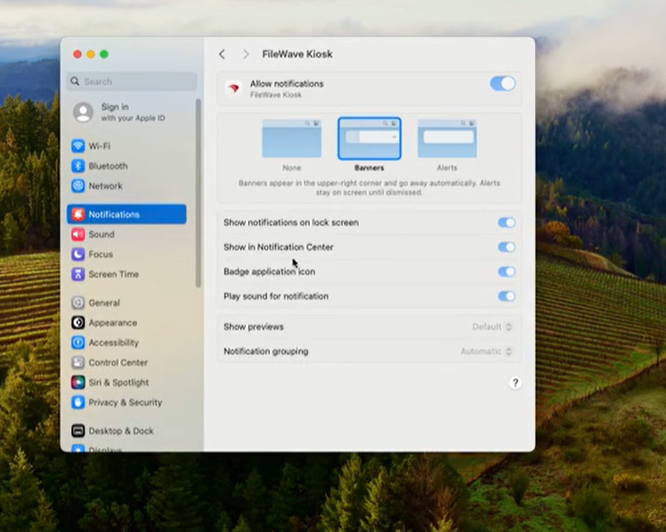
- Directly examining a macOS device will look as follows:
No comments to display
No comments to display