
Open FileWave Kiosk Manually on macOS and Windows
What
FileWave Kiosk normally appears when the device has at least one Fileset assignment configured for Kiosk installation.
Administrators may still need to open Kiosk when no Kiosk assignments exist, for example to show the user the device information available in Kiosk.
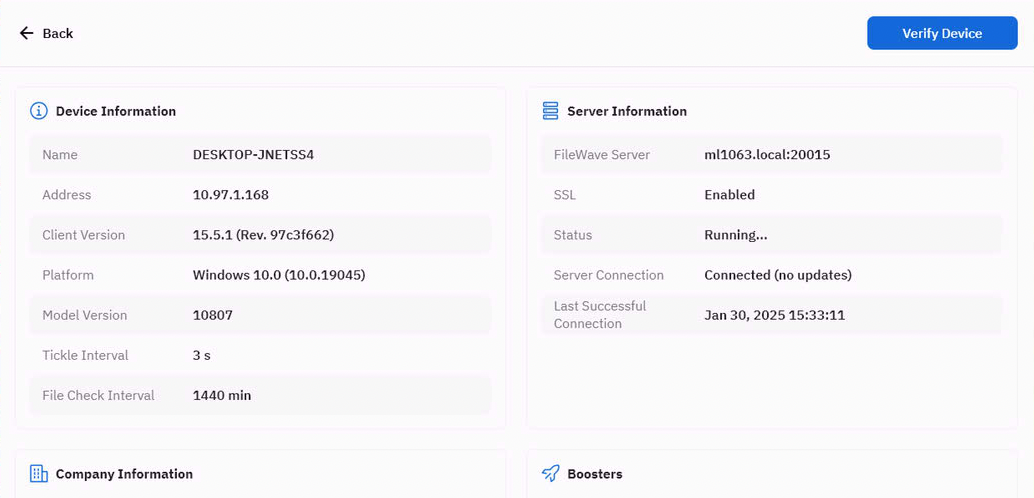
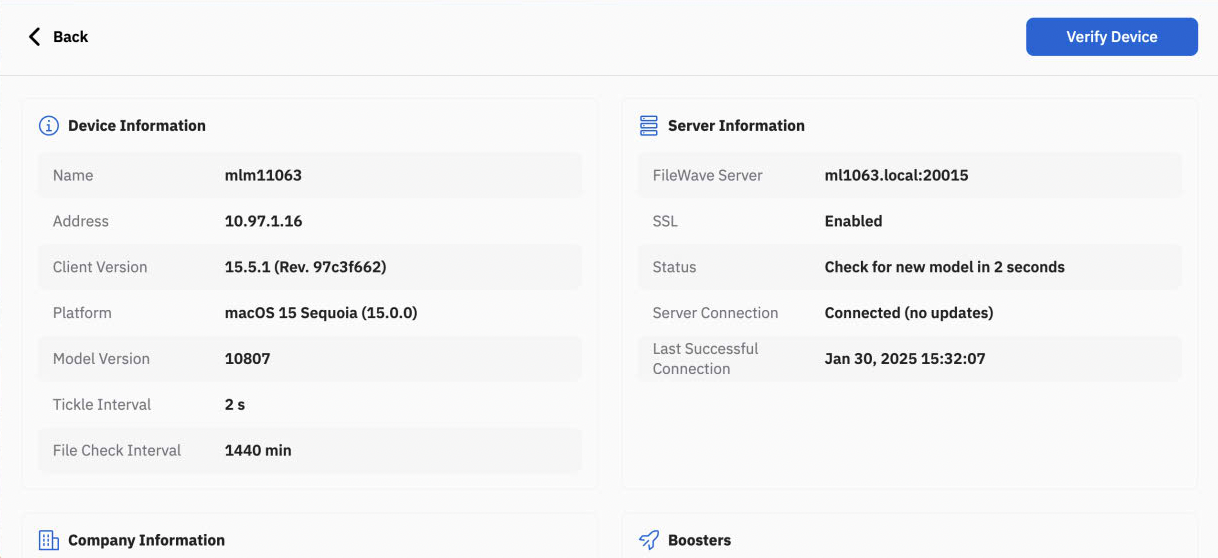
Use the platform command below to open Kiosk directly, or expose that command through an existing user-facing utility.
When
Kiosk v2 does not provide the earlier custom-file option that kept the Kiosk icon visible without assignments. The direct launch commands below provide an on-demand alternative.
How
Run the Kiosk executable directly from a shell or script:
macOS (shell):
/usr/local/sbin/FileWave.app/Contents/MacOS/FileWave\ Kiosk.app/Contents/MacOS/FileWave\ KioskWindows (PowerShell):
& "C:\Program Files\FileWave\client\kiosk\FileWaveKiosk.exe"GUI
The command is useful for administrators and troubleshooting, but most users need a clickable menu item. The examples below show how existing tray or menu-bar utilities can expose the same command.
macOS
On macOS, the third-party Hello-IT menu can provide a user-facing Kiosk launcher:
Add the macOS command as a Hello-IT submenu item when users need to open Kiosk without an active Kiosk assignment:
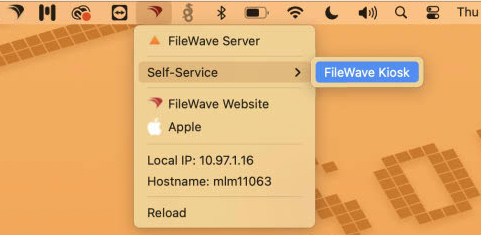
Follow the Hello-IT integration guide, add the one-line command as a submenu action, and test that it opens FileWave Kiosk for a standard user.
Windows
On Windows, the third-party About My Device tray utility can be adapted to provide a similar launcher:
About My Device does not expose arbitrary menu scripts in the same way as Hello-IT, but its log-collection action can be renamed and configured to run the Kiosk command:
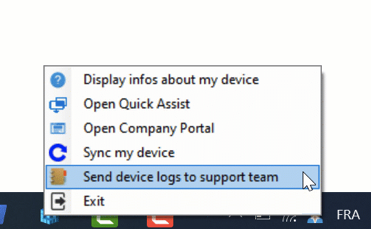
Edit the configuration label and the associated script so the action runs the PowerShell command shown above:
AboutMyDevice_Systray.ps1
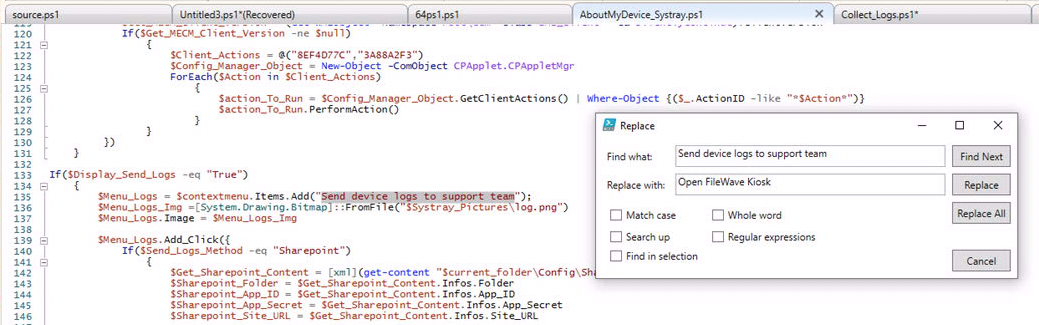
Collect_Logs.ps1

Example
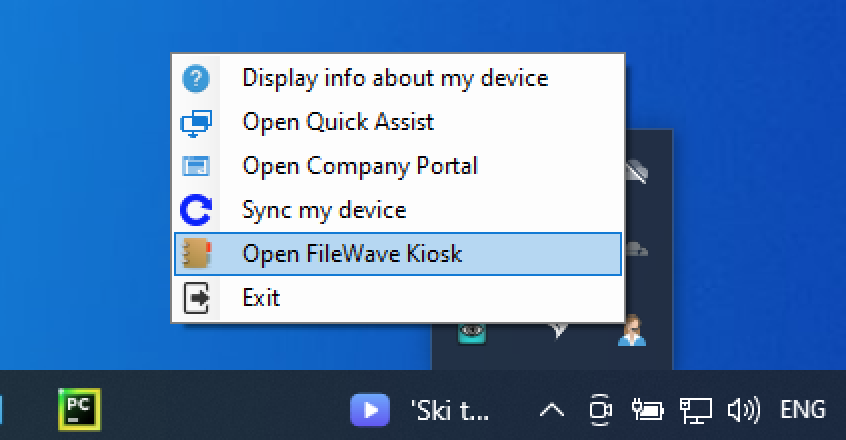
If users still need the original log action, add a separate Kiosk launcher rather than replacing it. Other managed menu or tray utilities can use the same platform commands.
No comments to display
FWIIW, tf there is ever a "FileWave client or kiosk troubleshooting" KB, then these commands should be added to that KB as well. In the past, when I approached Support when troubleshooting the kiosk, the kiosk icon should just appear. It should just work. ¯\_(ツ)_/¯
I had a Mac laptop on latest client version and the kiosk icon did not appear in menu bar, even after reboots and numerous "fwcontrol client restart" and re-installing the client. The Mac laptop had a display notch, though we had enough room in the menu bar for icons.
The macOS command to execute the kiosk command from shell worked instantly.
Thank you for this KB!
In reply to #1
Super super and yes I could see a Kiosk troubleshooting article being helpful to have the commands and logs.
No comments to display