
What are "Server Messages" and why do I want them?
What
Route server messages via boosters sends selected FileWave Client/server messages through Boosters instead of requiring every client to communicate directly with the FileWave Server for those messages. You may see this option in Superprefs Editor; the underlying settings are described in FileWave Client Configuration Settings.
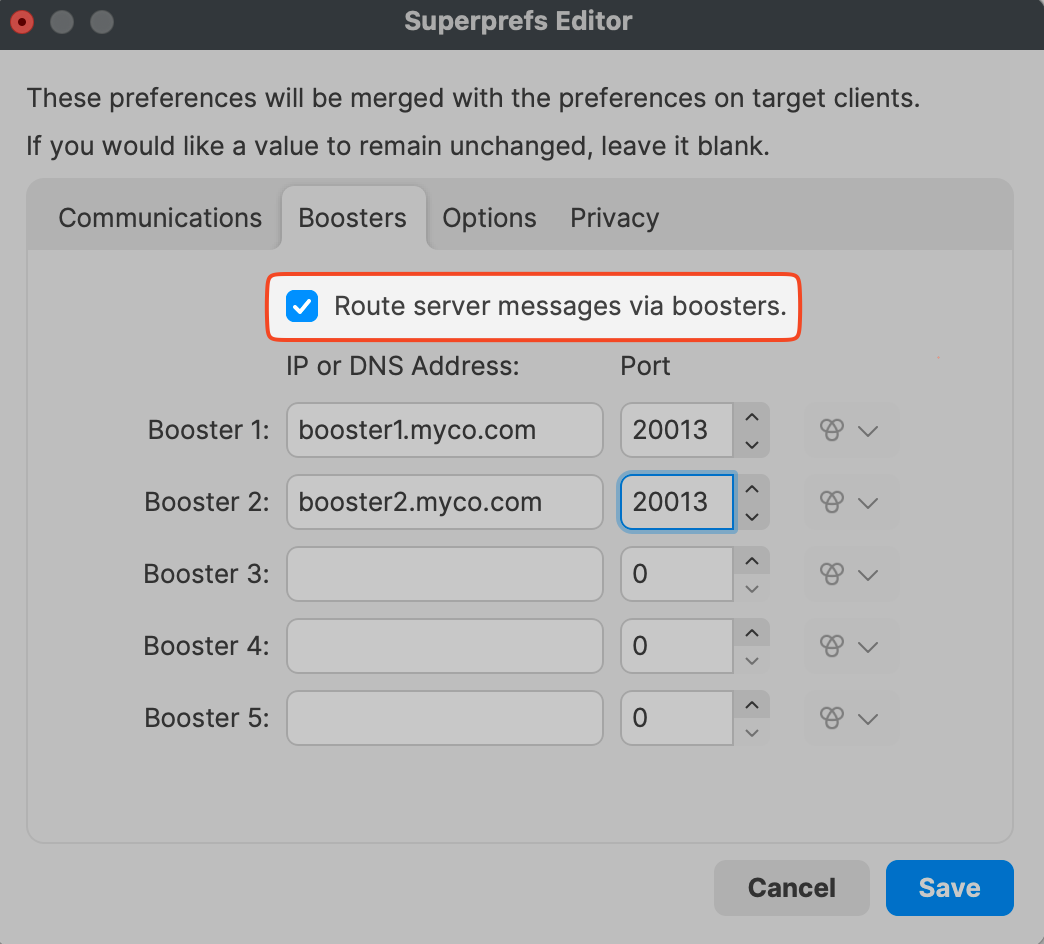
When/Why
FileWave Clients check in with the FileWave Server on a schedule (2 minutes by default). Server messages cover the additional client/server communication that lets the client receive status, commands, and related updates.
The Default TCP and UDP Port Usage article distinguishes configured port values from network connections. FileWave 15.3 introduced NATS for Client maintenance messages such as check-in and Fileset status; Fileset delivery still uses the separate file-transfer protocol. NATS also handles notifications for workflows such as initiating a TeamViewer session. See Improved Server Message Routing. Routing server messages does not route every connection through a Booster: Clients still need the HTTPS connections used for inventory and profile delivery.
Note: The default port setting is 20015. However, SSL is now required, and the system will automatically use port 20017 instead when 20015 is entered. Do not manually set the port to 20017. Always enter 20015, and the system will handle the SSL port change for you.
How
Use this option for managed macOS and Windows Clients when configured Boosters should handle more of their Server communication. Confirm that the Clients can reach the intended Boosters and that the required Client-to-Booster and Booster-to-Server network paths are allowed. Use the port reference above rather than treating the routing checkbox as a firewall rule or a replacement for all direct Server access. The routed messages include the examples below.
-
Checkin
-
Fileset properties and status
-
Software updates
-
Lock / Unlock client
-
Kiosk categories and item info
For existing Clients, follow Superprefs Fileset to save and deploy the preference change to a test device first. Set the routing Boolean to True; an unset dash leaves that preference out of the file, preserving the Client's existing routing state. Confirm the intended Booster addresses as well as the routing choice. Saving the plist on the administrator's computer is not enough: the Fileset must reach and activate on the Client. Keep unrelated preferences out of the file so they remain unchanged.
No comments to display
No comments to display