
Superprefs Fileset
What
When you create a Custom Client installer, the FileWave Client preferences are packaged into that installer: server name, ports, Boosters, and related client settings. That is useful for the base configuration, but one preference set is not always right for every device.
A Superprefs file lets you deploy selected FileWave Client preference changes to macOS or Windows devices after the client is installed. You can use one Superprefs Fileset for a broad change, or multiple Superprefs Filesets for different groups of devices.
Only the settings included in the Superprefs file are changed. Settings that are not included remain untouched on the client.
When to use this
- Changing client logging level for troubleshooting
- Adjusting Booster or communication preferences for a specific group of devices
- Applying a new client preference without rebuilding and redeploying the Custom Client installer
- Returning temporary troubleshooting settings back to standard values after testing
Ingredients
- FileWave Clients on macOS or Windows
- FileWave Superprefs Editor
- FileWave Central Admin App
Create the Superprefs plist
The Superprefs Editor is installed with the FileWave Central Admin App:
| macOS | /Applications/FileWave/Superprefs Editor.app |
| Windows | C:\Program Files (x86)\FileWave\FileWaveSuperPrefsEditor.exe |
When the editor opens, it may ask you to open an existing plist. Cancel that window if you are creating a new Superprefs file.
Only settings that you add or edit in the Superprefs Editor are written into the plist. This keeps the deployment focused and avoids overwriting unrelated client preferences.
Example: set Debug Level to 99
Debug Level has three common values:
| 10 | Standard logging (default) |
| 99 | Debug logging |
| 101 | Trace logging |
To enable debug logging, open the Superprefs Editor, cancel the Finder or Explorer window if you are creating a new file, go to the Options tab, set Debug Level to 99, and save the file.
The file must be named fwcld.newprefs.plist.

The saved plist should contain only the changed key:
Dict {
    debugLevel = 99
}
Package the plist in a Fileset
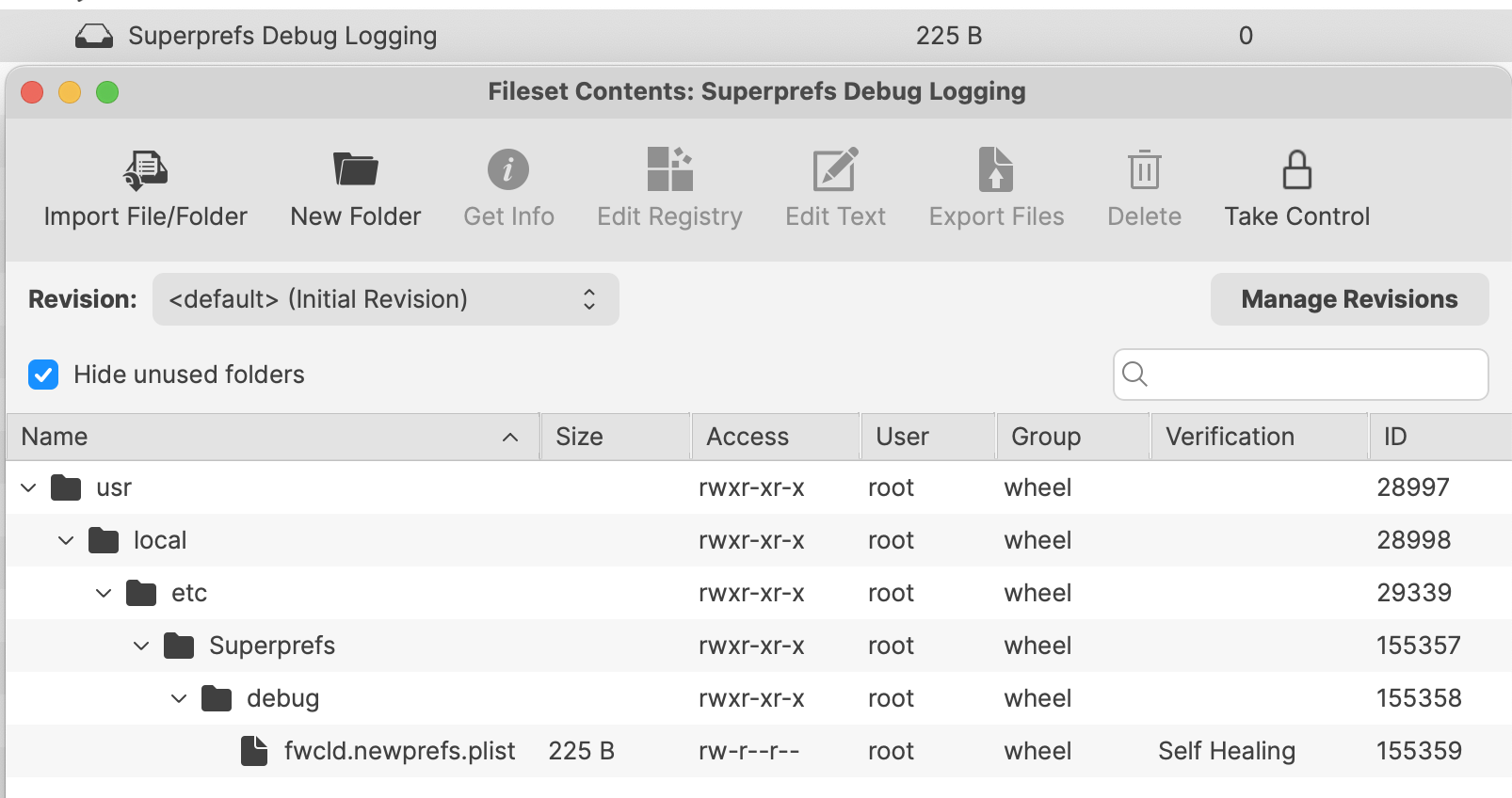
The fwcld.newprefs.plist file can be placed in any reasonable path inside the Fileset. A dedicated Superprefs folder makes the purpose clear and lets you keep separate folders for different preference sets.
| macOS | /usr/local/etc/Superprefs/debug/fwcld.newprefs.plist |
| Windows | C:\ProgramData\FileWave\Superprefs\debug\fwcld.newprefs.plist |
You can add the file to an existing Fileset, but a dedicated Fileset is usually easier to target, test, and remove later.
From the FileWave Central Admin App:
- Create a new Empty Fileset and name it clearly.
- Open the Fileset and disable Hide unused folders.
- Select or create the desired location for the plist file.
- Drag fwcld.newprefs.plist from Finder or Explorer into that location in the Fileset.
Using the debug logging example for macOS, the Fileset could look like this:
Creating the Fileset alone does not select devices or publish the change. In Deployments in FileWave Central, add the Superprefs Fileset and one intended test device or small pilot group, review the targets and installation settings, and save the Deployment. Coordinate with the other administrators, review pending changes, and run Update Model. This commits pending work from all administrators, not only your Superprefs change.
Only after the pilot Client receives and activates the Fileset should the included preferences change. In the debug logging example, confirm that Debug Level is 99 on the Client and that its log reflects the change. Do not use the Server model number alone as proof. Keep the Deployment limited to the pilot until you verify the intended settings; then expand its targets as needed.
For temporary troubleshooting, create a matching Superprefs Fileset that returns Debug Level to the standard value of 10 when analysis is complete.
GUI observation
Some Superprefs Editor entries are Boolean values, such as Booster Routing. Boolean entries can be set to True, set to False, or left unset. A dash means the value is not included in the Superprefs file.
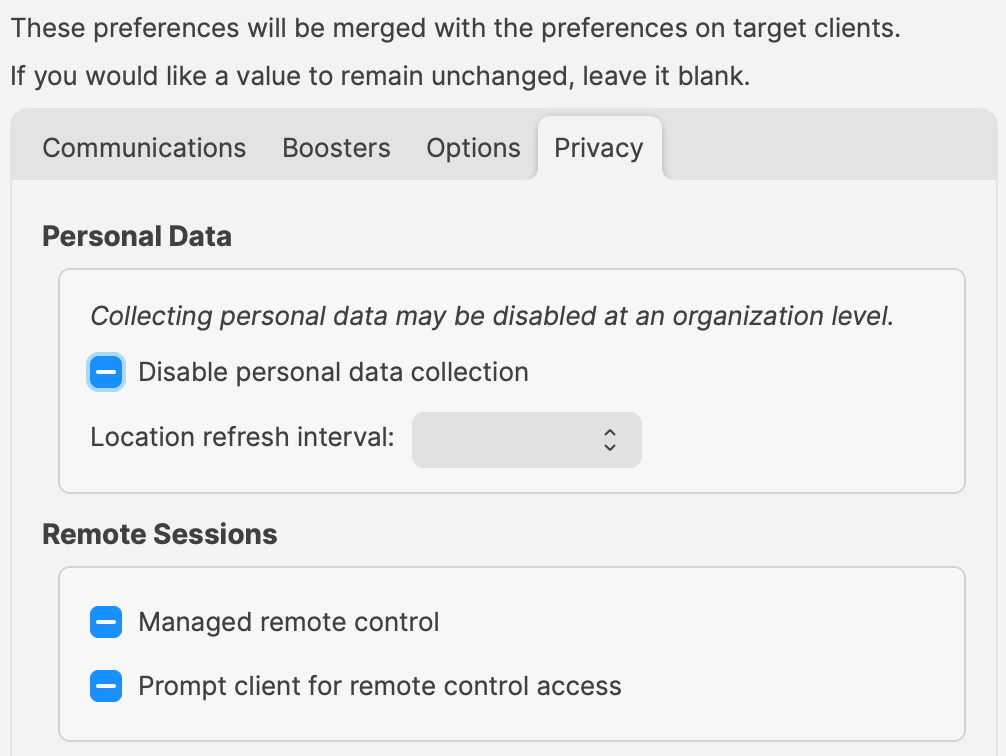
The three states appear as:
| False |
| True |
| Unset |


No comments to display
No comments to display