
Set Up an IVS with a Hosted FileWave Server
A Hosted FileWave Server can use an Imaging Virtual Server (IVS) for Windows imaging, but the initial uploader-account setup differs from a self-managed installation. Hosted customers do not have shell access to the FileWave Server, so every server-side step below must be completed by FileWave Technical Support. The customer completes the IVS-side configuration after Support supplies the uploader username and temporary password.
Why hosted setup is different
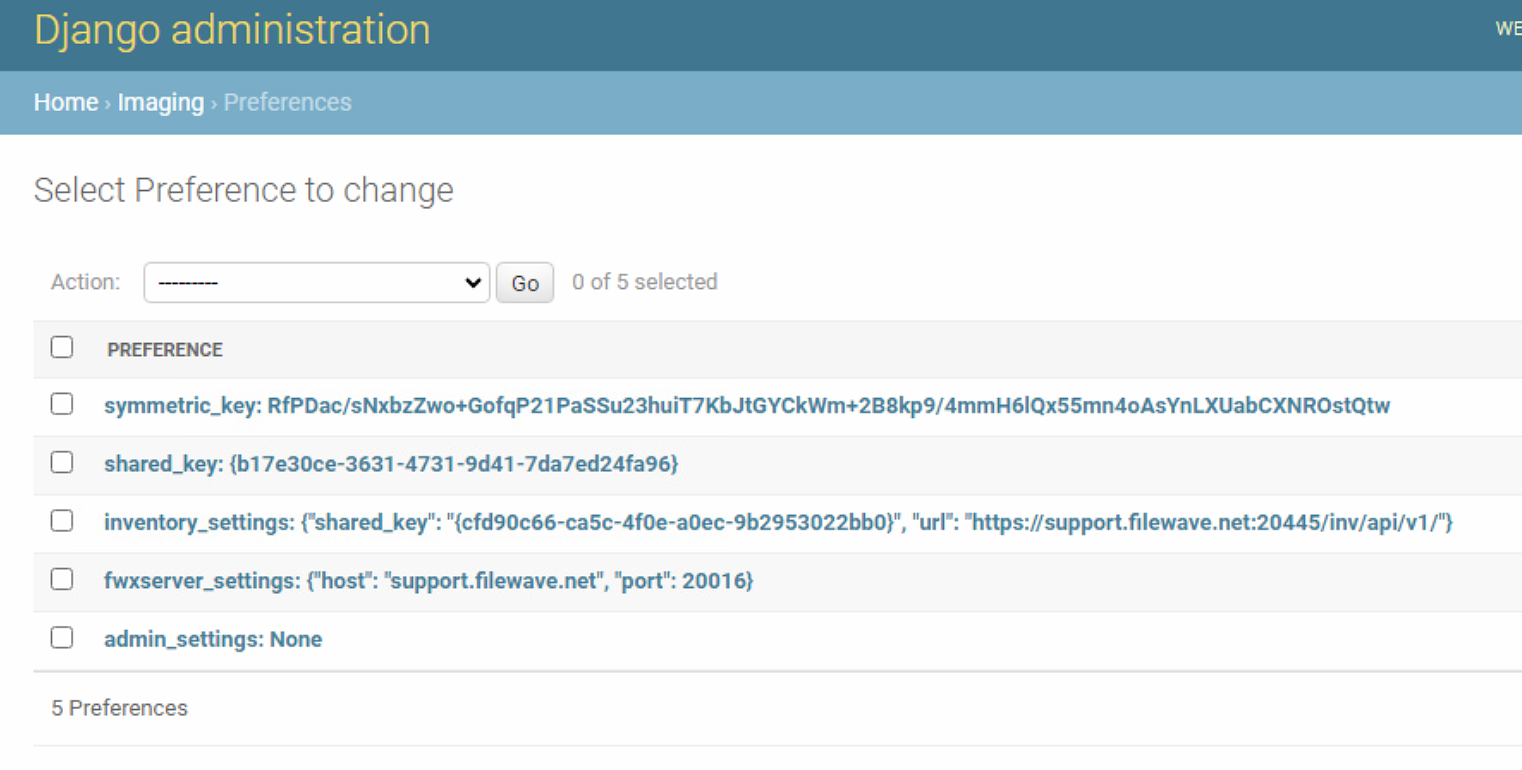
Complete the first part of Setting up the IVS, save the configuration, reopen Preferences, and click Enroll Imaging Server. A Hosted environment may then show Admin credentials mismatch because the FileWave Server cannot make the same direct port 20444 credential check used by a self-managed server. Confirm the shared key in the IVS interface and continue with the hosted-only setup below.
However, if you look in the actual django interface on the IVS, you should see it has the proper shared key, etc. Here is an example:
Complete the hosted uploader setup
Without the following one-time configuration, the IVS can capture an image locally but cannot upload it to the Hosted FileWave Server. A capture that moves from capture done to upload done almost immediately, without transferring the image, is a useful symptom of the missing uploader settings.
FileWave Technical Support must identify the imaging uploader account and set a temporary password on the Hosted FileWave Server. The customer then enters those values in the IVS administration interface.
To do so, we need to:
FileWave Technical Support identifies the imaging uploader account.
Support sets a temporary password for that account and shares the required values securely.
The customer enters the uploader username and password in the IVS administration interface.
Step 1: FileWave Technical Support identifies the uploader account
Support-owned step. Hosted customers cannot access the server shell. FileWave Technical Support runs the following commands on the Hosted FileWave Server.
sudo /usr/local/filewave/python/bin/python /usr/local/filewave/django/manage.pyc shellIn the shell, Support lists the usernames and identifies the account whose name begins with filewave_imaging_uploader_admin-.
from fwauth.models import User
User.objects.all().values_list("username")
This will give us a result like this:
Example result:
filewave_imaging_uploader_admin-EXAMPLE_ID
Once you've received this information from Support, you can continue to the next step on the IVS.
Step 2: Support sets and verifies a temporary password
Support substitutes the exact uploader username found in Step 1:
u=User.objects.get(username="filewave_imaging_uploader_admin-EXAMPLE_ID")Support then sets a unique temporary password, saves the account, and verifies the value before sharing it securely with the customer:
u.set_password("REPLACE_WITH_UNIQUE_TEMPORARY_PASSWORD")
u.save()
u.check_password("REPLACE_WITH_UNIQUE_TEMPORARY_PASSWORD")
TrueStep 3: Configure the IVS administration interface
Open https://ivsaddress:20444 and sign in with the IVS administrator credentials. If the IVS uses a certificate that your browser does not yet trust, verify that you reached the intended IVS before continuing past the warning.
Once logged in, go to Admin, Preferences as shown at the top of the article. Then, click on admin_settings, and you’ll get a screen like this (except yours won’t have a value in it):
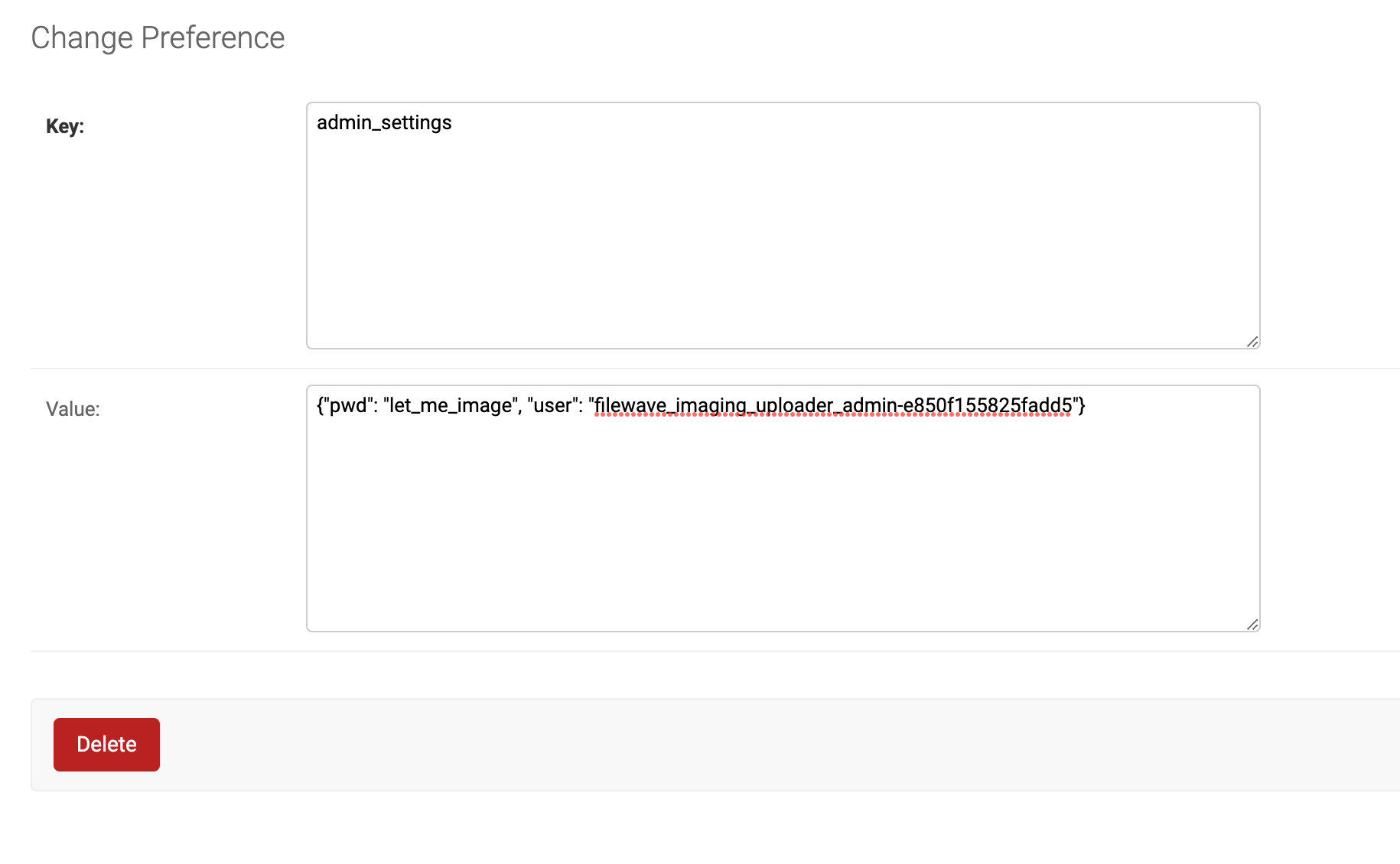
Paste the following JSON into admin_settings, replacing both placeholders with the values supplied by FileWave Technical Support:
{"pwd": "REPLACE_WITH_UNIQUE_TEMPORARY_PASSWORD", "user": "filewave_imaging_uploader_admin-EXAMPLE_ID"}Once you SAVE this field, your IVS is ready for operation.
Capture
An interrupted WAN transfer can leave the image captured on the IVS but not uploaded to the Hosted FileWave Server. From the IVS, an administrator can retry the upload with the FileWave Central command-line tool, replacing the image path, FileWave administrator username, password, server address, and port:
/usr/local/bin/FileWaveAdmin --importImage /imaging/images/windows/FS_-1 -u REPLACE_WITH_USERNAME -p REPLACE_WITH_PASSWORD -H REPLACE_WITH_SERVER -P 20016Restore
Restoring images is fairly normal because once an image is assigned to any device, it is downloaded to the IVS appliance itself. The download does retry on failure because it is like any other Fileset. And, since image application to the actual “to be imaged” device happens locally to the network, the fact that the FileWave Server is Hosted is not in play here.
No comments to display
No comments to display