
Apple Profile: System Logging
What
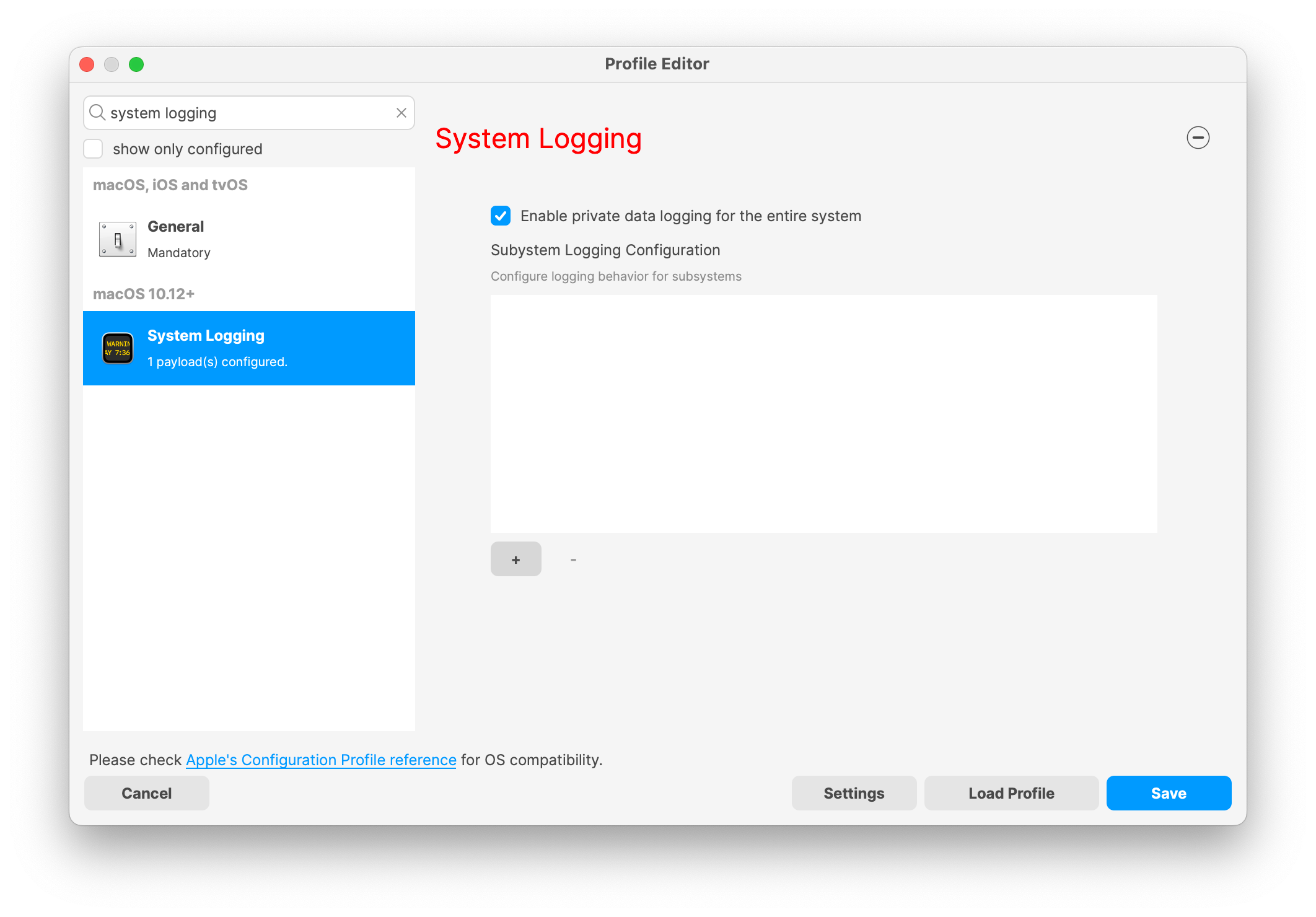
The System Logging profile in the FileWave web Profile Editor configures Apple's com.apple.system.logging payload for macOS devices. Use it to control private data logging and define logging behavior for specific subsystems, categories, and settings.
When/Why
Use this profile when diagnostics, audits, or compliance rules require more control over macOS logging. Private data logging should be enabled only when your organization needs that additional detail, because it changes what macOS records in logs.
How
The macOS System Logging profile includes these settings and controls:
-
Enable Private Data Logging: A checkbox to enable or disable private data logging for the entire system. Default is unchecked.
-
Subsystem Logging Configuration: A table for configuring logging behavior for specific subsystems. Each configuration uses a unique subsystem identifier and can include logging categories with enable and persist options.
-
Modal Configuration: When adding or editing subsystem logging configurations, you can specify:
-
Subsystem Identifier: A required, unique identifier.
-
Logging Categories: Add and configure categories with enable and persist options.
-
Additional Settings: Configure key-value pairs for each subsystem logging item.
-
-
Validation: The Save button is enabled only when all required fields are correctly filled. An empty profile cannot be saved.
-
Editing: Post-creation, you can edit the entire profile or individual subsystem logging configurations.
Apple documents the System Logging payload as available for macOS 10.12 and later.
Subsystem identifiers and logging categories help collect the logs you need without enabling extra logging everywhere. That keeps troubleshooting and audit review focused while still allowing deeper logging when a specific subsystem requires it.
No comments to display
No comments to display