
Find Application Bundle IDs for Apple Profiles
What an application bundle ID does
An application bundle identifier uniquely identifies an Apple app to a configuration profile. FileWave can populate the identifier from an App Store search, or you can enter a verified identifier manually. Profile payloads that commonly require bundle IDs include:
- Notifications
- Home Screen Layout
When you need one
Use the bundle ID when a profile must target one specific app—for example, to preset notification behavior or place an app in a managed Home Screen Layout.
Add the app to a profile payload
Search for an App Store app
Taking Notifications as an example, choosing to create a Notifications Payload, a Search box pops up:
| FileWave Central | FileWave Anywhere |
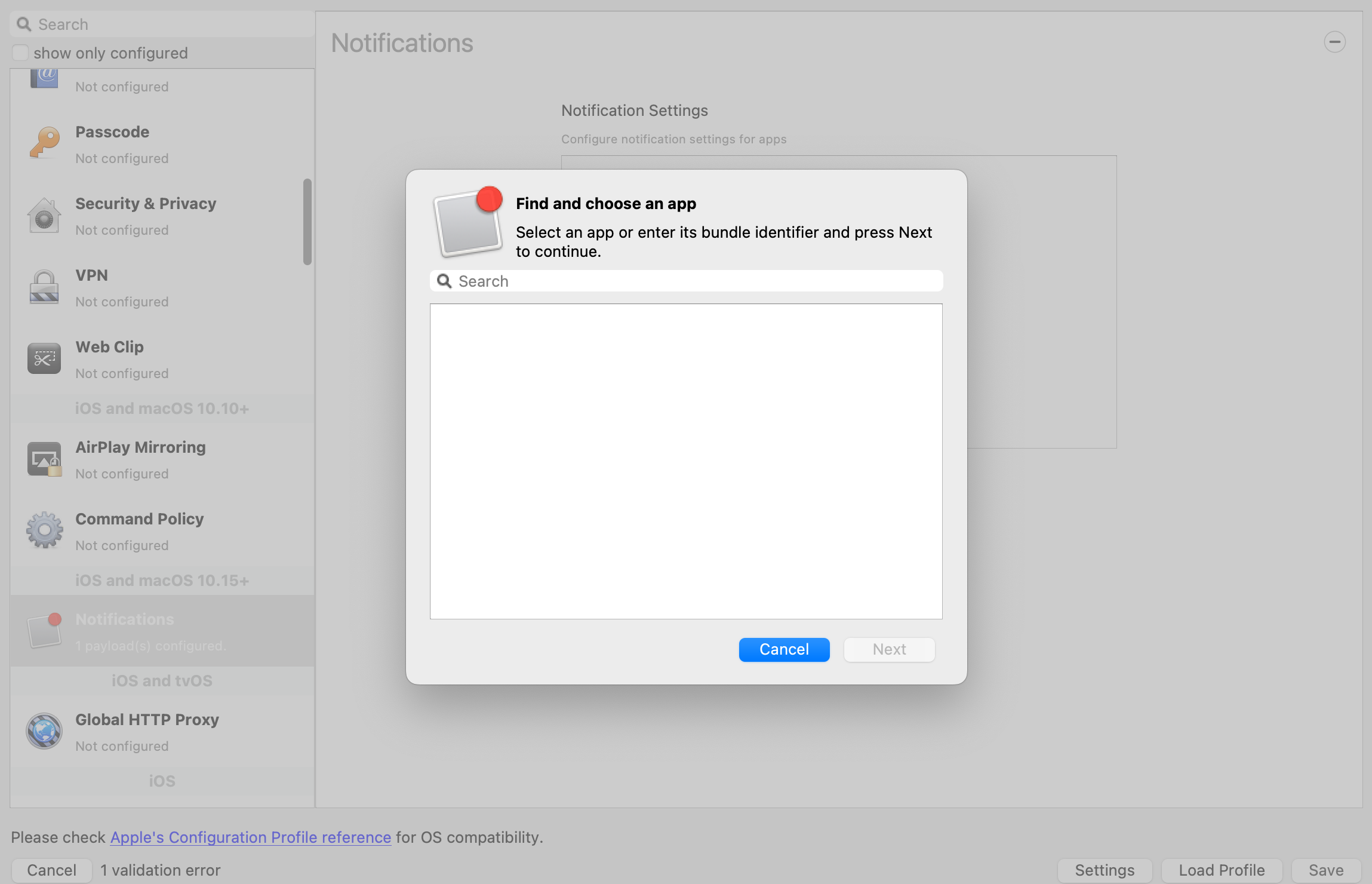 |
|
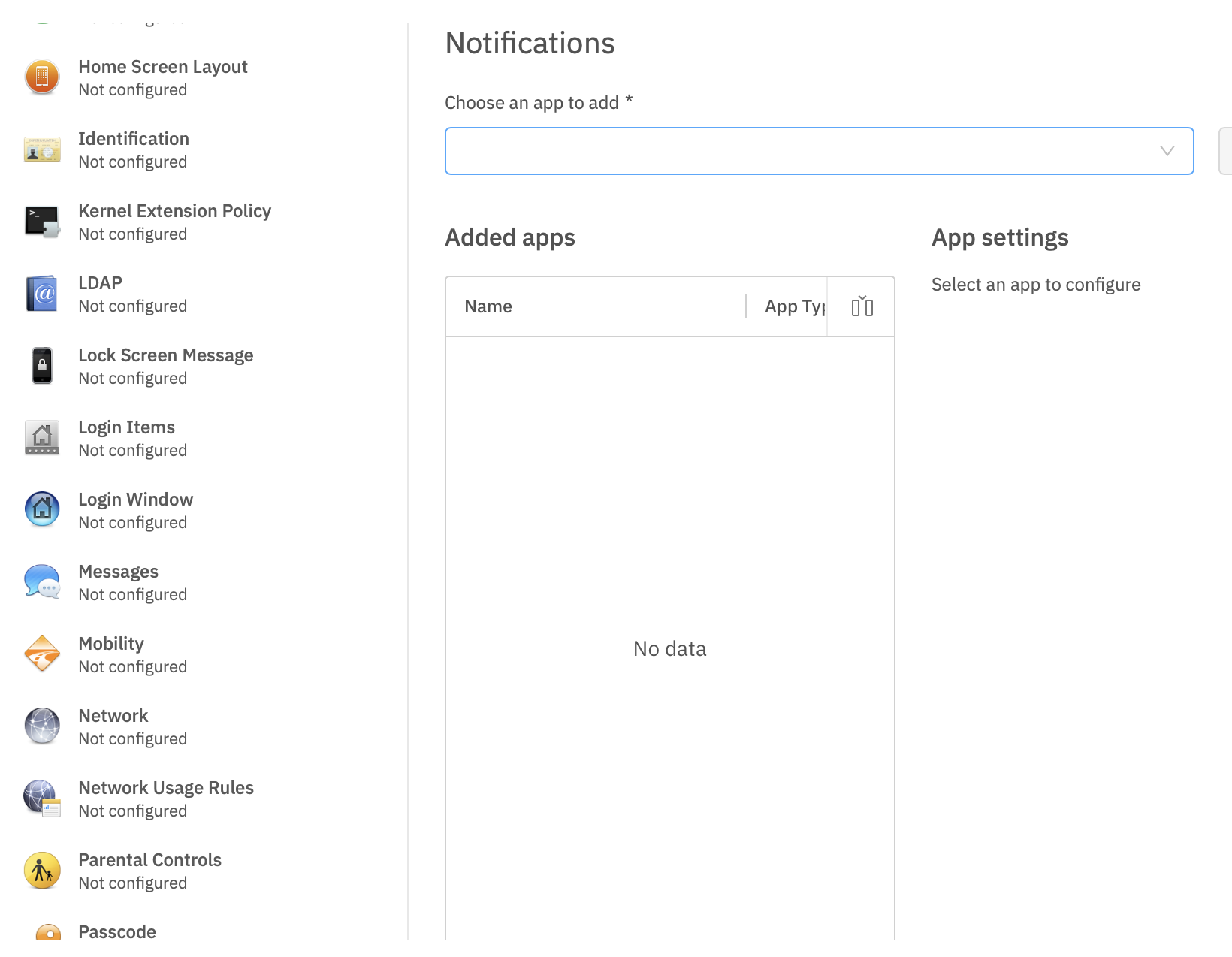
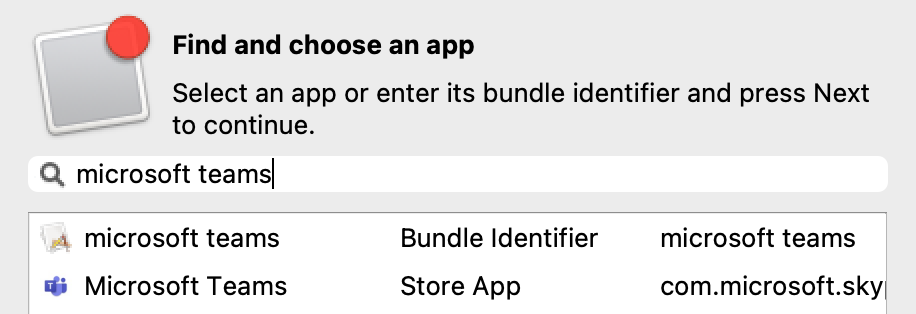
The following captured example uses Microsoft Teams. Search results and identifiers may differ for current app releases and distribution channels:
 |
|
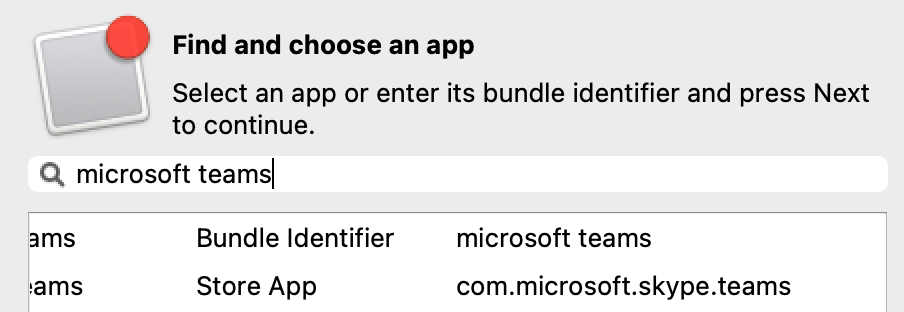
On selecting the Store App for Microsoft Teams from the list, the following is shown:
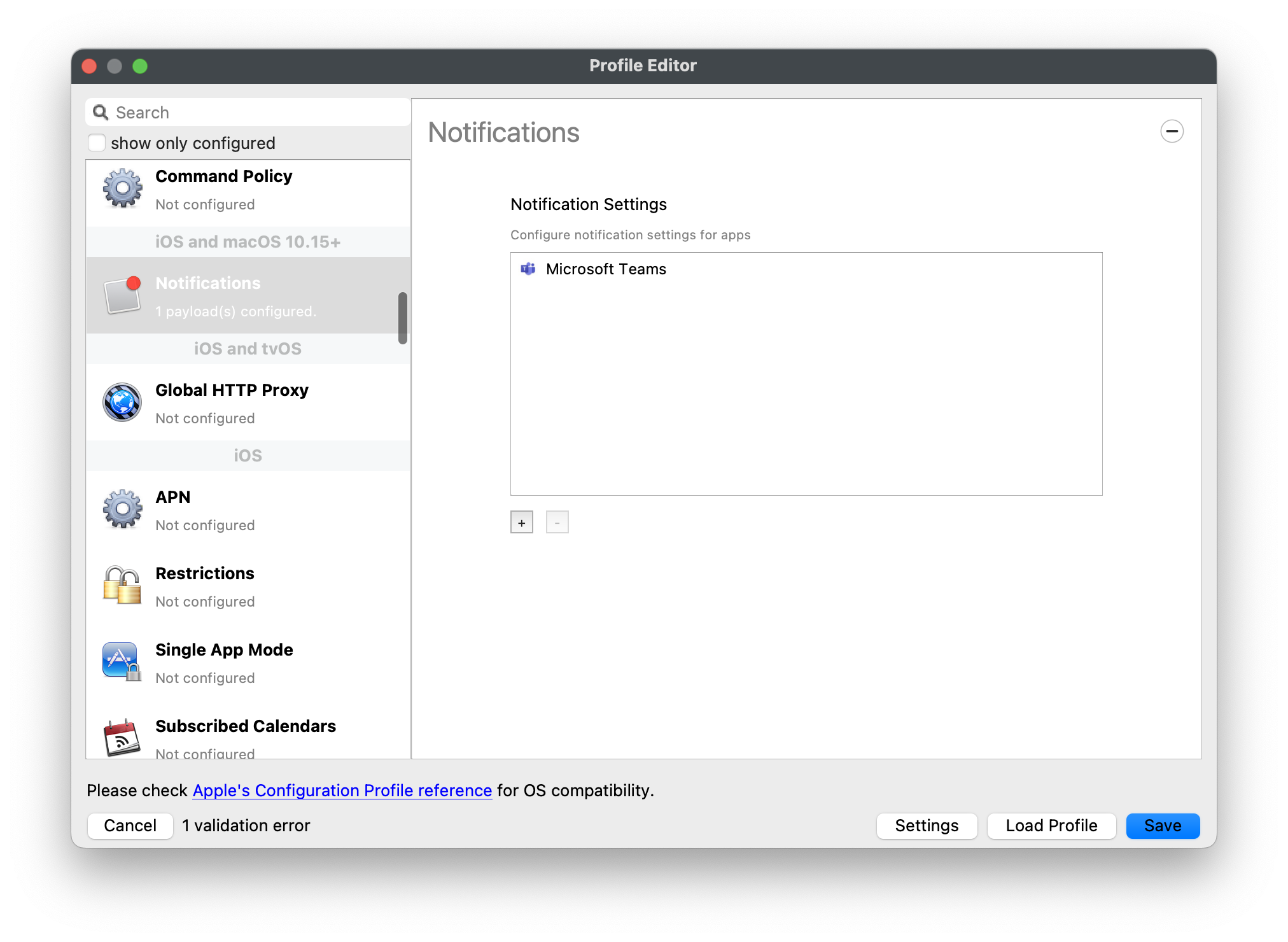
However, in the background FileWave has lifted the Bundle ID from the App Store query and inserted this into the underlying profile:
            NotificationSettings = Array {
                Dict {
                    BadgesEnabled = false
                    ShowInCarPlay = false
                    ShowInLockScreen = true
                    AlertType = 1
                    GroupingType = 0
                    CriticalAlertEnabled = false
                    SoundsEnabled = true
                    BundleIdentifier = com.microsoft.skype.teams
                    PreviewType = 0
                    NotificationsEnabled = true
                    ShowInNotificationCenter = true
                }
            }
Treat the identifiers in this example as captured values, not permanent Microsoft Teams identifiers. Bundle IDs can differ by platform, app generation, release channel, and distribution method. Verify the identifier for the exact app installed in your environment before deploying the profile.
If the required macOS or iOS/iPadOS app does not appear in the App Store search, enter its verified bundle ID manually.
| FileWave Central | FileWave Anywhere |
|
|
|
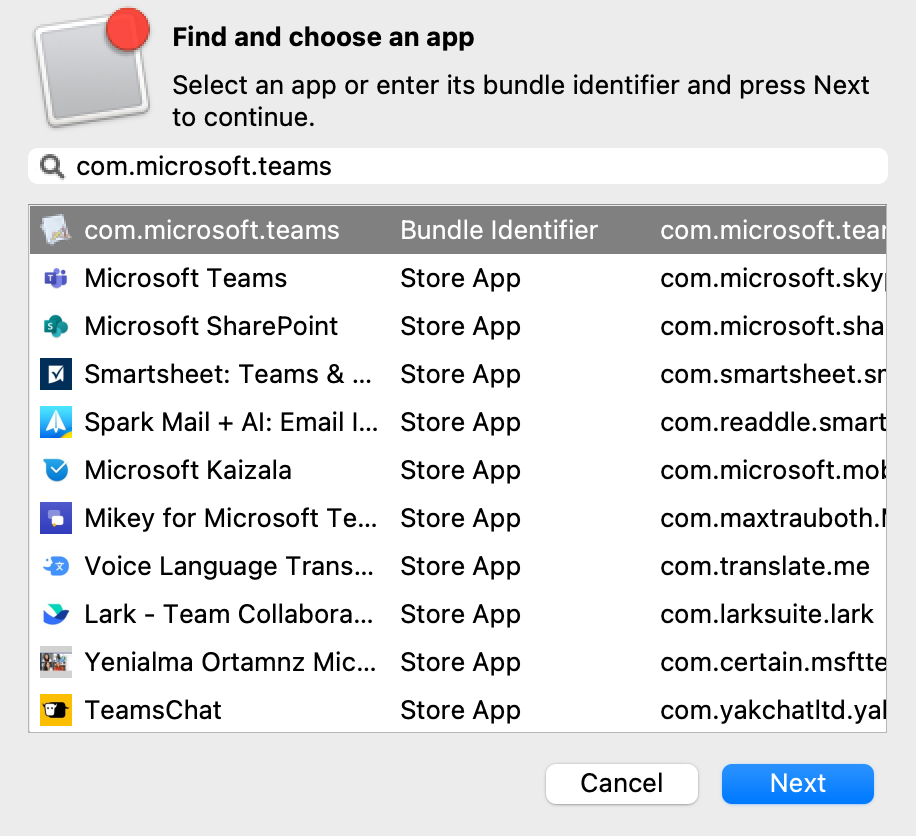
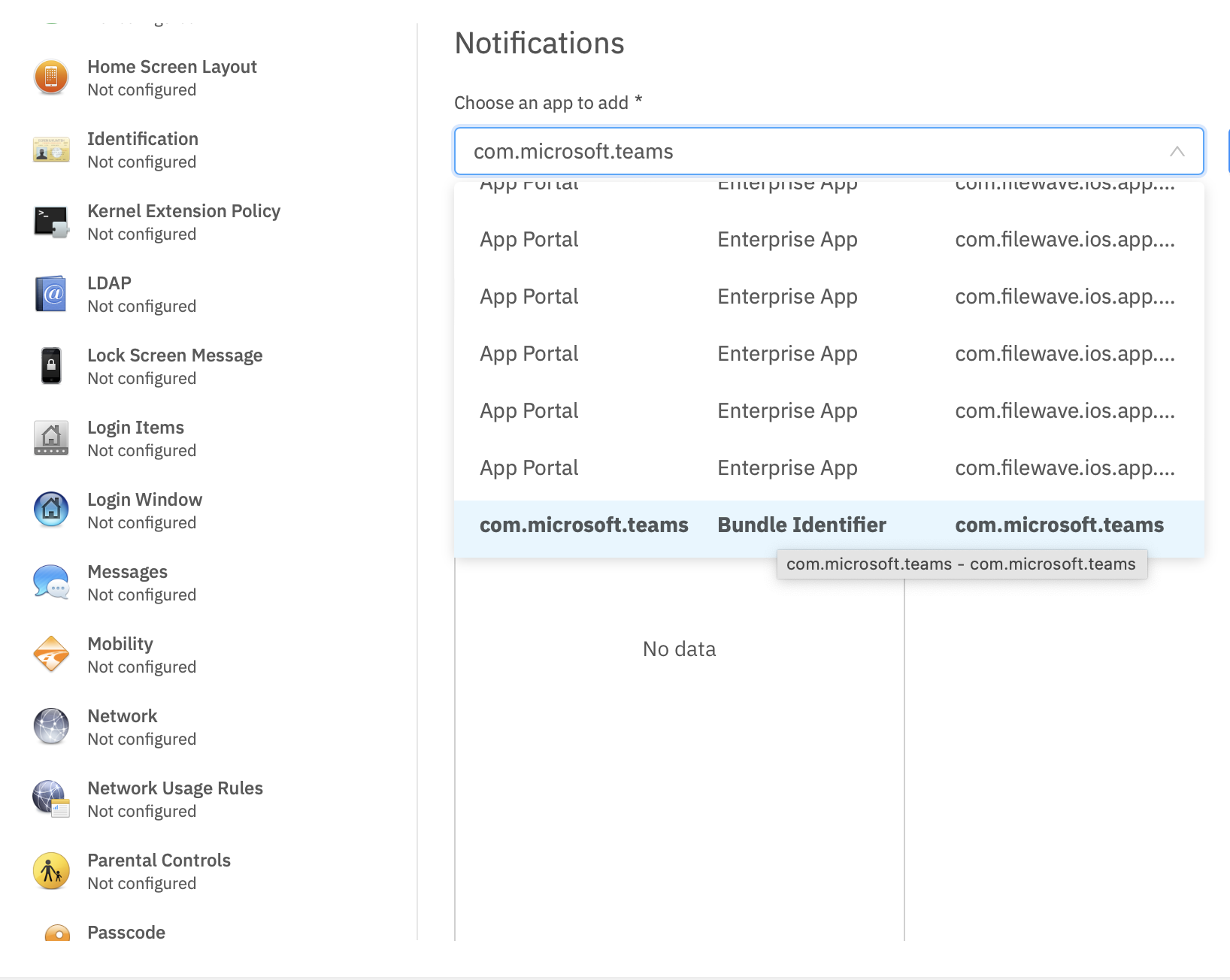
Upon entering the Bundle ID into the search box, select the one listed as the Bundle Identifier and accept this.
Re-opening the Payload in the future may show the Bundle ID instead of the App name, where App Store items were previously accepted.
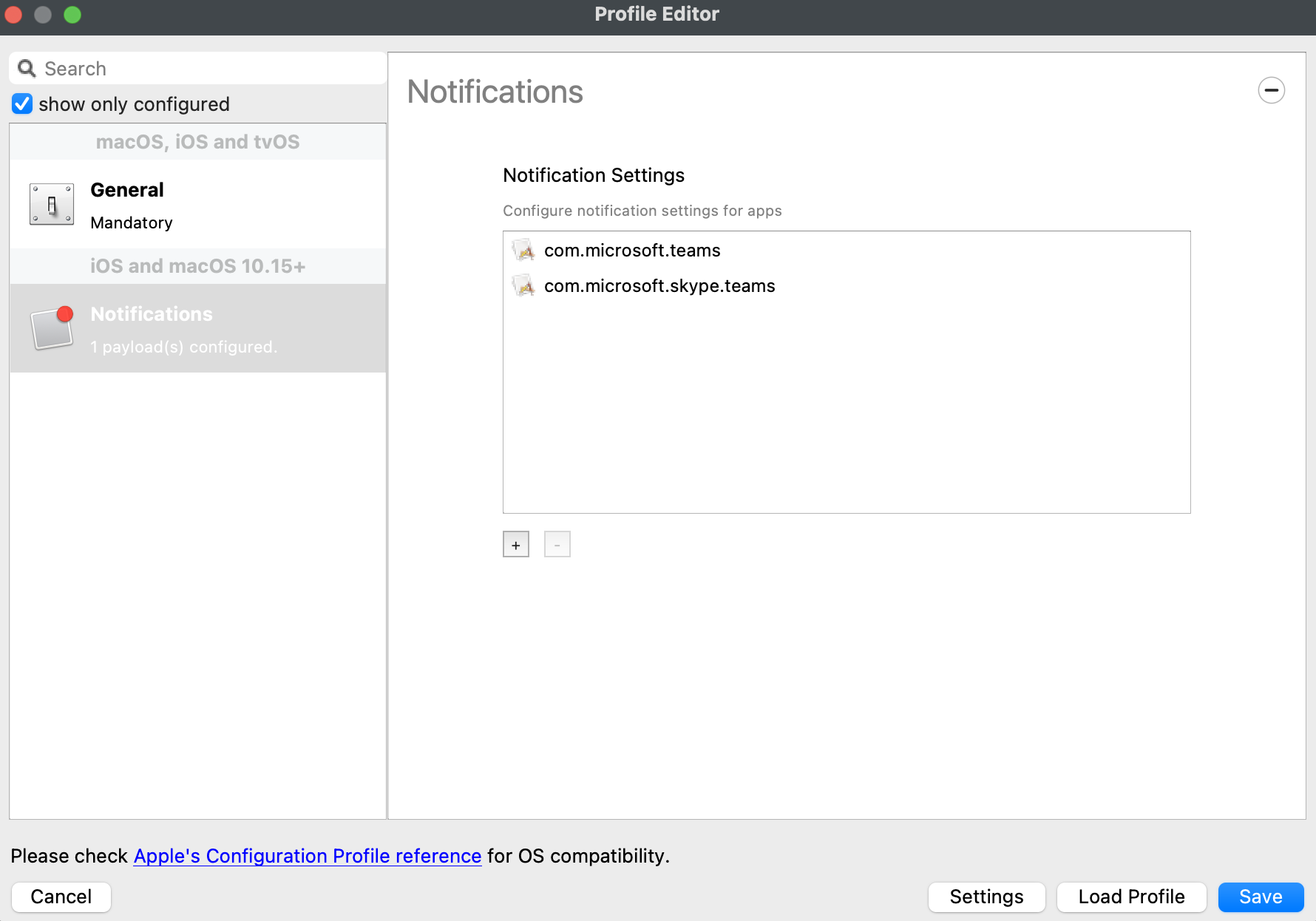
Home Screen Layout is another Payload example which requires a Bundle ID and the search should behave in the same manner, where if found, the App Store version may be selected, otherwise the Application Bundle ID must be added manually into the search box to be selected:
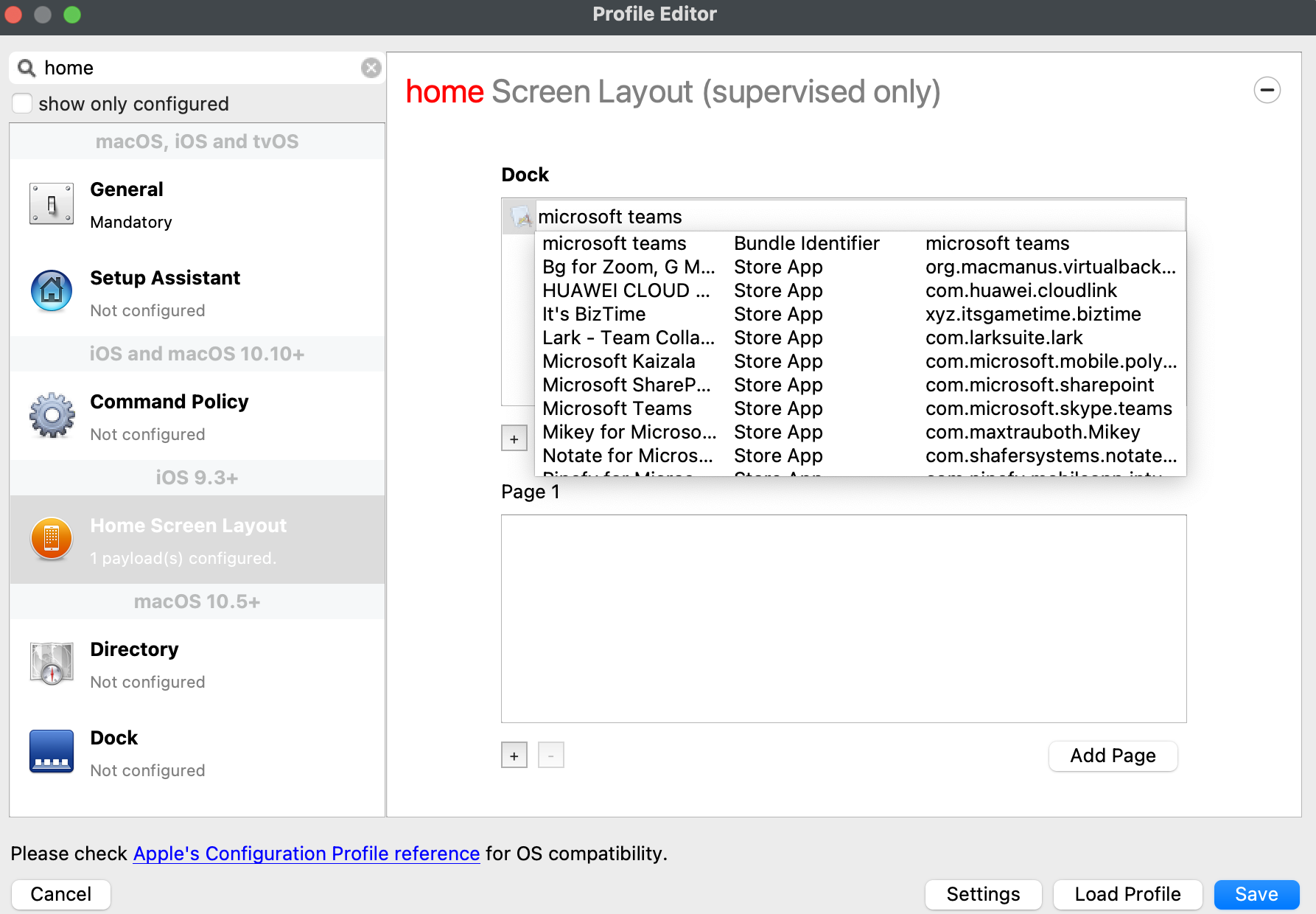 |
|
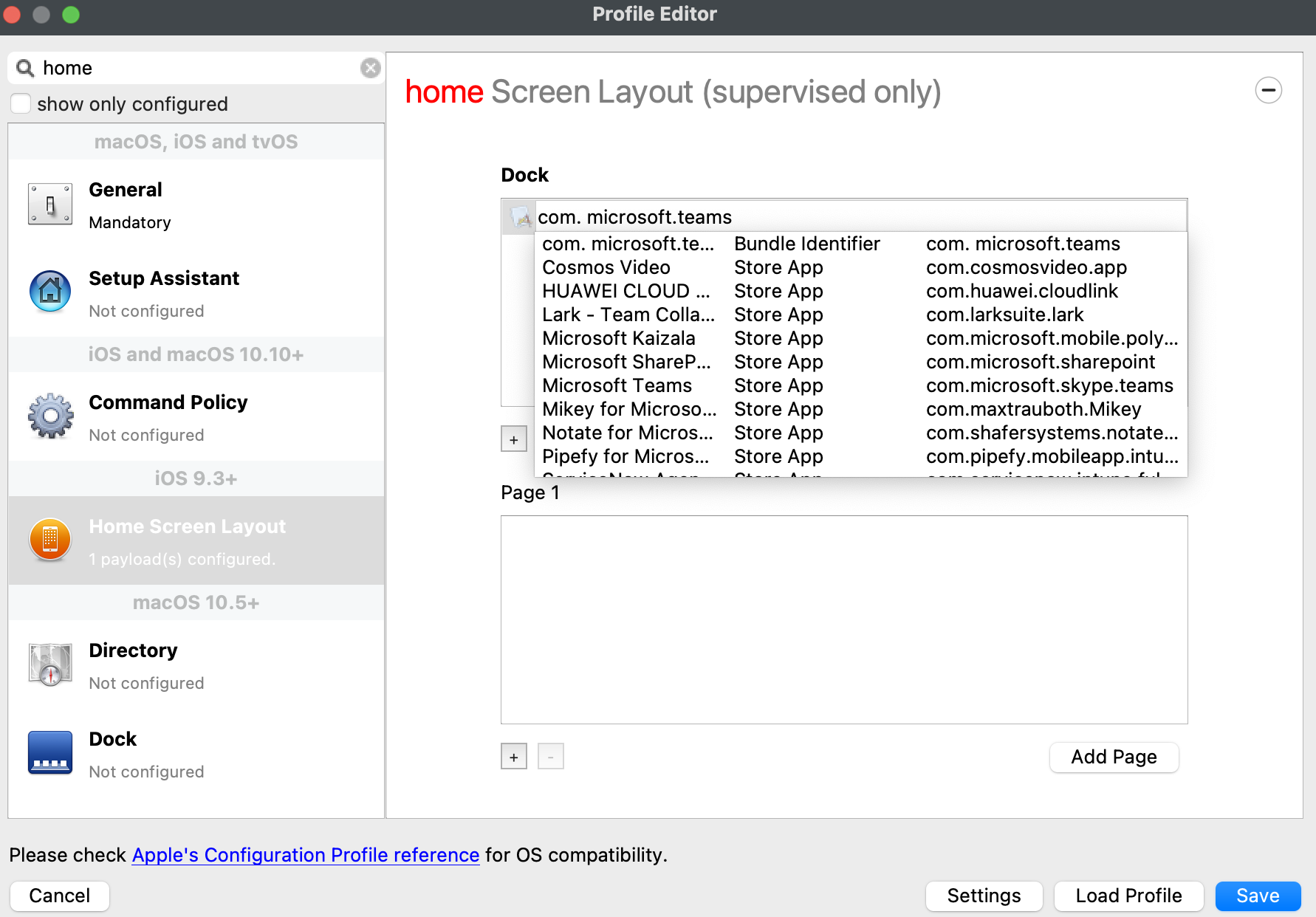
Find the bundle identifier in inventory
If the application is installed on a managed device, create an Inventory Report that includes the application name, version, platform, and bundle ID. Use a device running the exact app build you intend to target; similar app names do not prove that the identifier is the same.
|
|
|
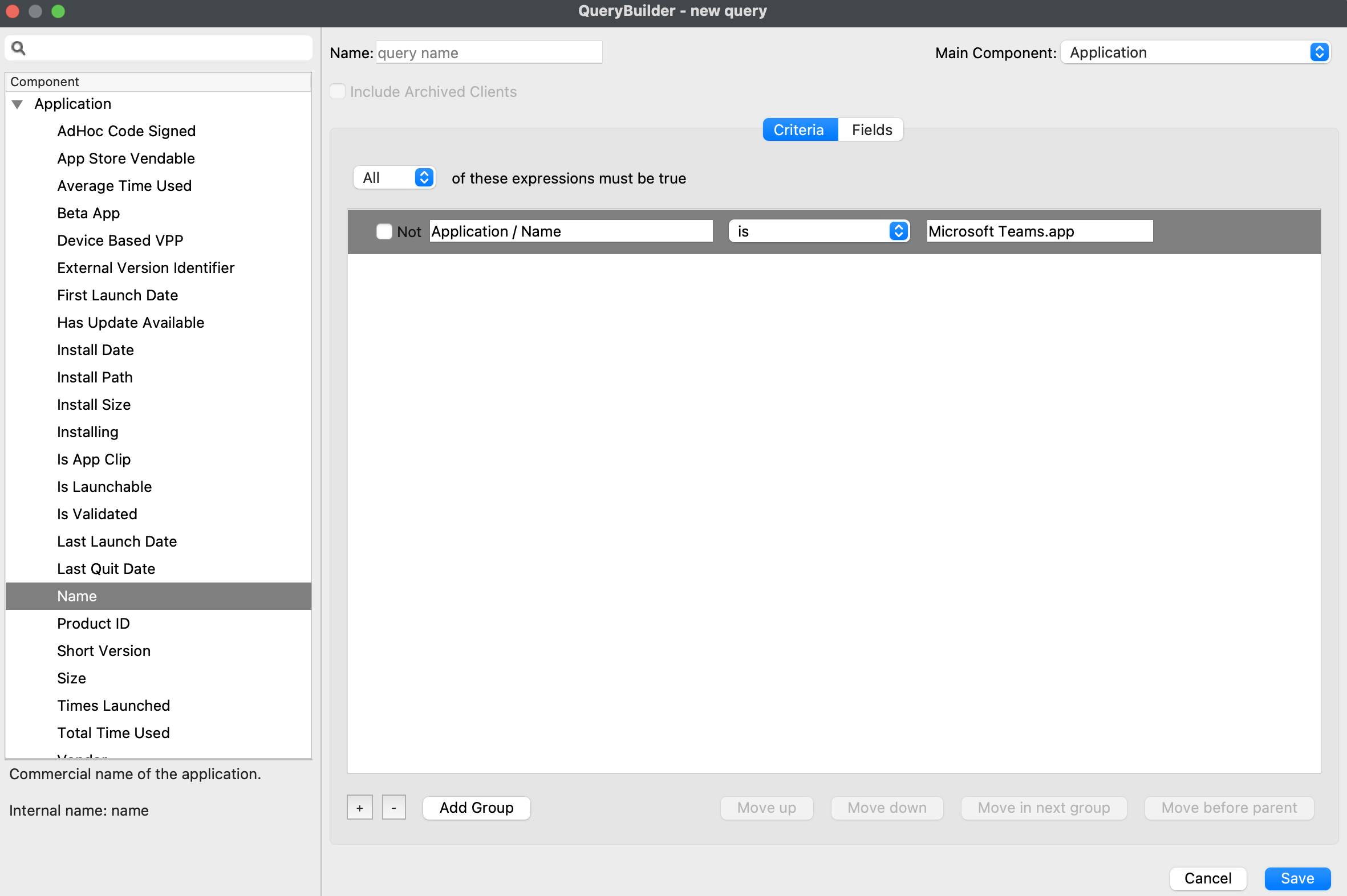
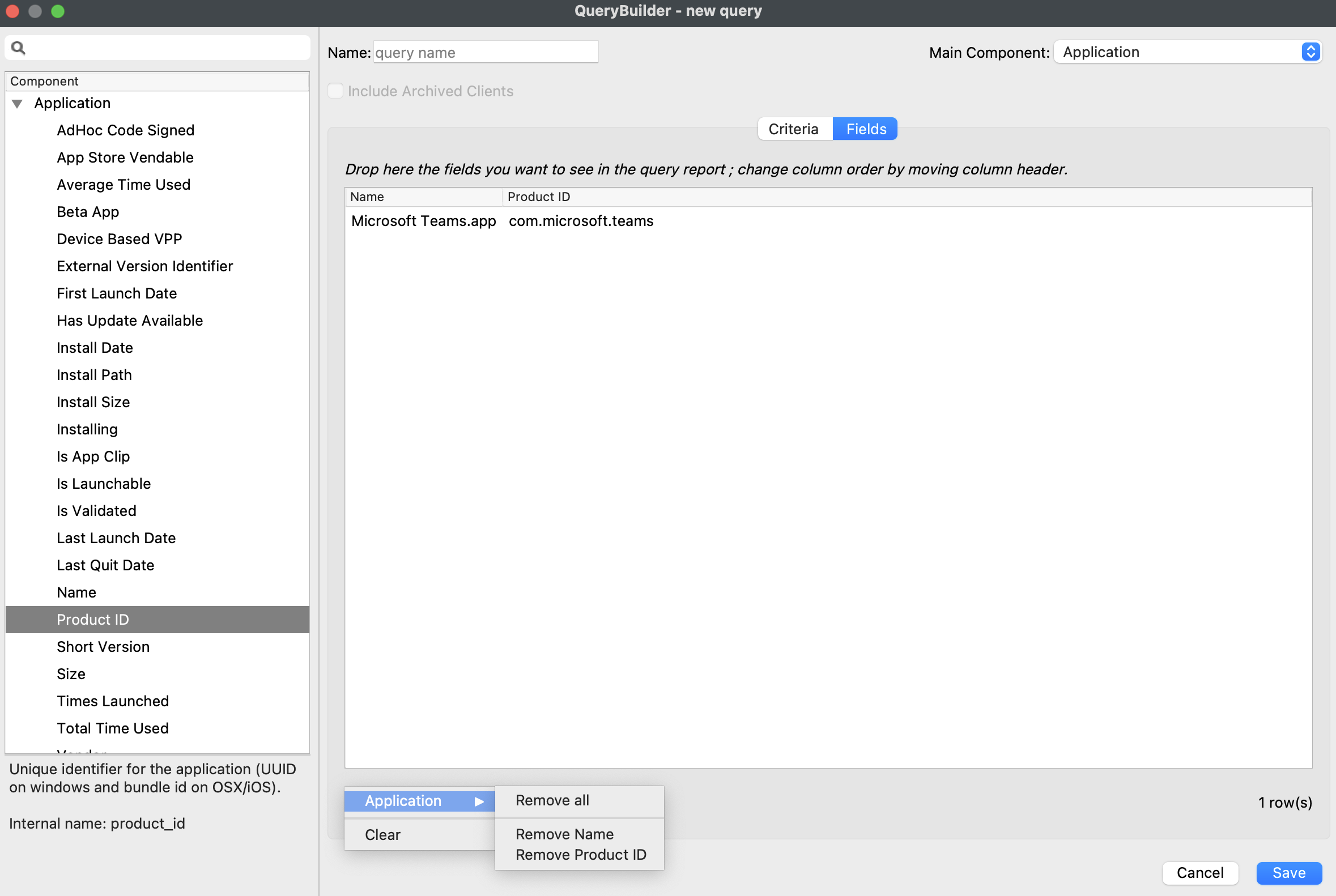
Verify before deployment
- Confirm the bundle ID against inventory from the target platform and app build.
- Deploy the profile to a small pilot group.
- Verify that the intended app receives the setting and that unrelated apps are unchanged.
No comments to display
No comments to display