
ERB Secure Browser Deployment (macOS)
Description
Deploy ERB Secure Browser to the shared /Applications folder on managed Macs so students can launch the same installed application from their own accounts.
This recipe combines an application Fileset template, a Privacy Preferences Policy Control (PPPC) profile, and a postflight script that restores one application configuration attribute. It targets ERB Secure Browser 16.1.11.50; it is not a general repair for every launch failure or “No Internet Connection” message.
Version-specific recipe: Obtain the macOS application approved for your school’s ERB assessment program. The supplied repair script checks for bundle identifier com.testsys.SecureBrowser.ITS and app version 16.1.11.50. Review the installer, configuration attribute, and signing requirements before using another release. Fileset platform selections do not establish ERB’s supported macOS versions.
Ingredients
- FileWave Central access to import Filesets, create a Deployment, and update the Model.
- A pilot Mac with both the FileWave Client and a macOS MDM enrollment that supports device-level PPPC profiles. A Client-only enrollment cannot deliver the required profile.
- The vendor-provided ERB Secure Browser.app, version 16.1.11.50, obtained through your school’s approved ERB download channel. The template below does not contain the application.
- A macOS version supported by both ERB for the intended assessment and the FileWave release in use.
- Profile - ERB Secure Browser.fileset.zip — the supplied PPPC profile Fileset.
- ERBSecureBrowser_16.1.11.50 template.fileset.zip — the placeholder, profile-check requirement script, and configuration-repair postflight script.
| macOS Fileset template |
 |
What the supplied components do
- PPPC profile: The
com.apple.TCC.configuration-profile-policypayload allows this signed application to send AppleEvents to System Events and access the user’s Desktop folder. It does not include Full Disk Access, Accessibility, or Screen Recording permissions and should not be described as granting every permission an assessment might need. check_for_profile.sh: The requirement script looks for the installed profile identifierorg.local.erbsecurebrowser.pppc. If it does not find it, the requirement fails and the application Fileset does not proceed to installation. Keep that identifier aligned if you replace or recreate the supplied profile.fix_xattr.sh: The postflight script targets/Applications/ERB Secure Browser.appby default and restores thecom.apple.application-instanceextended attribute using the value packaged with this recipe. It checks the app’s bundle ID and version first, leaves a differing existing value unchanged with an error, and verifies the value after writing. It does not clear all extended attributes or rewriteInfo.plist.
Directions
Use a pilot Mac first and deploy outside an active assessment. Close ERB Secure Browser before installing or repairing it. No user needs to be logged in for the postflight script, but a student-account launch test is still required afterward.
- Download both Fileset ZIPs above and import them into FileWave Central > Filesets. The profile download is already a FileWave profile Fileset; do not recreate it from scratch merely to import it.
- Open the application template’s Fileset Contents. Add the vendor-provided
ERB Secure Browser.appunder/Applications, not in an individual user’s Applications folder. Remove theERB_placeholderfile after adding the app. - Confirm the final target is exactly
/Applications/ERB Secure Browser.app. Retain the supplied requirement and postflight scripts and their configured execution stages. The screenshot below shows the assembled Fileset, after the app has been added.
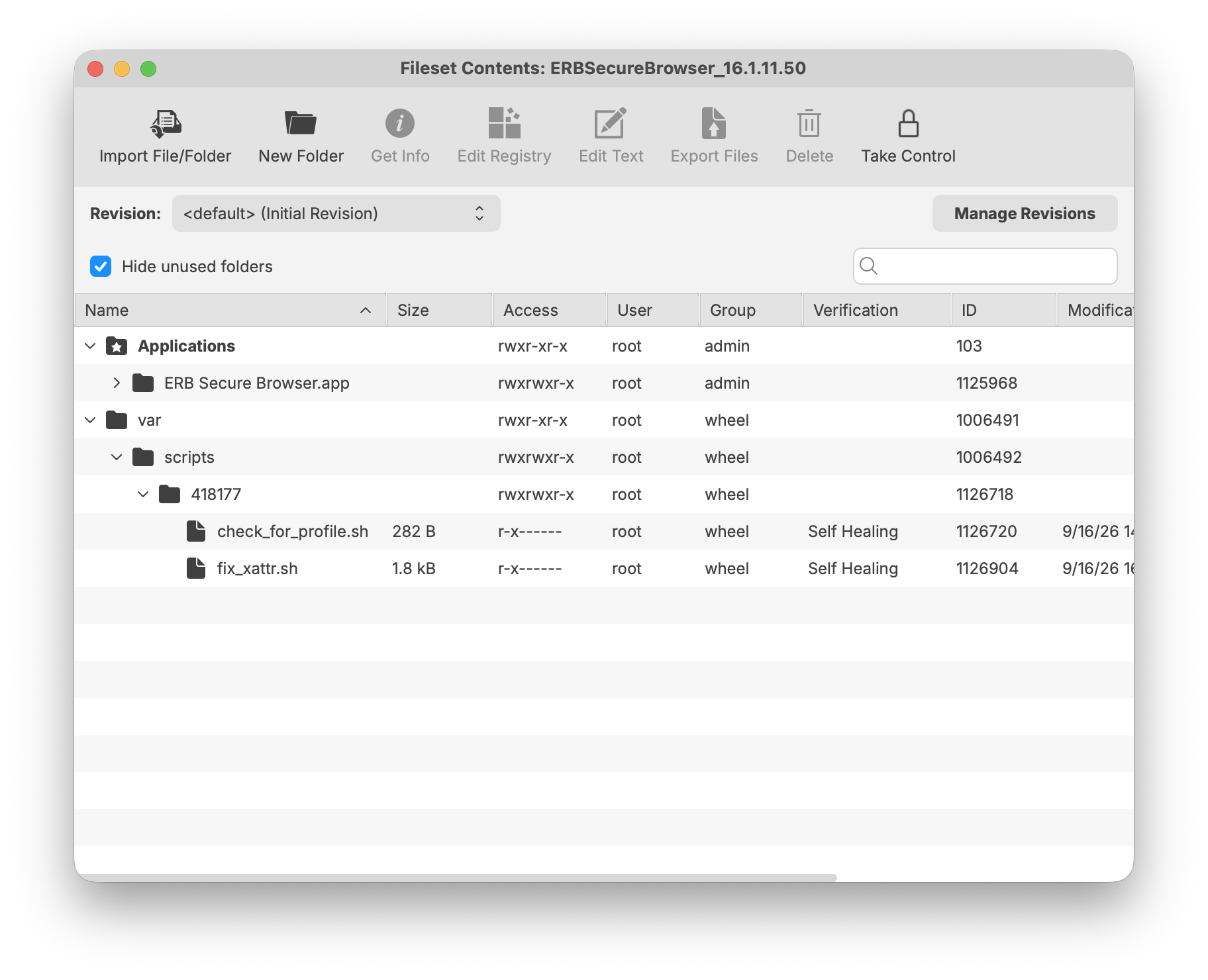
Assembled application Fileset: the app is under Applications, with the profile-check and configuration-repair scripts retained.
- Open the imported profile Fileset and review its PPPC entries. Confirm that the target application identity and signing requirement match the app you obtained. The supplied profile identifies
com.testsys.SecureBrowser.ITS; its code-signing requirement includes Team IdentifierZTC72L7GEN. Compare the complete requirement, not just the team identifier. - Create a Fileset Group named ERB Secure Browser and place the assembled application Fileset and Profile - ERB Secure Browser inside it.

The group contains both components. Group membership alone does not establish installation order; the application’s requirement script checks for the installed profile.
- Create a Deployment for the ERB Fileset Group and target only the pilot Mac or pilot group. Check that both Filesets are included and that the Mac is eligible for the profile.
- Review the pending changes and run Update Model.
- Confirm that the PPPC profile is installed on the pilot Mac, then check the application Fileset’s requirement and installation status. A successful Model Update is not proof that both components have finished installing on the device.
- Complete the pilot checks below before extending the Deployment to the remaining testing Macs.
Verify the pilot before test day
- Confirm the installed application’s path, bundle ID, and version. These read-only commands inspect the installed copy:
Compare the designated signing requirement with the profile; do not grant permissions solely because an app has the expected display name./usr/libexec/PlistBuddy -c 'Print :CFBundleIdentifier' "/Applications/ERB Secure Browser.app/Contents/Info.plist" /usr/libexec/PlistBuddy -c 'Print :CFBundleShortVersionString' "/Applications/ERB Secure Browser.app/Contents/Info.plist" /usr/bin/codesign -dr - "/Applications/ERB Secure Browser.app" - Confirm that
org.local.erbsecurebrowser.pppcis installed and that the application Fileset completed. Check/var/log/fwcld.logforVerified ERB configuration attribute:or a specific repair-script error. - Sign in with a representative standard student account and launch the copy in
/Applications. Verify that the expected automation/Desktop access works and that no unexpected permission prompt interrupts the assessment workflow. - Use the assessment program’s approved practice or readiness procedure on the network students will use. Confirm the browser reaches the correct testing service, can enter the intended assessment workflow, and exits normally. Installation alone is not testing readiness.
Troubleshooting
- Application Fileset is waiting on requirements: Check the Mac’s MDM enrollment and profile status, then confirm the installed profile identifier matches the requirement-script argument. Importing a profile Fileset into Central is not the same as installing it on the Mac.
- App not found, unexpected identity, or wrong version: Check the app name, destination, bundle ID, and
CFBundleShortVersionString. The template’s placeholder is not the application, and the repair is intentionally restricted to 16.1.11.50. - Existing configuration differs: The repair script preserves it for review. Compare the app and configuration with the school’s approved vendor download rather than deleting the attribute or forcing an overwrite.
- Permission prompts remain: Verify the profile is installed, confirm the app’s signing identity matches it, and check for a conflicting, more restrictive PPPC policy. The supplied profile covers only System Events automation and Desktop-folder access.
- “No Internet Connection” remains: Confirm the configuration-repair result, then investigate connectivity, filtering, proxy settings, and the assessment program’s current network requirements. The message alone does not prove that the app metadata or PPPC profile is the cause.
Notes
- The shared Applications folder serves all users; no user needs to be logged in for the repair script.
- The repair script is specific to 16.1.11.50 and preserves differing existing configuration for review.
- The PPPC profile identifies the app by bundle ID and code-signing requirement, not display name.
- Recheck vendor OS support, app configuration metadata, signing requirements, and the pilot result before deploying future versions. Do not assume a version-name change is the only update needed.
Related Content
- ERB website — obtain the assessment-specific browser through your school’s approved ERB access. Avoid sharing a download-portal URL that contains another user’s session parameters.
- FileWave: macOS Software and Profiles
- FileWave: Fileset Scripts Overview
- Apple: Privacy Preferences Policy Control payload settings
No comments to display
No comments to display