
2.3 Dashboard Widget and Panel Elements
What
Every FileWave dashboard panel, also called a widget, is built from the same basic elements. This article explains what each element controls before you create a custom panel.
When/Why
You can use an existing panel without changing these elements. When you build or troubleshoot a custom panel, they determine its data, display, and general behavior.
How
To create or change a panel, your administrator account needs Dashboard Read-Write Access. If you only need to view a dashboard, Read-Only Access is sufficient. Start with Creating Your Own Dashboard if you do not yet have a custom dashboard. A dashboard panel has three main elements:
- The Query (Choosing what data you want to see in the panel)
- The Visualization (Choosing the visual representation of the data: gauge, bar chart, table...)
- General (Panel properties such as title, comment, links)
The examples below show each element in the panel editor:
|
The Query |
|
|
|
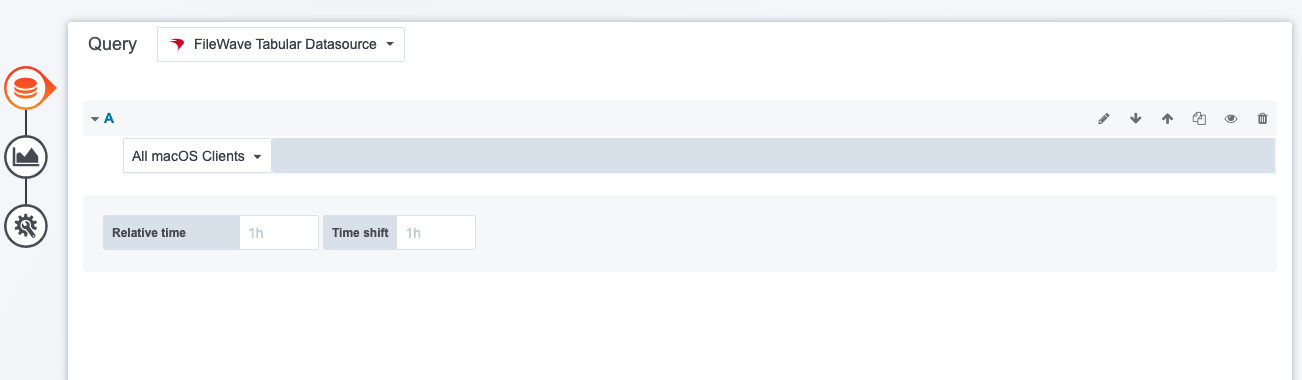
The query defines the data available to the panel. This example uses an inventory query. For a panel based on a FileWave Inventory Report, first confirm that the report returns the devices and columns you need. The existing-report panel walkthrough uses FileWave Tabular Datasource to display those rows; it does not aggregate them into totals. |
|
The Visualization |
|
|
|
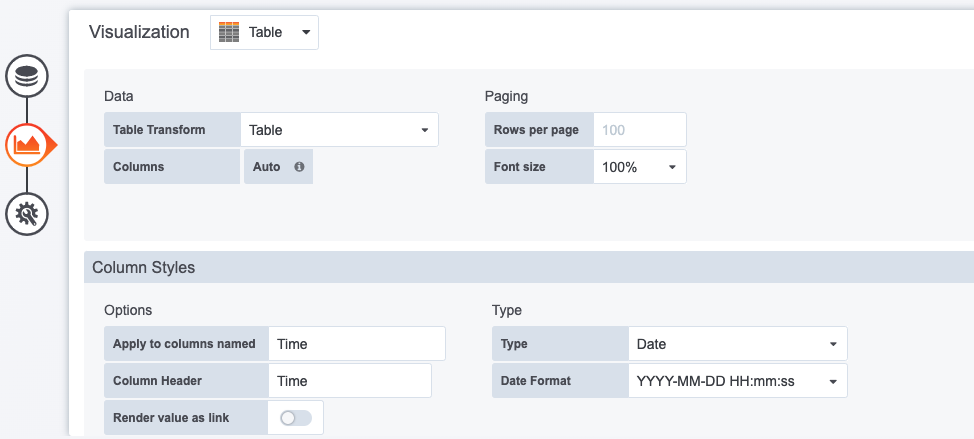
An inventory query returns table-shaped data, so this example uses a table visualization. Other data sources can support gauges, charts, and graphs. If you are troubleshooting a copied panel that is blank, check its dashboard variables and data source rather than assuming that changing the visualization will restore the data. |
|
General |
|
|
|
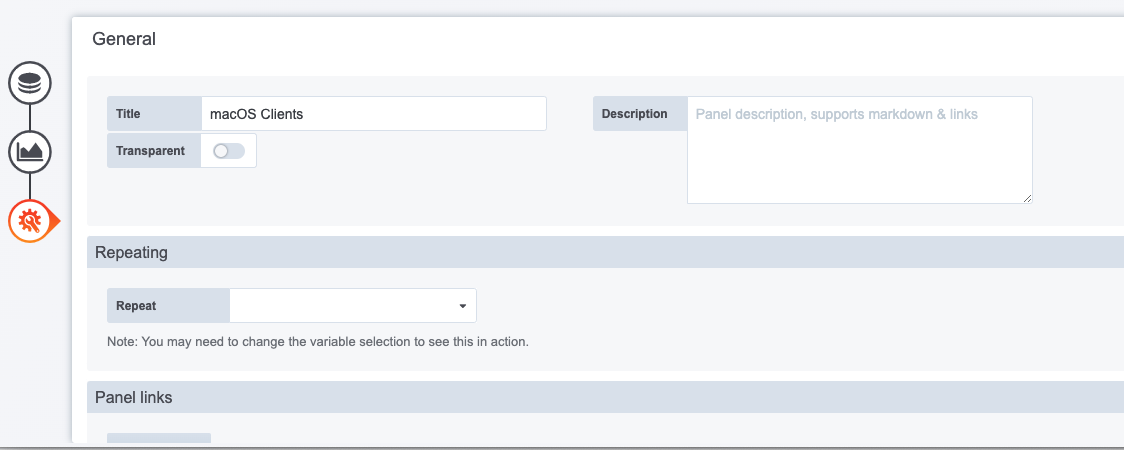
This example sets only the panel name. You can also add a link that opens the related FileWave report, giving dashboard users a direct path to the underlying device data. |
No comments to display
No comments to display