
Custom Grafana Dashboard - YML Files not being processed
What
A custom Grafana dashboard may stop processing data from YML files after the FileWave API key is regenerated. When the scrape still uses the old bearer_token_file, Prometheus cannot authenticate to the FileWave endpoint and Grafana receives no new data from that target.
When/Why
When you use 3.1.2 Testing the Prometheus Scrape while setting up a custom Dashboard with a YML file, the targets may show “DOWN,” as shown below. The screenshot shows server returned HTTP status 401 Unauthorized in the Error column. Check that error and whether the API key was recently changed before using the repair below. A DOWN state alone does not identify the cause; a missing target or a different scrape error needs the corresponding configuration or connectivity check.
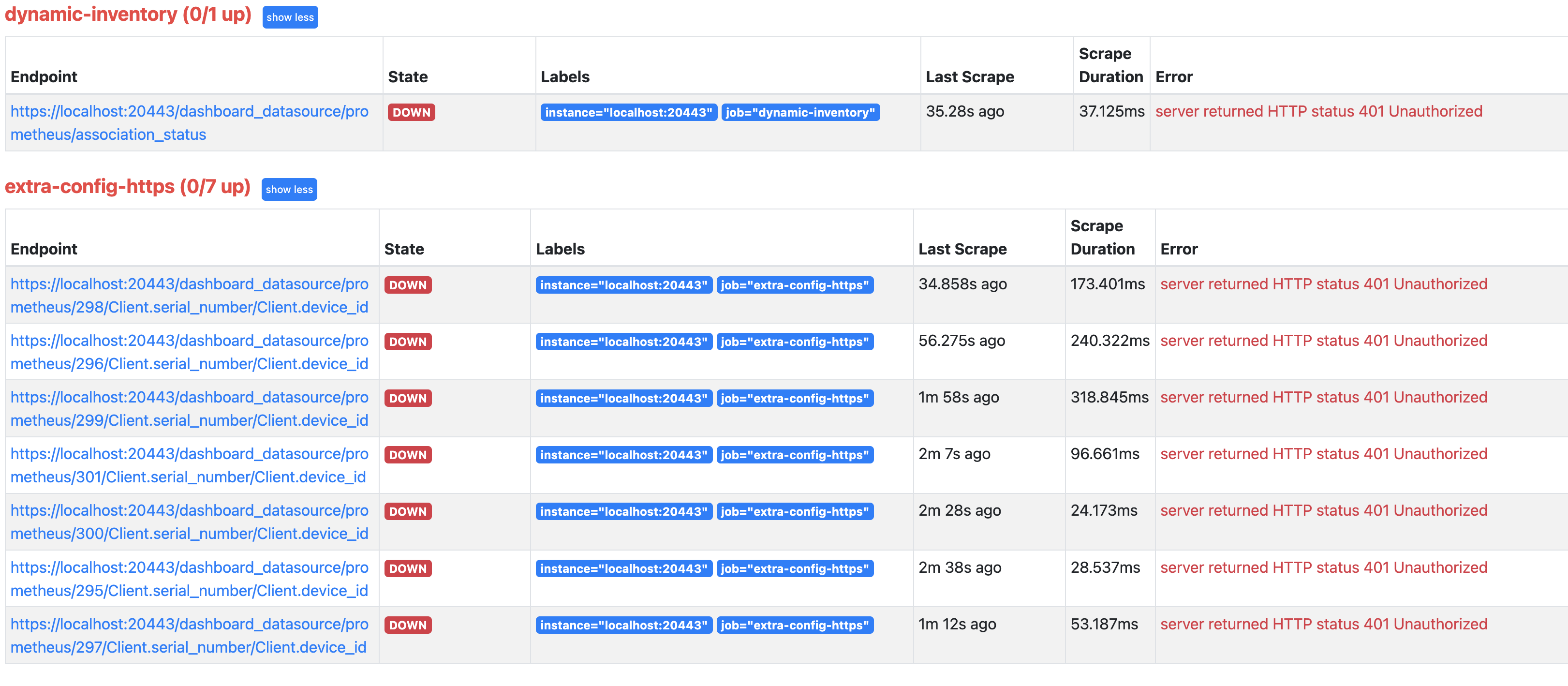
How
To fix this, SSH to the FileWave Server and remove bearer_token_file. Restart FileWave Server so it regenerates the file with the current API key. Hosted customers should contact FileWave Support; support often handles custom YML uploads and can remove the file for you.
rm /usr/local/etc/filewave/prometheus/conf.d/bearer_token_file
/usr/local/bin/fwcontrol server restart
After the Server restarts, return to the Prometheus targets page using the linked scrape-testing procedure. Wait for a new scrape and confirm that the affected target is UP and no longer reports the authentication error. Then check the Grafana panel and compare its result with the source Inventory Report. If the error persists, record the target, error, and last-scrape time for FileWave Support rather than repeatedly deleting the token file.
No comments to display
No comments to display