
TeamViewer: Chrome OS Session Overview
What
This article shows what the user and technician see after a TeamViewer session is started for a prepared ChromeOS device.
ChromeOS sessions are attended screen sharing. The user must approve sharing. TeamViewer does not officially support keyboard and mouse control or unattended access on ChromeOS.
Before you start
Complete TeamViewer: Chrome OS Client Setup, confirm the current FileWave Inventory Extension and TeamViewer QuickSupport app are present, and ask the user to keep the Chromebook browser open.
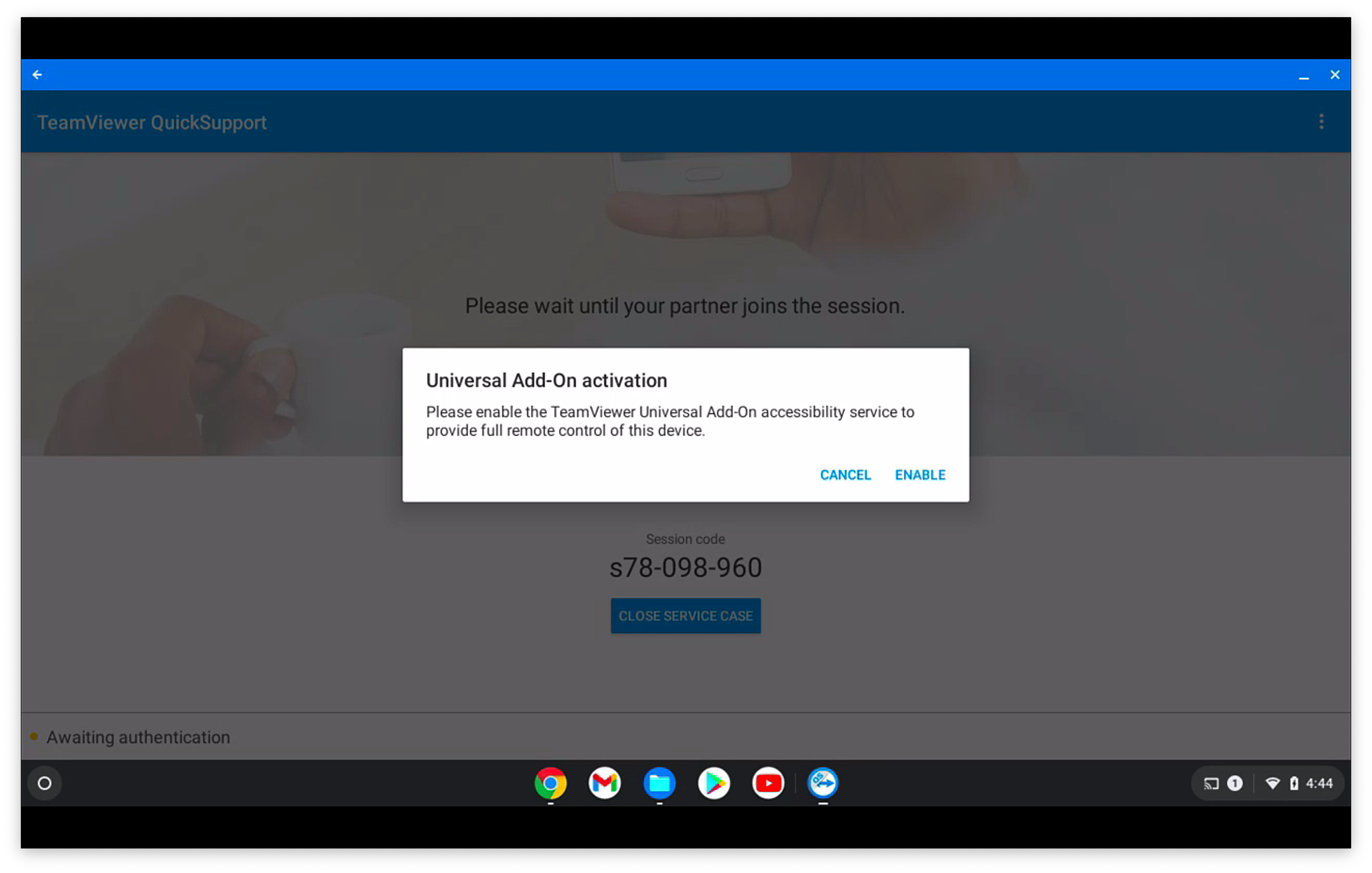
Screenshot note: These screenshots show an older QuickSupport interface. One screenshot includes TeamViewer’s Universal add-on, an Android component intended to enable remote control on certain Android devices. It does not enable supported remote control on ChromeOS. For Chromebooks, deploy QuickSupport only; technicians can view the screen, while the user performs all clicks and typing.
Session behavior
After the Chromebook receives the session request, the FileWave Inventory Extension opens the browser workflow. The browser must already be open.
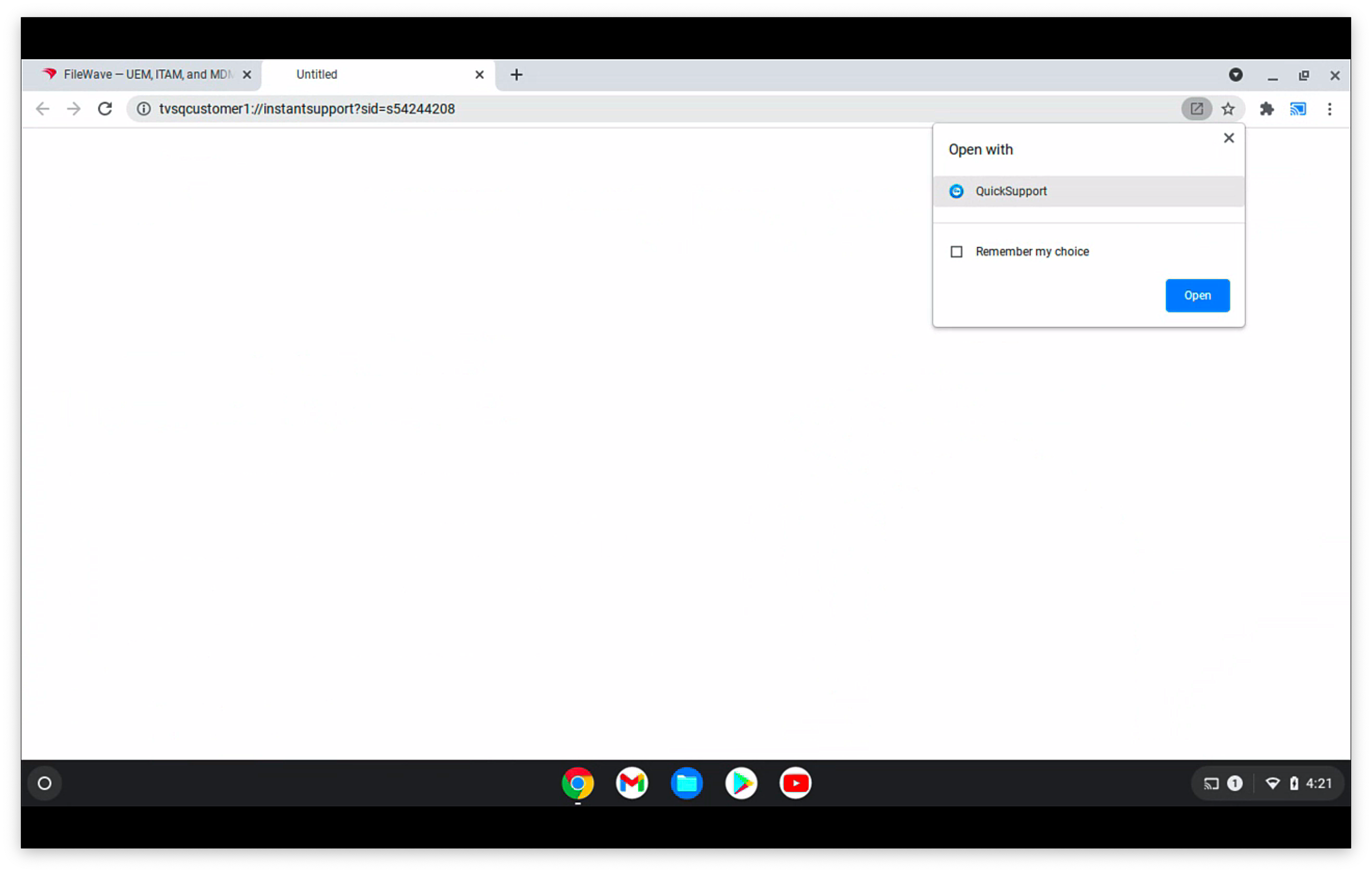
On first launch, QuickSupport may ask the user to accept TeamViewer's terms and complete app-access prompts. Prompt wording can vary by QuickSupport and ChromeOS version.
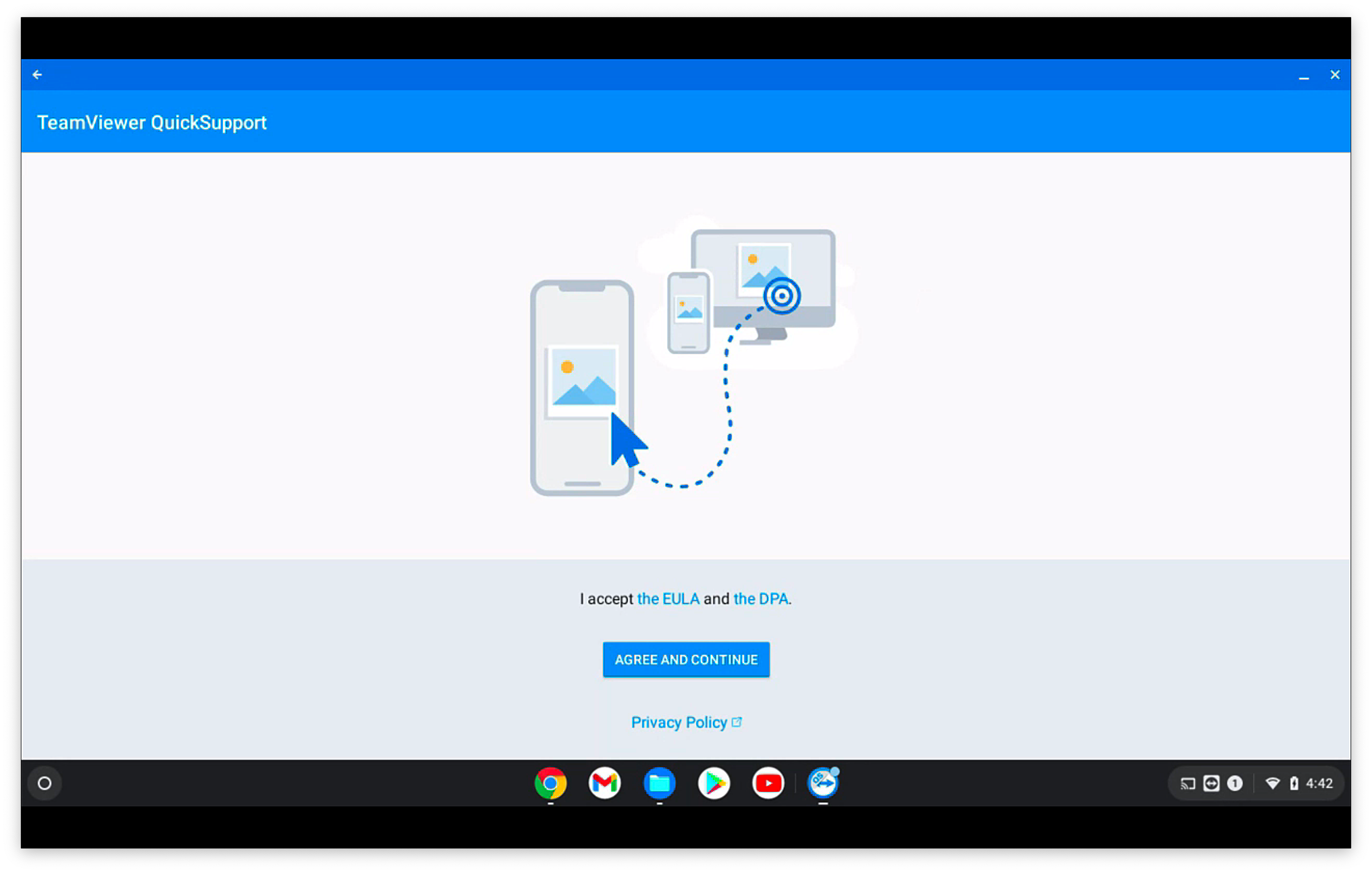
QuickSupport opens the client-side session.
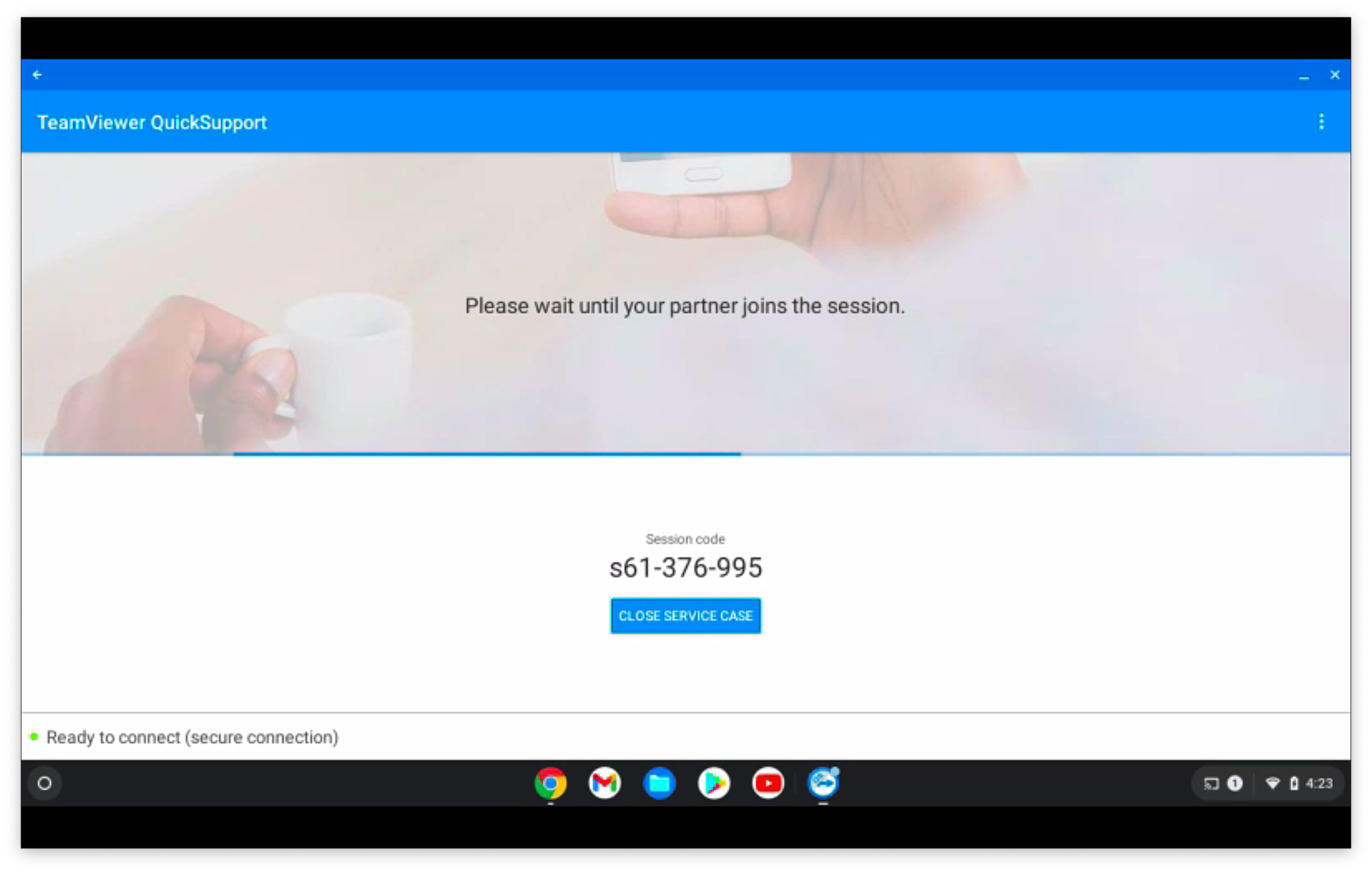
The user approves the attended session while the technician's TeamViewer application is running.
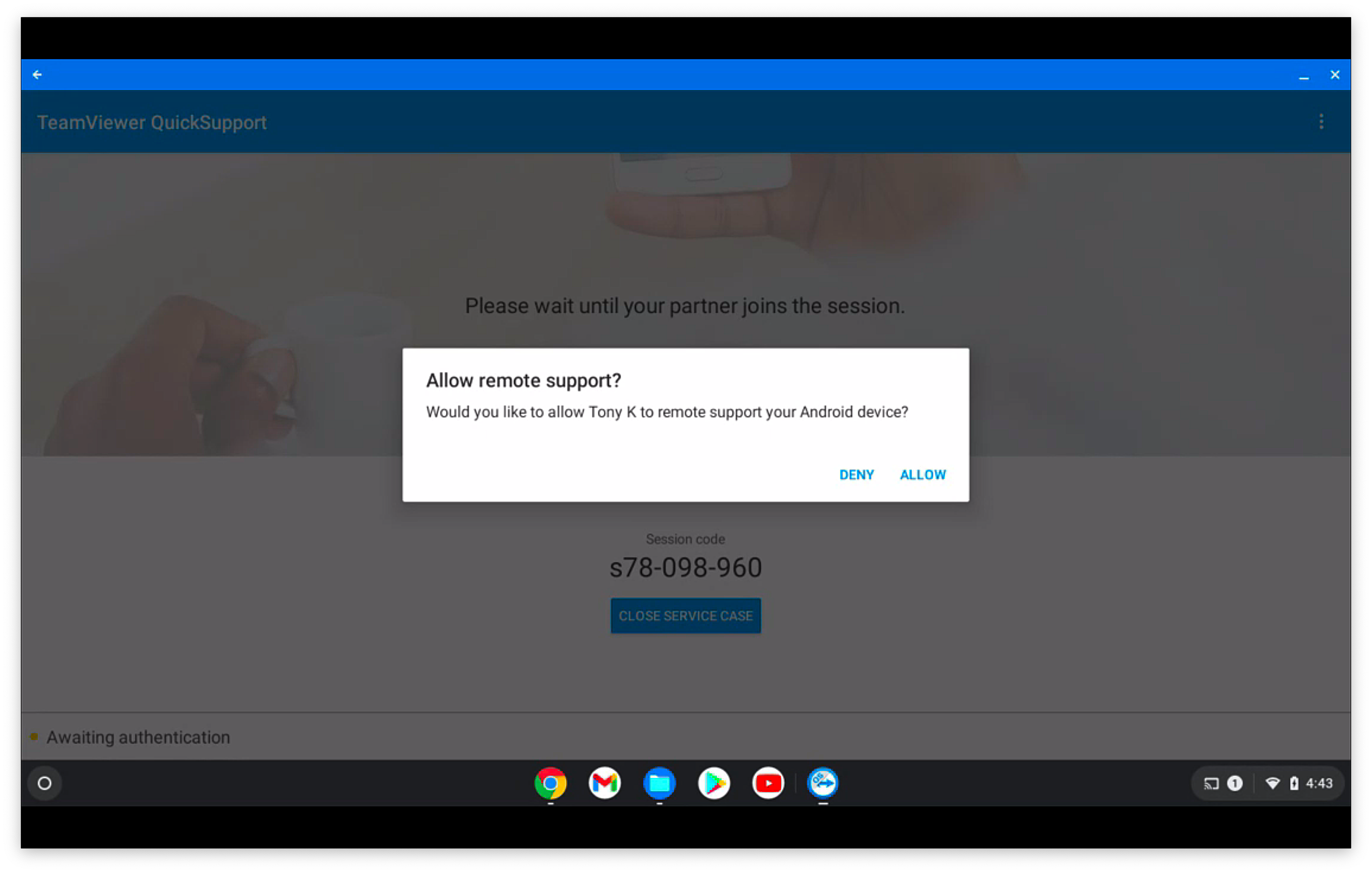
Historical prompt: Older QuickSupport versions could display the add-on prompt shown below. It is not part of the current supported ChromeOS screen-sharing path and does not provide supported device control.
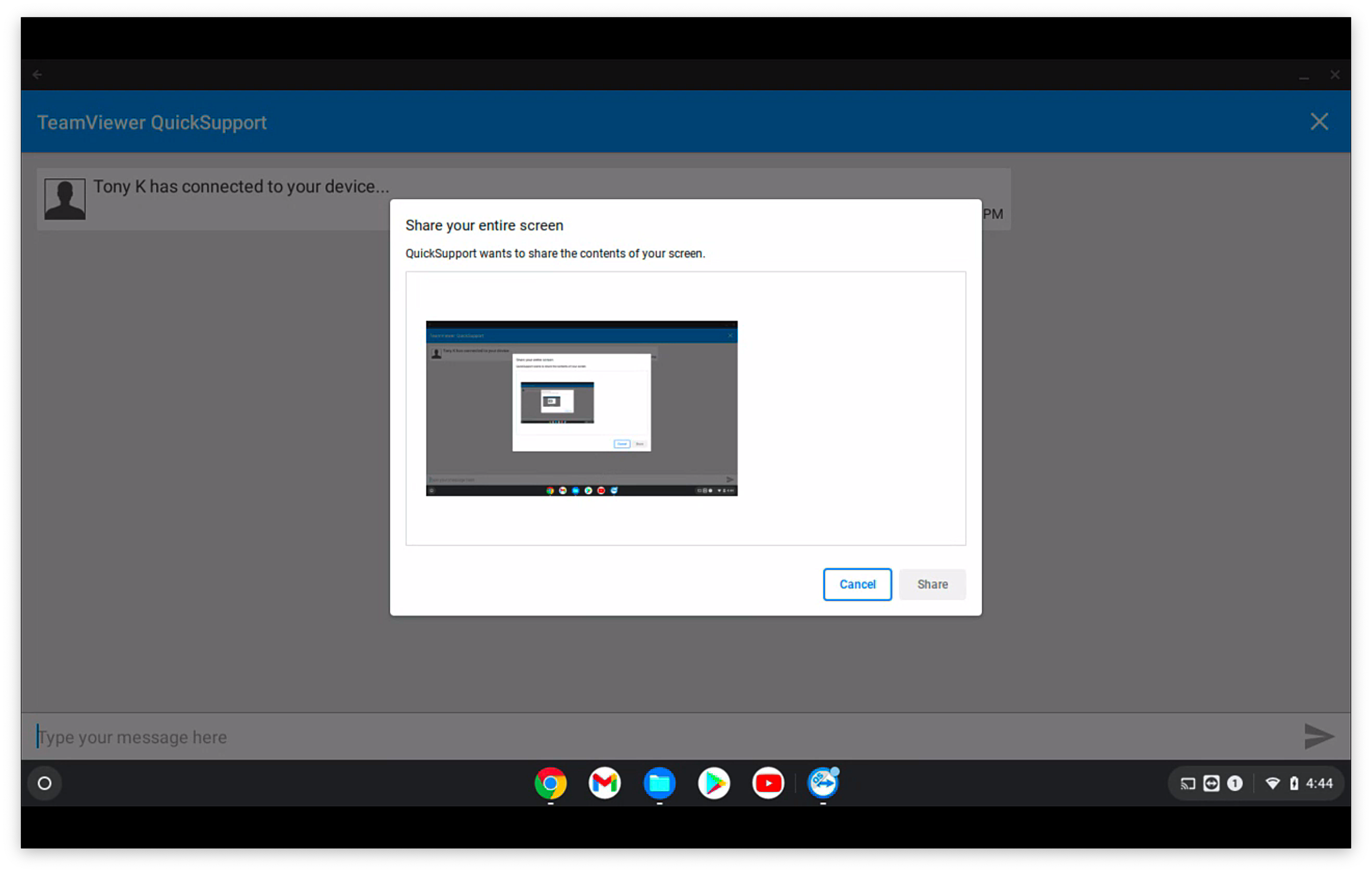
The user explicitly selects the screen image and allows screen sharing.
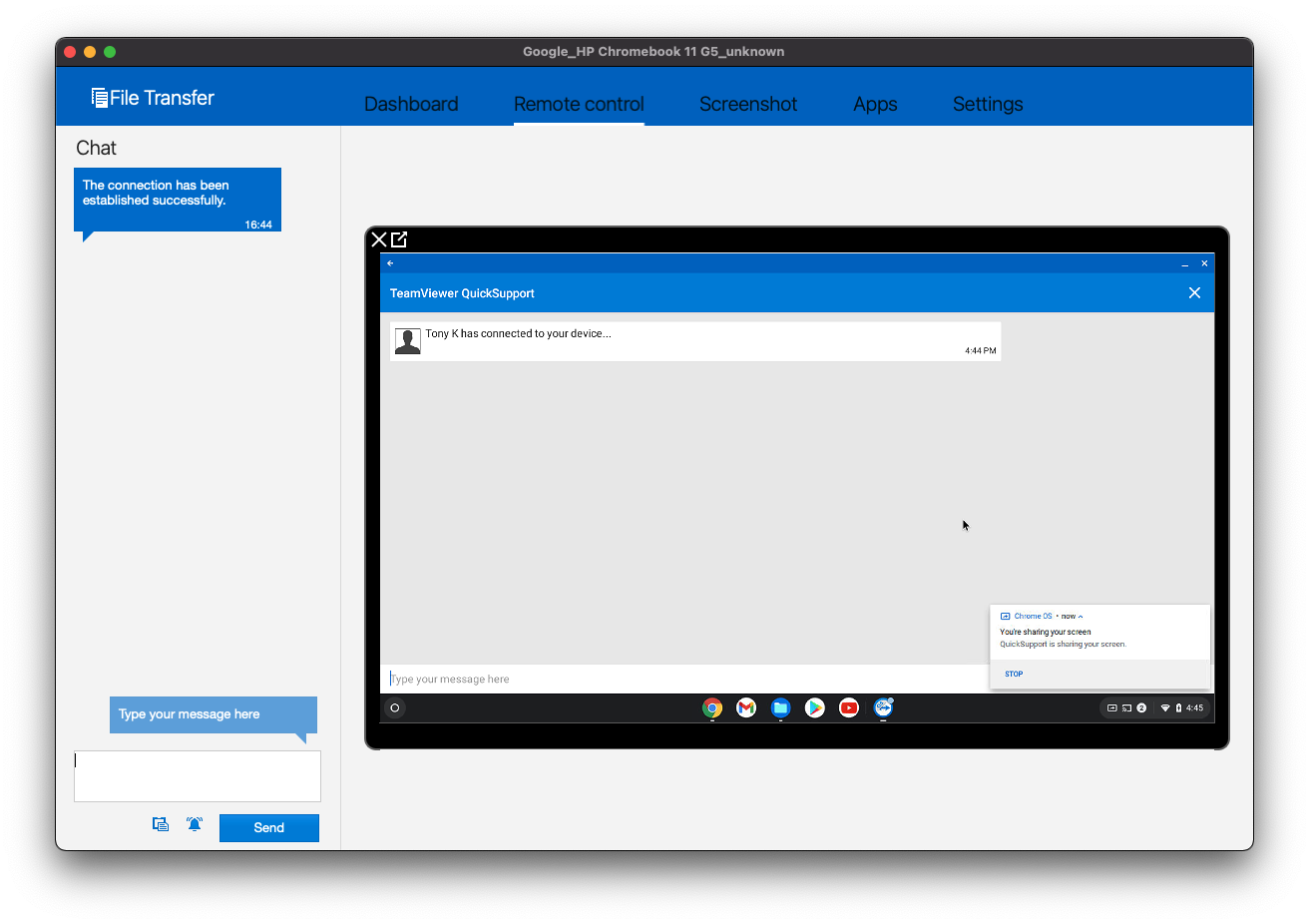
The technician can now view the Chromebook screen in TeamViewer and guide the user through troubleshooting.
Troubleshooting
- If no browser workflow opens, confirm the current FileWave Inventory Extension is assigned, active, and reporting from the Chromebook.
- If QuickSupport does not start, confirm the Android app is approved for the device's organizational unit and the Chromebook model supports Android apps.
- If the technician cannot see the screen, ask the user to return to QuickSupport and approve the attended session and screen-sharing prompt.
- Do not troubleshoot missing keyboard or mouse control as a failed setup; that capability is not officially supported on ChromeOS.
No comments to display
No comments to display